When playing back a movie disc in the BD/DVD Movie section of the Media Library tab, the playback controls display as follows:

Note: the below table includes the hotkey for each specific button on the playback controls, if available. For a complete list of all the hotkeys in PowerDVD and the corresponding behavior, see PowerDVD Hotkeys. |
|
Icon |
Button |
Hotkey |
Description |
A |
|
Elapsed time |
|
Displays the time elapsed for the current movie. Hover your mouse over it to reveal two buttons that let you jump backward and forward in the movie. Click
If you have a touch enabled display, you can also use Gesture Controls to skip forward or backward during movie playback. |
B |
|
Navigational slider |
|
Visually displays elapsed playback time. Click along the navigational slider to jump to different moments in the movie, or click and drag it to use Instant Seek to quickly browse and find specific scenes in your movie. Hover your mouse over the slider to use Instant Thumbnails to quickly find scenes you previously viewed during DVD playback. |
C |
|
Access DVD menu controls/Pop-up menu (Blu-ray* playback only) |
M |
During DVD playback, this button provides quick access to the title and root menus on the DVD. See Accessing Disc Menus in PowerDVD for more information. During Blu-ray Disc* playback, the pop-up menu button displays here.
Click |
D |
|
Rewind/Step backward (when paused) |
[ |
During playback click this button to reverse through content and access the Play Speed Navigator. When playback is paused, use the |
E |
|
Stop |
S |
Stops playback of media. |
F |
|
Next |
N |
Jumps to the next chapter on the movie disc. |
G |
|
Mute/Volume adjustment |
Q / + and - |
Click to mute the volume; click again to turn mute off. To manually adjust the volume, hover your mouse over this button and then use the slider to increase or decrease the volume. |
H |
|
|
When watching 2:35:1 Blu-ray movies on an ultra wide 21:9 monitor, click this button to crop out the black areas on all four sides of the video for a better fit.
Click |
|
I |
|
PowerDVD settings menu |
|
Opens the PowerDVD settings menu, where you can access player settings and PowerDVD preferences. See PowerDVD Settings - Player Settings and PowerDVD Settings - Preferences for more information. |
J |
|
Movie duration/Remaining time |
|
Click to toggle between movie duration and remaining playback time. |
K |
|
Go to full screen |
Z |
Click to enter full screen mode. |
L |
|
Enter VR mode/ Enable 3D* |
|
Click to enter PowerDVD VR Mode, enable 3D video playback, and more. |
M |
|
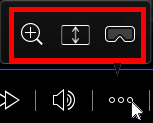
Zoom |
Ctrl+mouse wheel** |
Hover your mouse over this button, and then use the slider to use Instant Zoom to digitally zoom in or out on a DVD movie's video image (note: this feature is not available during Blu-ray Disc playback). When zoomed in, you can click and drag on the video image to view different areas of the image. ** note that this hotkey can be modified in settings, so the behavior may differ. If you have a touch enabled display, you can also use Gesture Controls to digitally zoom in or out on the video image.
Note: this feature is not supported on videos that have a resolution greater than 3300 X 1900, or when the output display is greater than 3300 X 1900. |
N |
|
Fast forward/Step forward (when paused) |
] |
During playback click this button to fast forward through content and access the Play Speed Navigator. When playback is paused, use the |
O |
|
Play/Pause |
Space bar |
Plays and pauses media playback. |
P |
|
Previous |
P |
Returns to the previous chapter on the movie disc. |
Q |
|
Media playback menu |
|
During playback, this button provides access to the media playback menu. See Media Playback Menu. |
R |
|
TrueTheater effects |
|
Provides access to the TrueTheater video effect controls. See TrueTheater Effects. |
S |
|
Return to previous window |
Backspace |
Click to stop playback and return to the media library. |
|
|
More buttons |
|
When the CyberLink PowerDVD UI and playback controls are reduced in size, the more button displays. Just click it to reveal buttons that are hidden to accommodate the reduced program window size. See Playing Movies in the Mini Player for more information about the UI and controls available. |
|
|
Restore from full screen |
Z / Esc |
Click to exit full screen mode. |
|
|
Eject disc |
Ctrl+E |
When playback is stopped, this button is displayed. Click it to eject the disc in the selected disc drive. |


 or press M on your keyboard to display the pop-up menu over the disc content.
 button to step backward.


 button to go to the next frame of video.




Note: * this feature is not available in some editions of CyberLink PowerDVD 18. |