Viewing and Managing Imported Videos |
Click Media Library > Videos to browse through the video files in your media library. To change the browsing view, just click on one of the following tabs:
•Folders: displays the videos in folders. Click the left down arrow in the top right of the window to sort the folders by Title or Date. You can also choose one of the following display modes:  - displays videos and their folders as thumbnails;
  - displays videos and their folders in a list.
•Calendar: displays videos in a calendar. Providing a timeline for your media, just double click on a date to view all the videos that were shot on that day. Click on a year at the top of the window to view videos from a different year. Click  to view any videos that were created on today's date.
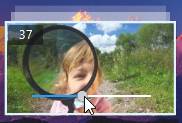
When browsing through the folders on the Videos tabs in folder view, you can hover your mouse over a folder thumbnail to use Instant View to preview all the videos inside by dragging the slider that appears.


To view the videos in a folder, just double-click on it (or right click on it for more options).
Video folders and files with the  icon have been shared on a local home network. Click the icon to Unshare from Local Home Network or View on Home Network Tab. The
  icon indicates that the video folders/files were shared on CyberLink Cloud. Click the icon to View in Browser or View on CyberLink Cloud Tab.
Note: when browsing through videos in a folder, right click on one and then select Set as Cover to set it as the thumbnail cover image for its folder. |
If the orientation of a video clip is incorrect, you can right click on it and select Rotate Left or Rotate Right to fix it.
Right click on a video clip and then select Trim and Convert if you'd like to trim and convert it to an MP4 or audio file. See Trim and Convert for more information. Select Extract Audio if you want to extract the audio from the video clip . See Extracting Audio from Video for more information.
If you'd like to remove a video file from the media library (but not from your computer's hard drive), just right click on it and select Remove from Library. Click Delete from Disk if you want to remove it from the library and delete it from your computer's hard drive. Right-click on a video thumbnail in the media window and then select Locate on Disk to view the folder where the file is located in Windows Explorer.