Click on the My Computer tab to view all of the folders on your computer's hard drive, and any connected USB devices, network drives, and installed cloud storage services. This tab mirrors the view seen when you click on Computer in Windows Explorer, including the default Windows library shortcuts. This lets you access and play back any media that you did not import into the media library.
Note: CyberLink PowerDVD supports the Dropbox, Google Drive, and OneDrive cloud storage services. Make sure the cloud storage service's desktop app is installed, running, synced, and enabled in preferences. |
Resuming From Last Scene of Videos Not in the Media Library
When you play video files via the My Computer tab, or using the Play with CyberLink PowerDVD 18 in the Windows right-click menu, you can resume playback from the last scene you watched the next time PowerDVD is launched. To do this, just hover your mouse over the video's thumbnail in CyberLink PowerDVD.
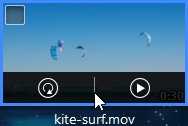
Click  to play it back from the beginning, or
  to play it from the last scene you viewed.