You can browse through photos and videos in the media window in one of three views. To change the view, just click the down arrow in the top right of the window and select the one you want to use.
Note: if you are not seeing the latest photos and video files in the media library, just click |

•List view: displays photos, videos, and their folders in a list, which is easily sortable by clicking on the list headings.
•Folder view: displays photos, videos, and their folders as thumbnails, which can be resized.
•Calendar view: displays photos and videos in a calendar. Providing a timeline for your media, just double click on a date to view all the photos and videos that were shot on that day.
Note: use the zoom slider on the playback controls or Gesture Controls to change the calendar view to show more than one month, or click on a year at the top of the window to view media from a different year. Click |

When browsing through the media folders on the Photos and Videos tabs in folder view, you can hover your mouse over a folder thumbnail to use Instant View to preview all the media inside by dragging the slider that appears.

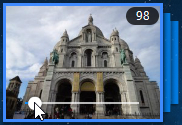
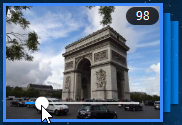
To view the photos or videos in a folder, just double-click on it (or right click on it for more options).
Note: when viewing a single photo, click |
 to view the instant photo thumbnails for all the photos in the current folder. Right-click on the photo while viewing it and then select
 To play videos, or to view the photos in a folder in a slideshow, just select them in the media window and then click the play button.
Note: when browsing through photos and videos in a folder, right click on one and then select Set as Cover to set it as the thumbnail cover image for its folder. |
Right-click on a video or photo thumbnail in the media window and then select Locate on Disk to view the folder where the file is located in Windows Explorer. If you'd like to remove a media file from the media library (but not from your computer's hard drive), just right click on it and select Remove from Library. Click Delete from Disk if you want to remove it from the library and delete it from your computer's hard drive.
Note: use the zoom slider on the playback controls to use Instant Scale to dynamically resize the folder and media thumbnails to a desired size. |
For more information on playing videos and photo slideshows, see Playing Media in PowerDVD.