


search cyberlink website user log-in change language
PowerDirector 365 app icon

PowerDirector 365

Powerful Video Editing

Get it on Google Play
PowerDirector 365 PCMag Editors' Choice: PowerDirector, rated 5.0 out of 5, Exemplary
Best Overall, 2026

5.0 Exemplary, PCMag

AI Image to Video: Turn Photos into Videos

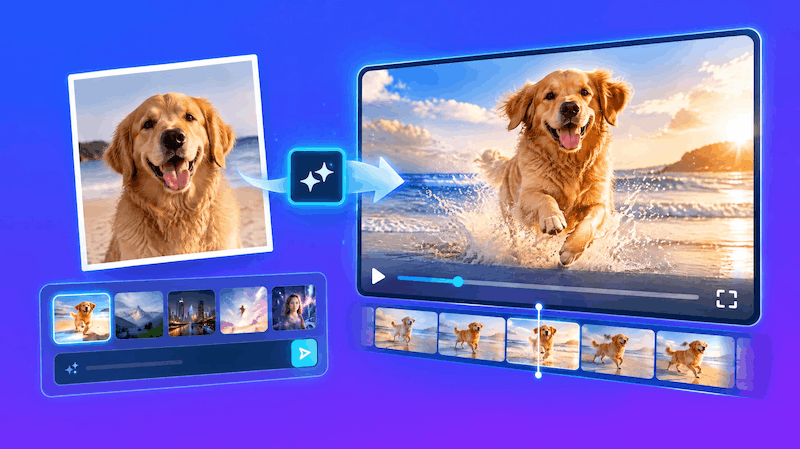
Animate photos with natural motion, depth, and matching sound, then edit the clip in PowerDirector. Start from a template or write a prompt.

AI Image to Video: Turn Photos into Videos

What You Can Do with AI Image to Video

One Photo, Hundreds of Ways to Move

One Photo, Hundreds of Ways to Move

Browse hundreds of templates by mood and occasion, from Pet and Birthday to Halloween, Christmas, and Figurine. Pick one and AI does the rest: your cat leaps out of the frame in Pet Burst, you grow angel wings in Golden Wing, or you throw down a slam dunk in Air Dunk.

Free Download 
Describe a Scene No Template Covers

Describe a Scene No Template Covers

Have something specific in mind? Switch to Image + Text and describe the motion in your own words, like “the dog shakes off water in slow motion.” Then choose a popular AI model like Kling or Seedance, set the clip length and resolution, and click Generate.

Free Download 
Turn a Fun Clip into a Full Video

Turn a Fun Clip into a Full Video

A short clip is just the start. Send it to the PowerDirector timeline and build a birthday montage, a holiday greeting, or a pet reel with your own footage, titles, music, and transitions. Pick 9:16 for Reels, Shorts, and TikTok, or 16:9 for YouTube.

Free Download 

How to Animate a Photo with AI in PowerDirector

How to Animate a Photo with AI in PowerDirector

Step 1 - Upload Your Image

Open PowerDirector, go to GenAI in the menu, and select Image to Video. Pick an AI template, or use your image plus a text prompt, then import the photo you want to animate.

Step 2 - Set the Motion

Pick a template that fits your photo, or describe the movement in a prompt and choose an AI model. Then set the clip length.

Step 3 - Generate and Edit

Click Generate and preview the result. Download the video, or add it to your timeline to trim it, add music or titles, and export.

AI Image to Video FAQ

AI Image to Video is a generative AI tool in PowerDirector for PC that turns a still photo into a short video clip. Start from a ready-made template, or write a prompt to set the motion, mood, and style yourself. Download the clip or keep editing it on your timeline.

Yes. Download PowerDirector for free and try AI Image to Video on your own photos. Upgrade to Premium for full access to the feature, plus high-resolution exports with no watermark on your AI videos.

Yes. Check Generate sound before you click Generate, and AI adds sound effects and music that match what's happening in your clip. You can also replace the audio later on your timeline with your own music, a voiceover, or other sound effects.

It depends on how you create. With an AI template, choose a 5- or 10-second clip. When you pick an AI model yourself, clips can run up to 30 seconds, depending on the model. For a longer video, generate several clips and join them on the PowerDirector timeline.

You can choose from popular AI video models like Gemini, Kling, Seedance, and Wan, with more in the app. Each has its own strength: Kling handles long, action-packed scenes, Seedance keeps fine details steady in motion, and Wan keeps faces consistent. New models are added over time.