
search cyberlink website user log-in change language
PowerDirector 365 app icon

PowerDirector 365

Powerful Video Editing

Get it on Google Play Download on the App Store
PowerDirector 365 PCMag Editors' Choice: PowerDirector, rated 5.0 out of 5, Exemplary
Best Overall, 2026

5.0 Exemplary, PCMag

AI Motion Tracking
That Follows Any Object

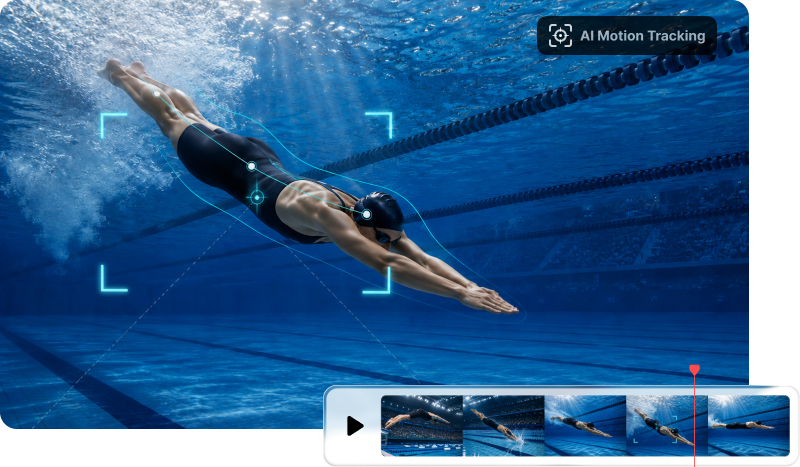
Auto-track any moving object and attach text, graphics, or effects that follow it. Fine-tune the tracking frame by frame for precise results.

AI Motion Tracking That Follows Any Object

What You Can Do with AI Motion Tracking

Automatic Tracking with Frame-Perfect Control

Automatic Tracking with Frame-Perfect Control

Mark your subject once and AI maps its path across every frame, so there is no manual keyframing to do. When a shot gets tricky, switch to single-frame mode and nudge the tracker by hand. Your text and effects stay locked on even when the subject moves fast or briefly slips behind something.

Free Download 
Pin Text, Graphics, and Effects to Moving Subjects

Pin Text, Graphics, and Effects to Moving Subjects

Attach a title, name tag, sticker, or spotlight effect that follows your subject. Want to hide something? Apply a mosaic or blur to a moving face or license plate, and it will track automatically. Perfect for adding captions to vlogs or covering up license plates in street footage.

Free Download 
Track Multiple Objects in One Clip

Track Multiple Objects in One Clip

Follow more than one subject at the same time. Add a separate tracker for each person or object on screen, and give every tracker its own caption or effect. This helps when you need to label two players in a sports clip, or tag several people in a group scene as they move around.

Free Download 

How to Motion Track a Video in PowerDirector

How to Motion Track a Video in PowerDirector

Step 1- Upload Your Overlay

Upload the effect, text, or sticker you want to overlay on your video, then place it on the track right below the clip you want to track.

Step 2 - Track Your Object

Select the overlay you added and click "Edit", then open the "Tracking" tab. Adjust the yellow tracking box over your subject and click "Track".

Step 3 - Adjust the Details if Needed

Fine-tune the size and distance of your overlay against the tracked object. When it looks right, click "Track Again" to lock in your changes.

AI Motion Tracking FAQ

AI motion tracking is a tool that automatically follows the movement of an object across your footage. Instead of keyframing by hand, you mark the object once and the AI maps its path, so any text, graphic, or effect you attach moves along with it.

Yes. AI Motion Tracking is fully available in PowerDirector's free version, so you can track objects and add moving effects with no add-ons, no plugins, and no hidden cost to unlock the feature.

You can. Use Add a Tracker to create a separate path for each subject, then attach different text or effects to each one. This makes it easy to label multiple players, tag several people, or highlight more than one moving object in a single shot.

Yes. Track the face, car, or object you want to hide, then apply a mosaic or blur to the tracked area. The blur stays on the subject automatically for the whole clip. It is a quick way to protect privacy in interviews or street footage before you publish.

Open the Motion Tracker, adjust the yellow box around the object, and click Track. Add your text and it locks onto the object's path, following it across the whole clip. You can restyle the font, size, and color, and reposition it at any time.