


search cyberlink website user log-in change language
PowerDirector 365 app icon

PowerDirector 365

Powerful Video Editing

Get it on Google Play
PowerDirector 365 PCMag Editors' Choice: PowerDirector, rated 5.0 out of 5, Exemplary
Best Overall, 2026

5.0 Exemplary, PCMag

Screen Recorder: Capture Your Screen and Webcam

Record your full screen, one app, or a custom area. Add your webcam and mic, then edit everything on the same timeline.

Screen Recorder: Capture Your Screen and Webcam

What You Can Do with Screen Recording

Record Full Screen, One App, or a Custom Area

Record Full Screen, One App, or a Custom Area

Choose what to capture before you hit REC. Record the full screen, lock the recording to a single app, switch to Game mode, or drag out a custom area so viewers only see what matters. Set the resolution and frame rate, and set "Mouse clicks" to Yes so every click is highlighted and easy to follow.

Free Download 
Record Your Screen and Webcam at the Same Time

Record Your Screen and Webcam at the Same Time

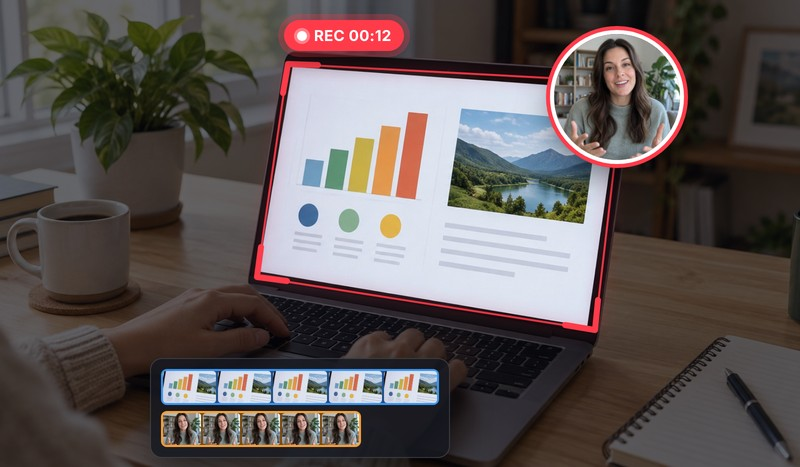
Turn on your webcam and microphone to add your face and voice to the recording. Dual-track recording keeps the screen and the webcam on separate tracks, so you can move, resize, or edit the webcam picture without touching the screen recording.

Free Download 
Turn a Fun Clip into a Full Video

Go Straight From Recording to Editing

When you stop recording, PowerDirector puts your clips straight on the timeline. Trim the mistakes, add titles and transitions, and export a finished tutorial, product demo, or gameplay video without importing a single file.

Free Download 

How to Screen Record on Windows with PowerDirector

How to Screen Record on Windows with PowerDirector

Step 1 - Open Screen Recorder

Go to Media > My Media, open the Record dropdown, and select Record PC Screen. You can also open the recorder from Tools > Screen Recorder.

Step 2 - Choose What to Record

Pick a capture mode: Full screen, Game, Lock to app, Custom, or Device. Set the resolution and frame rate, then turn on your webcam and microphone if you want them in the video.

Step 3 - Record and Edit

Click REC to start, then click the stop button to finish. Your screen and webcam recordings land on the timeline as separate clips, ready to trim and export.

Screen Recording FAQ

Screen Recording is the screen recording software for PC that comes with PowerDirector Premium. It captures what's on your screen along with your webcam and microphone, then puts the recording straight on the timeline so you can trim, add titles, and export without importing files.

Open PowerDirector, go to Media > My Media, and choose Record PC Screen from the Record dropdown, or open Tools > Screen Recorder. Pick what to capture, click REC, and click the stop button when you're done. The recording appears on your timeline.

Click the camera icon at the bottom left of the Screen Recorder window to turn on your webcam before you click REC. PowerDirector records the screen and the webcam as two separate clips on two tracks, so you can move and resize the webcam picture on its own, like picture-in-picture video.

Yes. Choose "Lock to app" to record a single app, or choose "Custom" and drag out the area you want on your screen. Click "Open preview" at the top right to check the frame before you start, so nothing outside the area ends up in your video.

Yes. PowerDirector runs on 64-bit Windows 11 and Windows 10, including Windows 11 on Arm PCs with Snapdragon processors. Screen Recording is a Premium feature, and the first time you open it, PowerDirector prompts you to download the recorder.