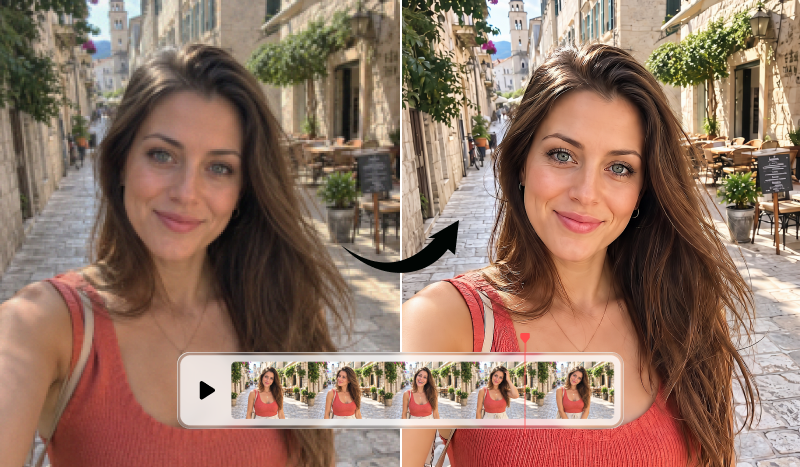
AI analyzes your footage and identifies enhancement options to improve overall video quality. Choose Lighting, Denoise, Frame Interpolation, or Upscaler based on your video, then apply the settings that best fit your footage.
Give low-resolution or soft-looking footage a sharper, more detailed look with the Upscaler. AI enhances visible detail and can upscale supported video to 1080p or 4K, helping older, compressed, or lower-resolution clips look clearer and more detailed on larger screens.
Improve dark or noisy footage with AI-powered Lighting and Denoise. Brighten dark scenes and reduce distracting grain and visual noise to reveal more detail, helping low-light and noisy footage look cleaner, clearer, and easier to view.
From the PowerDirector home screen, select AI Video Enhancement, then import the video you want to improve. AI analyzes the footage and provides enhancement options.
Step 2 - Choose Your Enhancement Settings
Select the section you want to enhance, then choose from Lighting, Denoise, Frame Interpolation, and Upscaler. Click Enhance to process the selected footage.
Step 3 - Review and Add to Timeline
Open My GenAI Creations to view your enhanced video. Select the AI Video Enhancement result, preview the output, then click Add to Timeline to continue editing in PowerDirector.
AI Video Enhancement FAQ
AI Video Enhancement uses AI to improve video quality by analyzing your footage and applying enhancements such as Lighting, Denoise, Frame Interpolation, and Upscaler. It can help make dark, noisy, low-resolution, or choppy footage look clearer, smoother, and more detailed.
AI Video Enhancement can help improve common issues such as dark or uneven lighting, visual noise, low resolution, limited detail, and choppy motion. Choose the enhancement option that best matches the needs of your footage.
Frame Interpolation creates additional frames between existing frames to make motion look smoother. It can help reduce choppy or uneven playback, especially in action shots, fast-moving scenes, or other footage where smoother motion is needed.
Yes. The Upscaler can enhance supported video and upscale it to 1080p or 4K, helping older, compressed, or lower-resolution footage look sharper and more detailed. It is useful when a video looks soft or lacks detail, especially when viewed on larger screens.
AI Video Enhancement is a credit-based feature, and the credits required vary depending on the enhancement options you select and the length of your video. You can also claim available free Credits in PowerDirector to try the feature before purchasing additional credits.






 PowerDirector 365