

search cyberlink website user log-in change language
PhotoDirector 365 app icon

PhotoDirector 365

All-in-One Photo Editor

Get it on Google Play
PhotoDirector 365

Merge Two Photos into One Image

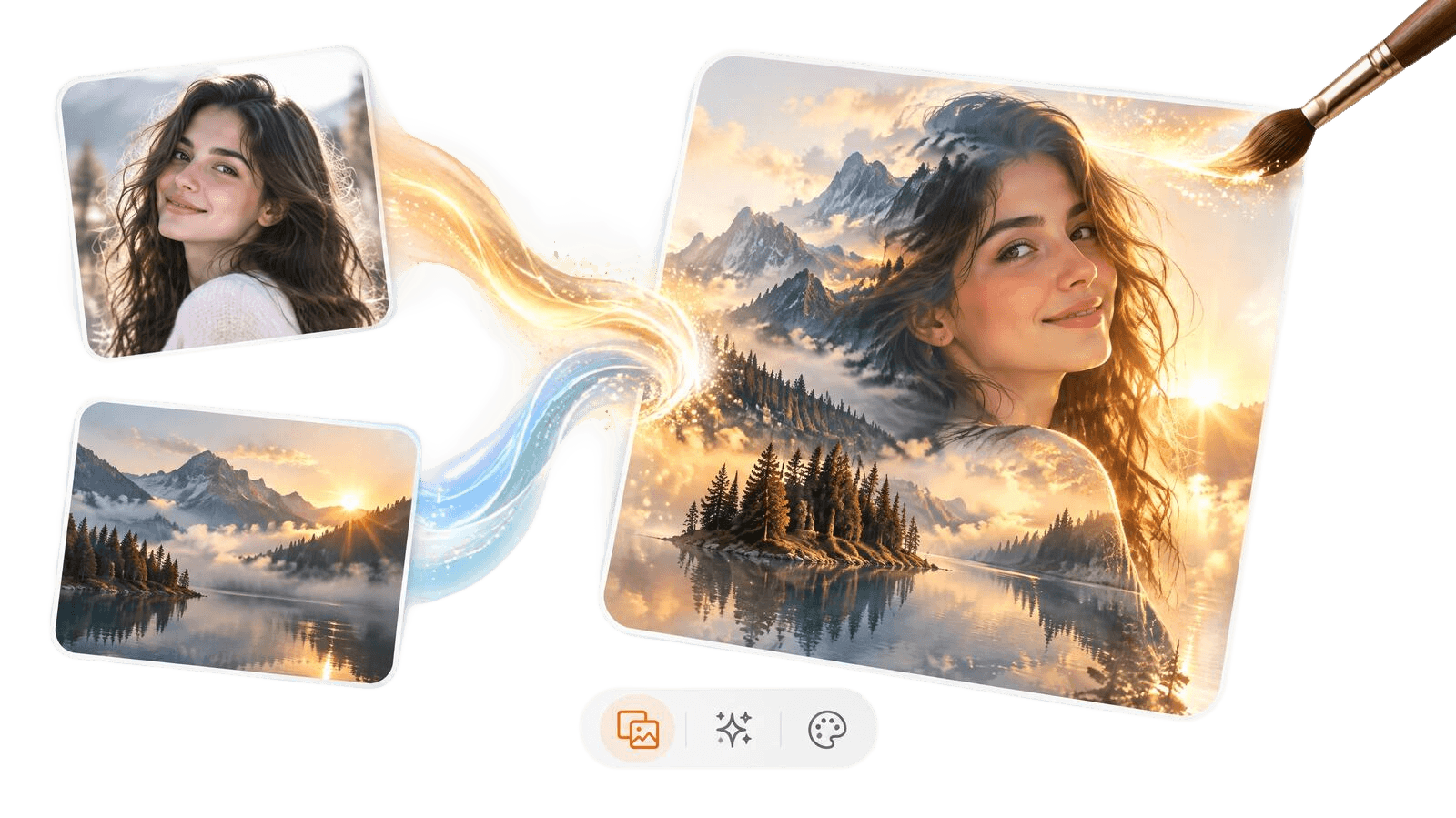
Pick two photos and PhotoDirector's AI image combiner blends them into one seamless image in seconds. You don't need layers or masks.

Two photos merged into one image with PhotoDirector's AI image combiner

What You Can Do with AI Image Fusion

Combine Two Photos in Seconds

Combine Two Photos in Seconds

Choose a base photo and a second image or style, then click Generate. PhotoDirector's AI matches colors, light, and textures across both, so the result looks like one shot instead of two pasted together. It's a quick way to combine two photos without touching layers or masks.

Free Download 
Blend Two Photos Together for a Double Exposure Look

Blend Two Photos Together for a Double Exposure Look

Image Fusion is PhotoDirector's AI image blender. Blend a portrait with a forest, a city skyline with a starry sky, or your dog with a field of flowers, and get the dreamy double exposure look that used to take careful masking. Try a few styles on the same photo and keep the one that fits the mood.

Free Download 
Turn Your Photos into Posters, Covers, and Posts

Turn Your Photos into Posters, Covers, and Posts

Combine images with AI to create an album cover, an event poster, a YouTube thumbnail, or a social post people stop scrolling for. You start from your own photos, so the result is yours, and you don't have to learn any editing techniques first.

Free Download 

How to Merge Two Photos with PhotoDirector

How to merge two photos with PhotoDirector

Step 1 - Open Image Fusion

Launch PhotoDirector, open the Guided & GenAI tab, go to AI Creativity, and click Image Fusion. Everything you need to combine two pictures into one is right there.

Step 2 - Add Your Photos and Choose a Style

Import your base photo, then add a second image or pick a fusion style. Click Generate, and the AI blends them into a new image in a few seconds.

Step 3 - Export and Share

Not quite the look you wanted? Try another style or image. Once you’re happy with the result, click Export to save your merged photo and share it anywhere.

AI Image Fusion FAQ

Open PhotoDirector, go to the Guided & GenAI tab, open AI Creativity, and select Image Fusion. Import your base photo, add a second image or choose a style, and click Generate. The AI handles the blending, so you get one natural-looking image without manual editing.

PhotoDirector is free to download, so you can try Image Fusion on your own photos before you choose a plan. Pick two shots, choose a style, and see how the blend turns out.

Start with sharp, well-lit photos. Pair a clear subject, like a face or a silhouette, with an image full of color and texture, like a landscape or a city at night. Strong contrast between the two usually gives you the most striking blend.

Not quite. A collage places photos side by side, and a traditional composite means cutting out elements and stacking them by hand. Image fusion blends two photos into a single image and matches colors, lighting, and textures automatically, so it looks like one picture.

Image Fusion blends two images at a time. To combine more, run several fusions in a row, or stack your shots with layers in PhotoDirector for full control over the final image.