


search cyberlink website user log-in change language
PhotoDirector 365 app icon

PhotoDirector 365

All-in-One Photo Editor

Get it on Google Play
PhotoDirector 365

Change the Background of Any Photo

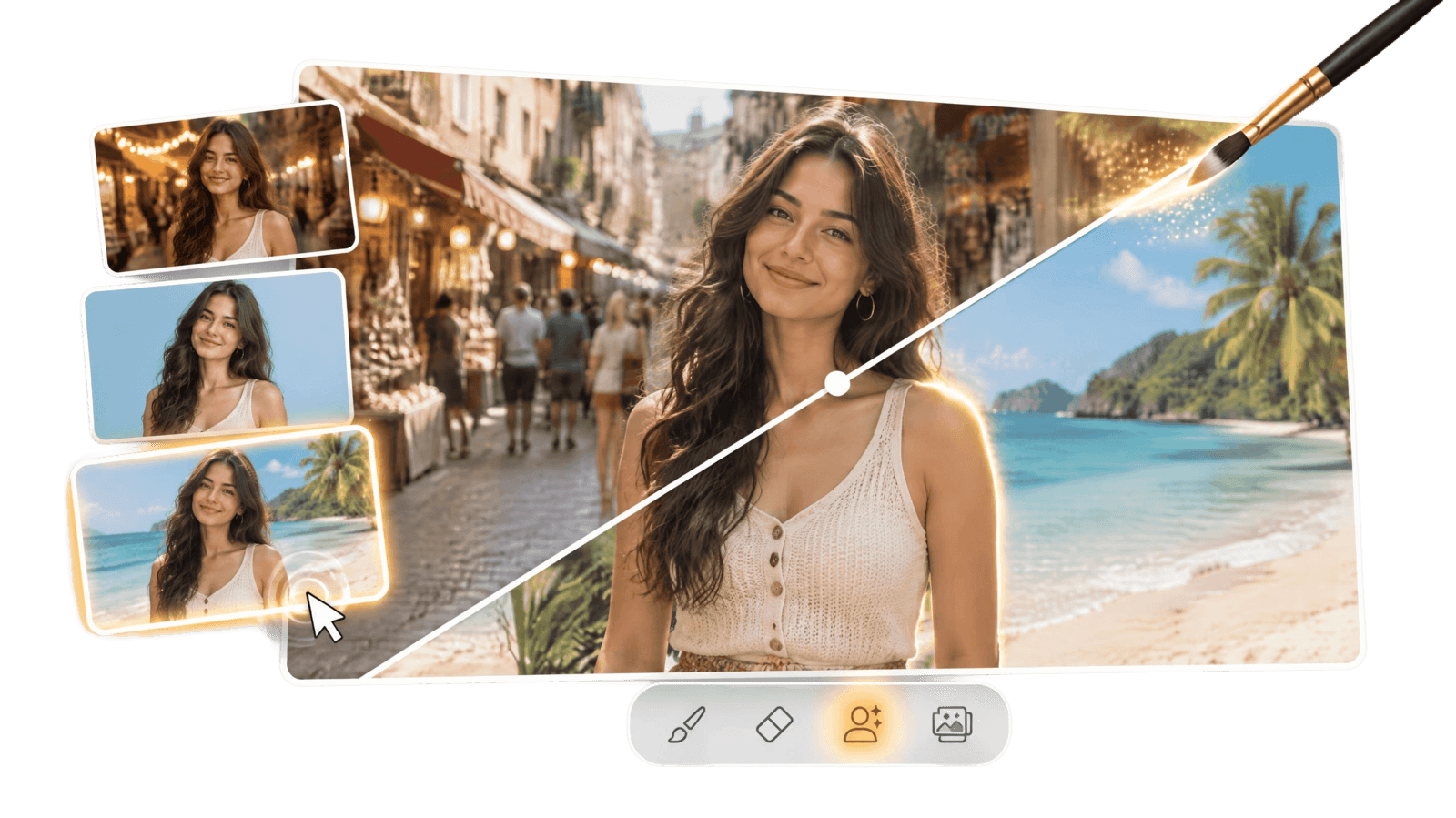
Change a picture background in a few clicks. PhotoDirector’s AI background changer cuts out your subject, so you just pick the new backdrop.

Change the Background of Any Photo

What You Can Do with the Background Changer

Replace a Photo Background Without Tracing

Replace a Photo Background Without Tracing

Skip tracing by hand. PhotoDirector's AI background replacer finds the person, pet, or object in your photo and separates it from the background, even around tricky edges like hair. Need a touch-up? Refine the selection with a brush, then drop in a new background or import your own.

Free Download 
Change the Background Color or Scene

Change the Background Color or Scene

Blur the clutter behind you so you stand out in your portrait. For a profile picture or an online store listing, change the background color to white or any solid shade. You can also browse themed backgrounds, or describe a scene and let AI generate it.

Free Download 
Create Clean Product Shots and Social Posts

Create Clean Product Shots and Social Posts

A clean white background makes products look sharp on online marketplaces. Use the same background across your listings so your store looks consistent. For social posts, let AI change the background to a fresh scene and turn an everyday snapshot into something worth posting.

Free Download 

How to Change the Background of a Picture with PhotoDirector

Changing a photo background with the Cutout/Background tool in PhotoDirector

Step 1 - Open the Background Tool

Launch PhotoDirector, go to the Guided & GenAI tab, and select Cutout/Background to start changing your photo's background.

Step 2 - Import Your Photo and Pick a New Background

Import your photo, and the AI removes the background. Then choose what goes behind your subject: a themed scene, a blur, a solid color, or your own image.

Step 3 - Export and Share

Try a few backgrounds to see what works best. When you’re happy with the result, click Export to save your photo and share it wherever you like.

Background Changer FAQ

Yes. PhotoDirector is free to download, so you can use it as a free background changer. You also get a brush for cleaning up edges, themed backgrounds, and a full photo editor to finish the job.

Once the AI removes the background, choose the transparent option to export just your subject. You can then place it in a design or a thumbnail. For a white background, pick the solid color option and choose white, the standard look for product photos.

Sharp, well-lit photos where the subject clearly stands apart from the background work best. The more contrast between the two, the cleaner the cutout. If the background is busy or close in color to your subject, touch up the edges with the brush.

Yes. If you like the original setting but it pulls attention away from your subject, choose the blur option. Your subject stays sharp while the background softens, like a shot taken with a wide-aperture lens.