


search cyberlink website user log-in change language
PhotoDirector 365 app icon

PhotoDirector 365

All-in-One Photo Editor

Get it on Google Play
PhotoDirector 365

Remove People from Photos, Keep the Moment

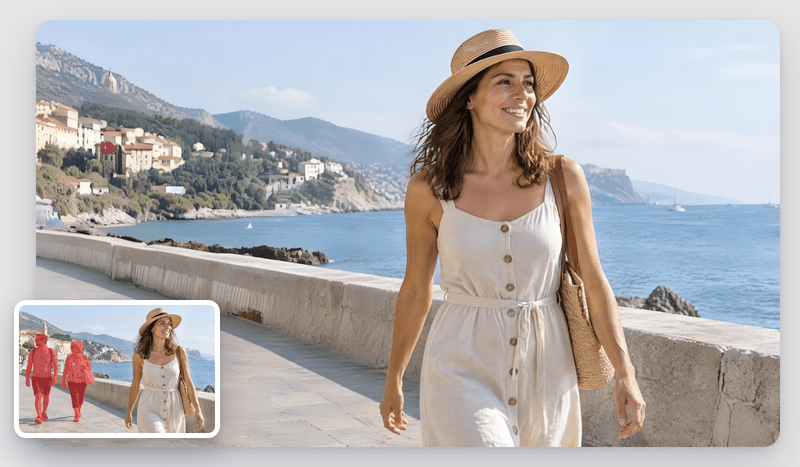
Stranger walked into your shot? Remove someone from a photo with a click. The AI rebuilds the scene as if they were never there.

Street photo before and after removing a stranger with PhotoDirector

What You Can Do with the AI Person Remover

A People Remover That Finds the Person for You

A People Remover That Finds the Person for You

No more tracing around a silhouette for minutes. With one click, the AI spots the person you want gone and outlines them for you. If they overlap other subjects or the selection needs fine-tuning, the brush and eraser keep you in control, so the people remover only takes out what you choose.

Free Download 
Erase People from Photos That Matter Most

Erase People from Photos That Matter Most

A guest stepping in front of the camera at a wedding, a stranger in the back of a birthday shot, someone wandering into your group photo: these little moments often spoil the pictures you care about most. Delete people from pictures without touching anyone you want to keep, and get memories ready to print or share.

Free Download 
Busy street photo before and after removing people in the background

Remove People in the Background, Even in Busy Scenes

When you erase a person from a photo with Use GenAI turned on, generative AI rebuilds what was behind them, so a wall, a landscape, or a building facade picks up right where it left off. Not happy with the result? Run the removal again for a new version.

Free Download 

How to Remove a Person from a Photo with PhotoDirector

PhotoDirector Auto/Manual Removal panel with a person selected

Step 1 - Import Your Photo

Open PhotoDirector, go to the Guided & GenAI tab, and click Edit, then Auto/Manual Removal. Open the photo you want to remove someone from.

Step 2 - Select the Person to Remove

Click the person you want to remove, or frame or circle them with the Box or Lasso tool. For tricky edges, refine the selection with the Brush or Eraser.

Step 3 - Remove and Export

Check Use GenAI for higher quality, then click Remove. Want another take? Click Remove Again, pick your favorite from the thumbnails, and click Export to save.

Frequently Asked Questions

The easiest way is to use an AI removal tool like the one in PhotoDirector. Select the person with one click, and the AI detects their outline, erases them and rebuilds the background behind them. For tricky edges, you can refine the selection with the Brush or Eraser before running the removal.

Yes. You can try people removal for free in PhotoDirector and remove a person from a photo to preview the result right away. To save and share your edited photo, upgrade to PhotoDirector 365.

Yes. PhotoDirector is a photo editing app for Windows and Mac that lets you remove people from photos with AI. Click the person to select them, refine the edges with the Brush or Eraser if needed, and pick your favorite from multiple versions before you save.

In most cases, yes. The AI rebuilds the background behind the person for a seamless result. For even more realistic results, especially on busy backgrounds, check the Use GenAI option. If a trace is still visible, click Remove Again and compare the versions to keep the best one.

Yes. Select only the people you want to edit out of the background, and the AI leaves everyone else untouched. If someone in the background overlaps your main subject, use the Eraser to take the subject out of the selection, then turn on Use GenAI to rebuild the scene behind them.