Authoring - Set Chapters
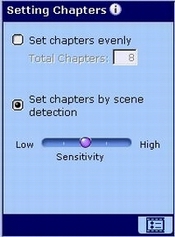
For most movie menus, there are chapter selections available for you to jump to certain scenes in the movie. With PowerProducer, you can also set chapters for your individual video titles, and create a menu with all the chapters selections. There are two methods for you to set your chapters in PowerProducer. Set Chapters Evenly: To set your chapters evenly, you have to specify the number of chapters you wish your selected video titles to have. Then PowerProducer will set chapters evenly based on the total chapters you have specified. Scene Detection: The program will detect different scenes in your selected video title based on the frame changes from scene to scene. You can adjust the sensitivity level; where high sensitivity will result in more scene changes detected and low sensitivity will create less scenes. Note: You can also set chapters manually by using the slider bar below the video preview window and sliding it to the parts where you'd like to create a chapter. To mark a chapter point, simply click on the Chapter marker button. |
 |
|
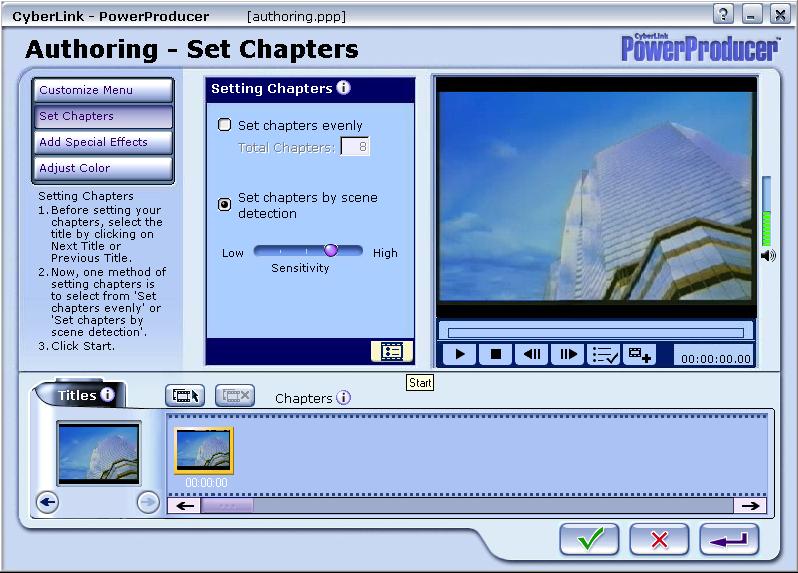
Here's an example using Scene Detection |
||
 |
 |
 |
| 1.
Select Video title 2. Select "Set Chapters by scene detection" |
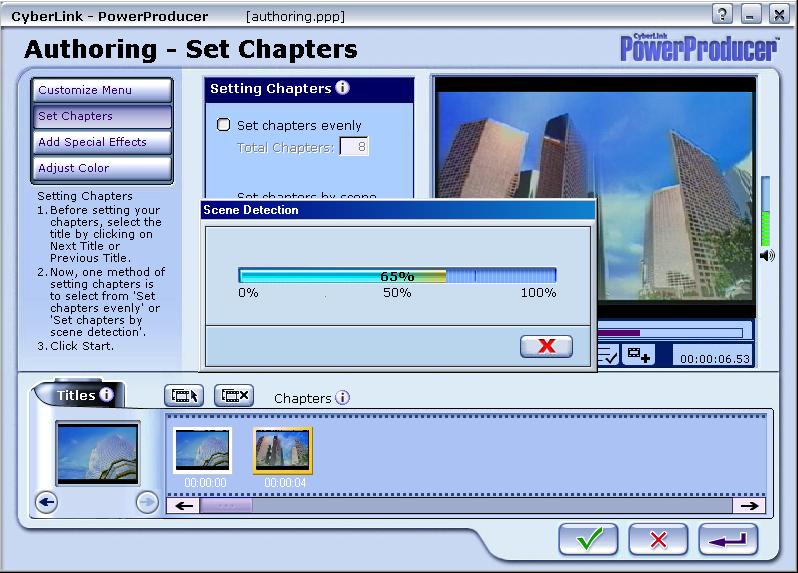
3. Press Start 4. You can see the scene detection bar shows % of video title being detected |
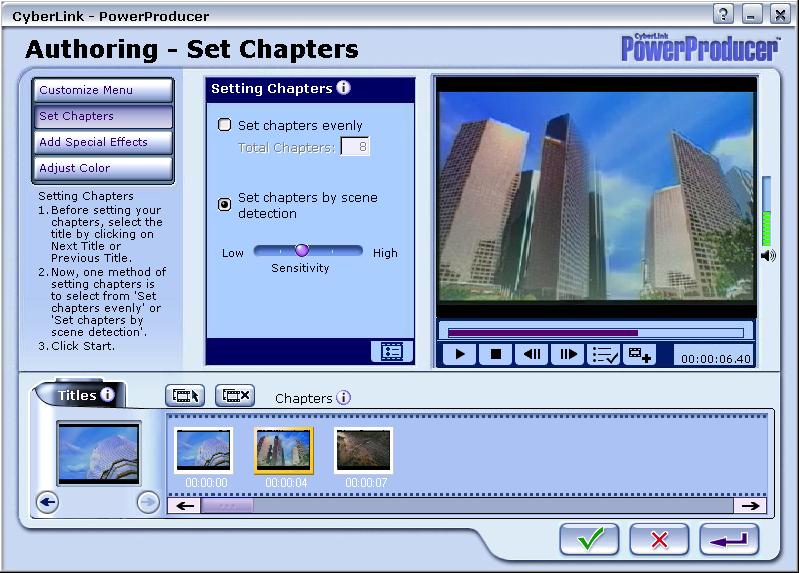
5. In the Chapters Menu, you can see 3 scenes were detected. |
 |
 |
