Authoring - Apply Special Effects
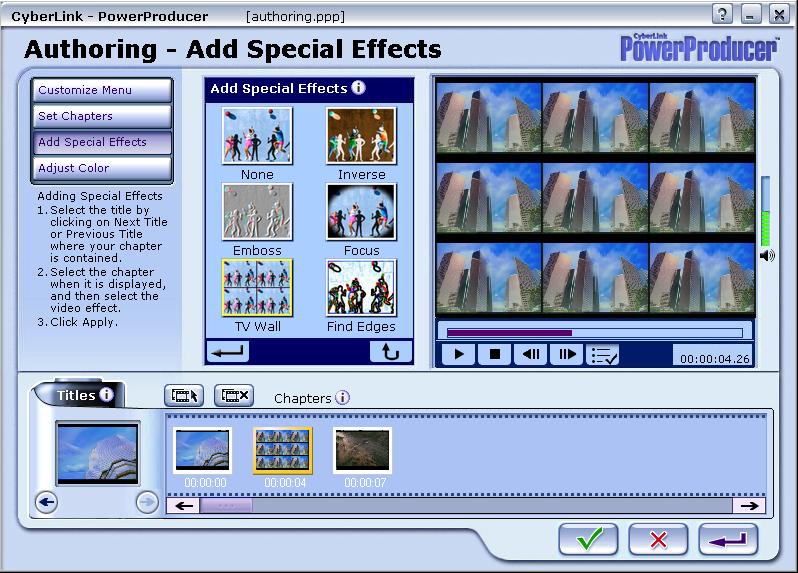
You can apply special effects to an entire video chapter, or just select a particular scene of a chapter, apply the effects, and set is as thumbnail button on the menu. You can apply the following effects to your video clip or thumbnail buttons. On the right is an example of how the effects were applied. |
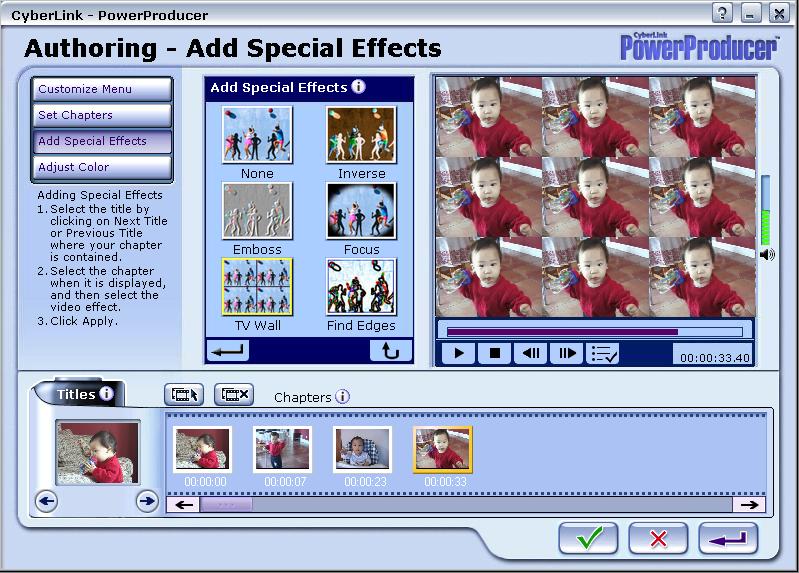 |
|||||||||||||
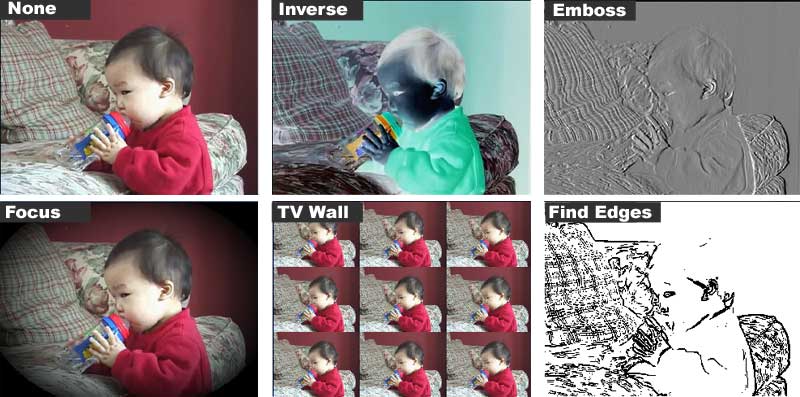
|
||||||||||||||
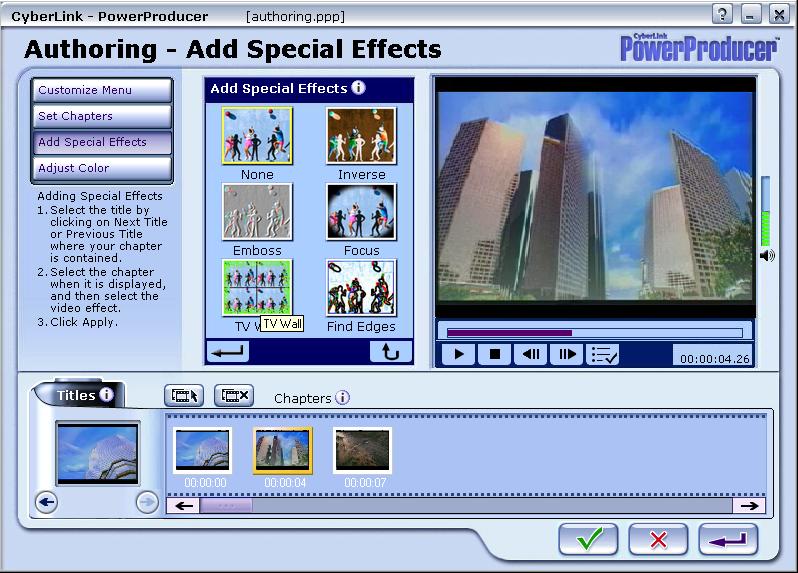
Here's an example of how to apply special effects and set it as thumbnail image |
||||||||||||||
 |
 |
 |
||||||||||||
| 1. Select Video title 2. Select a Chapter in the chapters menu |
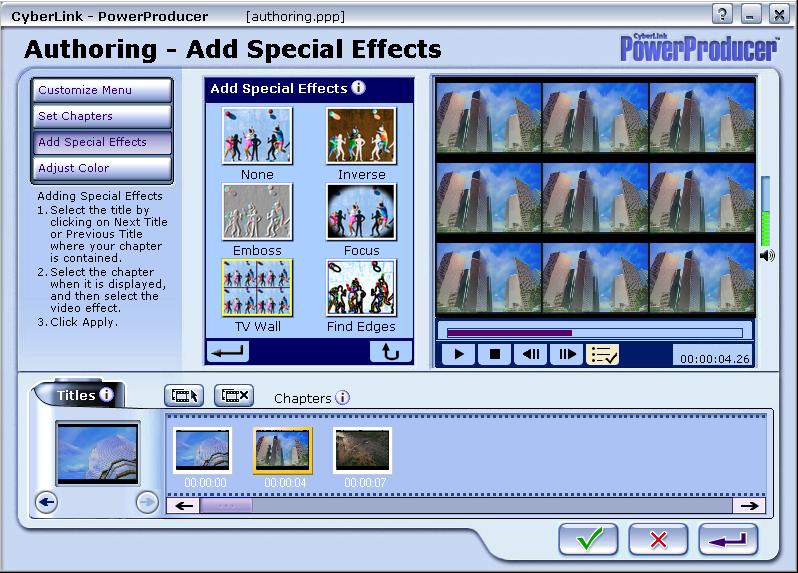
3. Select the special effect you want to apply (example TV Wall) 4. View effects in the Preview Window 5. Click set as Thumbnail  |
6. The thumbnail image displayed for the 2nd chapter is displayed with the TV Wall effect. |
||||||||||||


 |
 |
