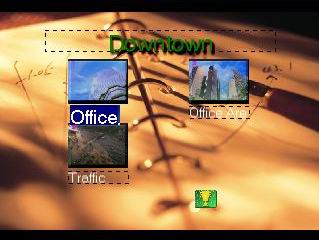
A movie menu consists of many different elements, such
as the menu background, selection buttons, navigation controls,
titles, background music and so on. Here's how to customize your
own menu.
Select Theme Firstly, you need to select a
theme for your menu from the drop down box on the top of the
menu. The theme you select will affect your selectable background
image, navigation control, and picture frame. PowerProducer
provide 7 different themes for you to choose from.
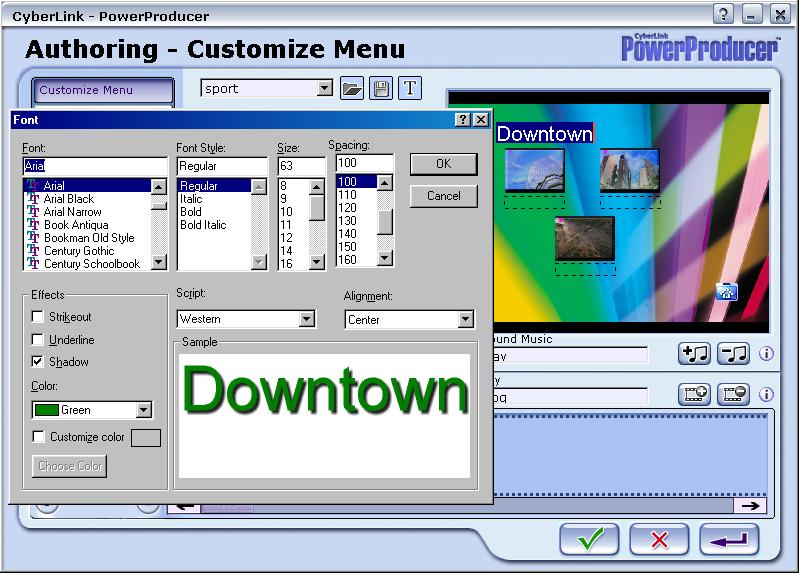
Edit Title You can type in Menu and video titles by clicking on the
text box in the preview window. To edit the font style, just
click on the text first, then click on the font button.
Customize Menu Settings
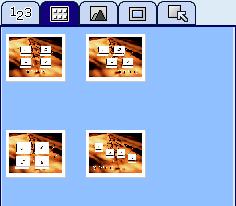
Number
of Buttons per page. Buttons on a menu represents
the video clips and chapters on a movie disc. You can
select from 1 per page up to 12 buttons per page.
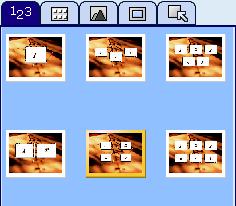
Button
Layout. Allows you to change the layout of the navigation
buttons on the menu page.
Select
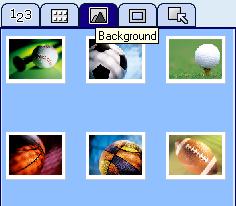
background image (for your current menu). The selectable
background image will differentiate based on the theme
you have previously selected.
Select
Frame Style for Button. The selectable frame style
also will differentiate based on the theme you have
selected.
Select
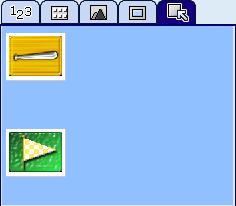
Navigation Control. The selectable Navigator will
differentiate based on the theme you have selected.
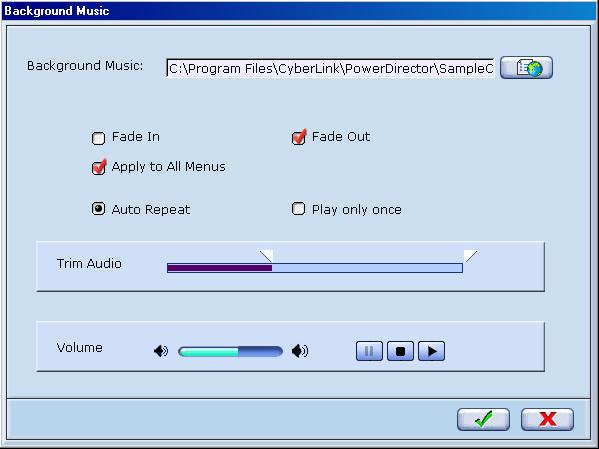
Background Music. You can import any MP3 or wav audio file as background music
for your menu. In the menu you can specify if you want to
apply fade in/out audio effects, have the music file repeated,
adjust the volume, and even trim parts of the audio file.
First Play You can select a video file to be played at
the beginning (before the menus) of your movie disc. Generally
used for displaying warnings messages at the very beginning
of a movie disc or an introduction segment.
Choose your country / region and language preference: