



How to Add an Emoji to a Photo (Easy AI Method)

Adding emojis to photos is a fun and expressive way to personalize images, enhance social media posts, or create engaging visual content. Whether you want to cover a face, add humor, or highlight emotions, learning how to add an emoji to a photo is fast and easy with AI-powered tools. With MyEdit’s AI Art Filter and its custom prompt feature, you can add any emoji to a picture in just a few clicks—no design skills required.
- 😄 Why Add Emojis to Photos?
- 🎨 How to Add an Emoji to a Photo with MyEdit
- ✨ Tips for Better Emoji Placement
- 🔥 Creative Ways to Use Emojis on Photos
- ❓ Emoji on Photo FAQ
😄 Why Add Emojis to Photos?

Emojis are a universal visual language that instantly communicates emotion and personality. Knowing how to put an emoji on a picture can help you:
- 😊 Express emotions clearly and creatively
- 📱 Make social media posts more engaging
- 😂 Add humor or meme-style reactions
- 🙈 Protect privacy by covering faces
- 🎯 Highlight key elements in marketing visuals
If you’ve ever wondered how to add emoji to photo content without using complicated editing software, AI tools make the process incredibly simple.
🎨 How to Add an Emoji to a Photo Using MyEdit AI Art Filter

MyEdit’s AI Art Filter allows you to add virtually any emoji to a photo using a simple text prompt. You don’t need manual editing tools—just describe what you want, and the AI does the rest.
- Open MyEdit and select the AI Art feature.
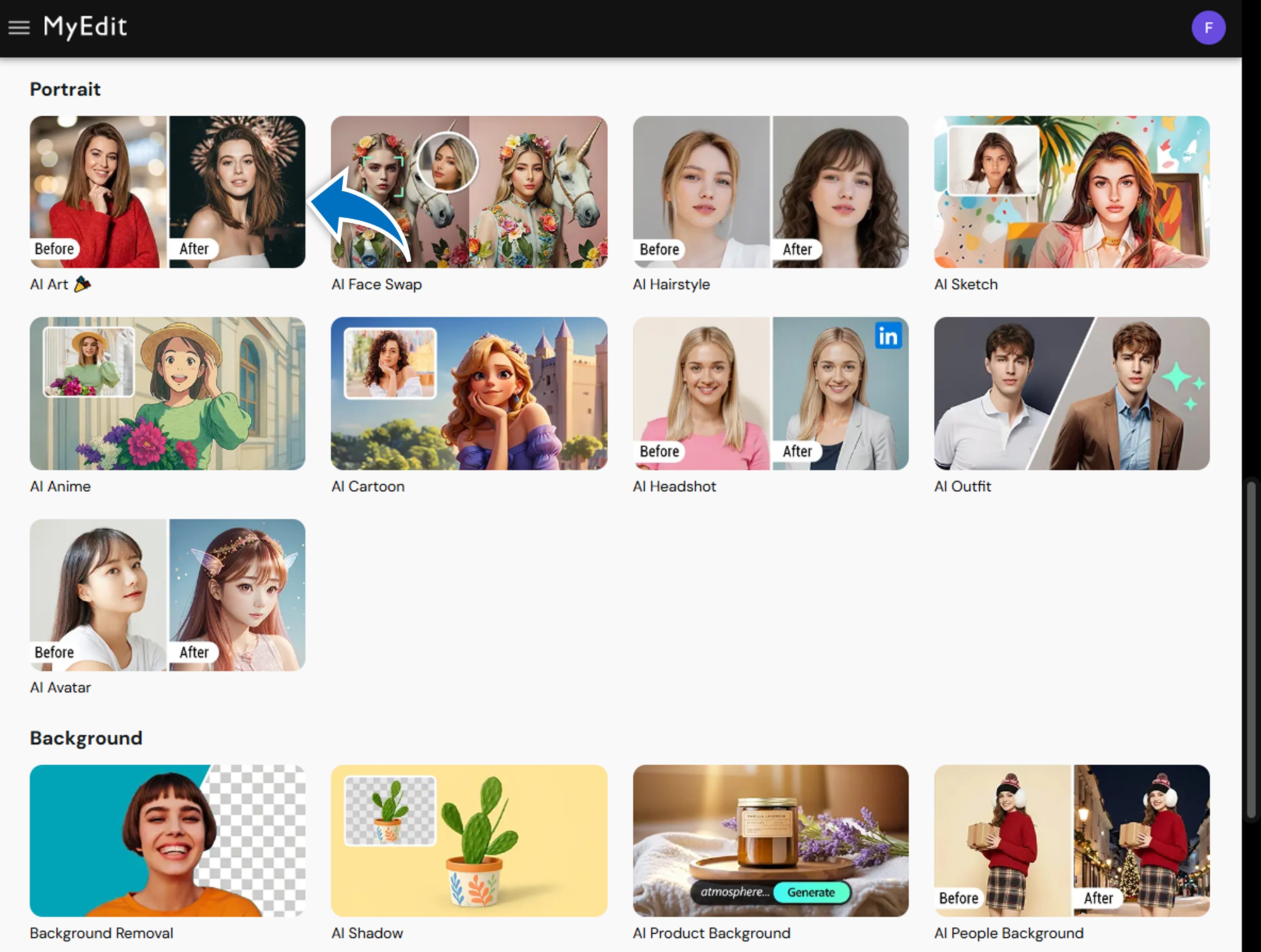
- Upload the photo where you want to add an emoji.
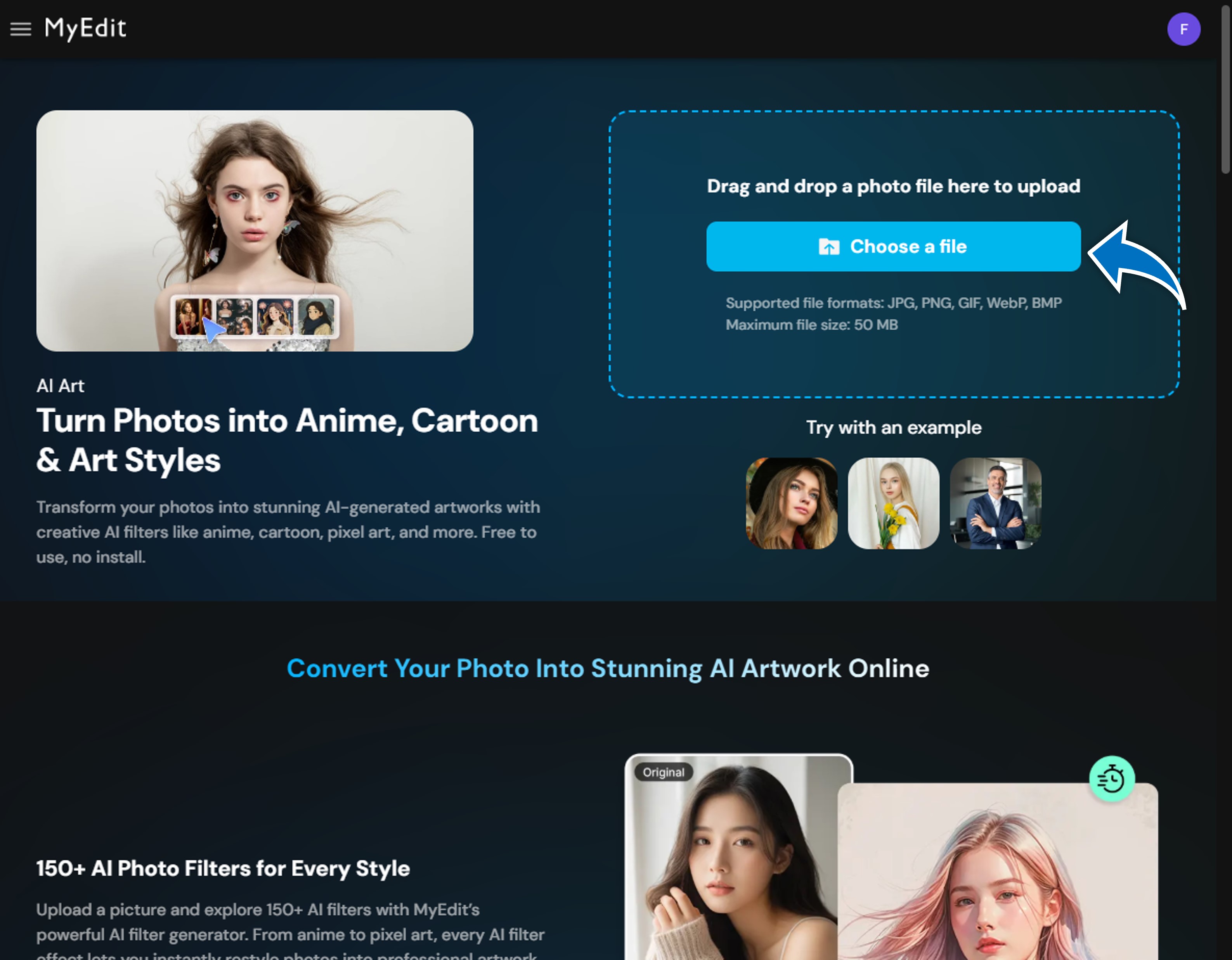
- Enable Custom Prompt mode.

- Enter a prompt such as: “Add a sunglasses emoji over the person’s face” or “Place a heart emoji in the top right corner.”
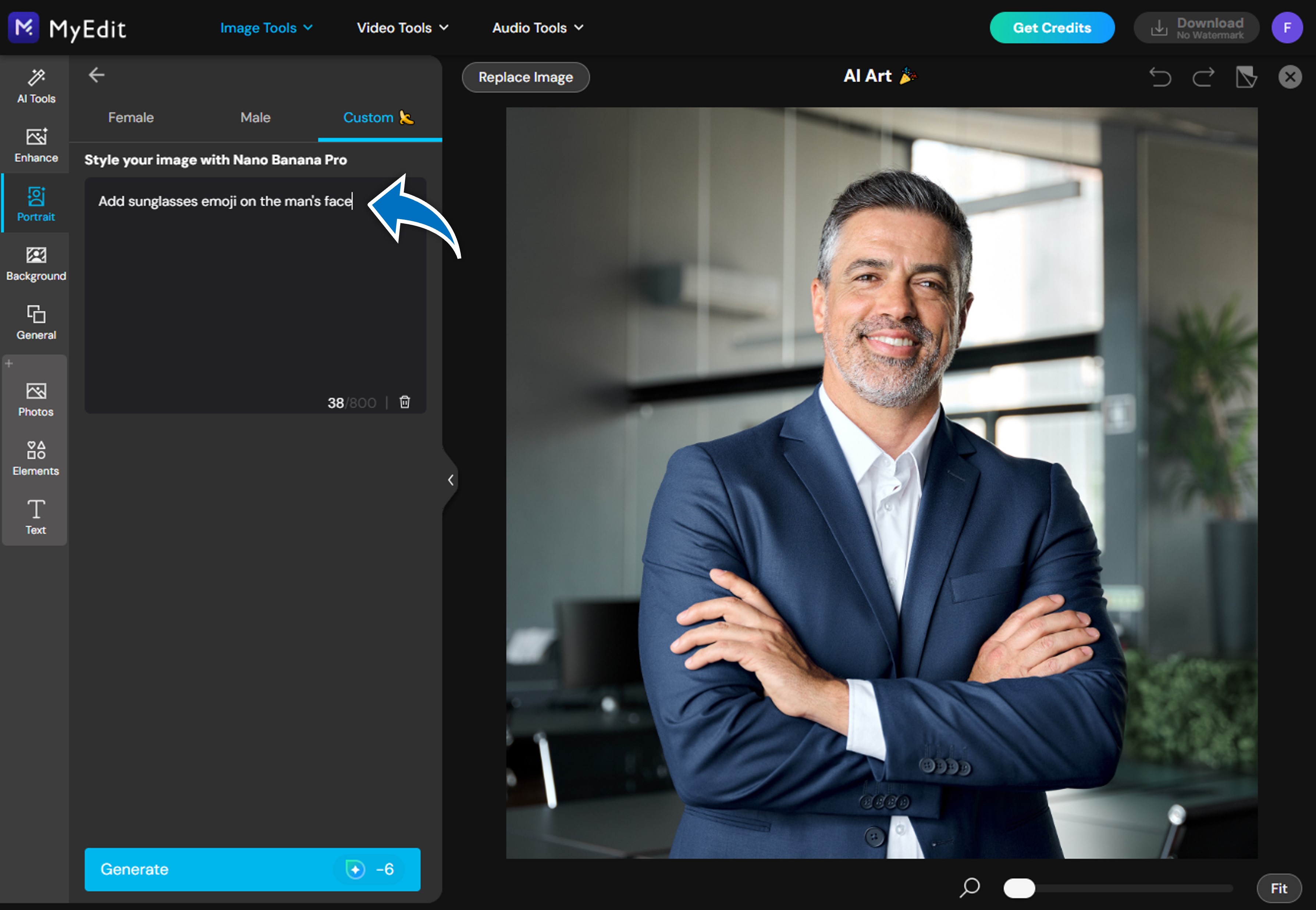
- Generate the image and download your emoji-enhanced photo.
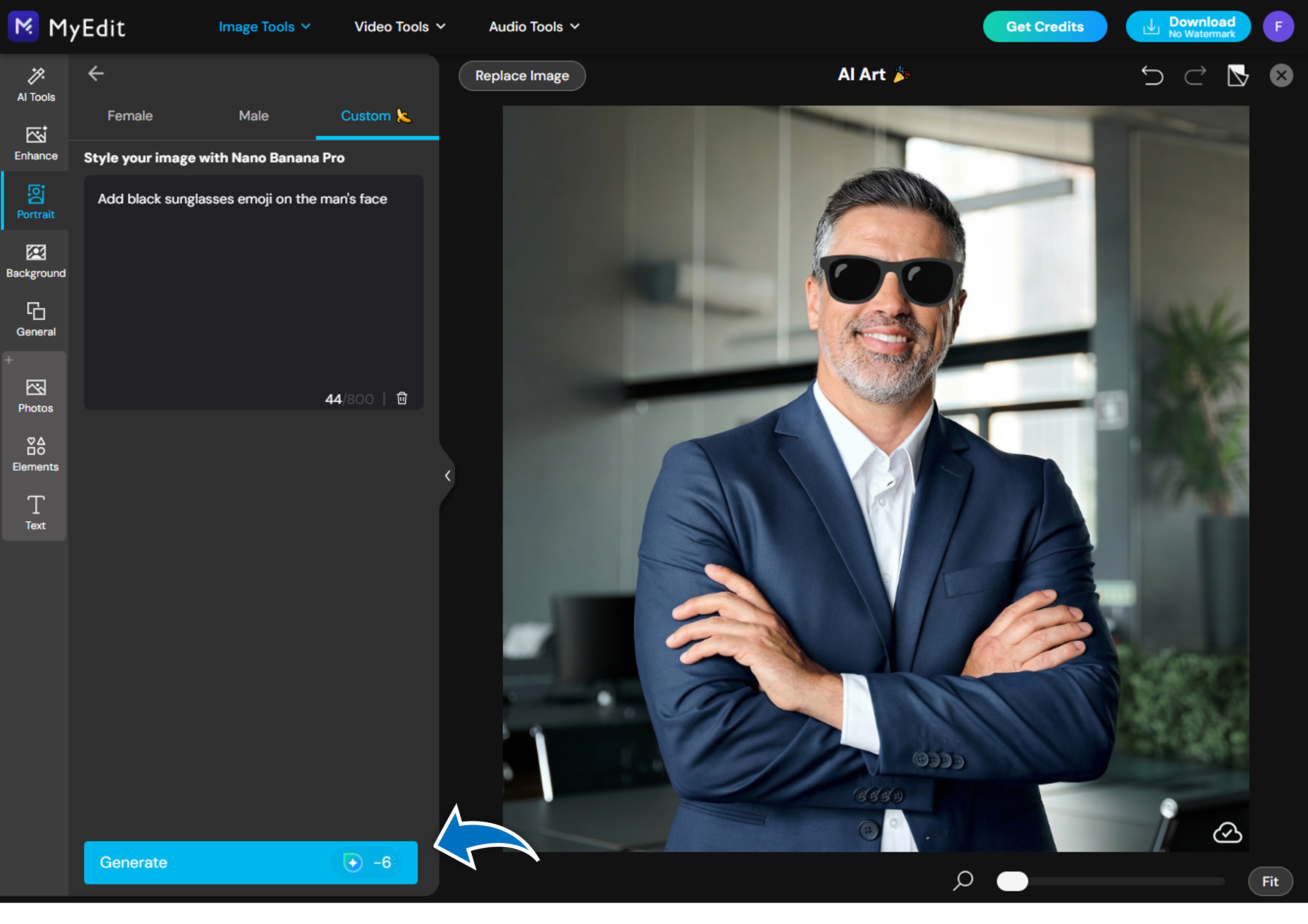


That’s it—you’ve successfully learned how to add an emoji to a photo using AI.
✨ Tips for Better Emoji Placement
To get the best results when adding emojis to photos, keep these tips in mind:
- 📍 Be specific about placement (top left, center, over face, etc.)
- 📏 Mention size (small, large, subtle, oversized)
- 🎭 Match the emoji to the photo’s mood
- 🔁 Regenerate with refined prompts if needed
Clear prompts help the AI understand exactly how to put an emoji on a picture the way you imagine it.
🔥 Creative Ways to Use Emojis on Photos
Adding emojis goes far beyond simple decoration. Here are some popular and creative ways to use them:
- 📸 Social media posts on Instagram, TikTok, and Snapchat
- 😂 Meme creation and reaction images
- 📢 Marketing visuals and promotional graphics
- 🙈 Covering faces for privacy
- 📖 Visual storytelling and reactions
Once you know how to add emoji to photo content, you unlock a new level of creative freedom.
❓ FAQ: How to Add Emoji to Photo
You can use AI tools like MyEdit’s AI Art Filter. Simply upload your image, write a custom prompt describing the emoji you want, and let the AI generate the result—no Photoshop skills required.
Upload your photo to MyEdit, use a prompt like “add a laughing emoji above the subject’s head,” generate the image, and download it. The result is ready to share on social platforms.
Yes. You can specify placement directly in your prompt, such as “top right corner,” “center,” or “over the face.”
Yes. You can request multiple emojis in one prompt, such as “add a heart emoji on the left and a fire emoji on the right.”
MyEdit offers free options to try AI features. Availability may vary depending on usage limits and selected tools.
![How to Edit Videos for Beginners [Includes Templates]](https://dl-file.cyberlink.com/web/content/b617/l_Thumbnail.webp)


