





How to back up my projects to Google Drive in CyberLink PowerDirector Mobile (Android)?
The Android version of PowerDirector supports the uploading of your projects to Google Drive as a way to back up the files. The function also allows you to download project packs on different Android devices for further editing.
To upload a project pack to Google Drive:
1. Go to the homepage of PowerDirector Mobile Android.
2-1. Swipe left on the project bar to the end (v10.6.1 or earlier versions).
2-2. Swipe to the bottom of the project bar (v11.0.0 or later versions).
2-3. Find the "Project" tab and look for the bottom of the project list (v14.0.0 or later versions).
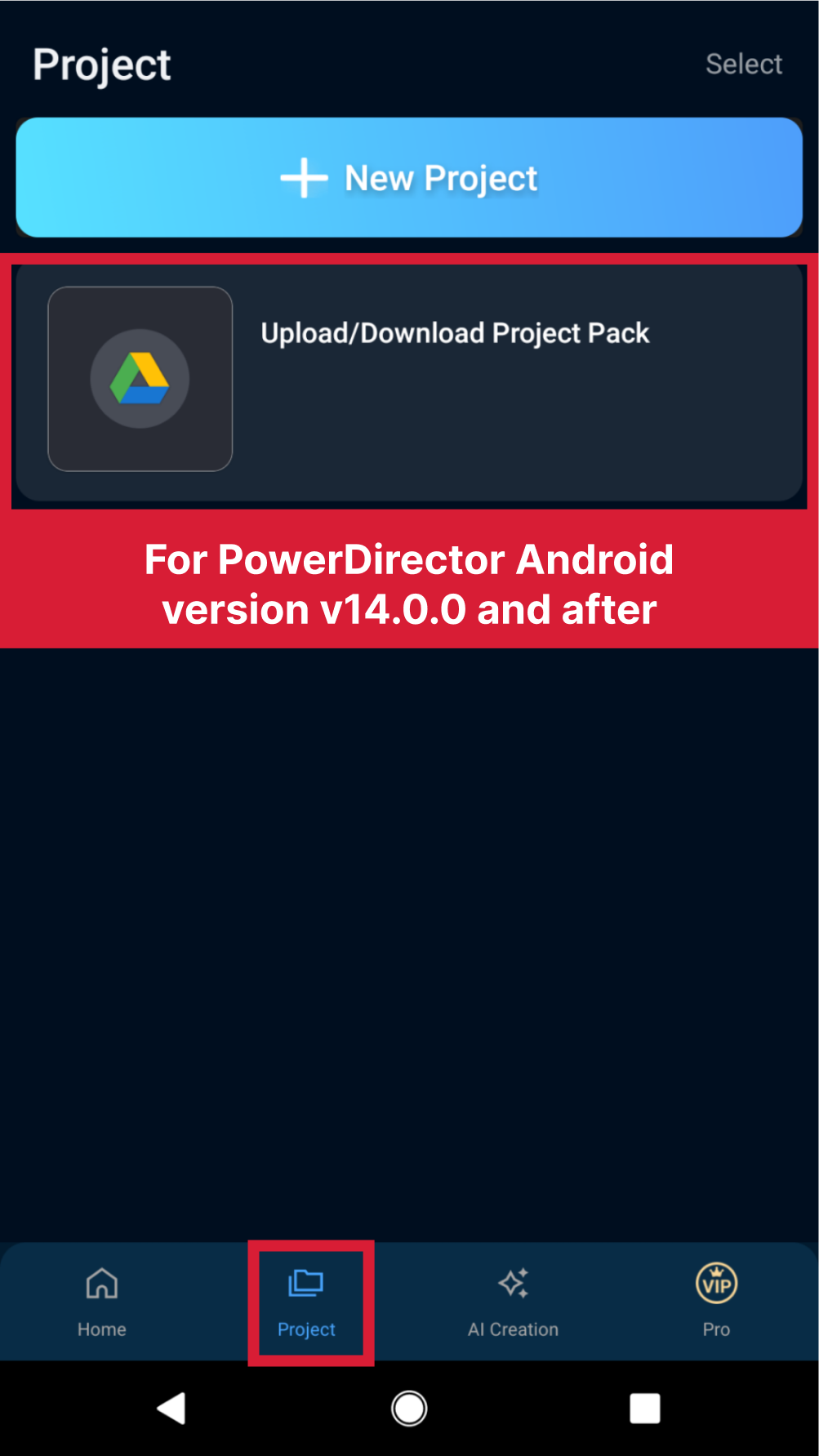
3. Tap "Upload/Download Project Pack".
4. Select the Google account you would like to access.
5. Tap "Upload".
6. Select the project pack you want to back up.
7. Wait until the process is complete and then tap "OK".
To download a project pack to your local device:
1. Go to the homepage of PowerDirector Mobile Android.
2. Find and tap the Google Drive icon in accordance with your app version (as above-mentioned).
3. Select the Google account you would like to access.
4. Select the project you would like to download.
5. Wait until the process is complete and then tap "OK".
| Note: *If there is premium content in the project pack that was downloaded on the Android device with the free version, you can still export the project. However, if you edit the project the app will ask you to subscribe to the app before exporting the project. *If you have any questions, please tap "Send Feedback" in-app Settings to contact the CyberLink Customer Support team. |
(#export)


