





How can I avoid getting a YouTube Content ID claim for my YouTube video?
CyberLink PowerDirector 365 provides royalty free background music for your video editing. This article shows you how to upload a video that contains background music from PowerDirector 365's background music library to YouTube.
Types of music provided in PowerDirector
PowerDirector 365 has 3 types of background music in the background music library.
- CyberLink: The music can be used in a video uploaded to social media or other websites, such as YouTube with video monetization enabled.
- Soundstripe: The music can be used in a video uploaded to social media or other websites, such as YouTube with video monetization enabled.
- Meta: The music can only be used with Meta related services, such as Facebook or Instagram. It can't be used with other services, such as YouTube.
What is a YouTube Content ID?
Content ID is a tool created by YouTube. After you upload a video to YouTube, the YouTube Content ID tool will automatically scan your content for any copyrighted material, even if you have licensed it correctly. If the system detects any copyrighted material, it will put a claim on it. The claim only signifies the presence of copyrighted music and that doesn't mean you cannot publish the video.
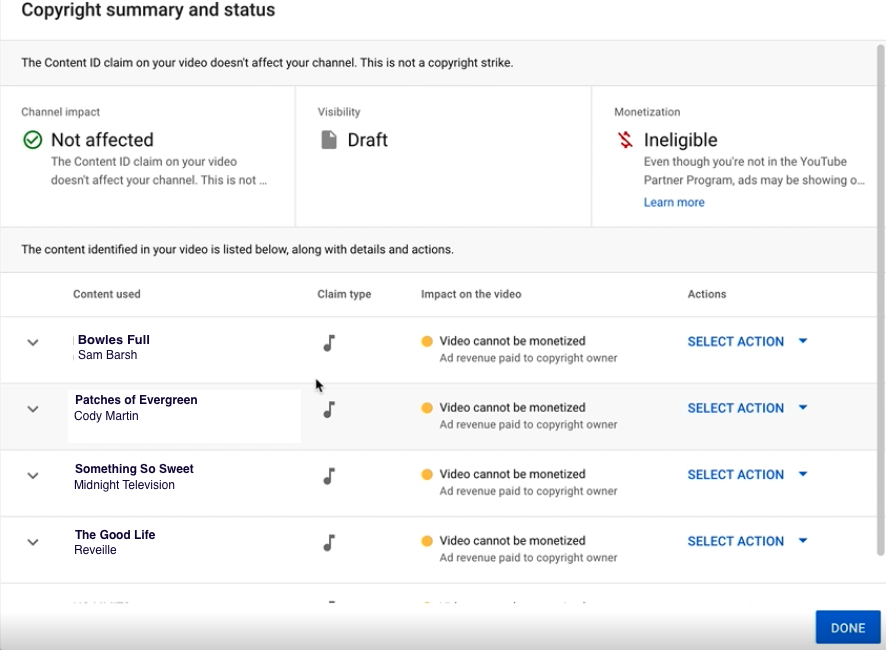
How can I avoid getting a YouTube Content ID claim when using Soundstripe music?
You can put a YouTube code in the video's description before the video is uploaded to YouTube.
A YouTube code is a one-time identifier for music used in a video. You can put the YouTube code in the video description of an uploaded YouTube video to prevent it from receiving YouTube Content ID claim. This code is currently for Soundstripe music only.
After you have completed exporting your project, you will get a YouTube code for each Soundstripe music track used in your video, so you can put the codes in your YouTube video description.
Where can I find the YouTube code for a Soundstripe music track and how do I use it?
- Export a video to YouTube via PowerDirector directly
PowerDirector will automatically generate a YouTube code for each music track uploaded to YouTube directly via PowerDirector. The code will be pasted into your YouTube video description automatically.
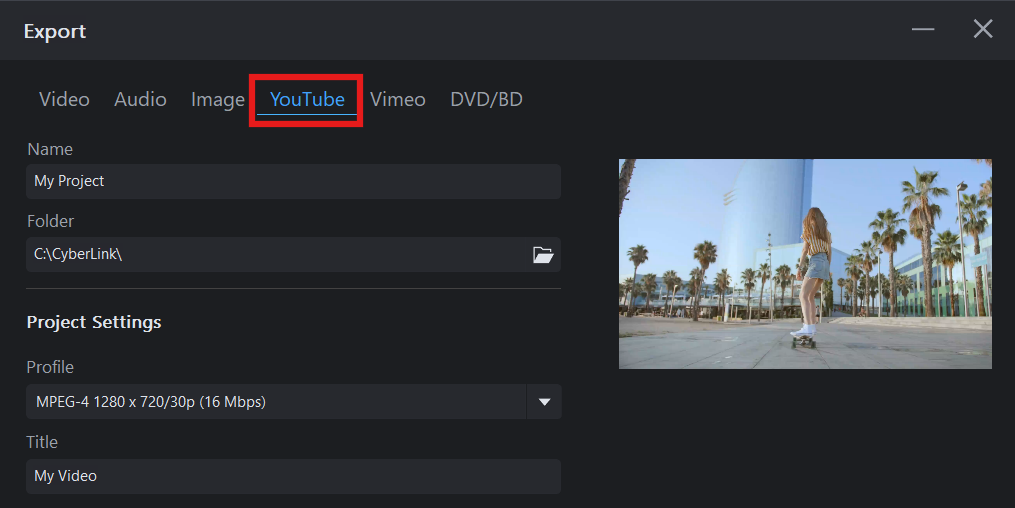
Please note that the code is for one-time use and must be formatted. This means you cannot use the same code for multiple videos even if the videos contain the same music. If you need to modify your video description on the YouTube website, remember to keep the format of the YouTube code. - Export a video on your PC and then upload the video via the YouTube website.
PowerDirector will generate a YouTube code for each music track used after exporting a video on your PC. You can click on the "Copy" button to copy the YouTube code and paste it on your video description on the YouTube website.
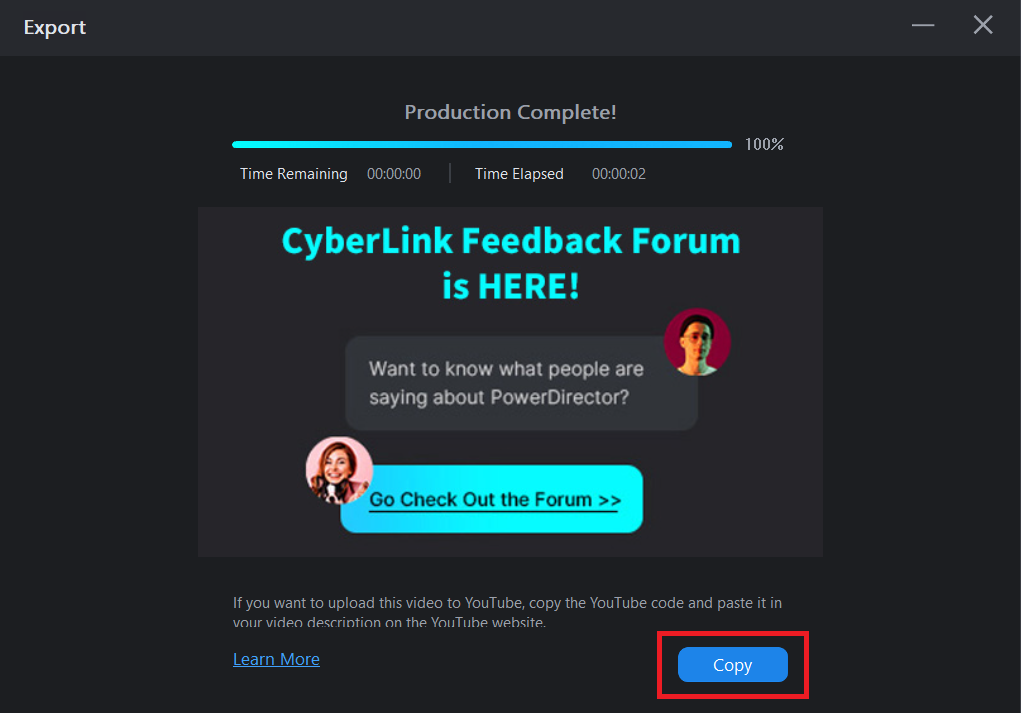
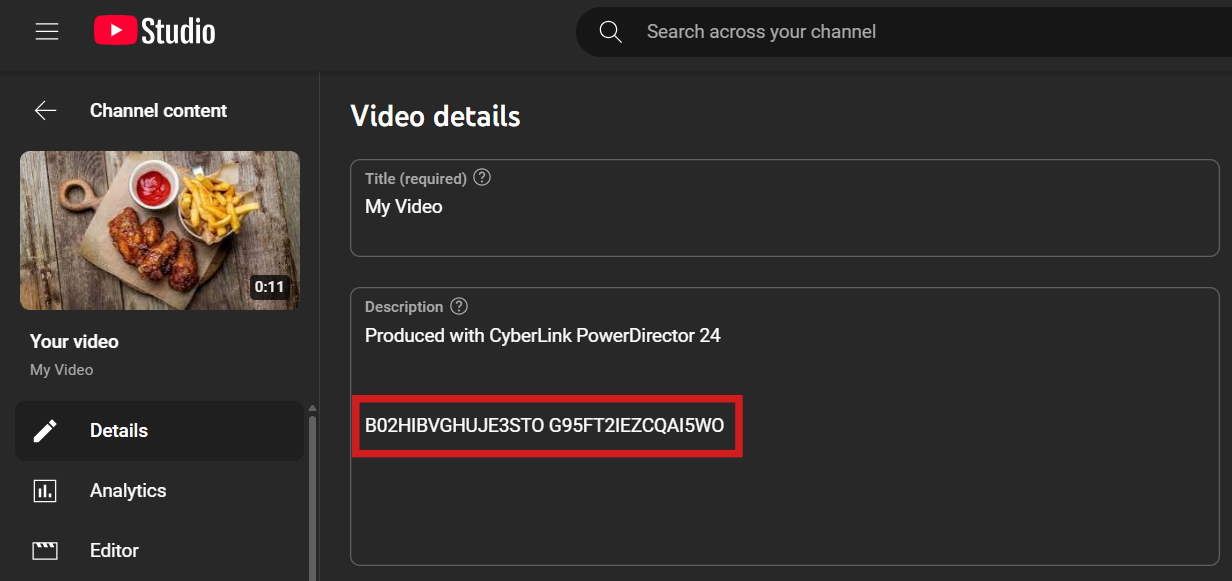
- Please note that the code is for one-time use and must be formatted, so we suggest you save the copied code if you are not uploading the video to YouTube right away.
- Export a video to YouTube via PowerDirector Mobile directly.
After producing the project that contains the iStock by Getty Image soundtrack, on the result checking page, you can see a "Copy" button next to the "Generate YouTube Code" text. Tap the "Copy" button and then paste the copied code into the description column of the YouTube video information page.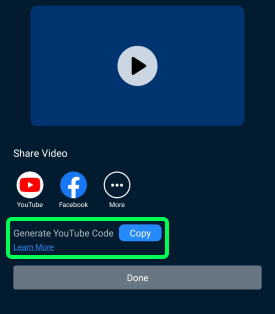
- Export a video on your PowerDirector Mobile and then upload the video via the YouTube website.
If you're using PowerDirector Mobile, when you tap and download the iStock by Getty Image soundtrack, an exclamation icon will appear on the soundtrack menu. By tapping the exclamation icon, a pop-up window will show and generate the YouTube code for you. You can tap the copy button to copy the code and then paste it into the description column of the video information page.
Even if you forgot to paste to YouTube code previously, you can still follow the steps above to generate another code and paste it into the video information column to prevent copyright claims.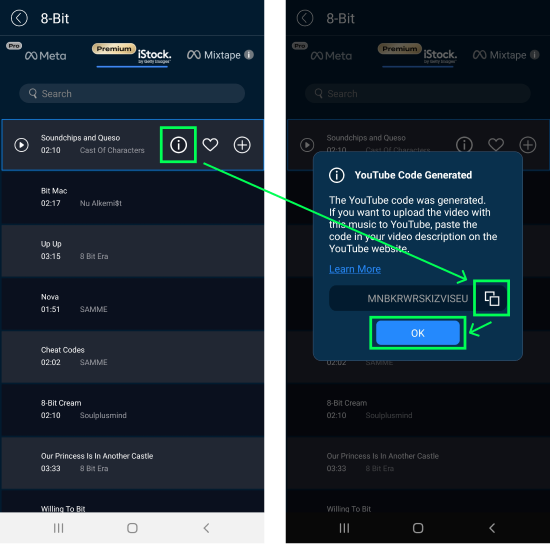
Please note that the code is for one-time use and must be formatted, so we suggest you save the copied code if you are not uploading the video to YouTube right away.
What if I didn't save the YouTube code after producing a video?
Don't worry! You can still generate a YouTube code for Soundstripe music in PowerDirector if you didn't save the YouTube code after exporting a video.
- Go to Soundstripe music library in PowerDirector.
- Right click on the music used in your video to show the context menu.
- Click on "Generate YouTube Code" to generate a one-time use YouTube code for your video.
- Copy and paste the code in your YouTube video description when you upload it to YouTube.
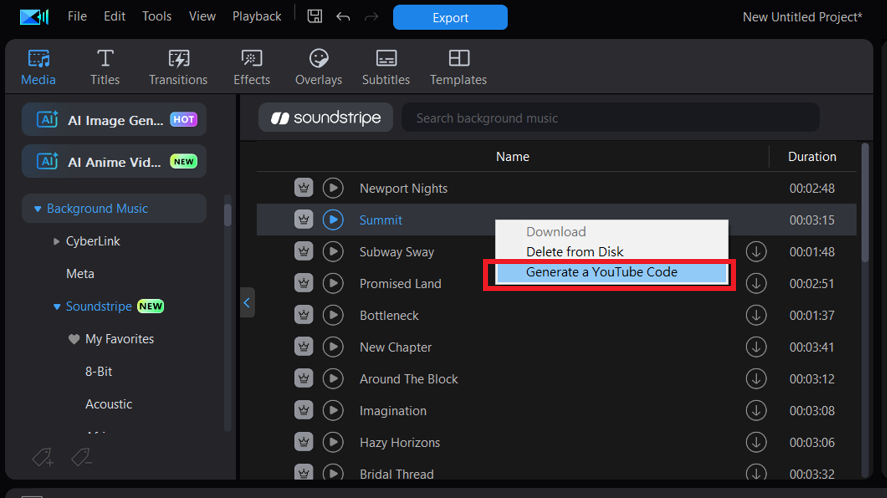
Please note that the code is for one-time use and must be formatted. That means you cannot use the same code for multiple videos even if the videos contain the same music.
What can I do if I still receive a YouTube Content ID claim when using Soundstripe music with a YouTube Code?
- Make sure you generate "NEW" YouTube codes for each music track you used in your video.
- Make sure YouTube codes format is correct. The different codes must be separated by a space in the YouTube video description.
- Make sure the codes are in the description before uploading the video. Pasting YouTube codes in an already uploaded YouTube video description is not going to work.
If you still get a YouTube content ID claim after checking the above suggestions, provide the following information and contact CyberLink Support Team. We will help you to resolve it.
- A full screen snapshot of the YouTube Content ID claim
- The music track names in the PowerDirector Background Music library
- Your YouTube video URL and channel URL
What can I do if I receive a YouTube Content ID claim when using Meta audio or CyberLink background music?
- Meta audio: Music from Meta audio library can only be used in Meta related services, such as Facebook or Instagram. If you use music from the Meta audio library in other services, such as YouTube, you may need to use a different music track, such as Soundstripe music, in your video and then export the project again.
- CyberLink background music: Provide the following information and contact CyberLink Support Team. We will help you to resolve it.
- A full screen snapshot of the YouTube Content ID claim
- The music track name in the PowerDirector Background Music library
- Your YouTube video URL and channel URL
If you have further questions, contact CyberLink Support Team. We are here to help you out!


