



Snapchat Filter Remover: How to Edit Out a Snapchat Filter from Photos
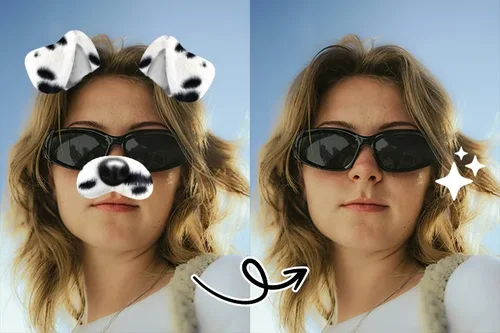
Snapchat filters are fun, but sometimes you want to return to your photo’s original look. As people seek to keep their photos authentic, filter removal is becoming a must-know skill.
PhotoDirector is the ultimate tool to remove Snapchat filters effortlessly. With powerful AI and an easy-to-use interface, it lets you restore your photos with precision in no time.

- How to Edit Out a Snapchat Filter from a Photo
- The Best Free Snapchat Filter Remover
- Snapchat Filter Remover FAQ
How to Edit Out a Snapchat Filter from a Photo
Easily remove Snapchat filters with PhotoDirector and restore your photos to their natural look. Follow these simple steps for a flawless result.
- Save Your Snapchat Image - Open Snapchat, tap "Export," then select "Download" to save the image to your device.

- Download and install PhotoDirector – Get the free PhotoDirector on your Android or iOS device.
- Open PhotoDirector & Select "AI Removal" – Launch the app and tap the "AI Removal" tool. Choose your saved Snapchat photo from your library.

- Choose Your Removal Method – Use Auto Mode for automatic filter removal and background correction with Smart Detect, or switch to Manual Mode for more precise control, brushing over specific areas to remove the filter.

Tip: Auto Mode works best for seamlessly erasing fingers, objects, and wires. - Tap "Remove" & Save Your Photo – Let the AI remove the filter and blend the background for a seamless, natural look. Once satisfied, save your photo.

- (Optional) Adjust Image Lighting – Some filters affect lighting, so if needed, use PhotoDirector's color filters under "Filters" to adjust and perfect your image.



PhotoDirector: The Best Free Snapchat Filter Remover

PhotoDirector is a powerful, user-friendly photo editing app designed for both beginners and advanced users.
It offers a range of tools, with its Object Removal feature standing out for removing unwanted elements, such as Snapchat filters, from your photos.
Whether you want to erase a filter, adjust lighting, or make other refinements, PhotoDirector's intuitive AI-driven tools make editing seamless.
This feature allows you to select the area where the filter or unwanted object appears and remove it, restoring the image to its original form with precision.

PhotoDirector is perfect for removing Snapchat filters with its powerful, user-friendly features.
- AI-Powered Removal: Easily erase Snapchat filters with PhotoDirector's smart AI tool that seamlessly fills in the removed area.
- Customizable Removal Options: Switch between automatic and manual modes to choose the best method for removing filters.
- Advanced Editing Tools: Enhance your photos with options like color correction, exposure adjustments, and noise reduction.
- Free Access: PhotoDirector offers a robust set of features for free, making it accessible to everyone.
- User-Friendly Interface: Its intuitive design ensures smooth editing, even for beginners.
Download PhotoDirector for easy Snapchat filter removal!
Related Articles:
- How to Edit Out Someone in a Photo
- Remove Objects from Photos with AI
- How to Remove Text from Images
Snapchat Filter Remover FAQ
- Save Your Snapchat Image - Open Snapchat, tap "Export," then select "Download" to save the image to your device.
- Download and install PhotoDirector – Get the free PhotoDirector on your Android or iOS device.
- Open PhotoDirector & Select "AI Removal" – Launch the app and tap the "AI Removal" tool. Choose your saved Snapchat photo from your library.
- Choose Your Removal Method – Use Auto Mode for automatic filter removal and background correction with Smart Detect, or switch to Manual Mode for more precise control, brushing over specific areas to remove the filter.
- Tap "Remove" & Save Your Photo – Let the AI remove the filter and blend the background for a seamless, natural look. Once satisfied, save your photo.
- (Optional) Adjust Image Lighting – Some filters affect lighting, so if needed, use PhotoDirector’s color filters under "Filters" to adjust and perfect your image.
Yes, you can remove a Snapchat filter from a picture using powerful apps like PhotoDirector. With its AI Removal tool, you can effortlessly erase Snapchat filters, restoring your photo to its original form. The app is intuitive and allows precise editing for a natural, unfiltered look.
PhotoDirector is one of the best apps for removing Snapchat filters. With its AI-driven Object Removal feature, it makes it easy to remove unwanted filters, adjust lighting, and enhance your photo. Available for both Android and iOS, PhotoDirector offers a user-friendly experience with professional-level results.
To remove Snapchat text from a photo, you can use an editing app like PhotoDirector. Simply upload the image, use the AI Removal tool, and select the text area you want to erase. The app will intelligently remove the text and blend the background seamlessly for a clean result.
Removing a Snapchat marker or any unwanted elements from your photo is simple with PhotoDirector. After saving the image, upload it to the app, use the AI Removal tool, and choose automatic or manual mode to erase the marker seamlessly. PhotoDirector’s advanced features ensure that the background blends naturally for a polished finish.

The CyberLink Editorial Team is composed of product testing specialists and content creation experts with over 20 years of hands-on experience and rigorous research in the multimedia editing industry. As the official voice of CyberLink, the team consistently delivers practical, easy-to-follow tutorials across video, photo, and audio editing, while highlighting AI innovations, product insights, and emerging industry trends. Their work empowers millions of creators worldwide each year to elevate their content. Beyond the blog, the team actively shares editing tips and product updates across YouTube, Facebook, Linkedin and Pinterest.
😎 Outside of their work, they enjoy capturing travel moments and meticulously editing photos and videos for their social channels.


