






What is Google AI Studio and how to use it: 2026 Complete Guide

Google AI Studio is a web-based platform that lets creators and developers experiment with Google’s Gemini AI models, design prompts, and generate content quickly. It’s built for fast prototyping and easy access to AI features, including prompt testing and API integration..
In this guide, we’ll cover what Google AI Studio is, how to use it, and when an alternative might be a better fit.
- What Is Google AI Studio
- How to Get Started with Google AI Studio
- Google AI Studio vs ChatGPT vs Vertex AI
- Limitations of Google AI Studio
- Google AI Studio FAQs
What Is Google AI Studio

Google AI Studio is a web-based development platform that lets creators and developers work directly with Google’s Gemini AI models. Instead of acting like a chatbot, it functions as a browser-based prototyping environment where you can test prompts, experiment with multimodal inputs (text, images, and video), and generate code for AI-powered applications.
For content creators, Google AI Studio lowers the barrier to using advanced AI without the complexity of enterprise tools like Vertex AI. It’s especially useful for exploring text generation, prompt engineering, and basic computer vision workflows before committing to full-scale development.
Its latest Gemini 3 model delivers advanced capabilities: faster and more accurate text generation, improved understanding of complex prompts, and enhanced support for image and video generation. Gemini 3 can interpret visual inputs, generate creative assets, and help design multimedia content for storytelling.
How to Get Started with Google AI Studio
Google AI Studio: Pricing and Access
Google AI Studio is free to use at its basic level, giving creators a wide margin to experiment with Gemini models without cost. You can test text, image, and video generation directly in the browser.
For API integration or large-scale usage, billing may apply under Google Cloud’s pay-as-you-go model, based on token usage. Optional subscription plans like AI Plus (~$8/month) provide expanded access, higher limits, and advanced Gemini features for creators who need more power or volume.
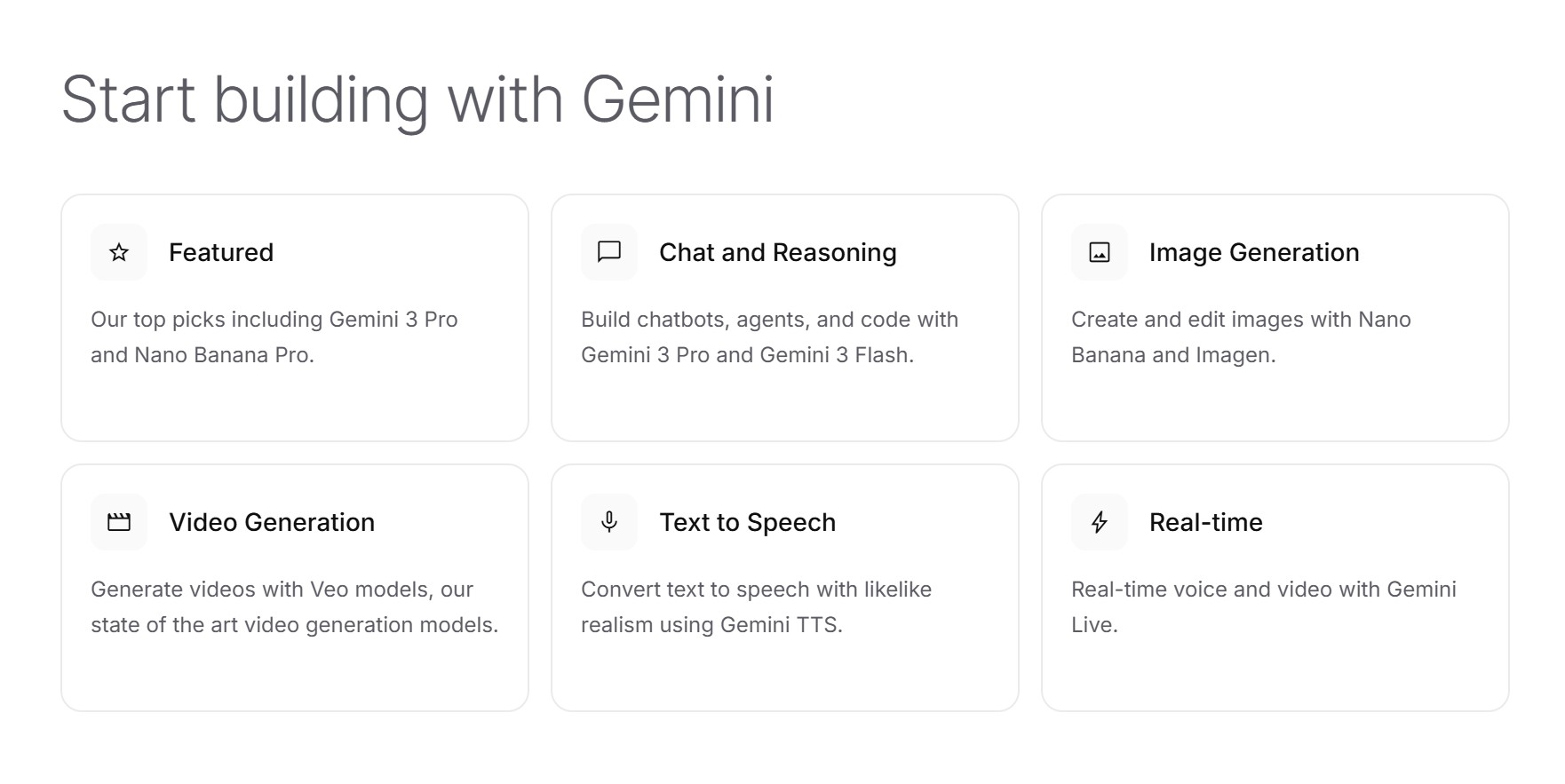
Step-by-Step Tutorial: How to Use Google AI Studio
- Access and Initial Setup
Visit the official Google AI Studio site and sign in with your Google account. Basic use is free, so you can start experimenting immediately.

- Model Selection
Choose a model in the right panel, we recommend:
▪ Gemini 3 Pro: For complex image or video generation.
▪ Gemini 3 Flash: Optimized for fast text responses and low latency.

- Prompt Engineering
Google AI Studio offers three prompt modes:
▪ Chat Prompt: For conversations and iterative adjustments.
▪ Freeform Prompt: A blank canvas to combine text and images.
▪ Structured Prompt: Enforces specific output formats (JSON, tables), ideal for developers.
- Obtaining the API Key
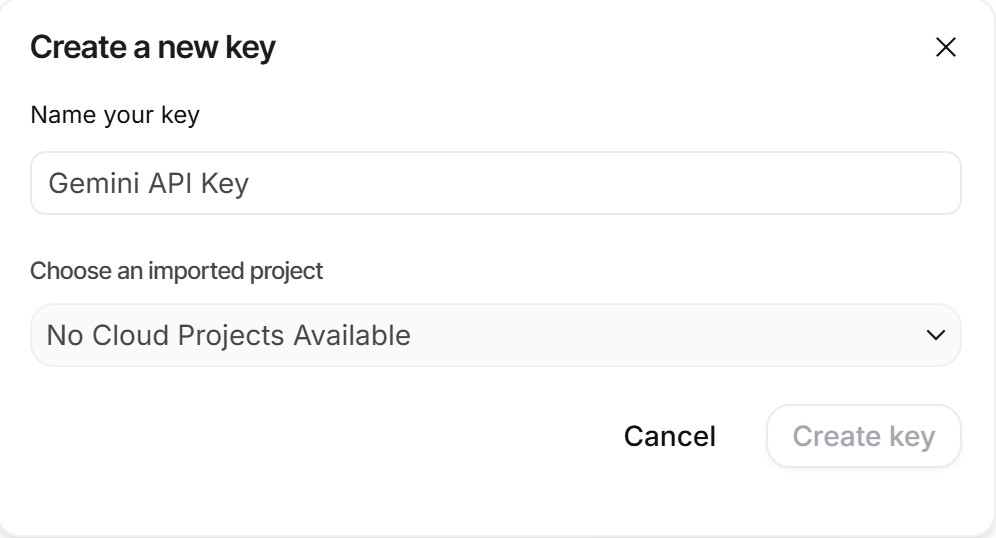
Once your prototype works, click “Get API Key” to integrate Gemini with other applications, websites, or workflows.


Google AI Studio vs ChatGPT vs Vertex AI
Choosing the right AI tool depends on your goals—whether you want rapid prototyping, content generation, or enterprise-scale deployment. Here’s a detailed comparison of Google AI Studio, ChatGPT (OpenAI), and Vertex AI to help you decide.
| Feature | Google AI Studio | ChatGPT (OpenAI) | Vertex AI (Google Cloud) |
|---|---|---|---|
| Main Objective | Rapid prototyping and API development | Conversational assistant and copywriting | Large-scale enterprise AI deployment |
| Base Model | Gemini (Pro/Flash/Ultra) | GPT-5.2 | Full suite of Google AI models |
| Learning Curve | Medium – requires understanding of prompt logic | Low – natural conversational interface | High – requires registration and data engineering knowledge |
| Cost | Generous free tier; pay-as-you-go for higher usage | Freemium; ChatGPT Plus $20/month | Enterprise pay-as-you-go |
| Best For | Testing prompts, building apps, experimenting with AI logic | Writing emails, generating ideas, casual AI assistance | Training custom models and enterprise-level AI applications |
Key Takeaways:
- Google AI Studio is ideal for creators and developers who want to experiment with Gemini models, generate images or videos, and integrate AI into apps.
- ChatGPT is perfect for everyday writing, brainstorming, and conversational AI needs.
- Vertex AI is targeted at enterprises needing large-scale, customizable AI pipelines.
Limitations of Google AI Studio
Google AI Studio is powerful for logic, prompt testing, and API prototyping, but it falls short for producing visual content such as images, animations, or videos. There are some limitaions for creators to consider. Let us break it down for you.
Limitations of Google AI Studio for AI Creations
⚠️ Not execution-focused
AI Studio is an experimentation environment, not a visual editor. Turning outputs into finished visuals often requires extra tools or code.
⚠️ Higher technical barrier
Working effectively means understanding prompts, models, and APIs—great for developers, less ideal for creators who want speed.
⚠️ Limited creator workflows
There’s no timeline, templates, or one-click export for social-ready content.
⚠️ Multimedia requires setup
Image and video generation rely on model access, parameters, and external processing rather than instant results.
For creators who want to move from idea to publishable content fast, this can slow things down.
Google AI Studio Alternative for Creators (No Code, Visual-First)
While Google AI Studio handles the “brain” of AI, creators often need a tool that executes the visual result quickly and easily—without code. That’s where CyberLink’s MyEdit comes in.
MyEdit is a creative AI platform built specifically for images and videos. It uses pre-trained multimedia models and an intuitive interface, so you can focus on creativity itself. To complement video and animations, MyEdit also offers audio features such as sound effect generation to bring your creations to the next level.
AI Text to Image Generation
Turn prompts into polished visuals in seconds. MyEdit’s AI Iamge Generator is optimized for styles and scenes, with no technical setup required.

- Go to MyEdit's AI Image Generator.
- Choose a model to process the image generation.
- Describe the visuals you want to create in details in the text box, then click Generate.

AI Image to Video Animation
Transform a still image into an animated clip with motion, effects, and atmosphere—perfect for short-form content or storytelling.
Users can directly turn the generated AI image into video by clicking the Turn into Video button on the bottom right corner of the result image, or upload an existing picture to MyEdit's Image to Video Generator.

- Access MyEdit's Image to Video Generator with your AI generated image or existing photo.
- Describe the movement and animation you want to achieve in the text box.
- Set up the video's duration and aspect ratio.
- Click Generate when the setup is ready, and the video would be ready in just a few minutes.
AI Text to Video Creation
Generate short videos directly from text prompts using customized text prompts, making it easy to create engaging content for social media or bringing your imagination to life.

- Go to MyEdit's Text to Video Generator.
- Describe the video you'd like to in the text box in as much details as possible.
- Set up the video's duration and aspect ratio.
- Click Generate, and the video would be ready in minutes.
Get started with free daily credits
Getting started with MyEdit is super easy. Just create an account or log in, and you can receive free daily credits to explore and experiment with its AI tools. Just click your profile icon in the top-right corner and select Earn Free Credits. No setup, no learning curve — just start creating right away.

💡 Bottom line:
Use Google AI Studio for prototyping, logic, and experimentation.
Use MyEdit when you want fast, high-quality creative AI results—images and videos you can actually publish.
Recommended Articles
Want to explore more ways to create content with AI? These guides can help:
- Kling AI 3.0: Full Review 2026
- Grok Imagine Complete Guide: AI Image & Video with v0.9 Model
- DeepSeek Image Generator: How to Use It & the Best Free Alternative
- Ideogram AI: Complete Guide to The New AI Image Generator
Google AI Studio FAQs
Google AI Studio is a browser-based platform for experimenting with Google’s Gemini AI models. It allows users to test prompts, work with text, images, and video, and generate API-ready outputs.
Yes. Google AI Studio includes a free tier for testing Gemini models. Usage limits apply, and higher-volume or production use may require paid Google Cloud plans.
To access Google AI Studio, simply visit the Google AI Studio website and sign in with a Google account. No installation or setup is required.
Google AI Studio is built for AI prototyping and API development, while ChatGPT is designed for natural conversation, writing, and everyday tasks. AI Studio is more technical; ChatGPT is more user-friendly.
No. Gemini is the AI model, and Google AI Studio is the platform used to access and test it.
Yes. It follows Google’s AI safety and data protection standards, but users should avoid sharing sensitive or confidential information.


