







20 Best AI Video Prompts for Veo 3.1, MyEdit and Other AI Generators

A good AI video prompt does most of the work for you. It tells the model what happens, where it happens, how the camera behaves and what the scene should sound like, which is the difference between a clip you can publish and a clip you regenerate five times. This guide collects 20 prompts we ran ourselves, each with the clip it produced.
Every example on this page was generated with Veo 3.1 inside MyEdit Text to Video and Image to Video . MyEdit is CyberLink's own tool and CyberLink publishes this blog, so the credit costs and the limits below are stated in full rather than glossed over.
Equipment and date: Windows 11 laptop, Google Chrome (latest version), MyEdit running in the browser. Verification pass completed in August 2026.
What we did: every example clip on this page was generated with Veo 3.1 inside MyEdit, using the exact prompt printed underneath it. Clips were produced at the 4, 6 and 8 second durations MyEdit offers, which cost 20, 30 and 40 credits respectively.
What we verified separately: the Veo 3.1 model line, its native audio behaviour and its clip-length ceiling against Google's own developer blog and DeepMind model page. The per-clip credit cost was read from MyEdit's own generation screen, not from a third-party summary.
Scope limit: we did not benchmark Veo 3.1 against other video models, so nothing here says it is the best generator, only how to prompt it well. The clips were generated in earlier sessions and were not re-rendered during the August 2026 pass. We also did not run these prompts through Google's own Gemini app or Flow, where results and limits may differ from MyEdit.
- Why Good AI Video Prompts Matter
- What Veo 3.1 Is and What It Can Do
- How to Structure AI Video Prompts
- 20 Ready-to-Use AI Video Prompts
- How to Generate AI Videos from Text and Images
- Expert Tips to Write Effective Prompts
- What It Costs to Generate These Videos
- AI Video Prompt FAQs
Why Good AI Video Prompts Matter

Video prompts are harder than image prompts because a video has to hold together over time. The model is deciding not just what a scene looks like, but how it moves, how the camera behaves and what it sounds like. A vague prompt leaves all three to chance.
Key Benefits of Good AI Video Prompts
- Closer to what you pictured - naming the subject, the motion and the camera leaves the model less room to improvise.
- Fewer regenerations - each attempt costs credits, so a prompt that lands on the first or second try is the cheapest prompt.
- Lower cost per usable clip - at 20 to 40 credits per generation, cutting three failed attempts out of a batch is a real saving.
- Creative control - structured prompts let you direct style, motion, camera angle and audio instead of accepting a default.
Q: Does a longer prompt always produce a better AI video?
A: No. Past a certain point extra detail competes with itself and the model starts dropping instructions. The most reliable prompts name one subject, one action, one environment and one camera behaviour, then stop. Add style and audio notes only if they change the shot.
What Veo 3.1 Is and What It Can Do
Veo 3.1 is Google's current line of video generation models, and it is the model behind every clip on this page. Google ships it through the Gemini API, its own Gemini app and Flow, and it also powers the video tools inside MyEdit, which is where we ran these prompts.
What Makes It Different
- Native audio - the model generates sound with the picture, from ambient noise and synchronised effects through to spoken dialogue, rather than leaving you a silent clip to score afterwards.
- Cinematic direction - it responds to shot language. Naming a tracking shot, a slow push-in or a wide aerial in the prompt changes the output in a way that generic wording does not.
- Stronger image-to-video - Google's release notes single out improved results when a still image is the starting point, which is what the second half of this list relies on.
- Vertical output - 9:16 is supported natively, so social clips do not have to be cropped down from a landscape render.
Where It Still Struggles
Three limits matter when you are writing prompts, and none of them is a prompt-writing problem you can solve with better wording:
- Clip length - a single generation runs to roughly eight seconds. Longer sequences have to be built by generating and joining several clips.
- Character consistency - the same person across two separate generations will not look identical. Reference images help, but they do not eliminate the drift.
- Crowded action - scenes with several things happening at once degrade faster than scenes with one clear action. This is the single biggest reason to simplify a prompt rather than expand it.
How to Structure AI Video Prompts for Better Results

The formula below is a memory aid for the parts that actually change the output. Treat it as a checklist, not a template you have to fill in completely.
Prompt = Subject + Action + Scene + (Camera Movement + Lighting + Style)
Focus on the Key Elements
A strong AI video prompt usually includes these basics:
- Subject / Action - who or what is in the video and what they are doing. Example: "A girl dancing in a forest."
- Style / Mood - the visual style or atmosphere. Example: "Cinematic, soft lighting, 4K."
- Background / Environment - where the scene takes place. Example: "Dense forest with sunlight streaming through trees."
- Camera / Motion - perspective, angle, or movement. Example: "Tracking shot, close-up, slow pan."
- Duration / Timing - how long the clip runs or the sequence of actions. Example: "10-second loop of dancing."
Add Extra Details for Better Quality
Optional details can make your AI video more polished and creative:
- Lighting & Color - "Golden hour sunlight," "neon glow."
- Animation / Effects - "Floating particles," "hand-drawn style."
- Audio Cues - "ambient crowd noise," "crisp footsteps." Veo 3.1 generates sound natively, so audio direction is worth including.
Example of a Well-Structured Prompt
Text-to-Video Example:
"A futuristic cityscape at sunset, cinematic style, flying cars, neon lights, 10-second aerial view with smooth camera pan."
Image-to-Video Example:
"Animate this portrait of a cat wearing a wizard hat, walking across a moonlit forest, soft glowing particles, 5-second loop."
Both name what happens, where it happens, how it looks and how the camera behaves. That is the whole trick.
20 Ready-to-Use Prompts to Generate Stunning AI Videos
Every prompt below is followed by the clip it actually produced, generated with Veo 3.1 inside MyEdit. The first ten start from text alone. The last ten start from an image you supply, which is the better route when you need a specific face, product or place in the shot.
Best AI Prompts for Converting Text into Videos
- Winter Festival
- Futuristic City
- Toy Workshop
- Flying Dragon
- Travel Market
- Halloween Patch
- Forest Picnic
- Synthwave City
- Beach Party
- Floating Bubbles
Best Prompts for Image-to-Video AI Generation
- Holiday Photo
- Cherry Blossom Portrait
- Coffee Galaxy
- Dog in Garden
- Product Showcase
- Mural Animation
- Couple Portrait
- Mountain Landscape
- Spaceship Takeoff
- Snow Globe
Best AI Prompts for Converting Text into Videos
These ten need nothing but the prompt. Run them in MyEdit Text to Video and adjust the duration to match what you need: a loop for social works at 4 seconds, a scene with a beat in it needs 8.
1. Winter Festival
Perfect for showcasing festive events, seasonal promotions, or creating cozy holiday-themed content with AI video.
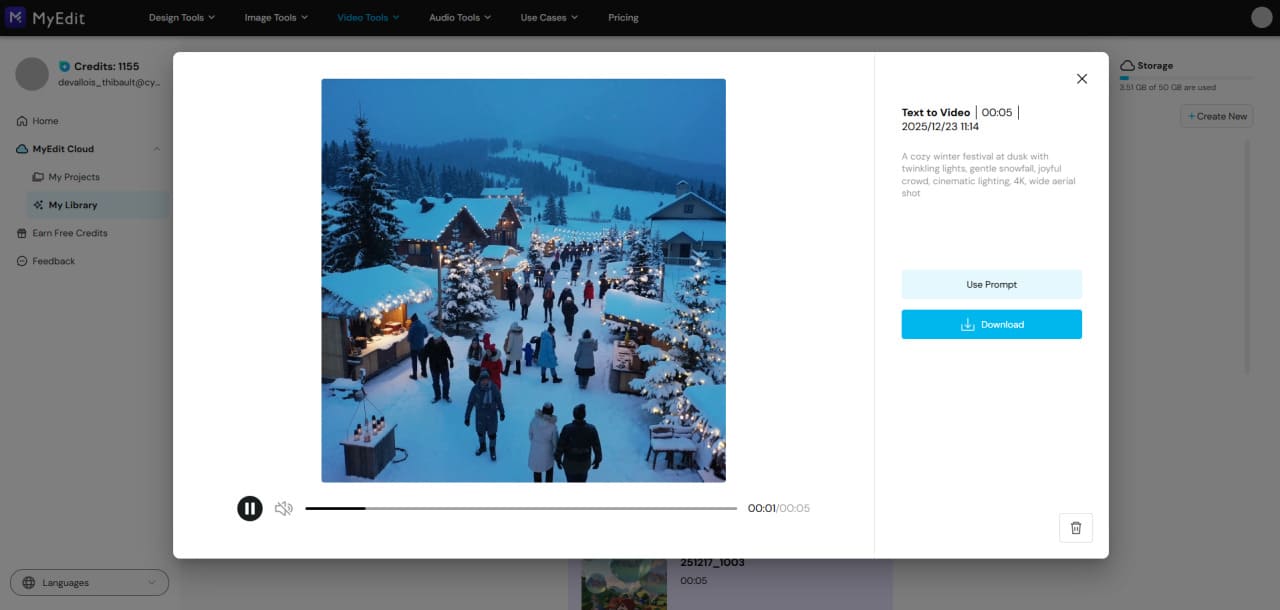
Prompt sample: "A cozy winter festival at dusk with twinkling lights, gentle snowfall, joyful crowd, cinematic lighting, 4K, wide aerial shot"
Pro Tip: Focus on lighting and crowd movement to make the scene feel lively and immersive. Dropping "wide aerial shot" pulls the camera down to street level, which is a different clip entirely.
2. Futuristic City
Great for tech, sci-fi, or cyberpunk-inspired content and social media reels.
Prompt sample: "Futuristic hovercars racing through neon city streets, rain reflections, dynamic follow cam, cinematic lighting, 4K"
Pro Tip: Highlight reflections and neon colors for a vibrant cyberpunk look. The word "rain" is doing most of the work here, since wet surfaces are what make the neon read.
3. Toy Workshop
Ideal for playful, educational, or children-focused content and animations.
Prompt sample: "Tiny robots building whimsical toys in a playful workshop, bright colors, cheerful motion, 4K"
Pro Tip: Focus on smooth animation loops to make the scene fun and engaging. Keep the robot count vague rather than specifying a number, which the model handles poorly.
4. Flying Dragon
Best for fantasy storytelling, game trailers, or epic cinematic scenes.
Prompt sample: "Majestic dragon soaring over snowy peaks as the sun rises, epic wide aerial shot, cinematic lighting, 4K"
Pro Tip: Emphasize scale and motion to create a dramatic effect. Pairing a large subject with a wide shot is what sells the size.
5. Travel Market
Perfect for travel promotions, cultural storytelling, or immersive city guides.
Prompt sample: "Backpacker walking along colorful Moroccan market streets at sunset, bustling crowd, cinematic pan, 4K"
Pro Tip: Capture dynamic crowd movement to make the scene lively. Swap the location word to relocate the whole scene without rewriting anything else.
6. Halloween Patch
Great for Halloween-themed videos, seasonal marketing, or fun spooky content.
Prompt sample: "Halloween pumpkin patch with glowing jack‑o‑lanterns and bats flying, spooky fun, cinematic lighting, 4K"
Pro Tip: Play with light and shadows to enhance the spooky atmosphere. "Glowing" is what keeps the lanterns lit rather than flat props.
7. Forest Picnic
Ideal for nature, wellness, or whimsical storytelling content.
Prompt sample: "Forest picnic scene with animals dancing and sunlight dappled through trees, whimsical, cinematic lighting, 4K"
Pro Tip: Emphasize sunlight and gentle motion for a peaceful, magical feel. "Dappled" is a surprisingly load-bearing word: it produces moving light rather than a flat wash.
8. Synthwave City
Perfect for retro-futuristic vibes, music videos, or trendy social media clips.
Prompt sample: "Retro synthwave city highway at night, glowing grids and neon lights, dynamic zoom, 4K"
Pro Tip: Highlight neon reflections and camera movement to capture retro energy. Naming the aesthetic by era instead of by artist keeps the prompt from being refused.
9. Beach Party
Great for summer promotions, lifestyle content, or lively travel reels.
Prompt sample: "Summer beach party with dancing crowds, animated waves, flying kites, bright lighting, 4K"
Pro Tip: Use vibrant colors and motion to make the scene feel energetic and fun. Three moving elements is about the ceiling before the shot starts to fall apart.
10. Floating Bubbles
Ideal for creative, surreal, or playful content that grabs attention.
Prompt sample: "Giant floating bubbles over a cartoon village with colorful reflections, playful surreal style, 4K"
Pro Tip: Emphasize reflections and motion to make the animation visually captivating. Surreal prompts tolerate more detail than realistic ones, because there is no physical reference to violate.
Q: Why does the same prompt give a different video every time?
A: Video models sample randomly, so two runs of an identical prompt will differ in framing, timing and motion. Tightening the camera instruction and the action narrows the variation, but it never removes it. Budget for two or three generations when you need a specific result, which at 4 seconds means 40 to 60 credits.
Best Prompts for Image-to-Video AI Generation
These ten start from a picture you upload, which is the route to take when the shot has to contain a particular face, product or place. Run them in MyEdit Image to Video . Use your own images or ones you have the rights to, and avoid animating photos of people who have not agreed to it.
11. Holiday Photo
Perfect for turning your family or friends' holiday photos into festive animated videos with snow, lights, and cozy effects.
Prompt sample: "Family photo in a cozy living room, animated snowfall, twinkling lights, warm cinematic lighting, 4K"
Pro Tip: Add subtle motion to decorations or falling snow to make the scene feel lively and festive. Animating the environment rather than the people keeps faces from distorting.
12. Cherry Blossom Portrait
Turn springtime photos into gentle, flowing animations with blooming cherry trees for seasonal or aesthetic content.
Prompt sample: "Portrait of a person under cherry blossoms, petals falling, soft sunlight, cinematic 4K"
Pro Tip: Add subtle petal motion and soft lighting to make the scene dreamy. Falling particles are the safest way to add movement to a still portrait.
13. Coffee Galaxy
Perfect for creative, eye-catching content by turning a simple coffee image into a surreal animated galaxy scene.
Prompt sample: "Top-down photo of a coffee cup, transforming into swirling galaxy, colorful stars, cosmic lighting, 4K"
Pro Tip: Enhance the motion of stars and swirls for a mesmerizing effect. Transformation prompts work best when the source image is shot flat and centred.
14. Dog in Garden
Bring pet photos to life with playful movements, perfect for social media or pet-focused content.
Prompt sample: "Dog playing in a flower garden, tail wagging, butterflies flying, bright sunlight, cinematic 4K"
Pro Tip: Animate small movements like tail wagging or butterflies to make it lively. Asking an animal to run across the frame usually breaks the anatomy; small motions do not.
15. Product Showcase
Great for marketing or e-commerce by turning product images into animated promotional videos.
Prompt sample: "Image of a smartwatch, rotating in 3D, glowing highlights, sleek studio lighting, 4K"
Pro Tip: Use smooth rotation and reflections to emphasize product quality. Check the result frame by frame before publishing: rotation is where logos and text tend to smear.
16. Mural Animation
Perfect for art-focused content, bringing static murals or paintings to life with subtle motion and effects.
Prompt sample: "Animate the mural coming to life: characters stepping off the wall, paint flowing like liquid, colors morphing and glowing, magical surreal motion, soft cinematic lighting, 4K, dreamlike and immersive."
Pro Tip: Emphasize brush strokes or paint flow for a more immersive effect. Use murals you photographed yourself or that are clearly in the public domain, since street art is copyrighted work.
17. Couple Portrait
Ideal for creating romantic, engaging animated content for anniversaries, weddings, or social posts.
Prompt sample: "Couple holding hands in a park, leaves gently falling, warm golden hour light, cinematic 4K"
Pro Tip: Use subtle background motion like swaying leaves to enhance realism. Two faces in one frame is where character consistency degrades fastest, so keep the shot wide.
18. Mountain Landscape
Perfect for travel content, nature blogs, or inspirational scenes by animating landscape photos.
Prompt sample: "Mountain range at sunrise, clouds drifting, animated sunlight, cinematic 4K"
Pro Tip: Animate clouds or mist for a calming, immersive effect. Landscapes are the most forgiving image-to-video subject, because there is no face or logo to hold steady.
19. Spaceship Takeoff
Great for sci-fi or tech content by animating space or concept art images into dynamic motion clips.
Prompt sample: "Spaceship launching from futuristic spaceport, smoke and light effects, cinematic 4K"
Pro Tip: Focus on dynamic lighting and smoke movement for realism. Smoke and exhaust hide a lot of the artefacts a fast-moving object would otherwise show.
20. Snow Globe
Perfect for seasonal or whimsical content by animating photos into playful snow globe scenes.
Prompt sample: "Image inside a snow globe, snow falling around, animated reflections, cozy lighting, 4K"
Pro Tip: Emphasize snow motion and reflections to make the animation magical. Ask for the glass reflection explicitly or the globe reads as a flat circle.
How to Generate AI Videos from Text and Images
Both routes below run in the browser. The text-to-video walkthrough uses the Winter Festival scene from prompt 1, so you can follow it end to end with something from this page.
How to Turn Text into AI Videos Quickly and Easily
Four steps, start to finish, using MyEdit Text to Video.
- Open MyEdit: Launch the MyEdit AI Video Generator directly in your browser, with no downloads or installations needed.
-
Choose Mode & Settings: Select a generation mode, either Standard, Professional or Master, for progressively better results. Then set your video duration, aspect ratio, and audio options.
Note: Standard and Professional generate background audio, while Master can generate spoken dialogue. Duration is also what sets the price: 4 seconds costs 20 credits, 6 seconds 30, and 8 seconds 40.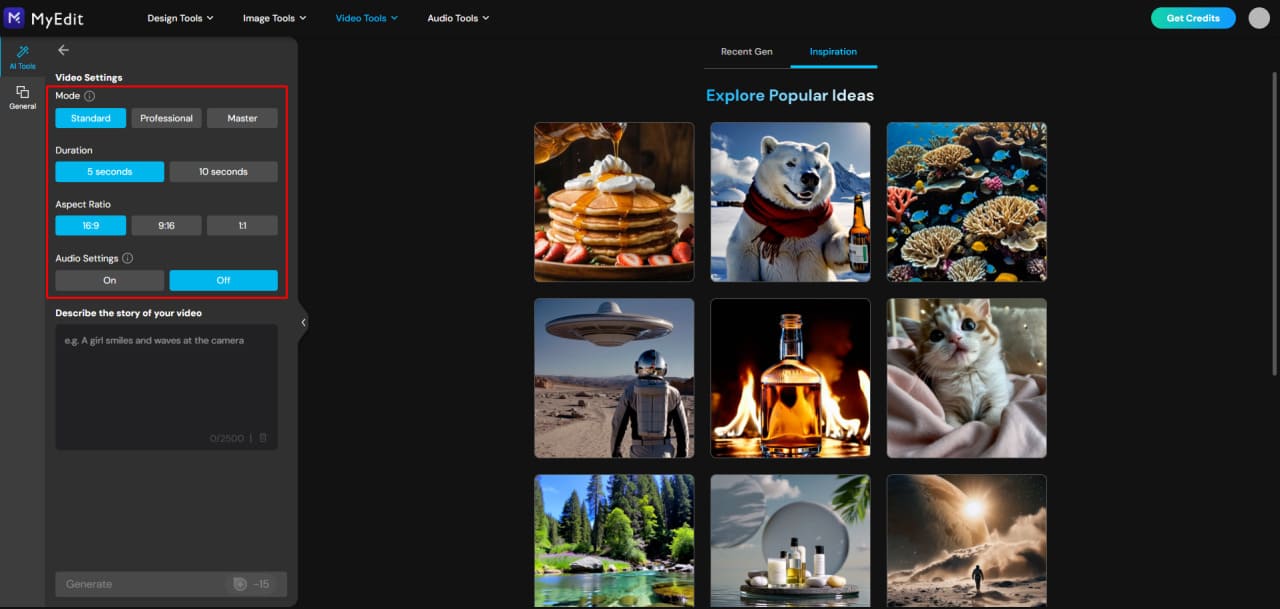
-
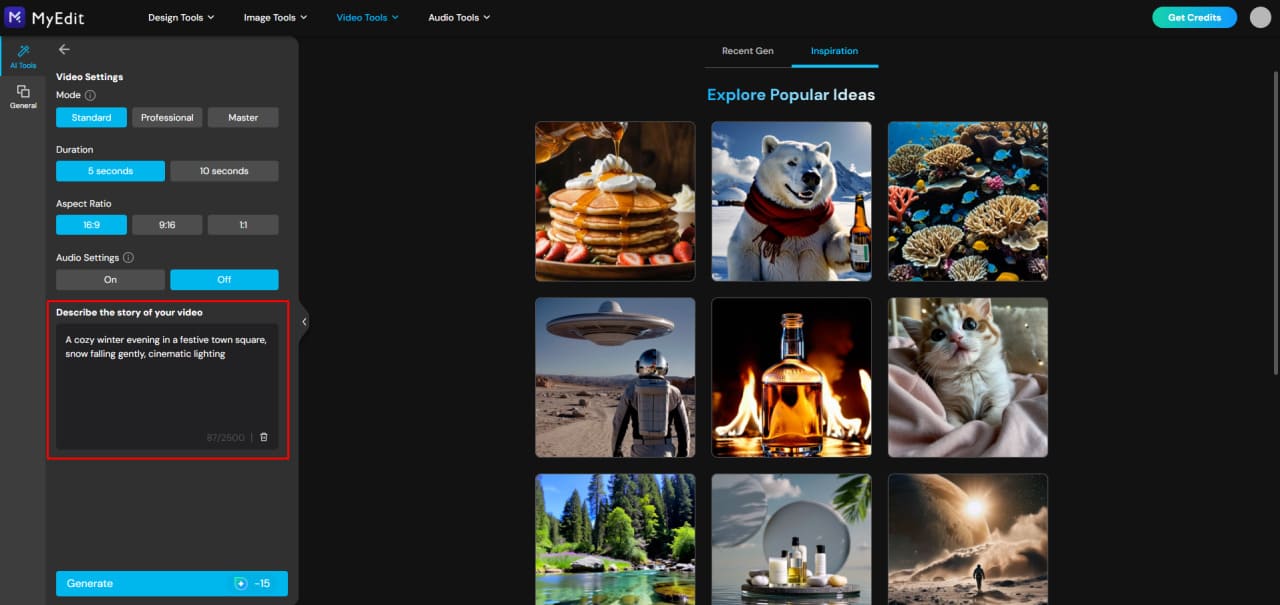
Enter Your Video Details: Confirm the duration and aspect ratio, then type a clear, descriptive prompt to tell the AI what you want.
Example: "A cozy winter evening in a festive town square, snow falling gently, cinematic lighting", which is a shortened version of prompt 1 above.
-
Generate and Download: Click Generate, watch the AI bring your prompt to life, then download or share your video.


How to Animate Images into Stunning AI Videos
Using MyEdit Image to Video, you can turn a static image into an animated clip with motion and effects. Start from a photo you own or have the rights to.
- Open MyEdit: Launch the MyEdit AI Image to Video Generator directly in your browser, with no downloads or installation required.
-
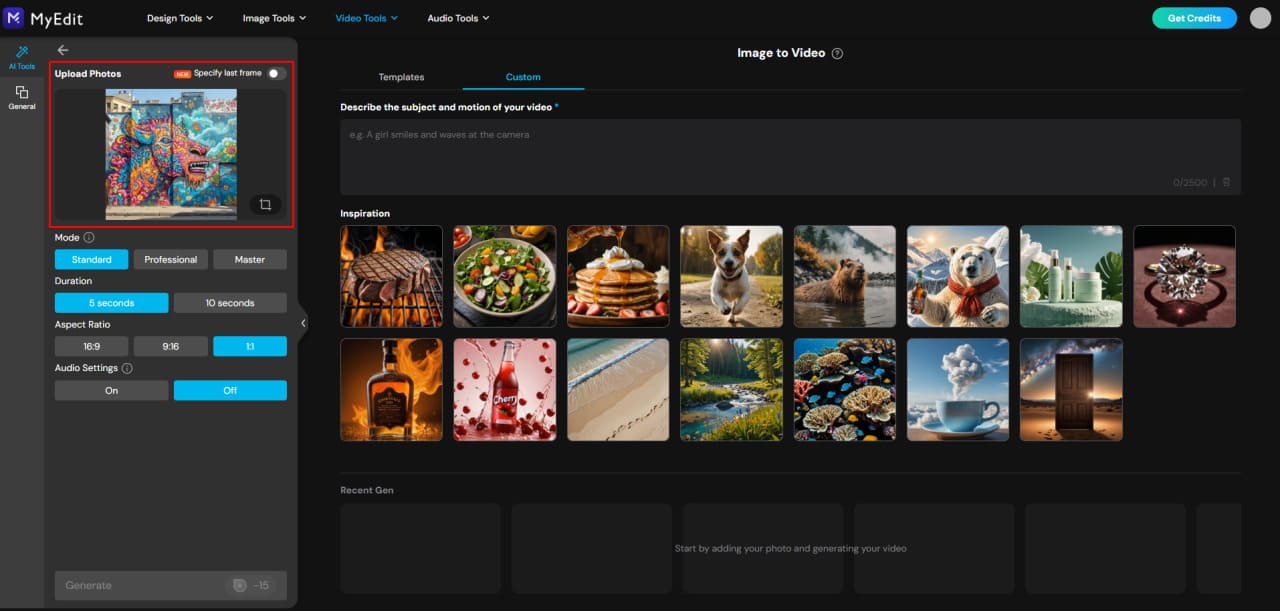
Upload Your Image: Choose a photo of one or two people, or a group image, and upload it to MyEdit.
-
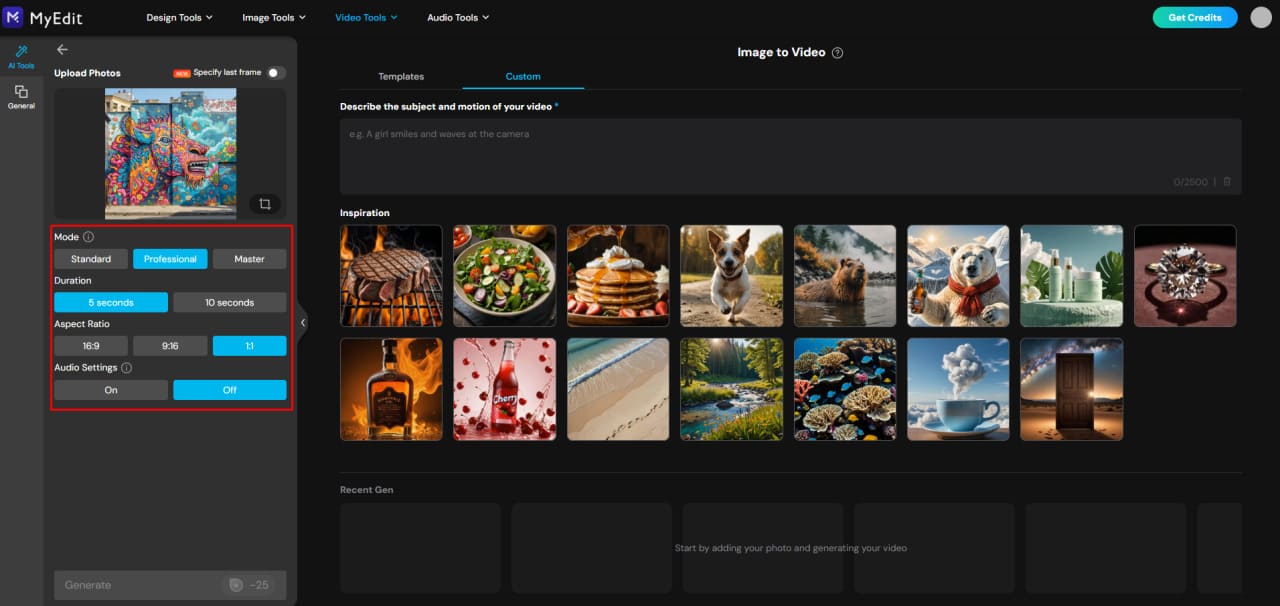
Choose Mode & Settings: Select a generation mode, either Standard, Professional or Master, for progressively better image-to-video results. Then choose your video duration, aspect ratio, and audio settings.
Note: Standard and Professional generate background audio, while Master can generate spoken dialogue.
-
Use Templates or Custom Prompts: Apply a ready-made animation template for fun effects, or type your own prompt in the Custom field to create unique animations tailored to your image.
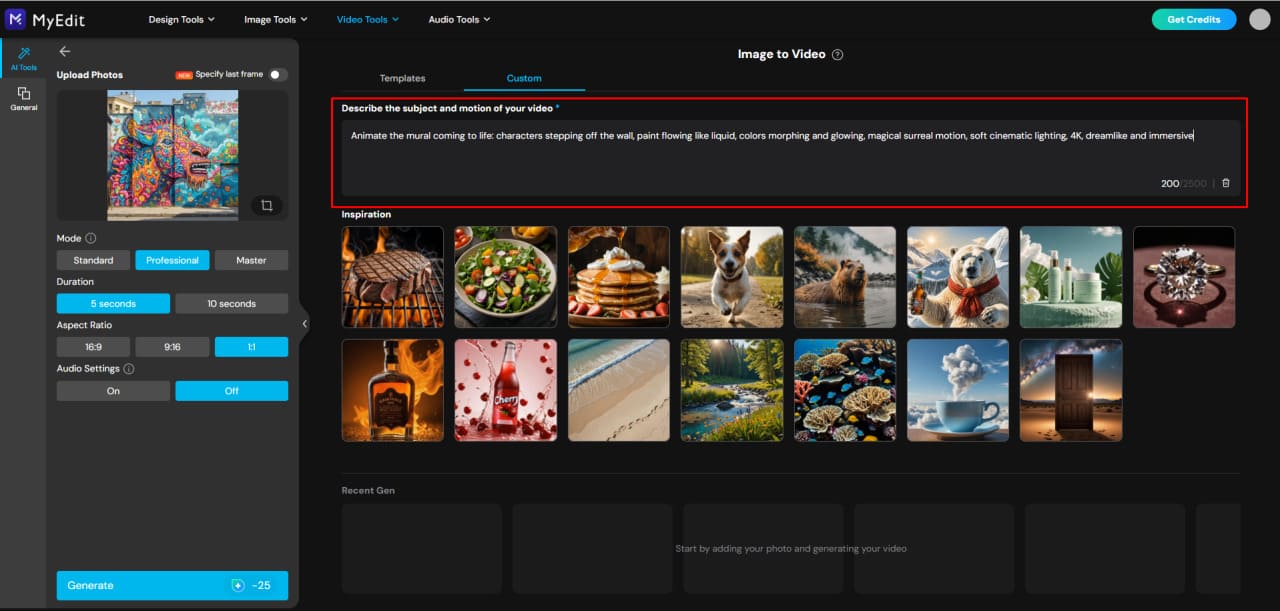
Pro Tip: Custom prompts give you full control, but templates are great for quick, polished animations without extra effort.
-
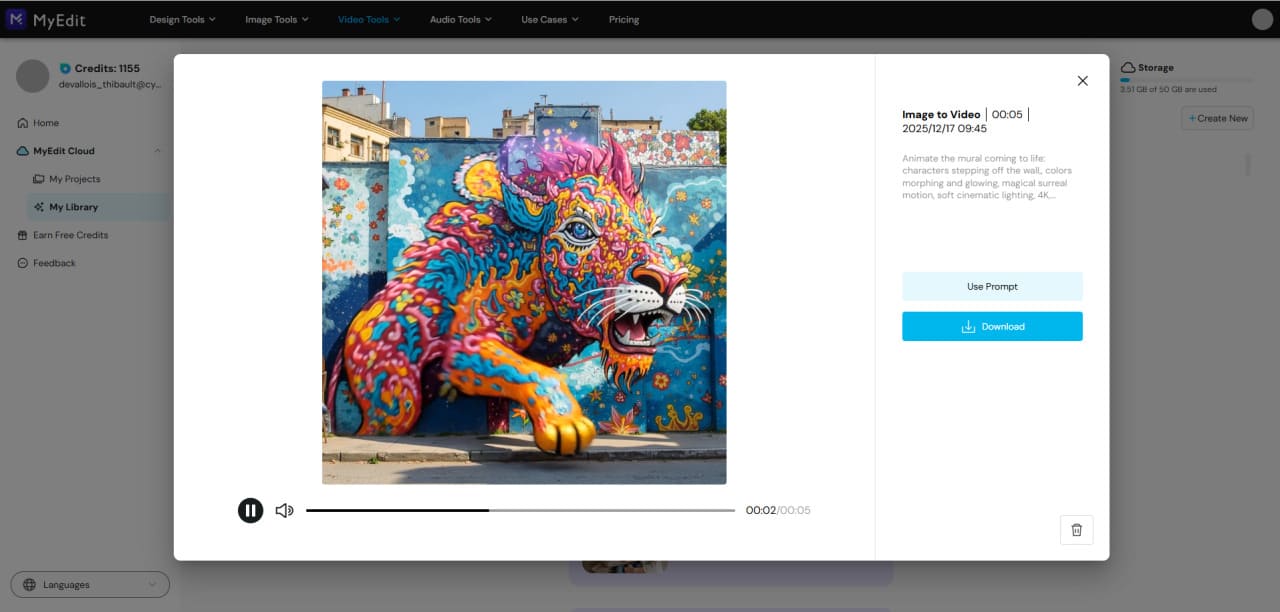
Generate, Preview, and Share: Let the AI process your image and create the animation. Once ready, preview your video, then download or share it.


Expert Tips for Crafting Powerful AI Video Prompts
Even with a solid structure, a few habits separate a prompt that works from one that needs five attempts.
1. Be Specific with Descriptions
Use clear, vivid adjectives to describe the subject, scene, and mood. Instead of "a dog in a park," try "a playful golden retriever chasing a frisbee in a sunlit park with autumn leaves."
2. Include Perspective and Camera Details
Adding information about camera angle, movement, or shot type can make videos feel cinematic. For example: "wide-angle shot, slow pan, overhead view."
3. Reference Styles by Their Traits, Not by Name
Describing an aesthetic works better than naming the studio or artist behind it, because generators routinely refuse prompts that name a living artist or a trademarked franchise. "Hand-painted backgrounds, soft pastel palette, gentle character animation" gets you where "in the style of [studio]" gets you a rejection.
4. Use Action Words
Dynamic verbs help bring scenes to life. Words like "soaring," "dancing," or "gliding" give the model a motion to build around, which vague nouns do not.
5. Balance Detail with Brevity
Too little detail leaves the model guessing, too much makes it drop instructions. Keep prompts concise but descriptive, focusing on the elements that matter most.
6. Add Audio Direction
Veo 3.1 generates sound natively, so a line about ambient noise, footsteps or crowd chatter is a real instruction rather than a decoration. Leaving audio unspecified means accepting whatever the model picks.
7. Test Short, Then Commit
Generate at 4 seconds while you are still tuning the wording, then re-run the finished prompt at 8. That is 20 credits per test instead of 40, which halves the cost of getting a prompt right.
Other Scene Types Worth Trying
These are not prompts with example clips on this page, just scene types that respond well to the formula above, along with the one element worth putting most detail into for each.
| Scene type | Where to put the detail |
|---|---|
| Cinematic narrative | The character's goal and the lighting, not the plot |
| Wildlife close-up | The specific animal behaviour and the background texture |
| Sci-fi space teaser | Depth cues and the direction objects travel |
| Urban night scene | Wet surfaces and what the light reflects off |
| Sports action | One movement in slow motion, plus crowd audio |
| ASMR food close-up | The sound cue first, then the macro framing |
| Retro VHS clip | Grain, colour tint and frame jitter as separate terms |
| Documentary nature walk | Wide framing and ambient sound over subject detail |
| Fashion runway | Camera tracking speed and one garment detail |
| Character dialogue | Gestures and expression, with Master mode for speech |
What It Costs to Generate These Videos
Every clip on this page cost credits to make, and anyone reproducing them will pay the same. Here is the arithmetic rather than an adjective.
Credits per Clip
| Clip length | Credits per generation | Generations from 500 credits |
|---|---|---|
| 4 seconds | 20 | 25 |
| 6 seconds | 30 | 16 |
| 8 seconds | 40 | 12 |
Plan Pricing
MyEdit's Premium plans include 500 credits a month. Creator Pro is $7 a month billed annually at $84, or $18 month to month. Studio Pro is $9 a month billed annually at $108, or $22 month to month. Prices are in US dollars, as billed by MyEdit.
The Honest Limit
500 credits a month is roughly a dozen eight-second clips, and video prompting is iterative: two or three attempts per finished clip is normal, not a sign you are doing it wrong. If you are producing video at volume, or you need single takes longer than eight seconds, a per-second API plan or a service with a larger credit pool will fit better than a monthly credit allowance. For occasional social content, seasonal campaigns or animating a handful of photos, the allowance is comfortable.
Q: Can I generate an AI video for free?
A: MyEdit gives new and free accounts a starting credit balance, but a single Veo 3.1 clip costs 20 to 40 credits depending on length, so free credits cover experimenting rather than sustained production. Check the credit counter in the generation screen before starting a batch, since it shows the exact cost of the settings you have chosen.
Sources for this guide:
The prompts, the example clips and the credit figures come from our own runs in MyEdit. The claims about the underlying model come from Google, and are listed here so you can check them as the model changes:
- Veo 3.1 capabilities and availability: Google Developers Blog, Veo 3.1 release announcement.
- Model line and native audio behaviour: Google DeepMind, Veo model page.
Model names and limits in this field change in weeks rather than years. Check Google's release notes if you are reading this well after the test date above.
Related articles:
- Grok Imagine Complete Guide for AI Image and Video
- How to Create the Gemini AI 3D Figurine Trend
- TikTok Video Size Guide: Best Dimensions and Resizing Tools
Transparency note:
MyEdit is a CyberLink product and CyberLink publishes this blog. To keep this guide useful rather than promotional, the credit cost of every clip is stated in full, the model's real limits are listed alongside its strengths, and the page says plainly where a different tool would serve you better.
AI Video Prompt FAQs
Yes. AI video models generate clips directly from a text description or from an image you upload. Describing the subject, the action, the setting and the camera movement is enough to produce an animated clip with sound, without any video editing experience.
Start with a clear structure: Subject + Action + Scene + (Camera + Lighting + Style). Keep prompts descriptive but concise, and add audio direction if the model generates sound. Naming one clear action works better than stacking several, because crowded scenes are where output quality drops fastest.
Upload your image to an image-to-video tool, choose an animation template or type a custom prompt, then generate. Animating the environment around a subject, such as falling snow or drifting clouds, gives more reliable results than asking the subject itself to move across the frame.
Good prompts are specific about motion and camera. Examples:
- "A cozy winter evening in a festive town square, cinematic lighting, 10-second loop."
- "A futuristic city with flying cars, neon lights, dynamic camera pan."
- "A couple hugging under cherry blossoms, soft lighting, slow-motion."
Each names what happens, how it looks and how the camera behaves, which is what the model actually acts on.
A single generation runs to around eight seconds, so longer sequences have to be assembled from multiple clips. The same character will not look identical across two separate generations, and scenes with several simultaneous actions degrade faster than scenes built around one clear movement.
Yes. Several models generate video from text or images, and the right one depends on your volume and clip length. If you need takes longer than eight seconds or you are generating at scale, a per-second API plan usually costs less than a monthly credit allowance. For occasional clips, a credit-based tool with built-in prompt guidance is simpler to work with.
In MyEdit, a Veo 3.1 generation costs 20 credits for a 4-second clip, 30 for 6 seconds and 40 for 8 seconds. Premium plans include 500 credits a month, which is about 25 short clips or 12 full-length ones before any regenerations.
Around eight seconds per generation with current models. Longer videos are built by generating several clips and joining them in a video editor, which also means planning your prompts as a sequence of shots rather than as one continuous scene.
Enter your prompt into a text-to-video or image-to-video tool, choose duration, aspect ratio and audio settings, then generate. Duration is worth setting deliberately, since it determines both the credit cost and how much action the clip can realistically hold.
That depends on what you are optimising for. Tools with ready-made prompts and templates, such as MyEdit, shorten the learning curve and are the faster route if you are starting out. Direct API access gives finer control and better per-clip economics at high volume, at the cost of setting it up yourself.
With 15+ years in product marketing and AI content strategy, I love bridging the gap between complex technology and user-centric design. As a Creative Director, I host the official YouTube channel, where I share educational content and interview creative professionals. Connect with me here to catch up on my latest professional events and projects!


