






AI Image Fusion: How to Seamlessly Combine Two Photos Online

Merging two photos used to be a complex photo editing technique that required a lot of time and advanced skills.
Today, thanks to AI, combining two images is accessible to everyone and takes just a few seconds.
In this article, we’ll show you how to easily merge multiple photos using AI to create stunning compositions.
Transparency note: MyEdit and PhotoDirector are developed by CyberLink, the publisher of this blog.
How did we test these tools?
We used each program on the same Windows 11 PC and an iPhone 13 Pro Max, testing their image merging features.
We evaluated ease of use for beginners, image merging quality, whether or not a watermark appears upon export, and the range of available editing tools.
Updated in August 2026 by CyberLink Editorial Team.
How to Use AI to Combine Two Images?
Method 1: Online AI Image Combine
- Step 1: Choose the "AI Image Fusion" Tool
- Step 2: Upload a Photo
- Step 3: Select a Fusion Style
- Step 4: Upload Your Own Fusion Style (Optional)
- Step 5: Preview and Download the Result
-
Choose the "AI Image Fusion" Tool
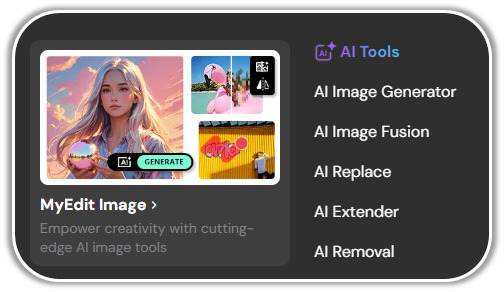
Go to MyEdit and select the "AI Image Fusion" tool.
-
Upload a Photo
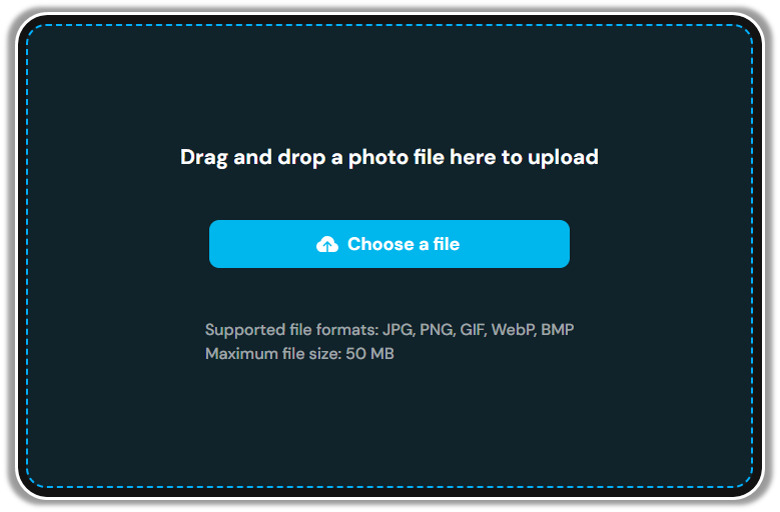
Click the "Choose File" button to upload an image from your device. MyEdit supports JPG, PNG, GIF, WebP, and BMP formats (up to 50MB).
-
Select a Fusion Style
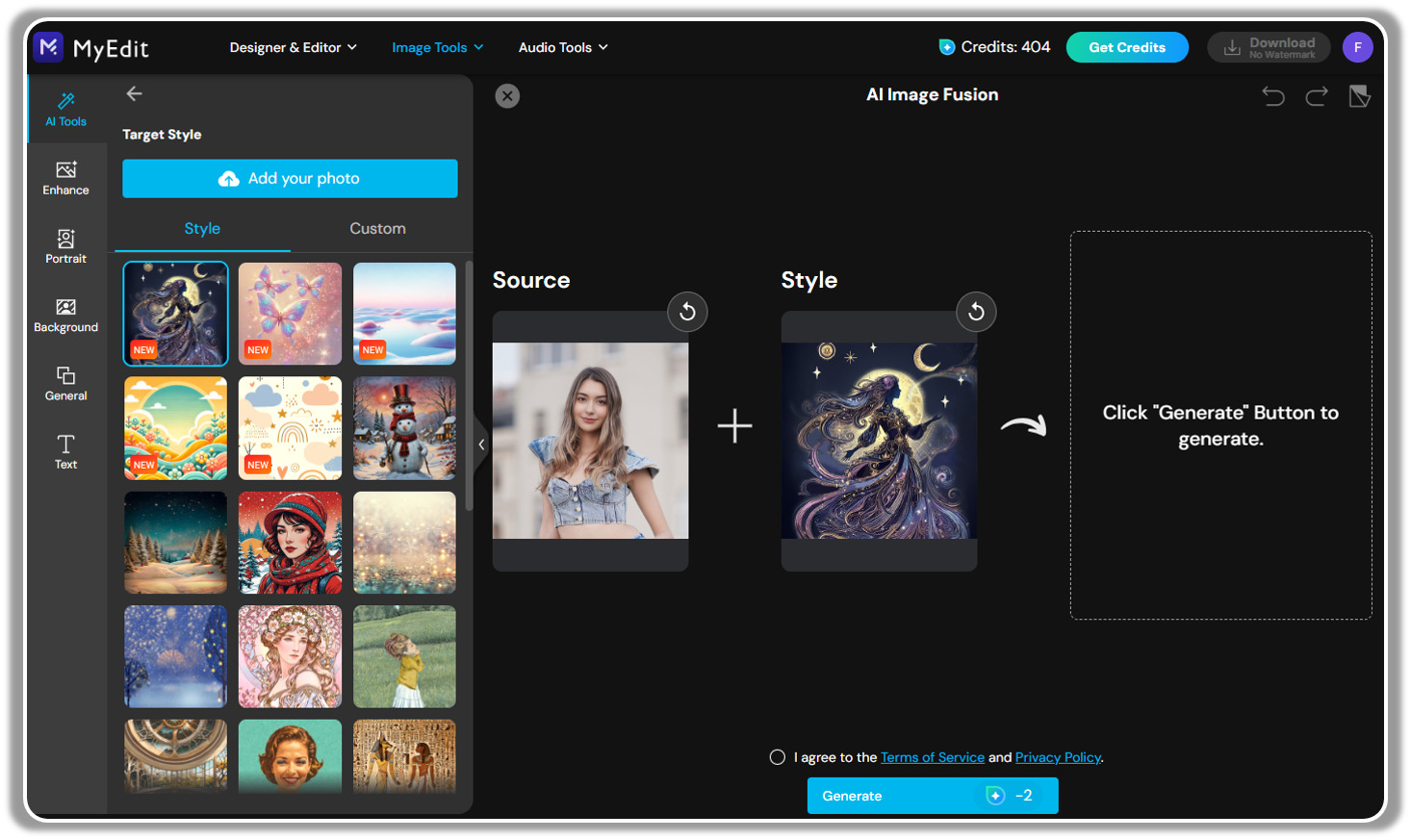
After uploading your image, pick a fusion style from the 17 predefined modes, including cartoon illustrations, paintings, ink drawings, and more.
-
Upload Your Own Fusion Style (Optional)
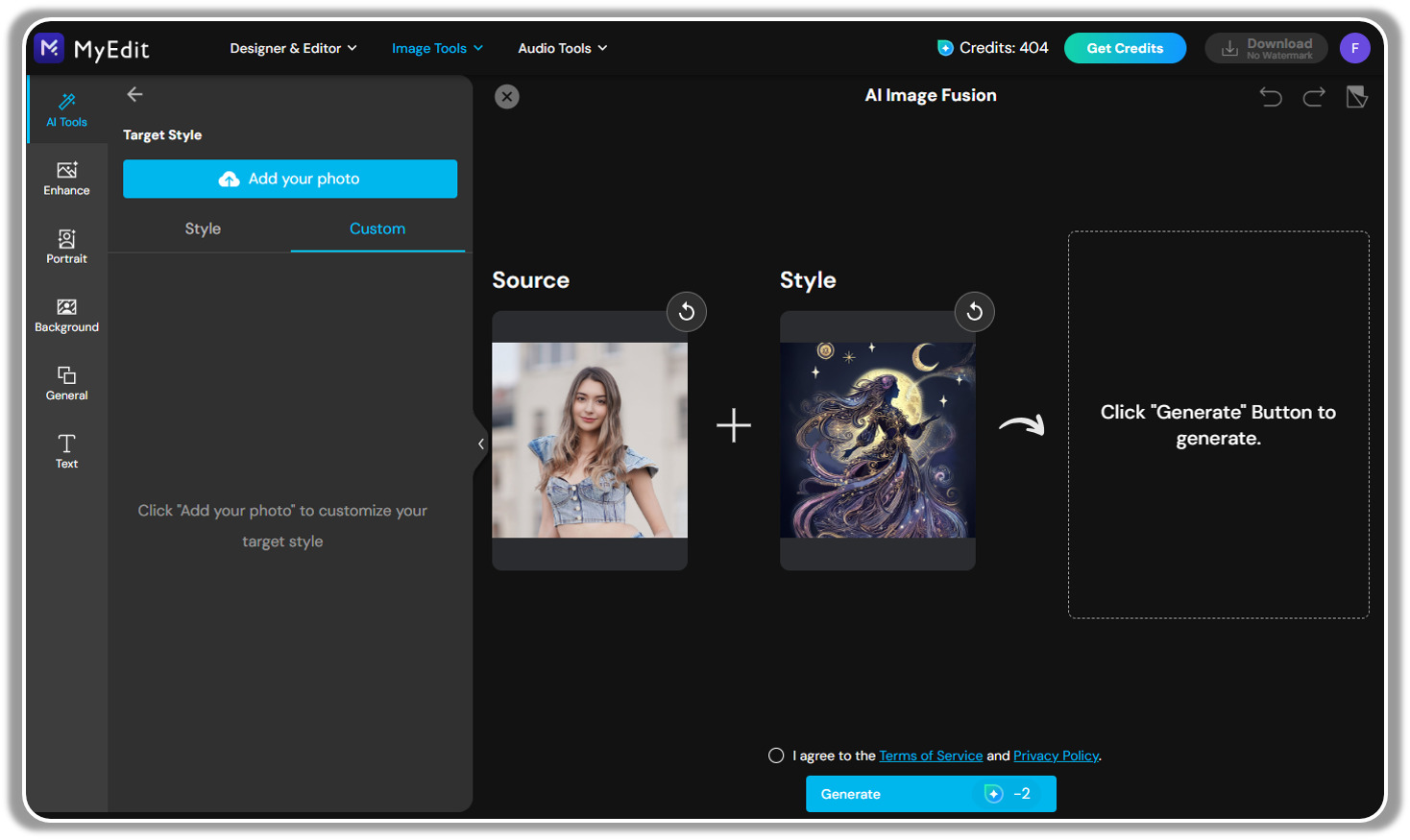
If you have a specific style in mind, click the “Customize” tab and upload a reference image to apply its style to your photo.
-
Preview and Download the Result
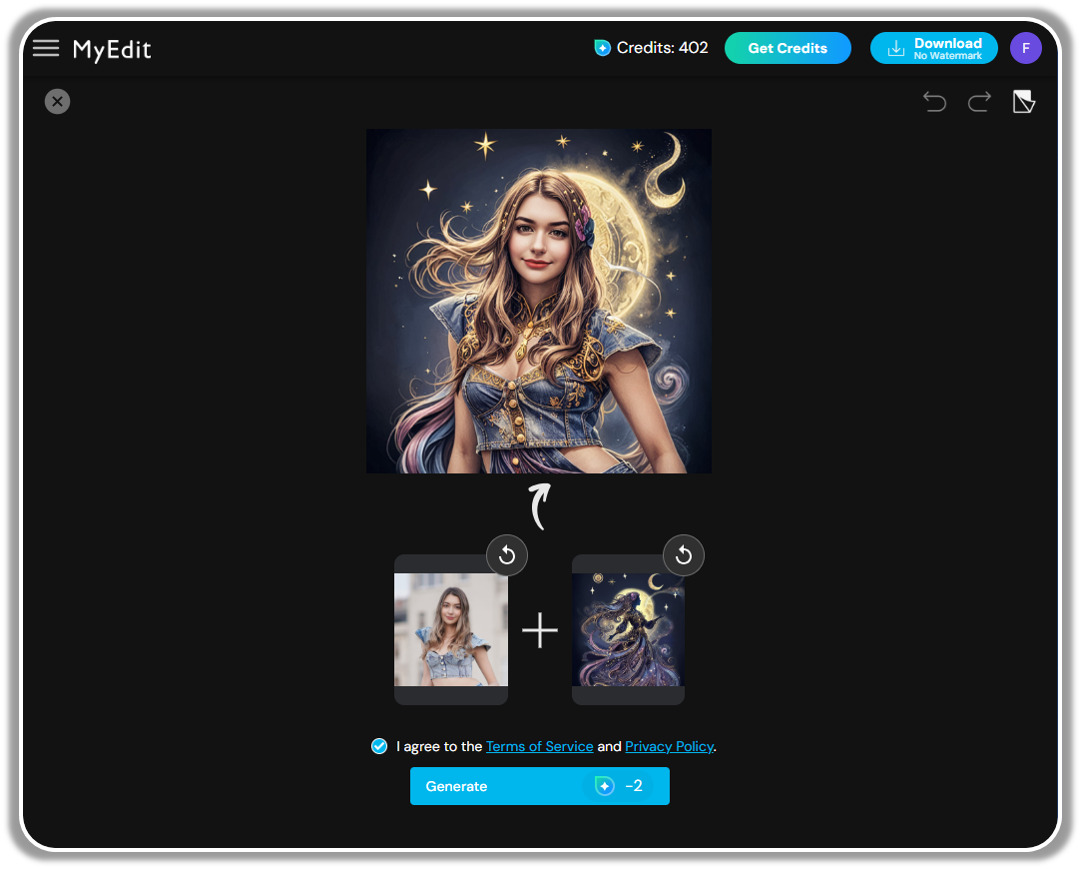
Wait a few moments while the AI merges the two images. Once ready, click the "Download" button to save your final image.


Method 2: Mobile App
For a powerful yet easy-to-use mobile app for AI-powered image blending, we recommend MyEdit App. This app offers an intuitive experience, letting you create amazing compositions effortlessly.
- Step 1: Open "AI Image Fusion"
- Step 2: Upload a Selfie + Choose a Style
- Step 3: Save the AI Merged Image
-
Open "AI Image Fusion"
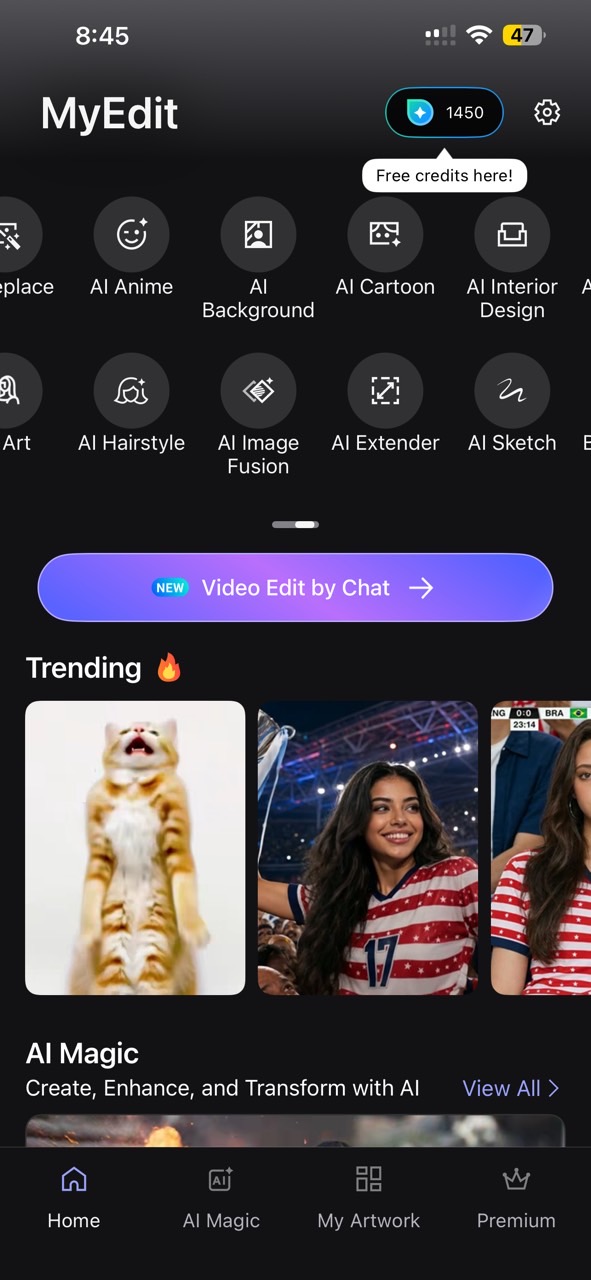
Go to the “AI Image Fusion” feature on the main menu.
-
Upload a Selfie + Choose a Style
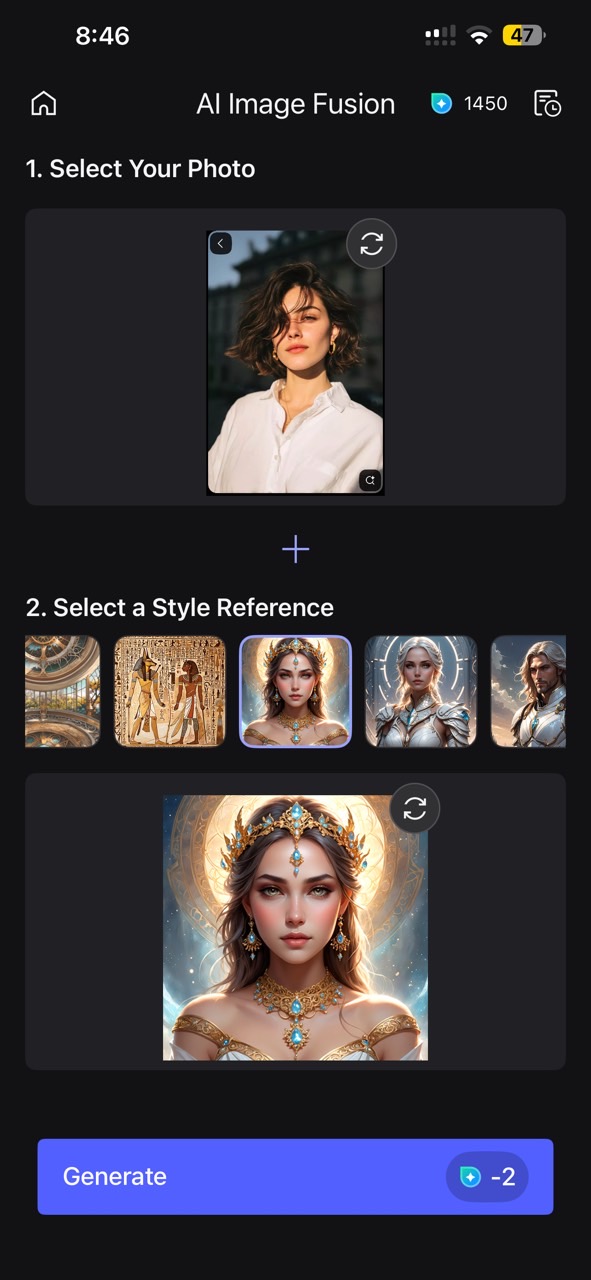
Choose a well-lit selfie where your facial features are clear for better merging results. Pick from 20 predefined styles or upload a reference image with the look you want.
-
Save the AI Merged Image
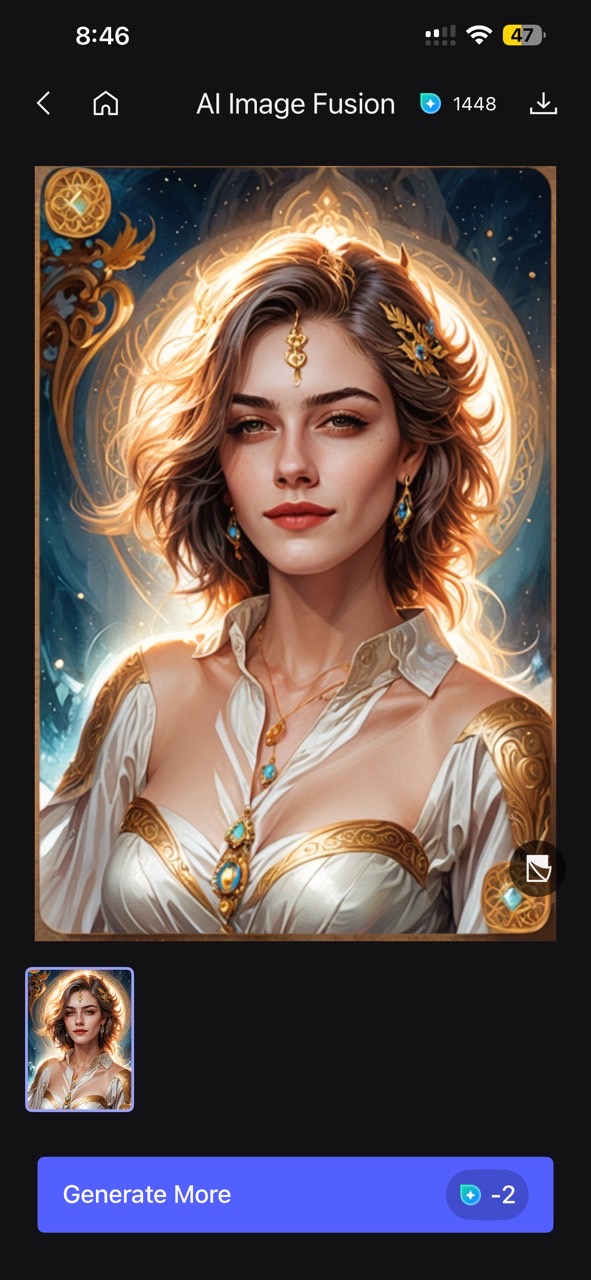
Check the result, if satisfied, tap the save icon in the top-right corner of your screen.


Method 3: PC Software
If you’re looking for a more advanced AI-powered image merging tool, the PC version of PhotoDirector provides a robust and complete solution.
- Step 1: Open "GenAI Studio" from the Launcher
- Step 2: Choose the "Image Fusion" Feature
- Step 3: Select the Two Images to Merge
- Step 4: Export Your Merged Image
-
Open "GenAI Studio" from the Launcher
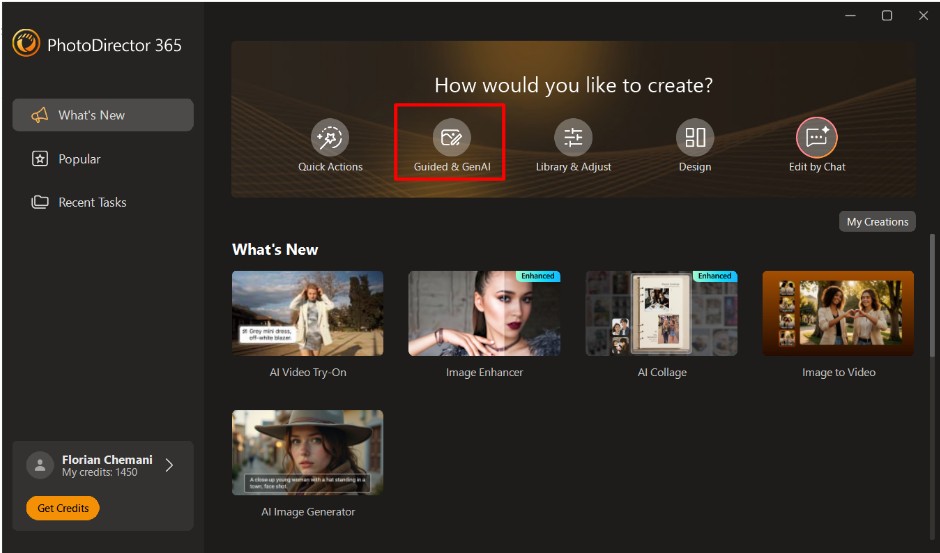
When you open PhotoDirector, you’ll find a shortcut for “GenAI Studio” in the main menu. Click to start.
-
Choose the "Image Fusion" Feature
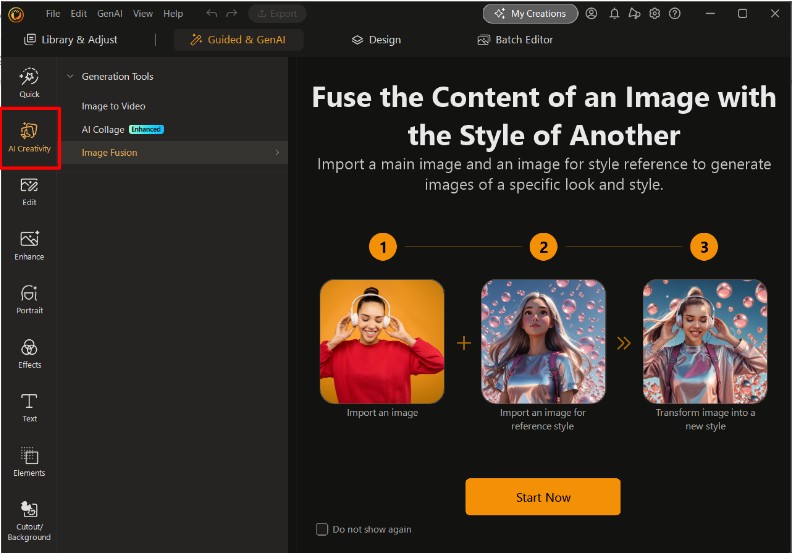
In GenAI Studio, click "Image Fusion" to start merging your images.
-
Select the Two Images to Merge
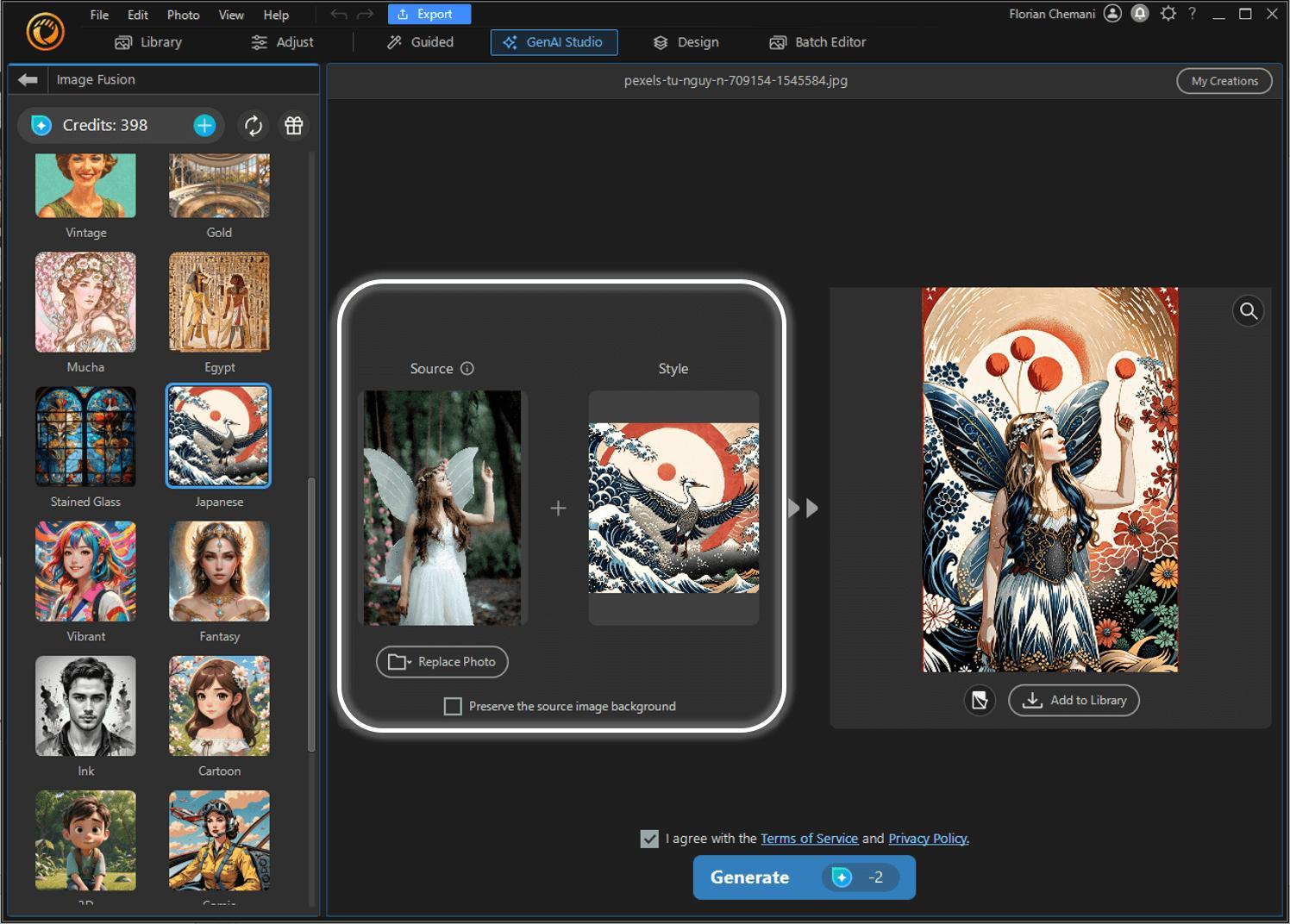
Choose your base image and the style image, then click the "Generate" button to apply AI fusion.
-
Export Your Merged Image
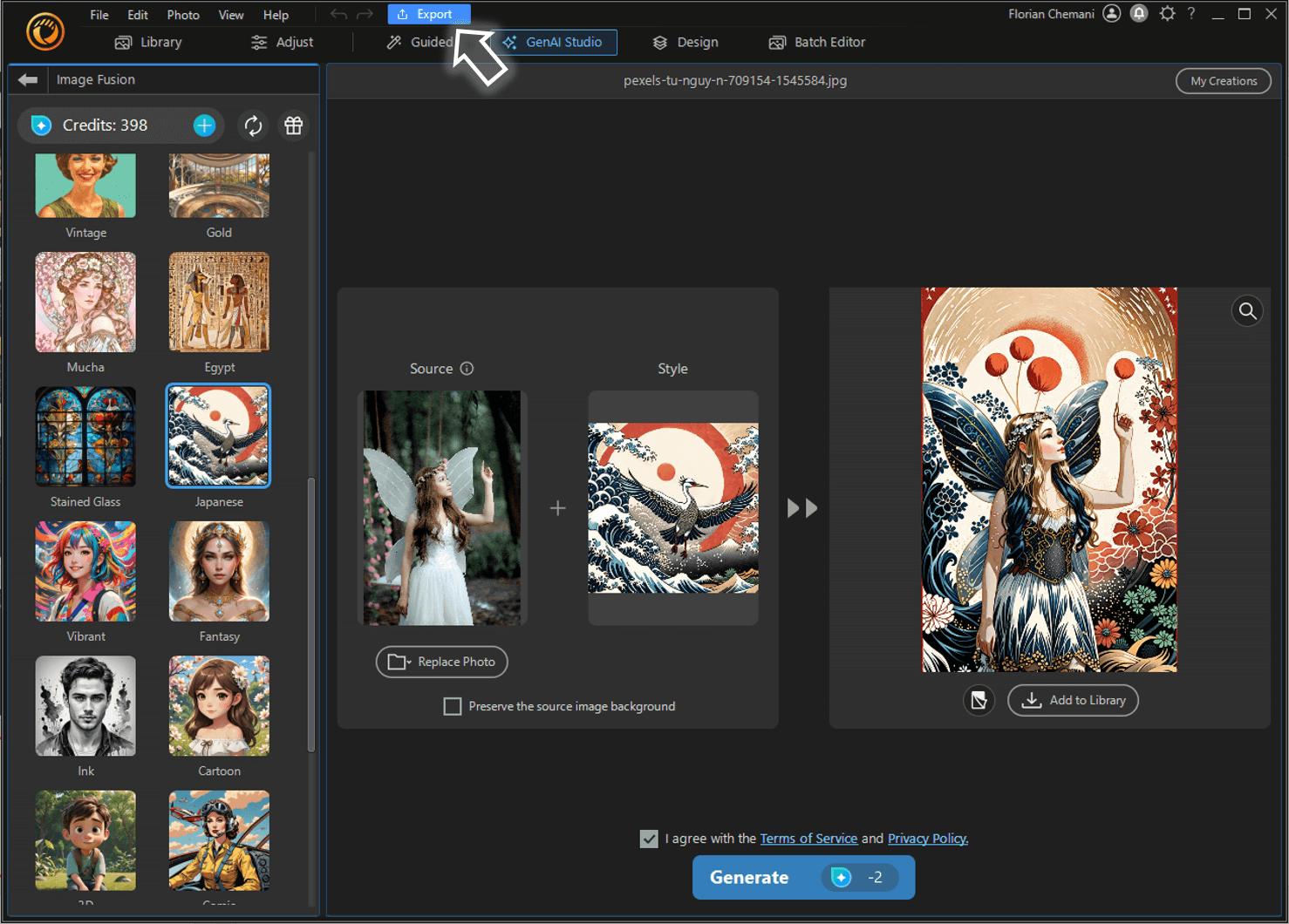
Once satisfied, click “Export” to save your AI-combined image to your computer.


Related articles:
FAQ - AI Image Fusion
AI analyzes both photos to determine the best way to blend them seamlessly. It considers elements like colors, brightness, textures, and alignment to ensure a smooth transition without visible boundaries.
You can merge almost any type of image, including portraits, landscapes, and objects. The quality of the fusion depends on the sharpness and compatibility of the original images. For example, merging two faces can create a unique new combination, while blending a portrait with a landscape can produce an artistic effect.
Yes. In MyEdit, you can pick one of the 17 predefined fusion styles or upload your own reference image to define the look, as shown in Method 1. The MyEdit App works the same way, with 20 predefined styles or a reference image of your choice.
The quality of the fusion depends on the tools used and the compatibility of the images. Modern AI algorithms can deliver highly realistic results, especially when using high-quality, well-aligned images.
If image merging fails or the result is unsatisfactory, try importing a higher-quality image, choosing a different fusion style, or generating the result again.
The CyberLink Editorial Team is composed of product testing specialists and content creation experts with over 20 years of hands-on experience and rigorous research in the multimedia editing industry. As the official voice of CyberLink, the team consistently delivers practical, easy-to-follow tutorials across video, photo, and audio editing, while highlighting AI innovations, product insights, and emerging industry trends. Their work empowers millions of creators worldwide each year to elevate their content. Beyond the blog, the team actively shares editing tips and product updates across YouTube, Facebook, Linkedin and Pinterest.
😎 Outside of their work, they enjoy capturing travel moments and meticulously editing photos and videos for their social channels.


