



How to Turn a YouTube Video into a Ringtone (Android & iPhone Guide)

This guide explains how to download, trim, and convert YouTube videos into ringtones for Android and iPhone. Learn the most efficient workflows to extract audio from your favorite clips and set them as custom alerts using free, user-friendly tools.
⭐️ Key Takeaways
- Turn a YouTube video into a ringtone: Download the video, trim audio to 30 seconds using an editor, convert to MP3 for Android or M4R for iPhone, and apply via phone settings.
- Best app to make ringtones from videos: PowerDirector is highly recommended for extracting audio, trimming clips, and adding fade effects before exporting files for final conversion to ringtone formats.
- Set a custom ringtone on iPhone: Convert your extracted audio to M4R format, then use GarageBand or iTunes to sync the file to your device and select it in settings.
- Why Make a Ringtone from a Video
- How to Convert a YouTube Video into a Ringtone
- How to Make a Video Ringtone
- How do I Turn a Video File into a Custom Ringtone
- YouTube Video to Ringtone FAQs
Why You Should Make a Ringtone from a YouTube Video
Creating a ringtone from a YouTube video lets you personalize your phone with sounds that truly match your style. Here’s why turning YouTube videos into ringtones is a fun and creative idea:
- Unique and Personal — Stand out with a ringtone made from your favorite YouTube videos, viral clips, or trending sounds that reflect your taste.
- Instant Access to Sounds You Love — Instead of searching for ringtones, use the exact audio from YouTube videos you already enjoy watching.
- Creative Freedom — Trim your favorite parts, adjust the length, and add fade effects to craft a ringtone that’s one-of-a-kind.
- Perfect for Any Mood — Whether it’s a catchy YouTube song, a funny meme clip, or an iconic quote, your ringtone can match your vibe.
- Fun Way to Repurpose YouTube Content — Turn clips from YouTube videos into handy ringtones without downloading generic sounds.
How to Convert a YouTube Video into a Ringtone Quickly and Easily
- Download the YouTube Video
- Import into PowerDirector
- Trim to Ringtone Length
- Add Fade Effects (Optional)
- Export as MP4
- Convert to Ringtone Format
- Set the Ringtone
-
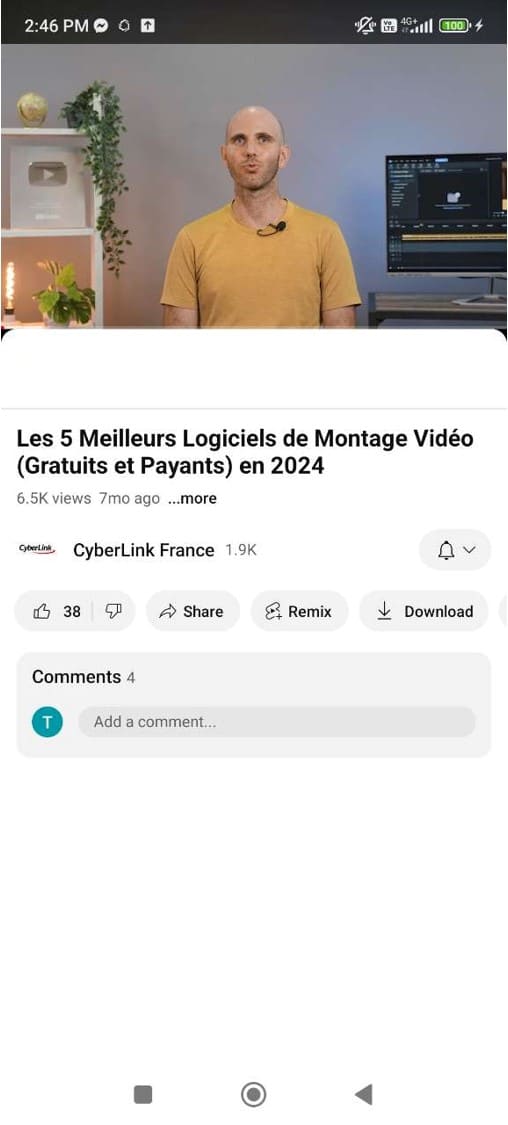
Download the YouTube Video — Use a YouTube downloader or screen recorder to save the video you want. ⚠️ Make sure you have permission to use the video for personal use only.
-
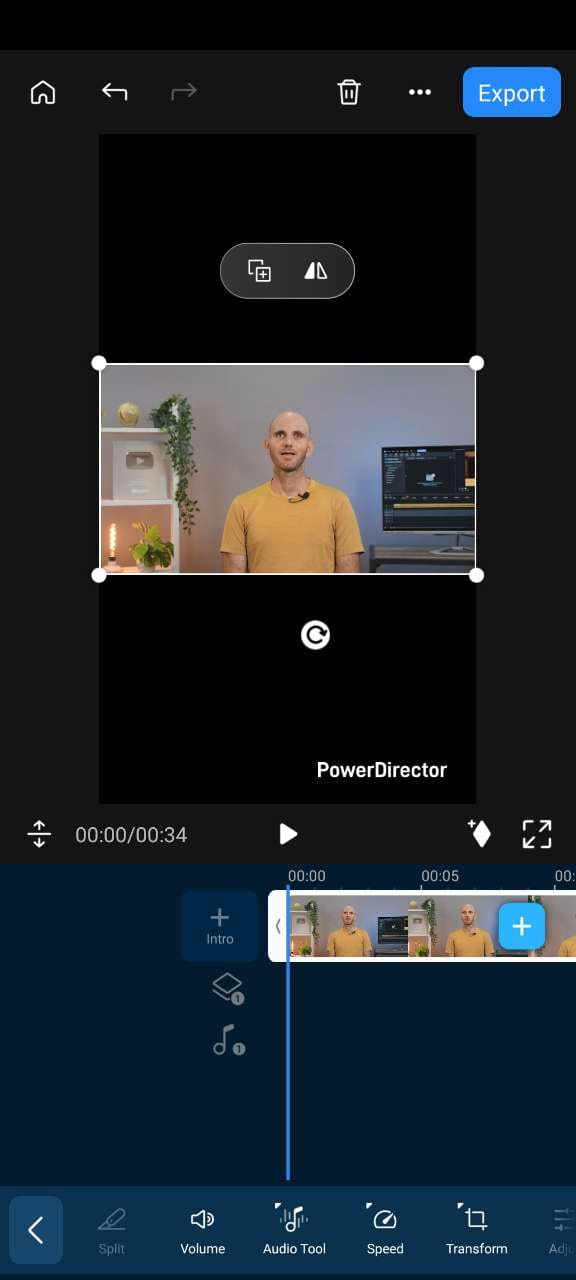
Import into PowerDirector — Open PowerDirector, start a New Project, and select your saved YouTube video.
-
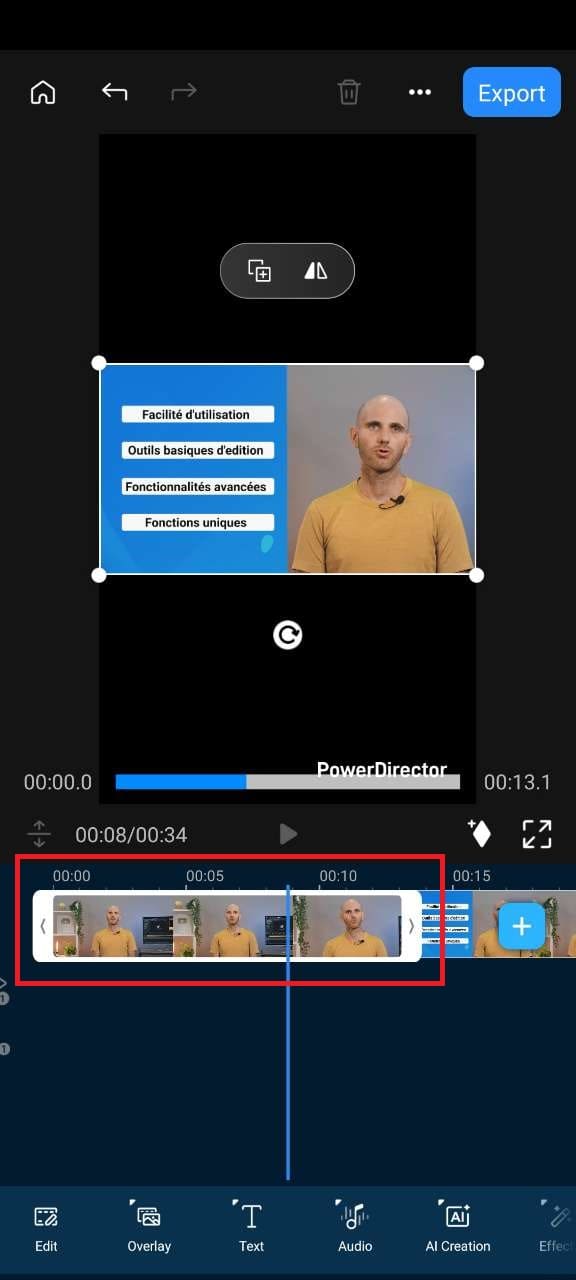
Trim to Ringtone Length — Drag the video onto the timeline and trim it to 15–30 seconds.
-
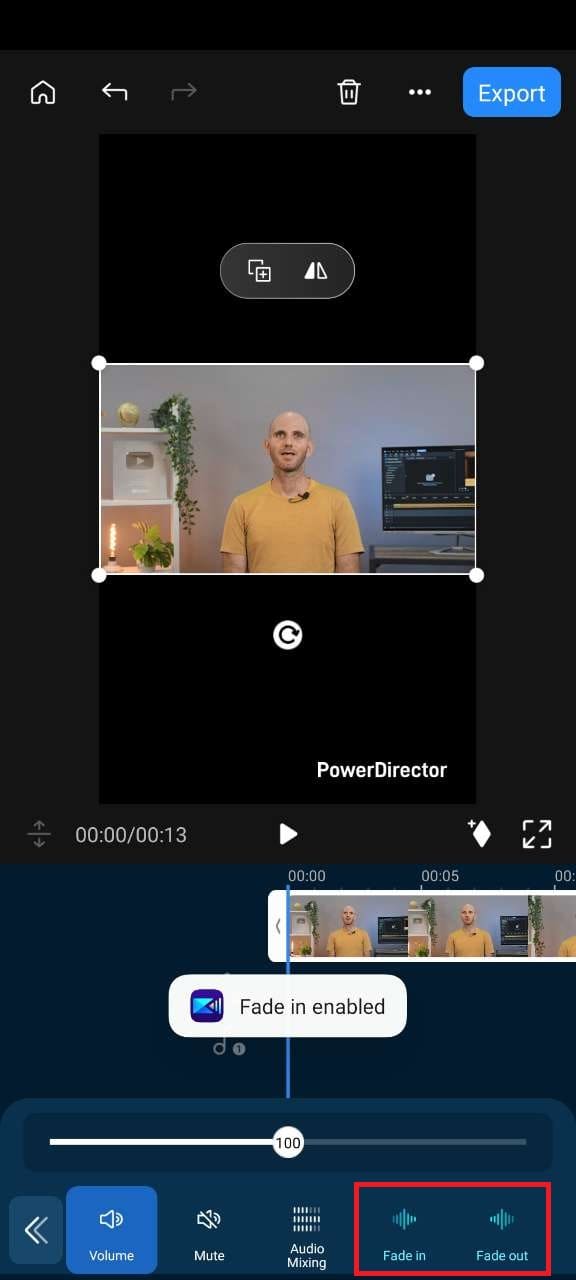
Add Fade Effects (Optional) — Adjust audio levels or add fade in/out for a clean finish.
-
Export as MP4 — Save your edited clip as an MP4 file.
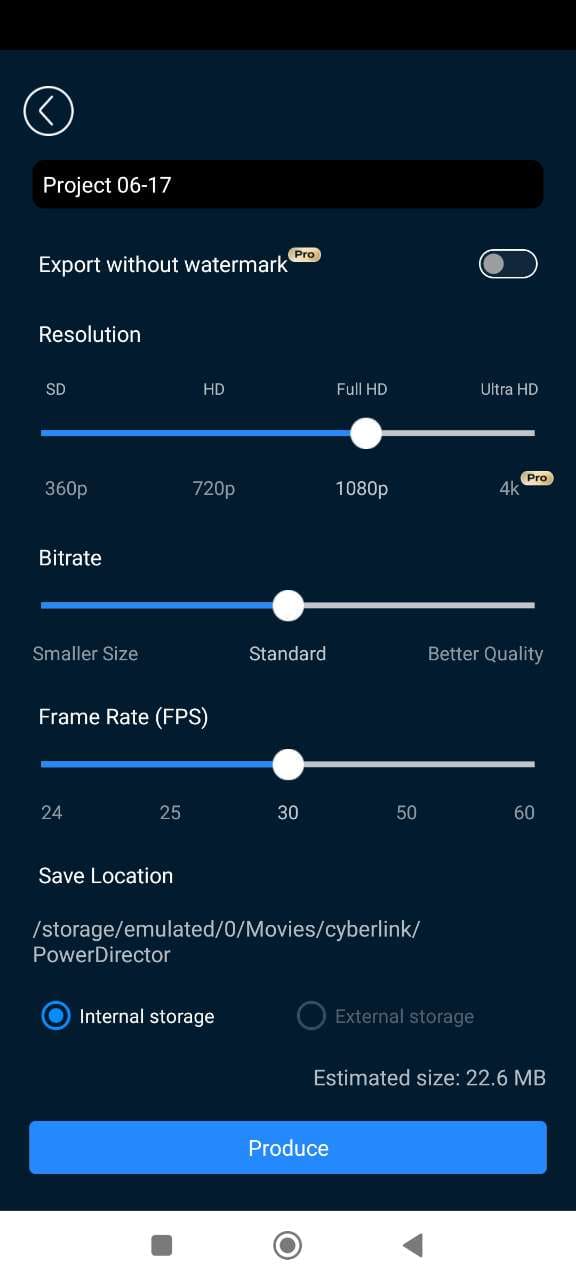
- Convert to Ringtone Format — Go to Media.io in your browser. Upload your MP4 file and convert it to an MP3 (Android) or M4R (iPhone) ringtone. Download your converted audio.
- Set the Ringtone — On Android, go to Settings > Sounds > Ringtone. On iPhone, use iTunes or GarageBand to install your M4R ringtone.


How do I Turn a Video File into a Custom Ringtone
- Download PowerDirector
- Import Your Video
- Trim and Cut the Audio Section
- Adjust Volume and Add Fade Effects
- Export the Video Clip
- Convert to Ringtone Format
- Set Your New Ringtone
- Download PowerDirector — Free on Android, iPhone, and Windows PC.
-
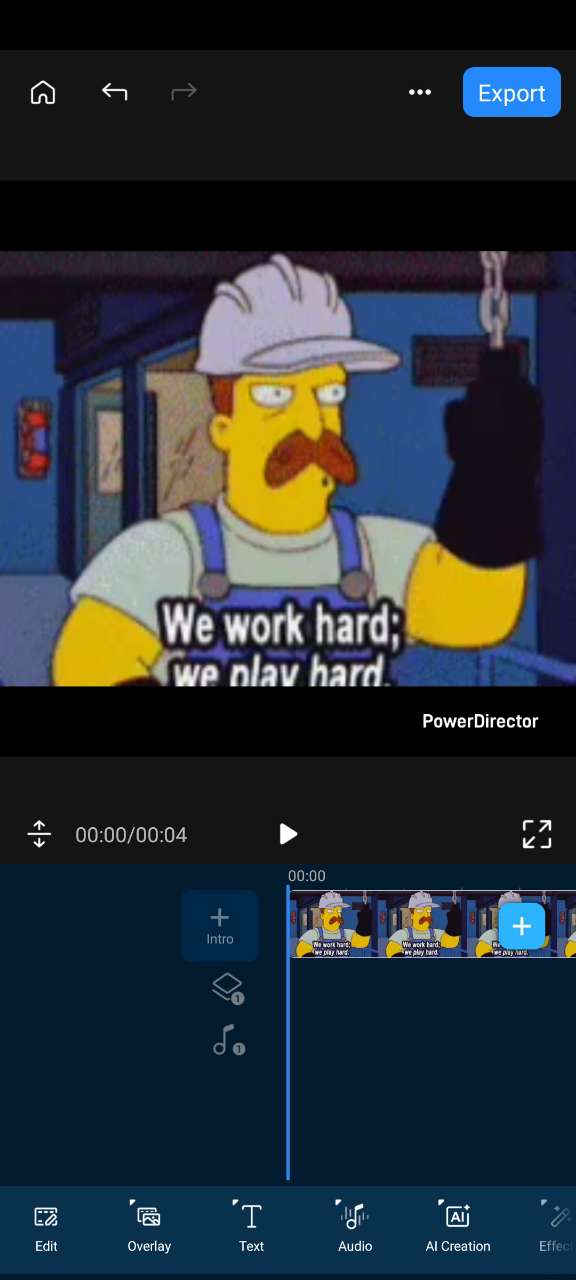
Import Your Video — Open PowerDirector and tap New Project. Select the video you want to turn into a ringtone.
-
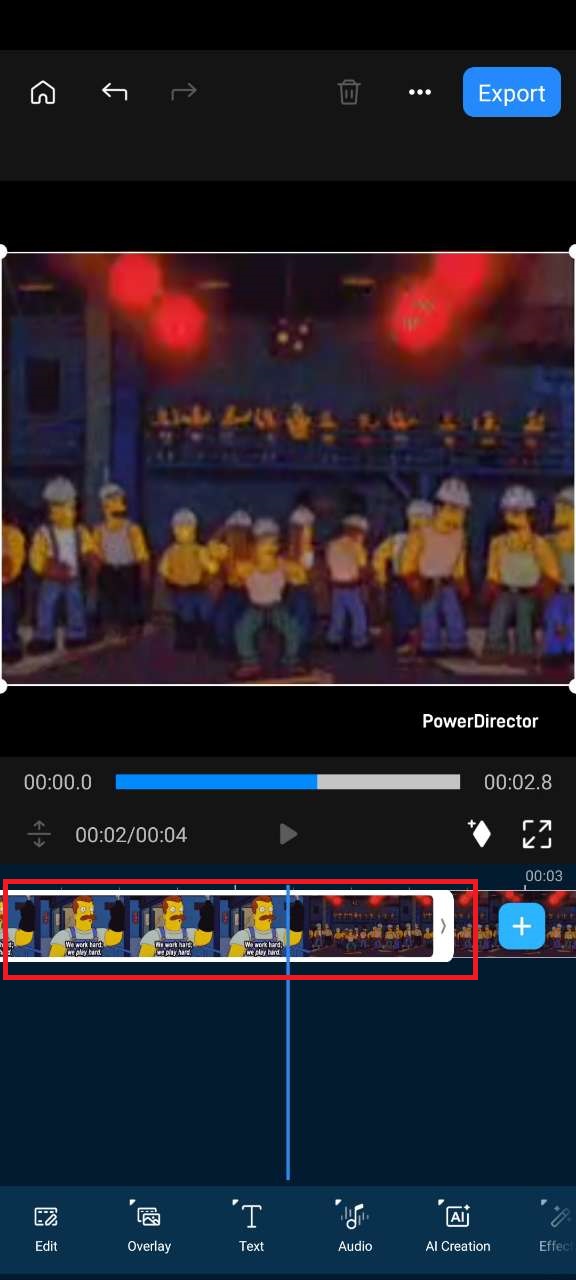
Trim and Cut the Audio Section — Drag your video to the timeline and trim it to 15–30 seconds, the ideal ringtone length.
-
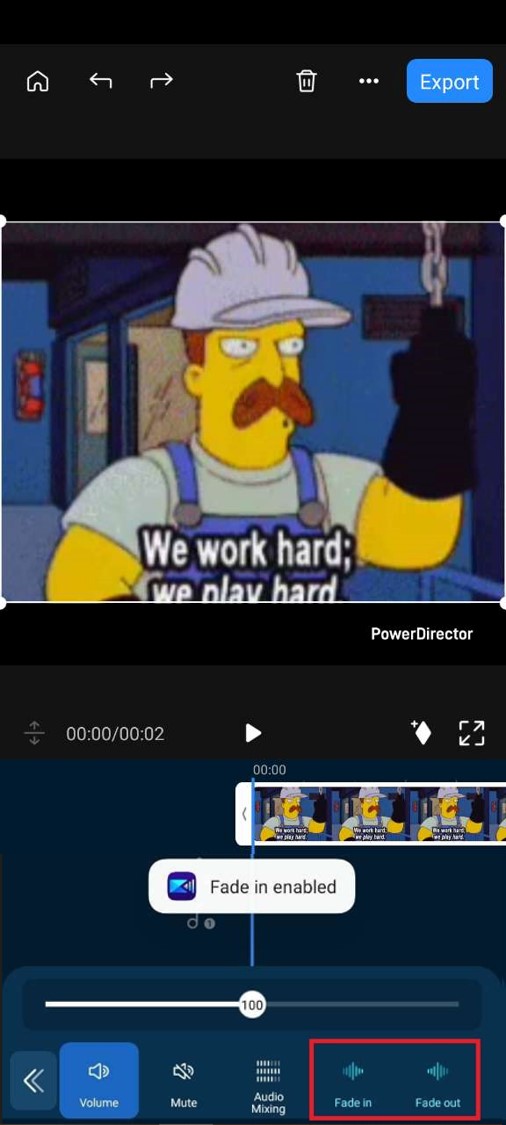
Adjust Volume and Add Fade Effects — Optional, for a smoother ringtone sound.
-
Export the Video Clip — Save your trimmed video as an MP4 file.
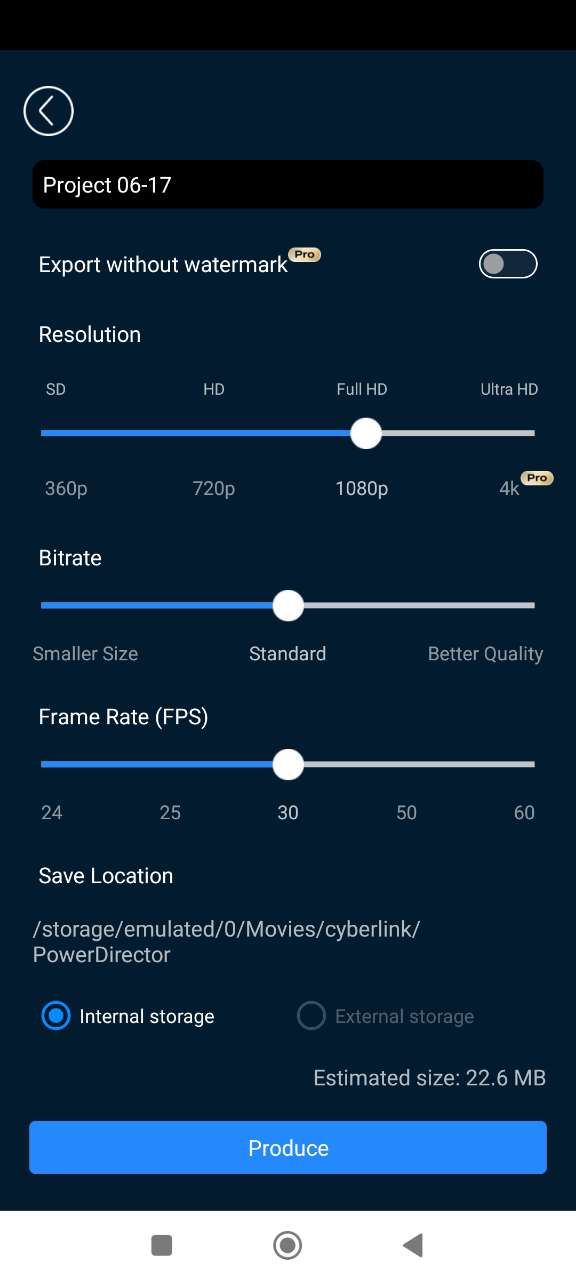
- Convert to Ringtone Format — Use a free audio extractor to turn your MP4 video into an MP3 (Android) or M4R (iPhone). Try a free online tool like Media.io.
- Set Your New Ringtone — On Android, go to Settings > Sounds > Ringtone. On iPhone, convert to M4R and install it via iTunes or GarageBand.


Top Tips for Making the Best Ringtone from a YouTube Video (or Any Video)
- Keep it Short and Sweet — Aim for 15 to 30 seconds so your ringtone is catchy without being annoying.
- Choose Clear Audio — Select YouTube videos with clean, high-quality sound for the best ringtone experience.
- Trim to the Highlight — Pick the most recognizable or favorite part of the clip to make your ringtone stand out.
- Adjust Volume Levels — Use PowerDirector to normalize or boost audio volume so your ringtone is loud and clear.
- Use Fade In/Out Effects — Smooth the start and end of your ringtone for a polished, professional feel.
- Check Format Compatibility — Export your ringtone in the correct format (MP3 for Android, M4R for iPhone) to avoid playback issues.
- Test on Your Device — Before finalizing, try your ringtone on your phone to ensure it sounds just right.
YouTube Video to Ringtone FAQs
Yes — and the easiest way is by using PowerDirector. It lets you extract the audio from any video, trim it to the perfect length, adjust the sound, and export it in ringtone-ready formats. Whether it’s a video you shot yourself, a movie clip, or a viral meme, PowerDirector gives you total control to turn it into a ringtone in minutes.
You can — but it’s much easier with a tool like PowerDirector. Simply import your recording into PowerDirector, trim it to ringtone length, and export it in M4R format for iPhone. From there, you can transfer it via iTunes or a ringtone app. PowerDirector also lets you enhance the recording’s volume or add fade effects before saving.
Technically, yes — but with caution. You’ll need to download the video first (only if it’s your own content or you have permission), then use PowerDirector to extract and trim the audio. Keep in mind that using copyrighted YouTube content without permission for ringtones may violate copyright laws and YouTube’s Terms of Service. Always make sure you have the rights before using any audio clip.
- Download PowerDirector — Free for Android and iPhone.
- Import Your Video — Open the app and add your video to the timeline.
- Trim and Cut the Audio Section — Select the part you want for your ringtone (about 15–30 seconds).
- Adjust Volume and Add Fade Effects — Optional, for a smoother ringtone sound.
- Export the Video Clip — Save your trimmed clip as an MP4 file.
- Convert to Ringtone Format — Use a free online audio converter to turn your MP4 into an MP3 (Android) or M4R (iPhone).
- Set Your Ringtone — Apply the new ringtone via your phone’s sound settings.
- Install PowerDirector — Available free on Android and iOS.
- Import Your Video Clip — Open the app and add your video to the timeline.
- Detach Audio from Video — Tap the video clip, then use the ‘Extract Audio’ option.
- Trim and Edit the Audio — Keep the section you want for your ringtone.
- Export as a Video — Save your edited audio section as an MP4 video.
- Convert to Ringtone Format — Use a free online converter to turn your MP4 into an MP3 (Android) or M4R (iPhone).
- Set the Ringtone — Apply it through your phone’s sound settings.
- Download the YouTube Video — Use a mobile YouTube downloader or screen recording app if you own the video or have permission.*
- Open PowerDirector Mobile — Install it on your Android or iPhone.
- Import the Video — Add your video clip into the timeline.
- Trim and Edit the Audio — Choose the portion you want as your ringtone.
- Export as an MP4 Video — Save your selected section as a video file.
- Convert to Ringtone Format — Use a free audio converter to turn the MP4 into an MP3 (Android) or M4R (iPhone).
- Set the New Ringtone — Install via your phone’s sound settings (or GarageBand/iTunes on iPhone).
*Note: Downloading YouTube videos without permission may violate YouTube’s Terms of Service.


