




How to Make an Image Transparent Online for Free in Seconds

Making the background of an image transparent can be incredibly useful for creating montages, logos, or professional visuals without any distracting background. Whether it’s for a website, presentation, or creative project, removing the background allows for seamless integration into any design.
Good news: You can now make an image transparent online, completely free and in just a few seconds. In this article, we’ll show you how to do it easily using the MyEdit website.
- How to Make an Image Transparent Online
- Why and When to Use an Image with a Transparent Background
- FAQ – Make Background Transparent Free & Online
How to Make an Image Transparent Online
No need for complex software anymore—MyEdit lets you make background transparent free, directly in your browser and in just a few clicks. Whether you’re a beginner or in a rush, this platform simplifies the whole process. Here’s how to make your image background transparent step by step:
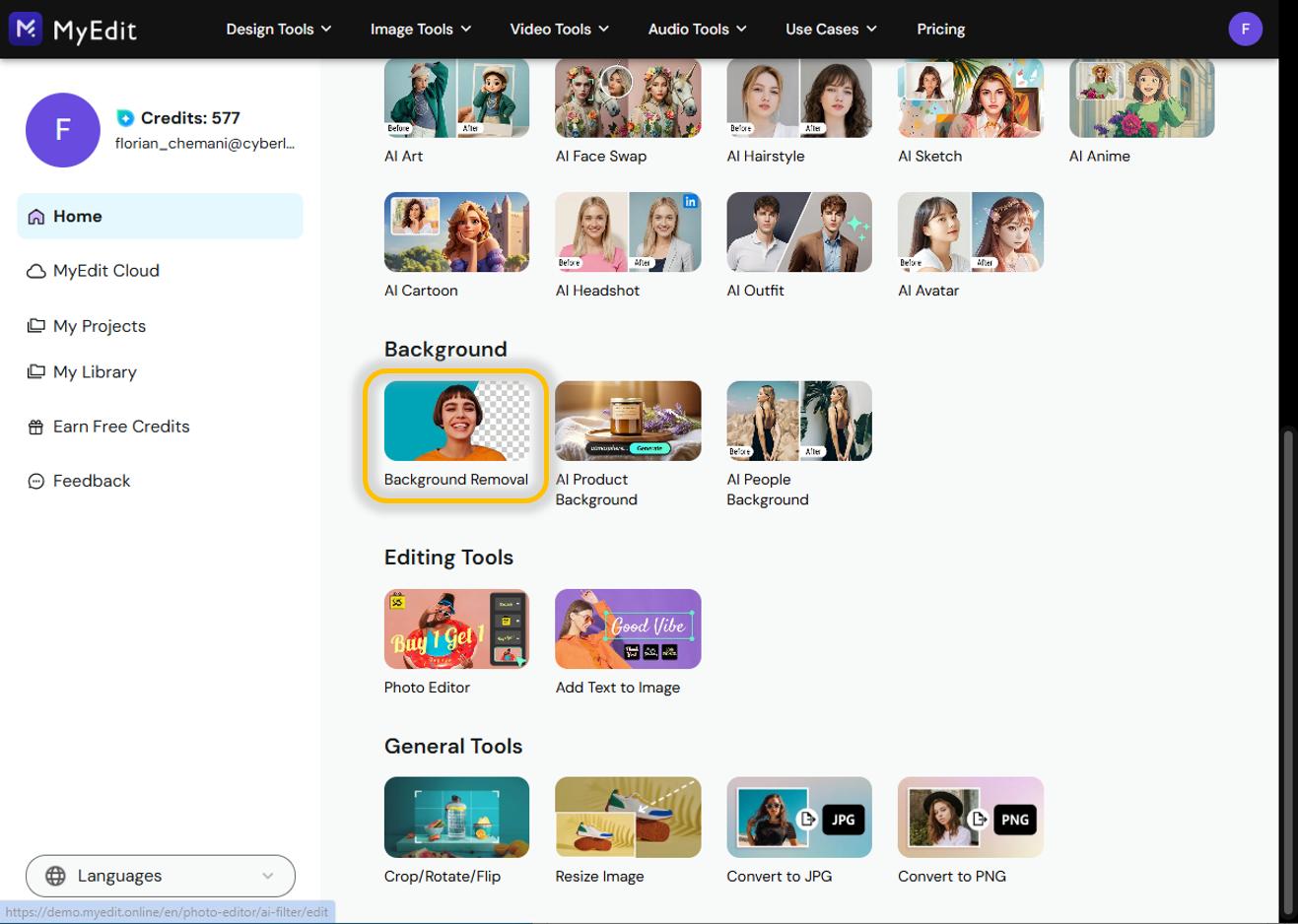
- Go to the MyEdit website – Open MyEdit in your browser and select the .
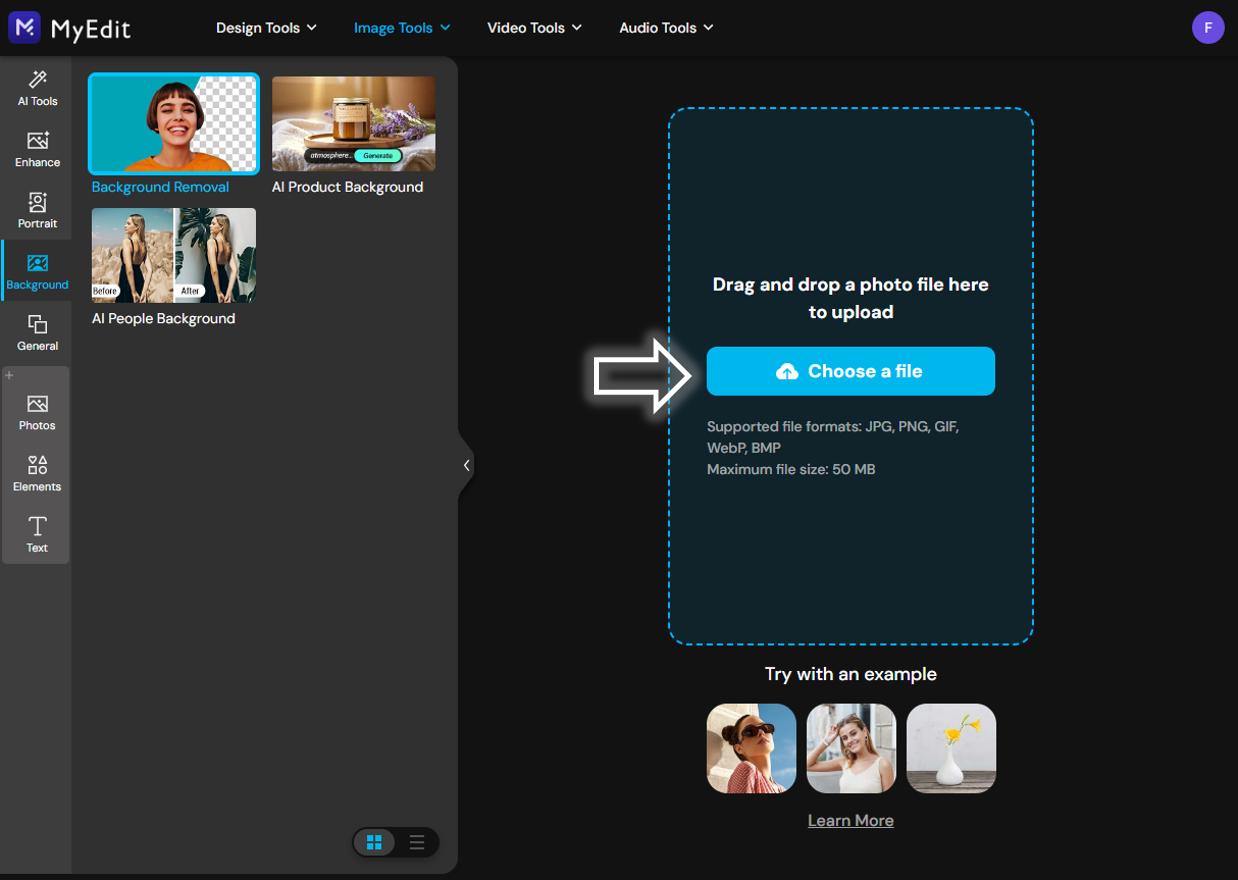
- Upload your image – Click on “Choose File” and upload the image you want to make transparent from your device.
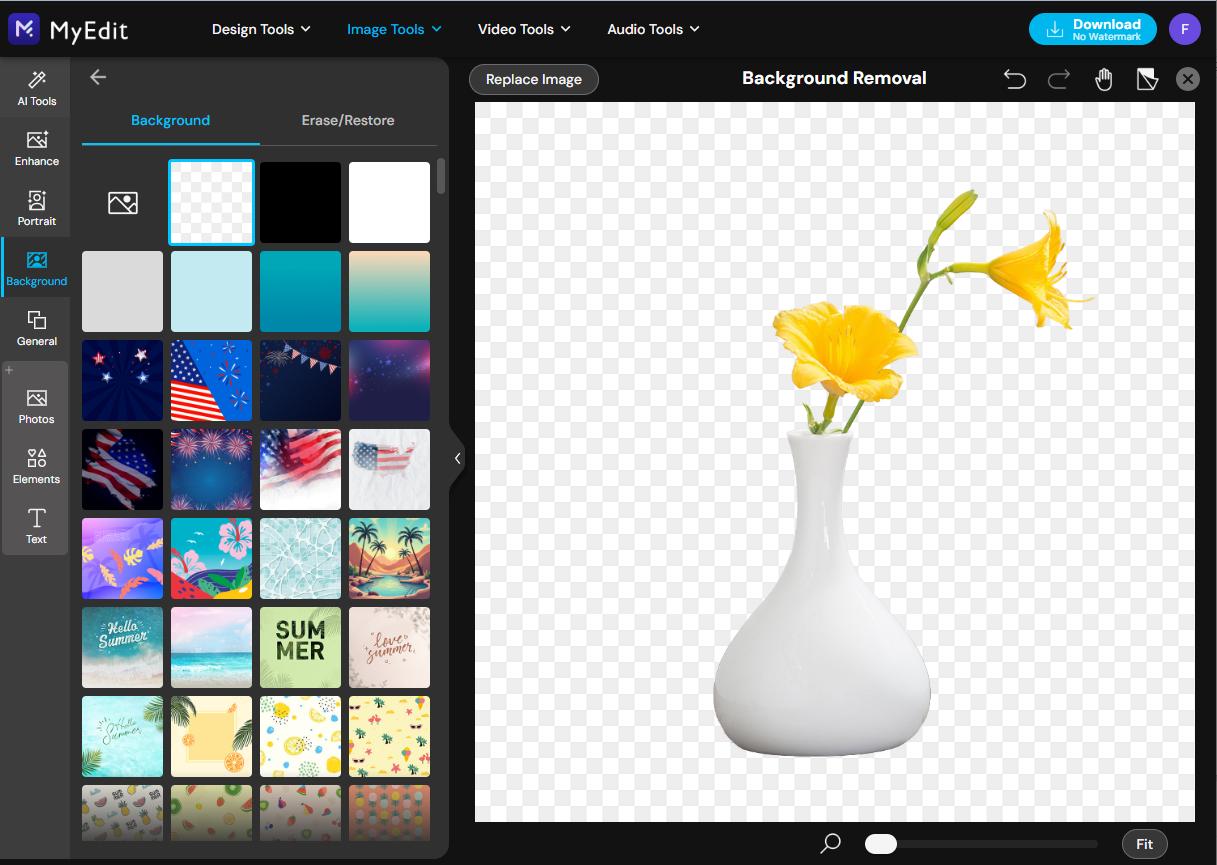
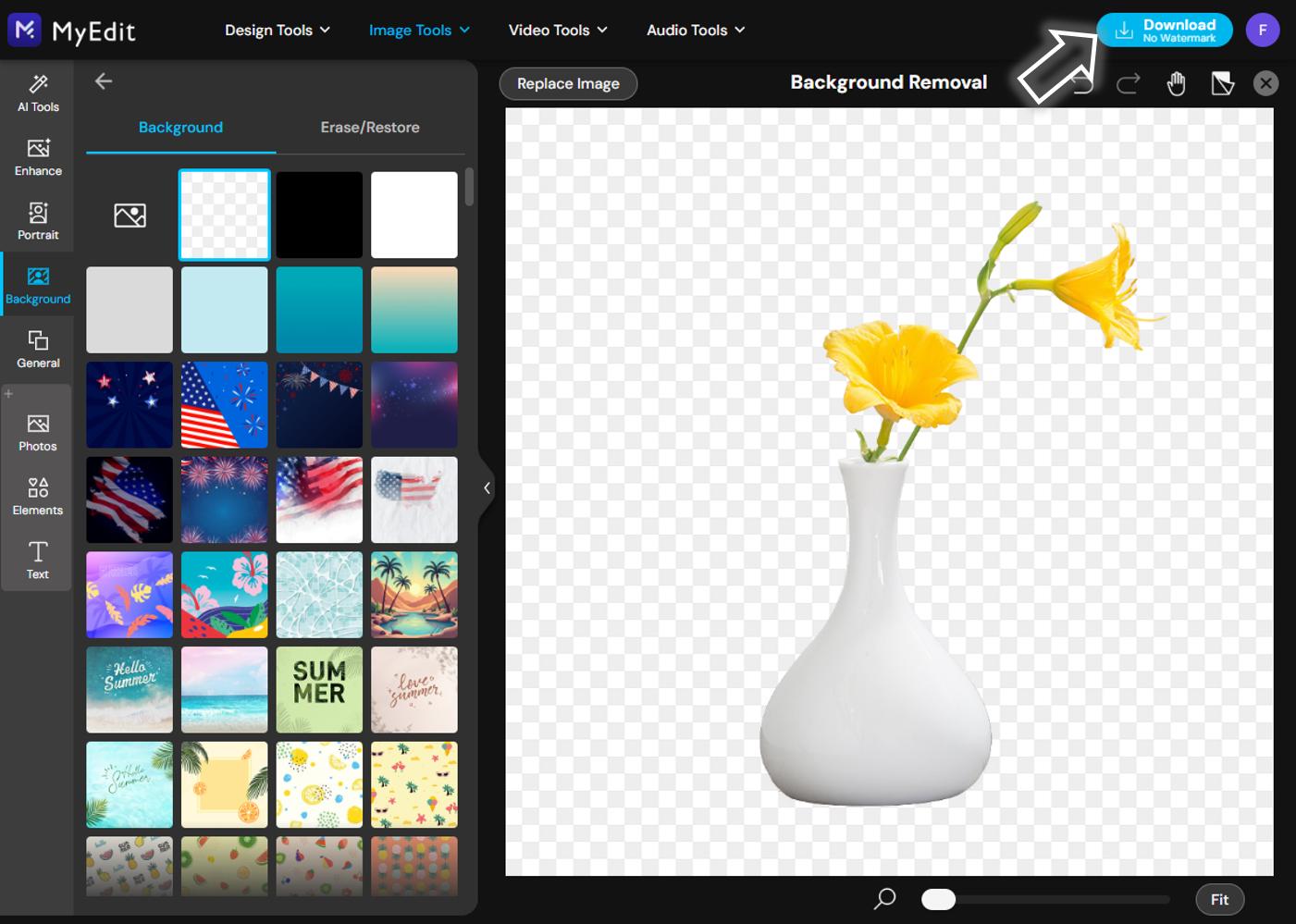
- Select the transparent background option – Among the available backgrounds, choose “Transparent Background.” This is the first option at the top left of the gallery.
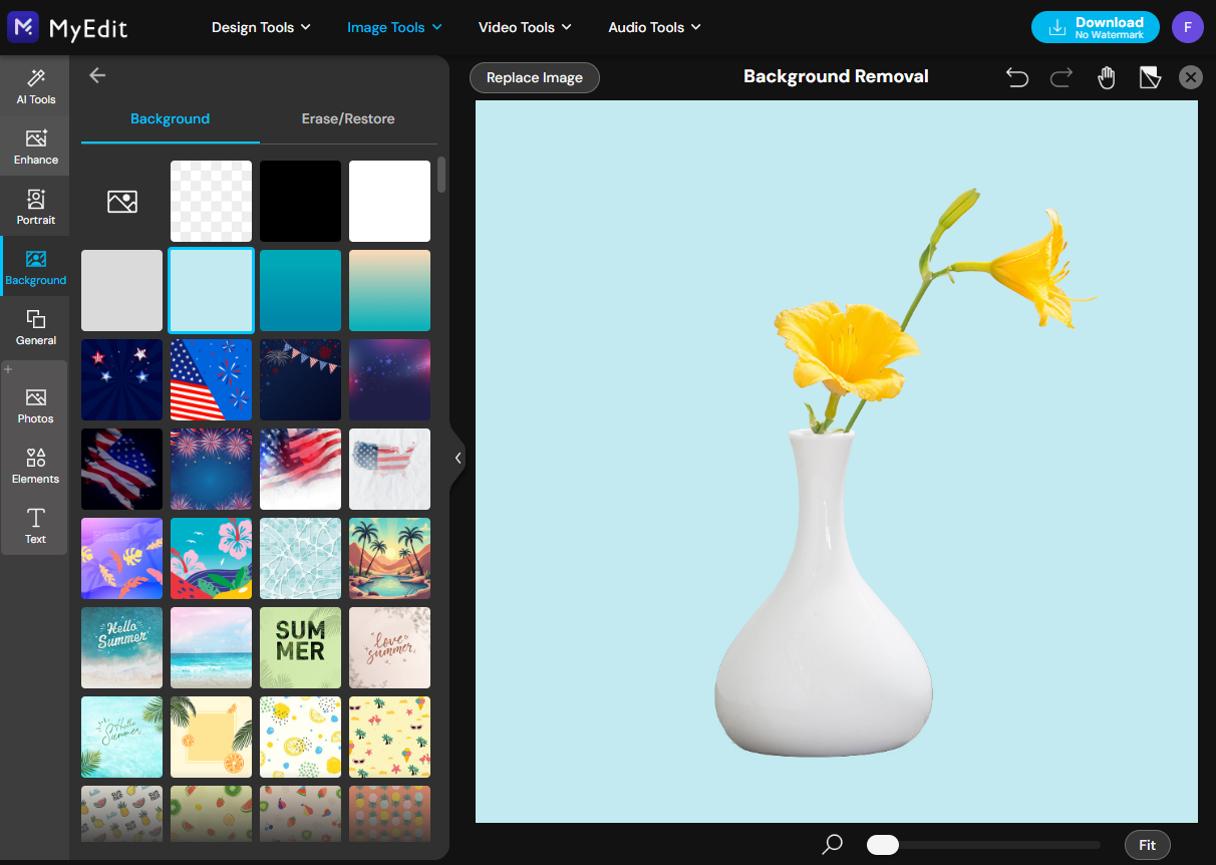
- (Optional) Use a different background – If you prefer to replace the background instead of removing it, MyEdit offers hundreds of templates for e-commerce, product visuals, or creative montages. Browse through and pick the one that best fits your project.
- Check the result and download your image – Once you're satisfied with the result, click “Download” at the top right to save your transparent PNG image.


Why and When to Use an Image with a Transparent Background
Removing the background from an image might seem like a minor edit, but it opens up a world of creative and professional possibilities. Here are a few real-world examples of when a transparent background can be especially useful:
1. Create a versatile logo
2. Highlight a product
3. Make creative photo edits
4. Design better presentations
5. Customize objects or apparel

A logo with a transparent background can be placed on websites, documents, or videos without being boxed in by a white or colored background.

For online shops, product images without backgrounds draw more attention to the product itself and blend better with different page designs.

Replacing or removing the background of a profile picture or portrait allows you to create a professional or artistic look. For CVs, social media, or digital art, transparent images make it easier to insert the subject into new scenes.

In slideshows, images with transparent backgrounds blend more naturally with the layout and don’t disrupt the overall design.

Transparent PNG files are ideal for printing on t-shirts, mugs, or other personalized items.
Recommended articles:
- How to Remove Background from a Logo Online
- How to Remove People or a Person from Photos with AI for Free
FAQ – Make Background Transparent Free & Online
Yes, free tools like MyEdit allow you to make an image background transparent online without needing to install anything—just a few clicks.
When opened in an editor, transparent images typically show a gray-and-white checkerboard pattern in the background. If you don’t see this or the image has a solid white background, it's likely not transparent.
It makes the image easier to use across different media (presentations, websites, custom products) without awkward borders or colored backgrounds.
Only a few seconds. The process is automated—just upload your image, wait for the AI to process it, and download the transparent PNG.
Yes, tools like MyEdit are mobile-browser friendly. You can remove an image background directly from your smartphone without needing an app.


