CyberLink Logo
Image
PhotoDirector
Learn MoreFree Download

How to Turn a Live Photo into a Video on iOS 26: Quick Guide

Last Updated on Sep. 26, 2025 - by CyberLink Editorial Team
Turn live photos into videos Banner

Live Photos are a fun iPhone feature that brings your pictures to life. Instead of a still snapshot, a Live Photo captures 1.5 seconds of motion before and after you press the shutter. It feels like a mini video hidden inside your photo library. But what if you want to share that Live Photo as an actual video on social media, messaging apps, or your computer?

In this guide, we’ll show you how to convert a Live Photo into a video with simple steps, plus tips for editing and enhancing the result.

This guide is updated for the latest iOS 26 version, so you’ll know exactly how to turn Live Photos into videos on the newest iPhones.


Why Convert a Live Photo to a Video?

Not all platforms support Live Photos. For example, Instagram, WhatsApp, and many Android devices can’t display them. Turning a Live Photo into a video lets you:

How to Turn a Live Photo into a Video on iPhone

Apple makes the process straightforward, and you don’t need third-party apps for the basics.

Method 1: Using the Photos App

  1. Open the Photos app and select your Live Photo.
    Tun live photos to videos Iphone
  2. Tap the 3 dots on top.
    Tun live photos to videos Iphone
  3. Choose Save as Video.
    Tun live photos to videos Iphone
  4. Your Live Photo will now appear in your Camera Roll as a video.

This method is quick, and the video will include both the motion and sound from your Live Photo.

Method 2: Using Loop or Bounce Effects

On iOS 26, you can still use Loop or Bounce effects to turn a Live Photo into a short looping video.

  1. Open the Photos app.
  2. Tap the “LIVE” button.
    Tun live photos to videos Iphone
  3. Choose Loop or Bounce.
    Tun live photos to videos Iphone
  4. Share it directly, or save as a video via the share menu.

How to Convert a Live Photo into a Video on Mac

  1. Open the Photos app on your Mac.
  2. Select the Live Photo.
  3. Go to the File menu > Export > Export as Video.

Turn a Live Photo into a Video with PhotoDirector

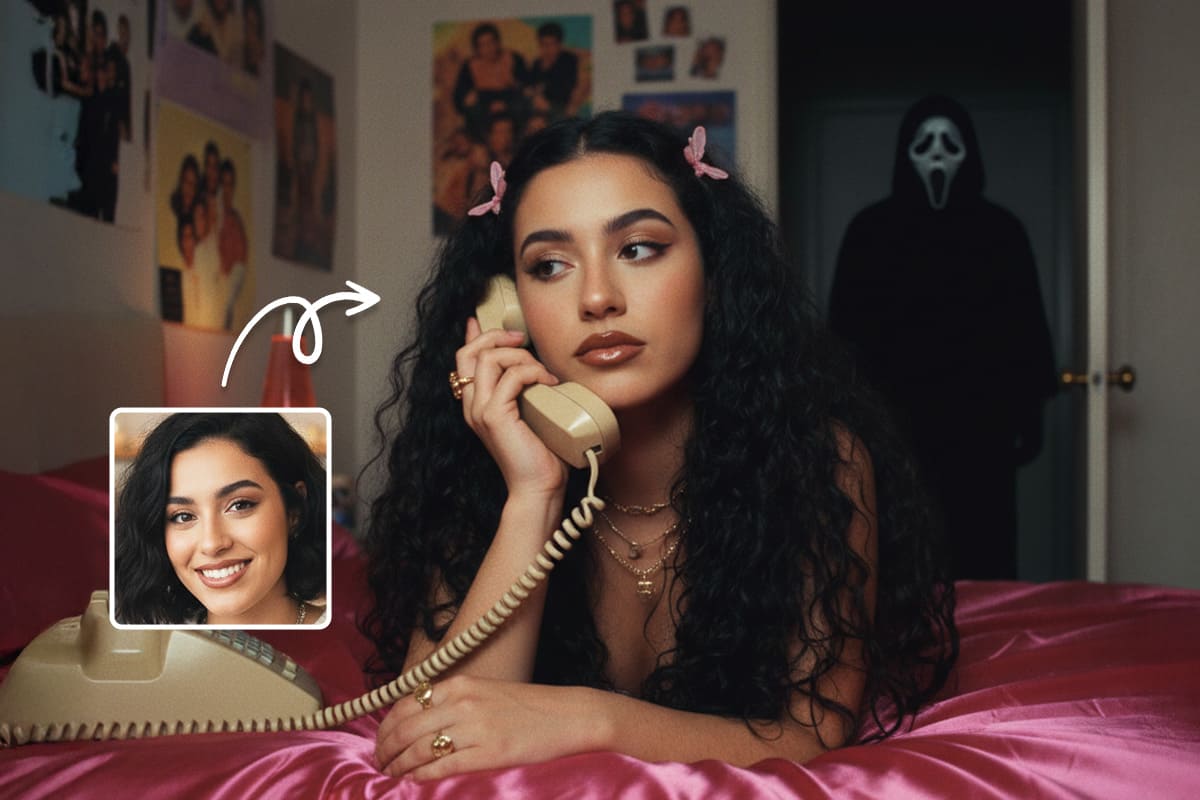
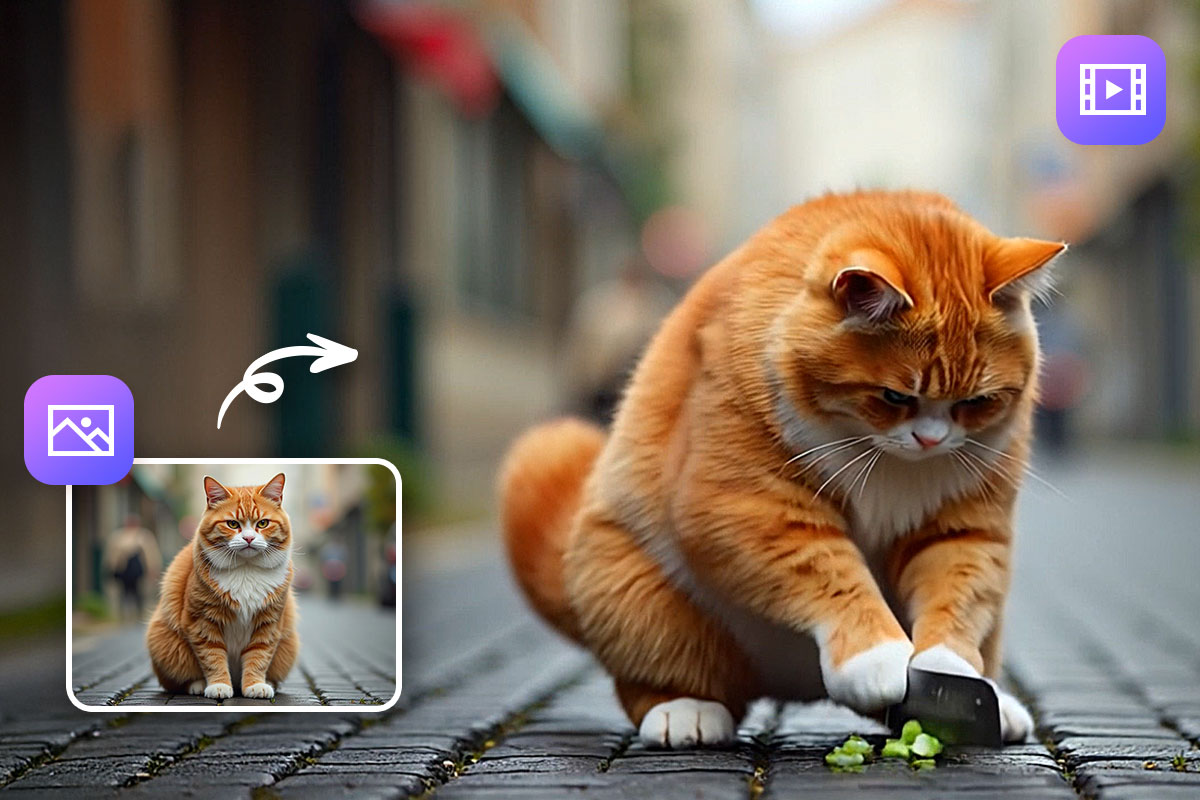
If you want to go beyond a simple conversion, PhotoDirector offers an exciting way to transform your Live Photos into fully customized videos. Instead of just exporting your clip, MyEdit uses AI-powered video templates to extend your footage and add creative effects.

  1. Download the PhotoDirector App.
  2. Go to the "AI Videos" menu.
    PhotoDirector - Turn live photos into AI Videos
  3. Choose a template.
    PhotoDirector - Turn live photos into AI Videos
  4. Download your AI video.
    PhotoDirector - Create AI Video

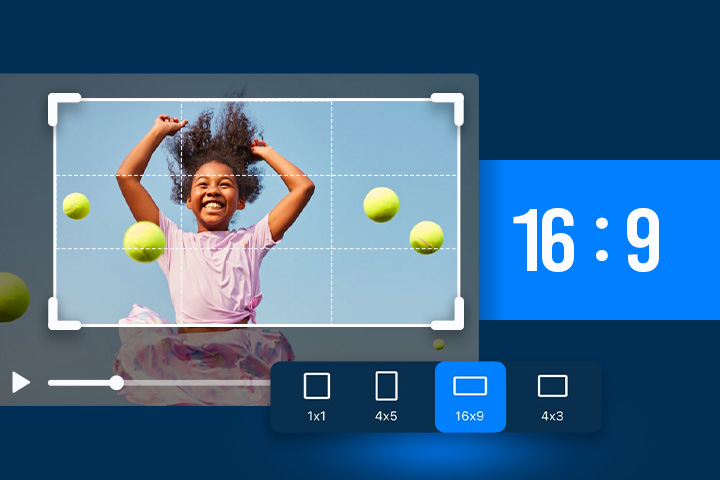
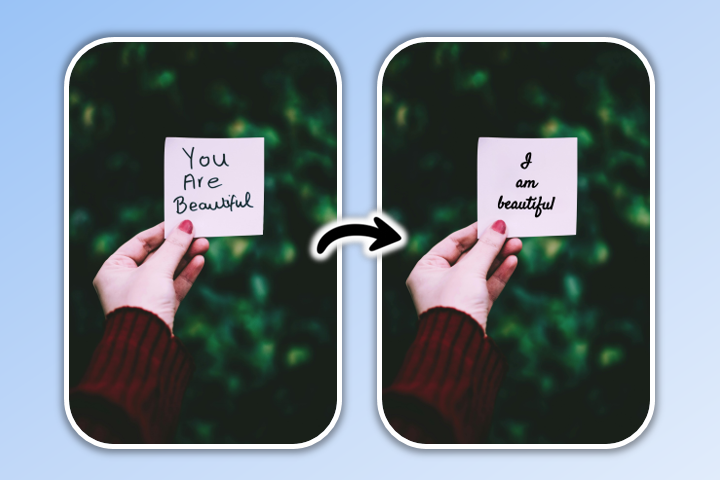
With PhotoDirector, you can:

This is especially useful if you want your Live Photo to stand out on TikTok, Instagram Reels, or YouTube Shorts. With just a few clicks, PhotoDirector can turn a short memory into a shareable, eye-catching video that feels like it was professionally edited.

Tips for Editing Your Live Photo Video

Once you’ve converted your Live Photo, consider making it more engaging:

Final Thoughts

Turning a Live Photo into a video is easy, whether you use the built-in Photos app or a third-party tool. But if you want to go beyond basic conversion, apps like PhotoDirector can help you extend your Live Photo and apply AI effects that make your video stand out online.

If you often capture fun moments with Live Photos, converting them to videos ensures you can relive and share them anywhere.

Pro Tip: For more advanced editing, you can use video editing software like PowerDirector or iMovie to add professional touches before sharing your Live Photo video.

Share this article via emailShare this article on FacebookShare this article on LinkedInShare this article on XShare this article on Pinterest