






Inverted Face Filter: How to Use the Inversion Filter on Your Photo

Filters are a fun way to switch up your look in photos and videos, and one that’s been getting a lot of attention lately is the Inversion Filter.
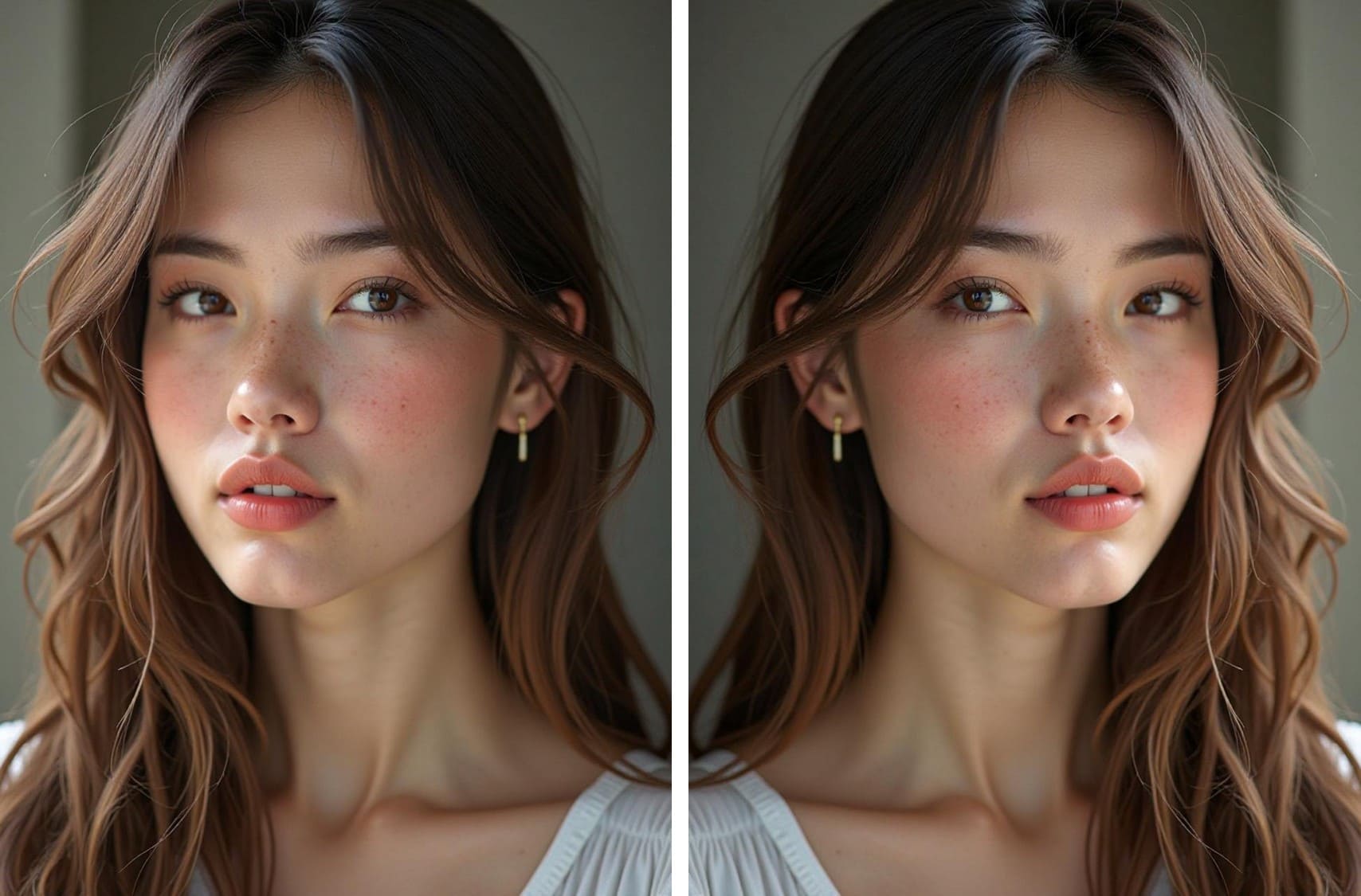
It flips your face from left to right, giving you a totally new perspective on how you look. It’s playful, quirky, and a cool way to have some fun with your selfies or videos.
In this guide, we’ll break down everything you need to know about the Inversion Filter, how to use it, and share some tips to make your virtual look even better.
- What is the Inversion Filter?
- How to Use an Inverted Face Filter
- Perfect Your Selfie with Expert Beauty Tips
- Inversion Filter FAQs
What is the Inversion Filter?
The Inversion Filter is a fun and unique effect that flips your face from left to right, creating a mirrored version of yourself.
Often used in selfies and videos, this filter adds an amusing twist to your appearance, making it look like you're seeing your face in reverse.
Popular on social media platforms, it’s not just about altering your look – it's a playful way to engage with your audience and experiment with different facial expressions.
Q: What is an inverted face filter?
A: An inverted face filter flips your face left-to-right, creating a mirrored version of your appearance. It’s commonly used in selfies and videos for a fun, reversed look.
Q: Why do people use inverted filters?
A: It adds a playful twist to selfies and helps users see how their face looks in reverse, which can appear different from the camera’s default mirrored preview.
Q: Where is the inverted face filter popular?
A: It’s widely used on social platforms like Instagram, TikTok, and YouTube to create engaging, entertaining content with a reversed perspective.
How to Use the Inverted Face Filter: Easy Step-by-Step Guide

Ready to try the inverted face look for yourself? Just follow these easy steps using the PhotoDirector app.
- Download PhotoDirector app – Install the free app on your Android or iOS device.
- Import Your Selfie – Open the app, tap "Edit", and choose the selfie you want to invert.
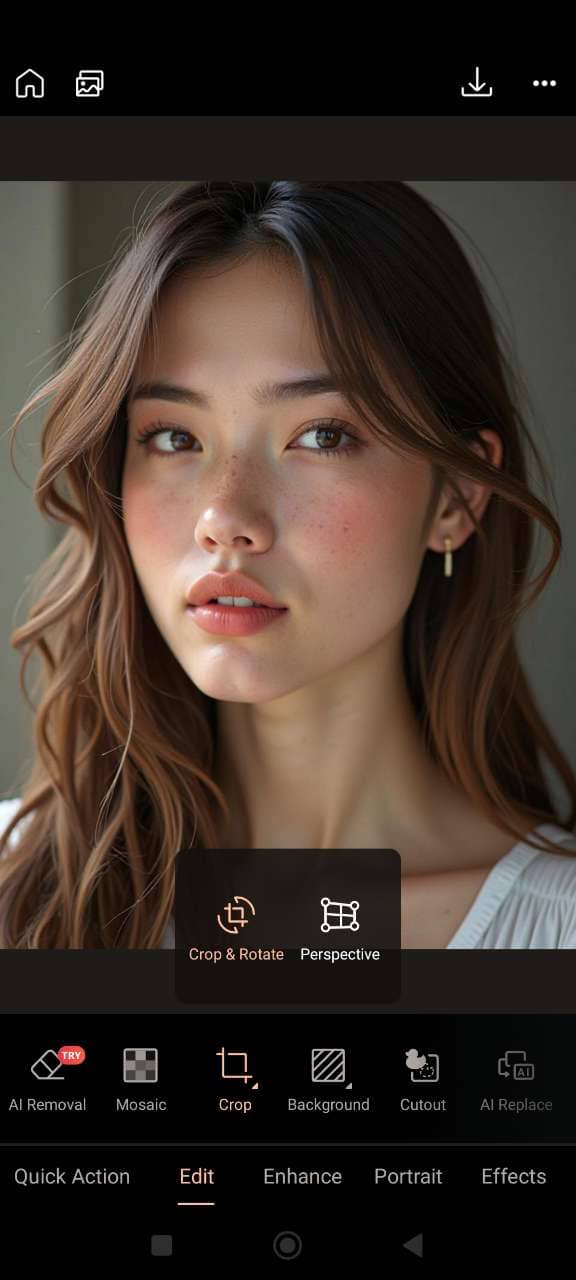
- Open the Rotate Tool – Tap the "Crop" icon, then select "Crop & Rotate" to access rotation options.
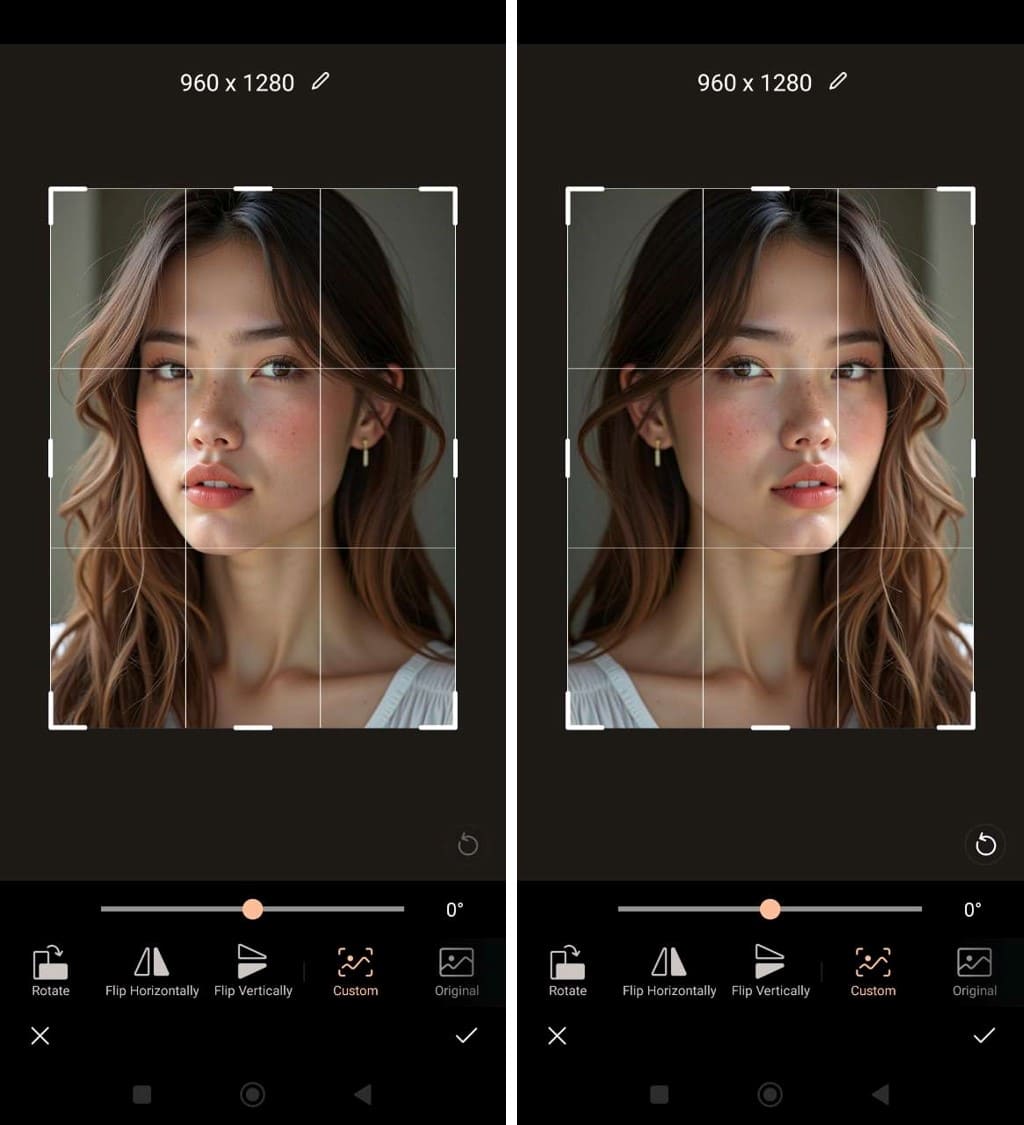
- Flip Your Image – Tap "Flip Horizontally" to instantly invert your face from left to right.
- Save and Share – Hit the download icon to save your flipped selfie and share it wherever you like!


Download PhotoDirector now to flip your selfie in seconds!
Q: How do I invert my face using PhotoDirector?
A: Download PhotoDirector, import your selfie, open Crop & Rotate, and tap “Flip Horizontally” to instantly reverse your face.
Q: Is PhotoDirector free for flipping selfies?
A: Yes. PhotoDirector is free to download on iOS and Android, and the Flip tool is available without requiring advanced editing skills.
Q: Can I use the inversion filter on videos?
A: PhotoDirector supports image flipping; for advanced video edits, PowerDirector offers additional mirror and flip tools.
Perfect Your Selfie with Expert Beauty Tips
Once you’ve flipped your selfie, it’s time to refine your look using PhotoDirector’s powerful beauty tools. These features help you enhance your natural appearance while keeping things subtle and polished:
Smooth Skin

Use the skin smoothing tool to reduce wrinkles, remove blemishes, and even out your skin tone for a flawless, radiant finish.
Brighten Eyes

Make your eyes pop by removing eye bags, red-eye, and gently reshaping eye height, width, and lift. You can also enhance your eyebrow shape for a more balanced look.
Reshape Gently

Slightly adjust your face shape, jawline, forehead, chin, nose, or lips to bring out your best angles and create better facial symmetry.
Add Makeup Effects

Experiment with soft lipstick, defined eyebrows, eyeshadow, eyeliner, long lashes, contour, and a touch of blush to give your selfie a natural, camera-ready glow.
Q: How can I smooth my skin after using the inverted filter?
A: Use PhotoDirector’s Skin Smoothing tool to reduce wrinkles, remove blemishes, and even out skin tone with natural results.
Q: How do I make my eyes look brighter in my inverted selfie?
A: Apply PhotoDirector’s Eye tools to remove eye bags, brighten the whites, fix red-eye, and gently reshape height or width for a refreshed look.
Q: Can I reshape my facial features after flipping my photo?
A: Yes. PhotoDirector’s face reshape tools let you subtly refine your jawline, chin, forehead, nose, and lips for better symmetry.
Q: Does PhotoDirector include makeup effects?
A: PhotoDirector includes virtual makeup options like lipstick, eyeshadow, eyeliner, contour, and blush to give your selfie a polished, natural finish.
Related Articles:
- What Will I Look Like with Lip Injections?
- How to Try and Choose Your Perfect Eyebrow Shape
- AI Smile Filter: Add Smile to Photo Easily for Free
Inversion Filter FAQs
- Download PhotoDirector from the App Store or Google Play (it's free!).
- Open the app and tap “Edit” to import your selfie.
- Tap “Crop”, then select “Crop & Rotate.”
- Use “Flip Horizontally” to invert your face left to right.
- Save and share your flipped selfie instantly.
- Install the PhotoDirector app on your Android or iOS device.
- Launch the app and go to the Edit section.
- Import your photo or selfie.
- Tap the Crop tool, then select “Crop & Rotate.”
- Tap “Flip Horizontally” to invert your face.
- Download or share your edited image directly from the app.
- Download PhotoDirector app for free from the App Store.
- Open the app and tap “Edit” to import your selfie or photo.
- Tap the “Crop” icon, then select “Crop & Rotate.”
- Tap “Flip Horizontally” to apply the inverted filter.
- Save your flipped image and share it instantly!
The CyberLink Editorial Team is composed of product testing specialists and content creation experts with over 20 years of hands-on experience and rigorous research in the multimedia editing industry. As the official voice of CyberLink, the team consistently delivers practical, easy-to-follow tutorials across video, photo, and audio editing, while highlighting AI innovations, product insights, and emerging industry trends. Their work empowers millions of creators worldwide each year to elevate their content. Beyond the blog, the team actively shares editing tips and product updates across YouTube, Facebook, Linkedin and Pinterest.
😎 Outside of their work, they enjoy capturing travel moments and meticulously editing photos and videos for their social channels.


