







What Would I Look Like Skinny? Try PhotoDirector AI Weight Loss Filter

Ever caught yourself wondering, “What would I look like if I lost weight?” You're not alone.
Whether it’s out of curiosity or motivation, many people are turning to AI tools to get a virtual preview of a slimmer version of themselves.
With a skinny filter, you can simulate what you'd look like after weight loss—face or body—in just seconds, no commitment required.
Discover how to use PhotoDirector to reshape your face and body with smart features. It’s fast, easy, and a fun way to explore your potential transformation.
- What Would I Look Like Using a Skinny Filter?
- How Weight Loss Would Transform Your Face
- Turn Your AI Weight Loss Simulation into a Video
- See What You'd Look Like After Losing Weight
- Skinny Filter FAQ
How did we test these skinny filter features?
We tested the body slimming and face slimming features on an iPhone 13 Pro Max using a variety of portrait and full-body photos with different poses, angles, and lighting conditions.
We evaluated how natural the slimming results looked, how easy each feature was to use, the level of customization available, processing speed, and the overall quality of the edited images.
Updated in August 2026 by CyberLink Editorial Team.
What Would I Look Like Using a Skinny Filter?

Wondering what you'd look like after losing weight? A skinny generator can help you visualize your transformation instantly. One of the best tools for this is PhotoDirector, using its AI Replace feature. Here's how it works:
- Download and install PhotoDirector – Get the app on your Android or iOS device from the App Store or Google Play.
- Open AI Replace and Upload Your Photo – Launch the app, go to AI Replace, and import the image you want to edit.
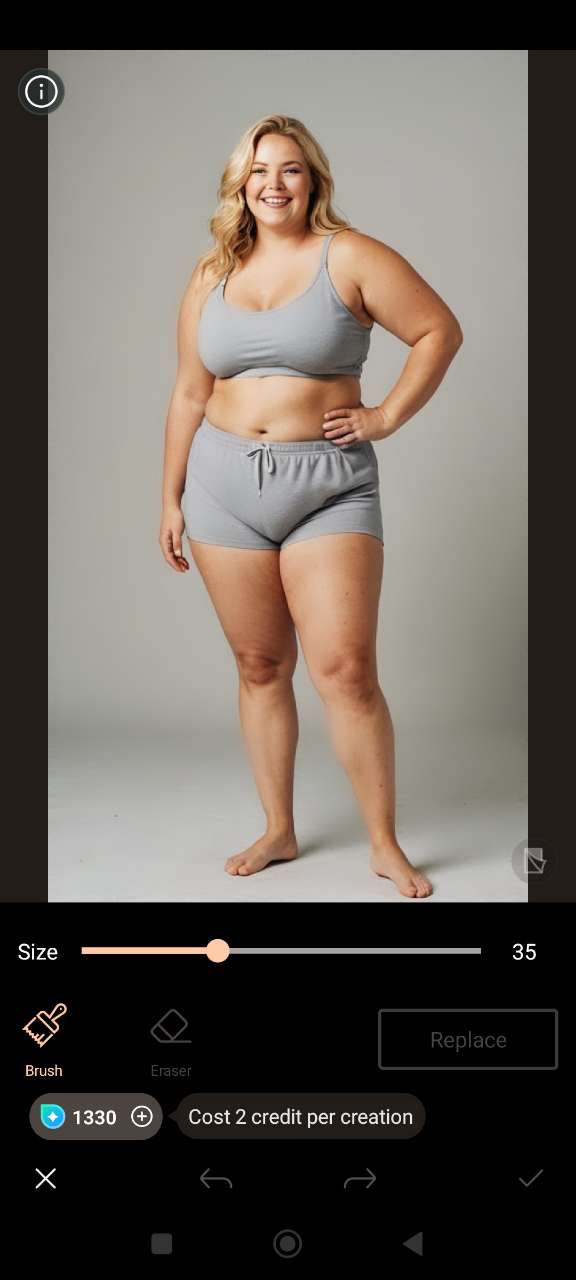
- Brush Over the Body Area – Use the brush tool to highlight the parts of your body you want to slim down — this could be your waist, arms, legs, or full body.
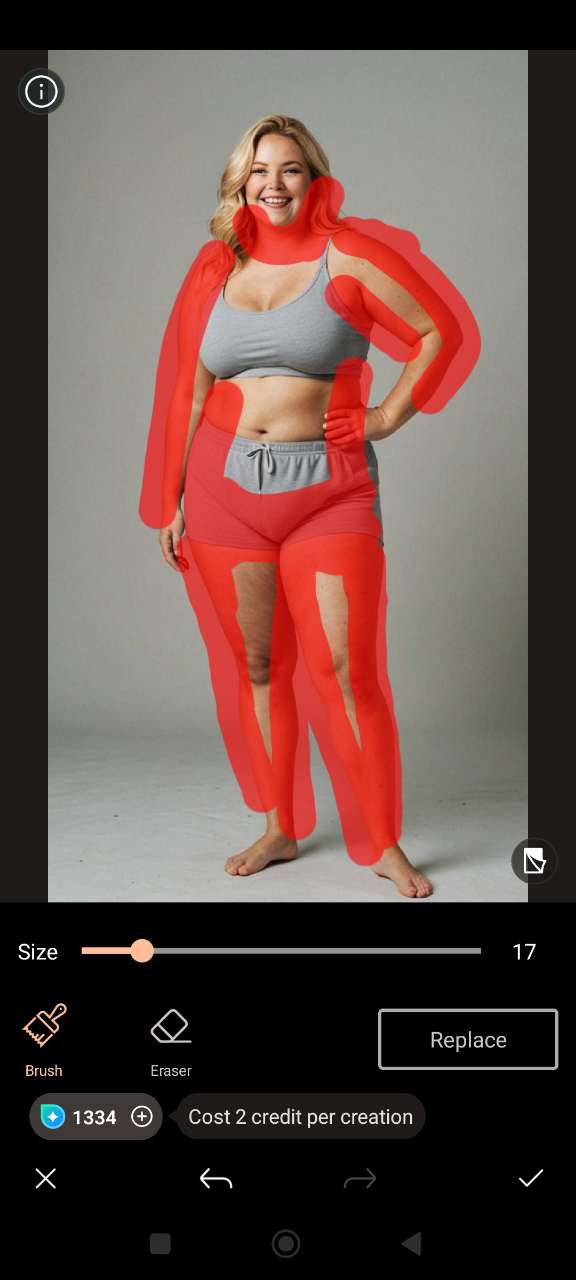
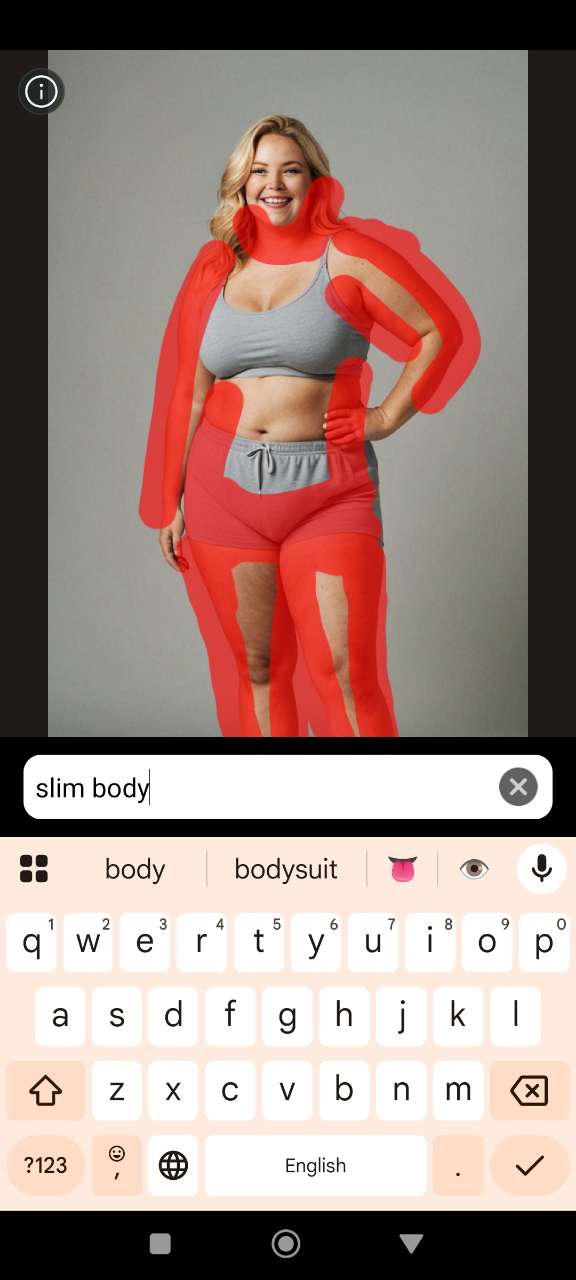
- Enter a Prompt – Type in a prompt like "slim body" or "weight loss effect" to guide the AI in generating a thinner version of you.
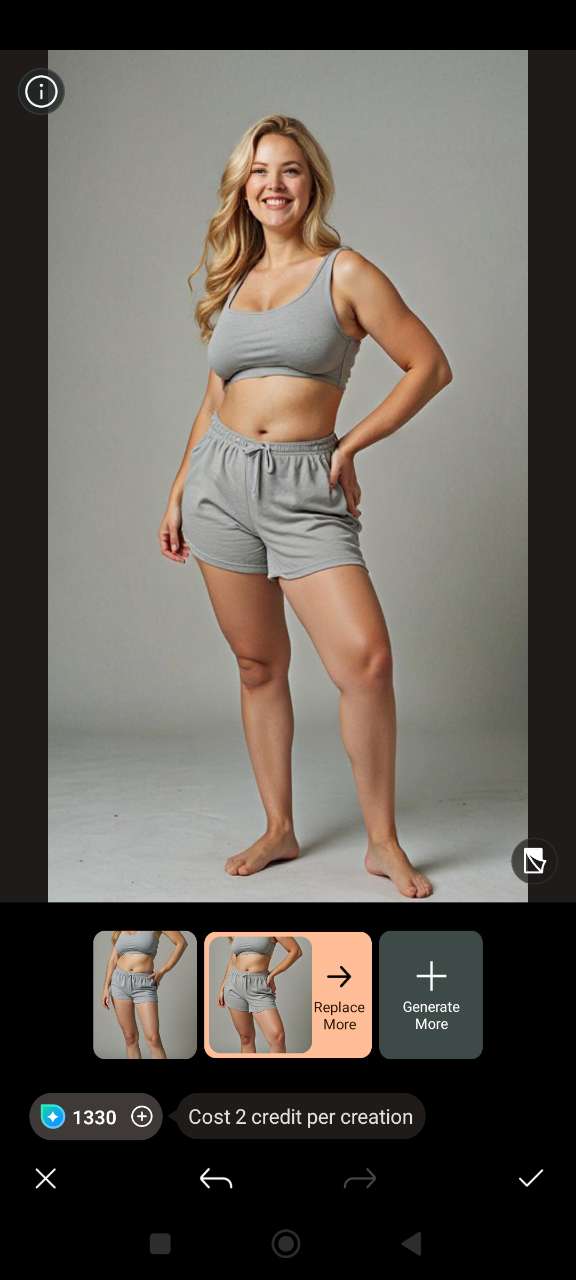
- See Your AI-Generated Slim Look – Let AI transform your photo for a fun glimpse at a slimmer version of yourself. In just seconds, you can explore a playful visual of how you might look with a different body shape.


Turn Your AI Weight Loss Simulation into a Video
Curious to see your virtual weight loss transformation in motion? With PhotoDirector 's AI video templates, you can instantly generate a short clip that brings your slimmer, reshaped self to life. It's not just a still photo—this feature turns your “look skinny” simulation into a dynamic, shareable video powered by AI.
For Women
Try the female video template to subtly refine your figure and see how a lighter, more sculpted silhouette would look—all with one tap and no filters needed.
For Men
Use the male-focused template to reveal a stronger, leaner version of yourself, complete with more defined muscles and abs. It's a fast, motivating way to visualize your body transformation.
Face Filter: How Weight Loss Would Transform Your Face

Want to see how your face would look after weight loss? With PhotoDirector's Face Reshape tool, you can subtly slim down your cheeks, jawline, or entire face — no surgery or filter overload required. Here's how it works:
- Download and install PhotoDirector – Get the app on your iOS device from the App Store.
- Open the Face Reshape Tool – Launch the app, select the "Beautify" tool, and import your portrait. Then, choose the "Reshape" option, which will automatically detect the face in your photo.
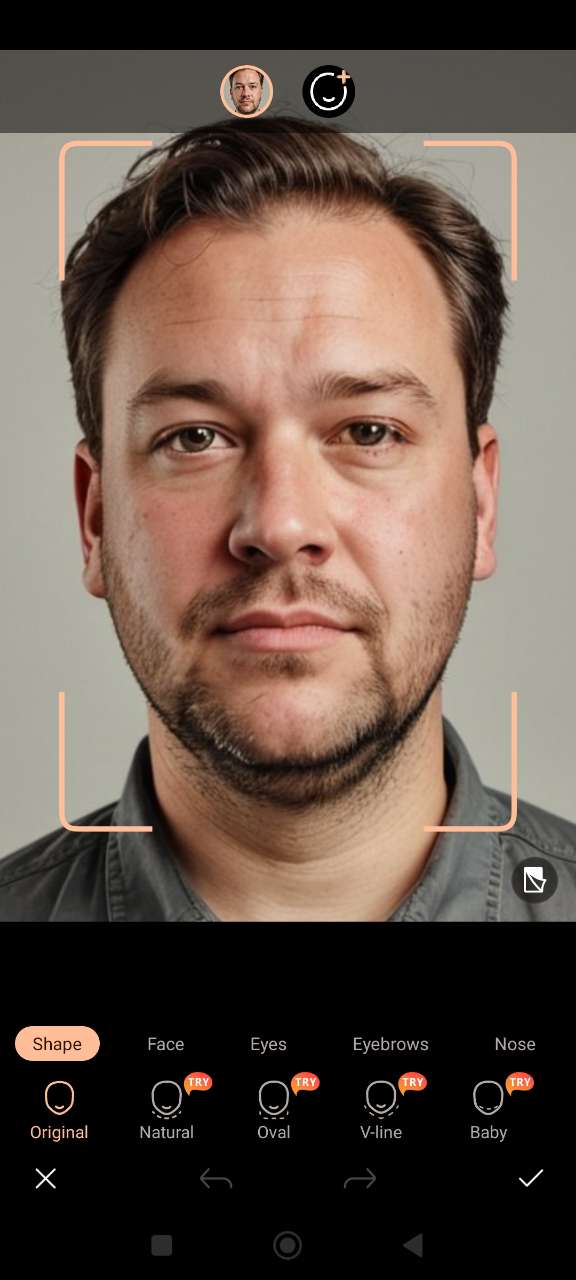
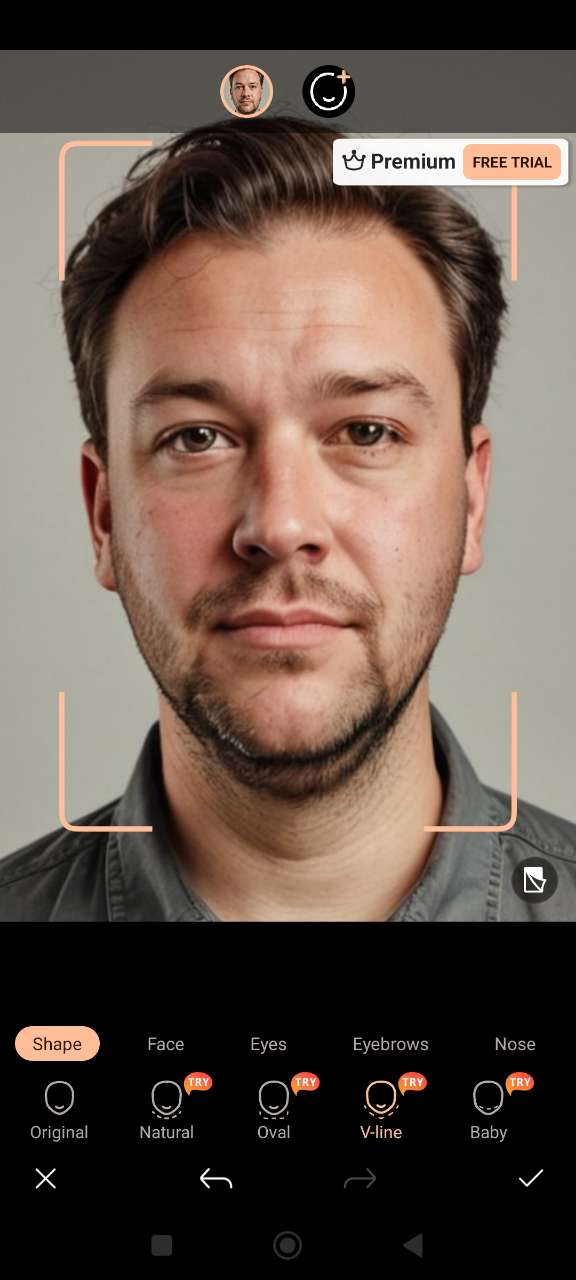
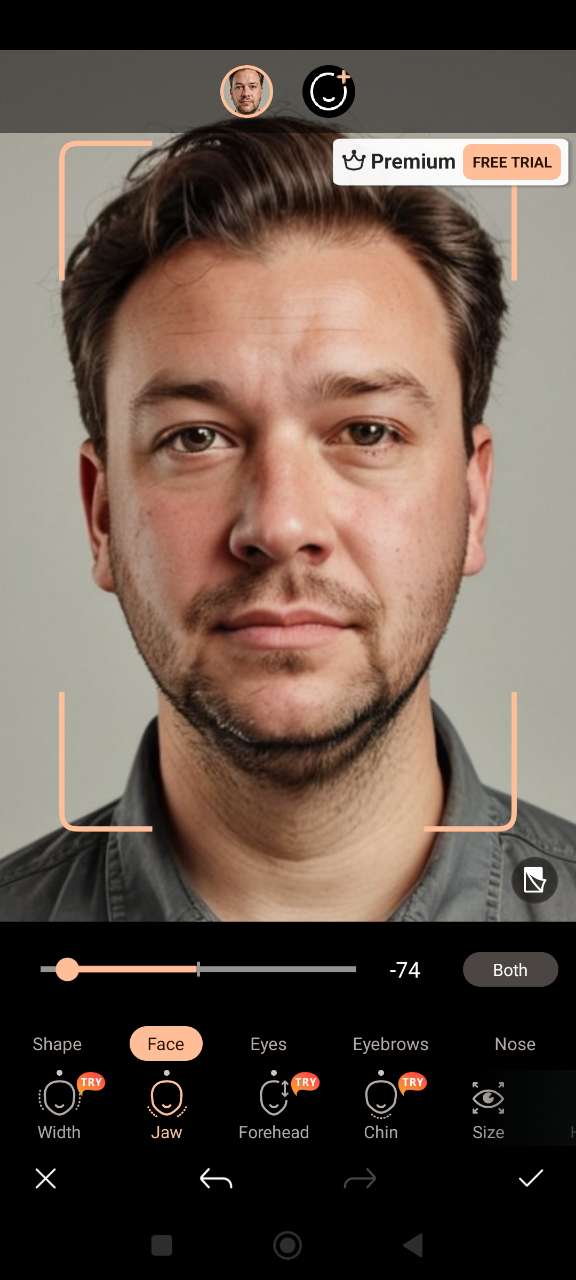
- Reshape Your Face – Use the available face shape templates for a quick transformation, or go to the "Face" section. Adjust sliders for a more customized look — narrow your cheeks, shape your jawline, and refine your chin and forehead to achieve your desired slimmed-down appearance.
- Enhance Your Features (Optional) – Want more edits? Fine-tune your portrait using smart tools to adjust your eyes, eyebrows, nose, and lips — and even add a natural-looking smile to your face. It's a quick way to make your transformation even more stunning!
- Save and Share – Once you're happy with your transformation, save your image and share it with friends or on social media.


Weight Loss Filter: See What You’d Look Like After Losing Weight

Want to see your full-body transformation after weight loss? With PhotoDirector's Body Reshape tool, you can slim down specific areas like your waist, arms, or legs using simple sliders. It's an easy way to visualize a fitter version of yourself in just a few taps.
- Download and install PhotoDirector –Get the app on your iOS device from the App Store.
- Open the Body Reshape Tool – Launch the app and tap on “Body Reshape” from the main menu. Then, import the photo you want to edit.
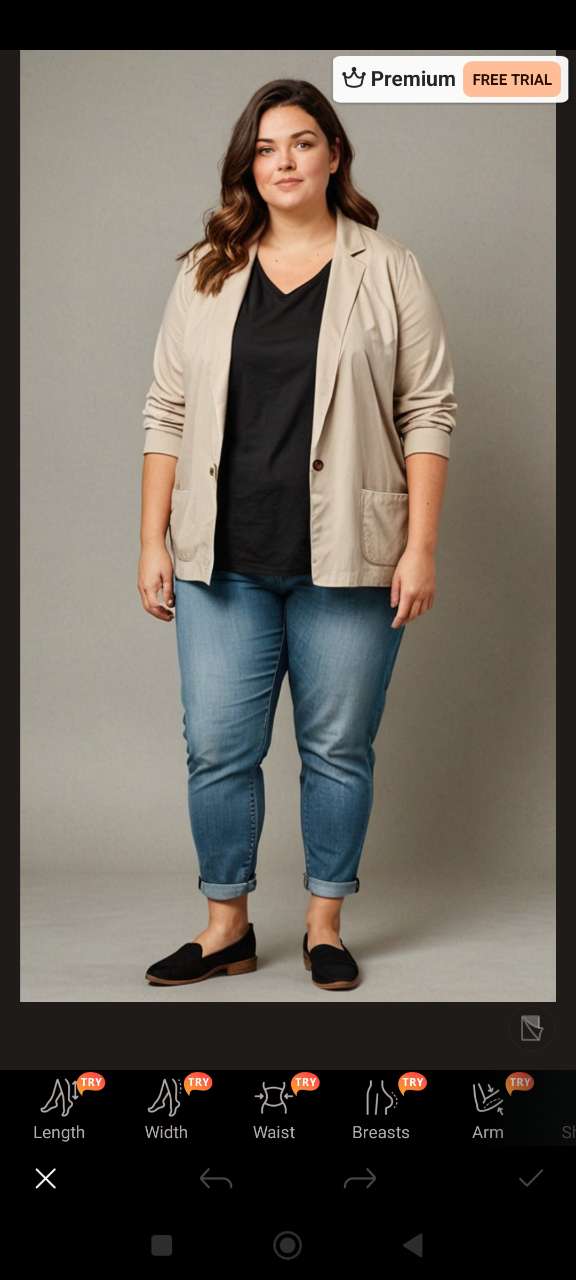
- Play Around With Your Body Shape – Have fun experimenting with different proportions using intuitive sliders. Adjust your waist, hips, arms, legs, shoulders, height, and more to create your own unique look and see how different changes transform your photo.
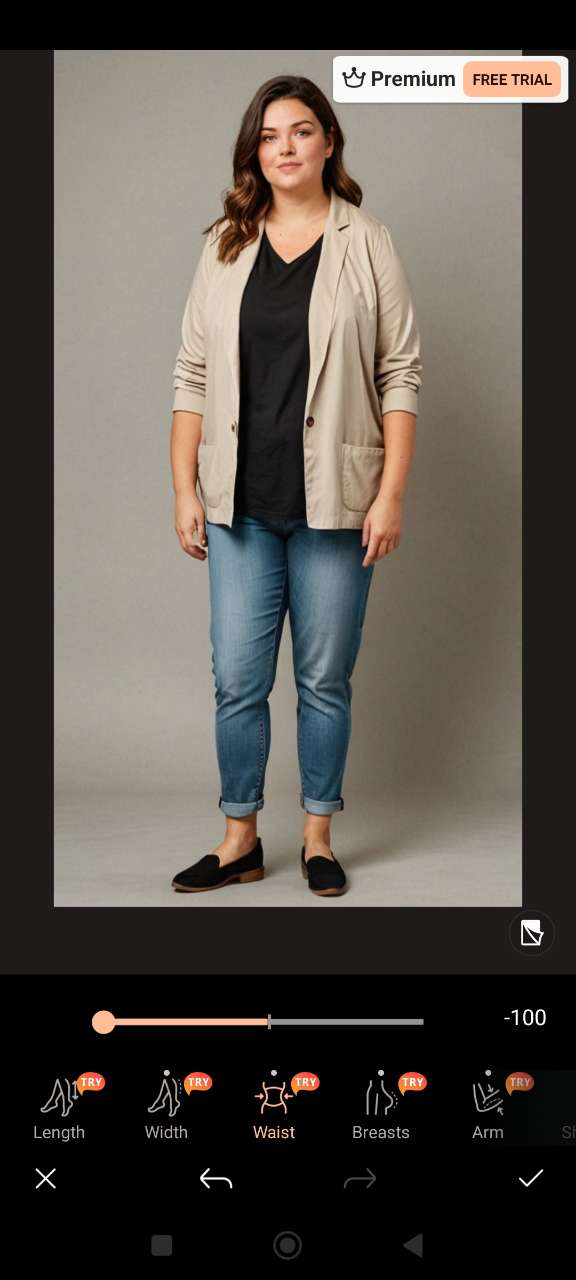
- Save and Share Your New Look – Once you're happy with the result, save your image and share your transformation with friends or on social media.


PhotoDirector is developed by CyberLink, the publisher of this blog.
Skinny Filter FAQ
- Open PhotoDirector
- Go to AI Replace and upload your photo
- Brush over the body area you want to slim
- Enter a prompt like “slim body”
- Let AI generate your skinnier version
- Open PhotoDirector and go to Beautify > Reshape
- Upload your portrait
- Use sliders to adjust face width, jawline, chin, and more
- Add a smile or enhance features like eyes and lips (optionnal)
- Save your new look
Yes! PhotoDirector lets you see what you would look like if you lost weight with its weight loss filter tools. Choose between AI Replace for auto edits or Body Reshape for manual slimming.
PhotoDirector's Face Reshape and Body Reshape features are available in the free version, allowing you to manually slim facial features and body proportions. The AI Replace feature, which automatically generates weight loss transformations, requires a Premium subscription.
If the weight loss filter doesn't produce the results you want, try using a higher-quality photo with good lighting and a clear view of the subject. You can also switch between the available slimming features or adjust the intensity sliders to achieve a more natural and accurate result.
The CyberLink Editorial Team is composed of product testing specialists and content creation experts with over 20 years of hands-on experience and rigorous research in the multimedia editing industry. As the official voice of CyberLink, the team consistently delivers practical, easy-to-follow tutorials across video, photo, and audio editing, while highlighting AI innovations, product insights, and emerging industry trends. Their work empowers millions of creators worldwide each year to elevate their content. Beyond the blog, the team actively shares editing tips and product updates across YouTube, Facebook, Linkedin and Pinterest.
😎 Outside of their work, they enjoy capturing travel moments and meticulously editing photos and videos for their social channels.


