


What Will I Look Like with Blue Eyes? Try Our Blue Eye Filter Now

Have you ever wondered what you will look like with blue eyes?
Thanks to the latest AI-powered photo editing technology, you can easily find out without wearing colored contacts or complicated software.
Blue eye filters let you transform your eye color realistically and instantly, perfect for selfies, social media, or just for fun.
Discover how to use the PhotoDirector app to see yourself with stunning blue eyes in seconds.
Benefits of Using a Blue Eye Filter for Photos and Selfies


Blue eye filters are more than just fun—they offer a simple way to enhance your look, experiment with your style, or create standout images for social media. Here’s why so many people love using them:
- Preview a New Look Instantly – Curious how you’d look with blue eyes? A filter gives you a quick and realistic preview without buying colored contacts.
- Enhance Your Selfies – Add a subtle or bold pop to your photos. Blue eyes can brighten your face and add contrast, especially in well-lit selfies.
- Perfect for Social Media – Stand out on Instagram, TikTok, or dating apps with eye-catching edits that look natural and polished.
- No Editing Skills Needed – Apps like PhotoDirector use AI to detect your face and apply the effect seamlessly. It’s quick, easy, and beginner-friendly.
- Try Different Shades of Blue – From icy blue to deep sapphire, you can experiment with different tones to match your hair, skin tone, or mood.
What Will I Look Like with Blue Eyes? Try a Blue Eye Filter
Follow these easy steps to see yourself with blue eyes using the AI Replace feature in PhotoDirector:
- Download and install PhotoDirector App – Get the free app on your Android or iOS device from the App Store or Google Play.
- Open AI Replace and Upload Your Photo – Launch the app, select **AI Replace**, and choose a clear photo of your face.
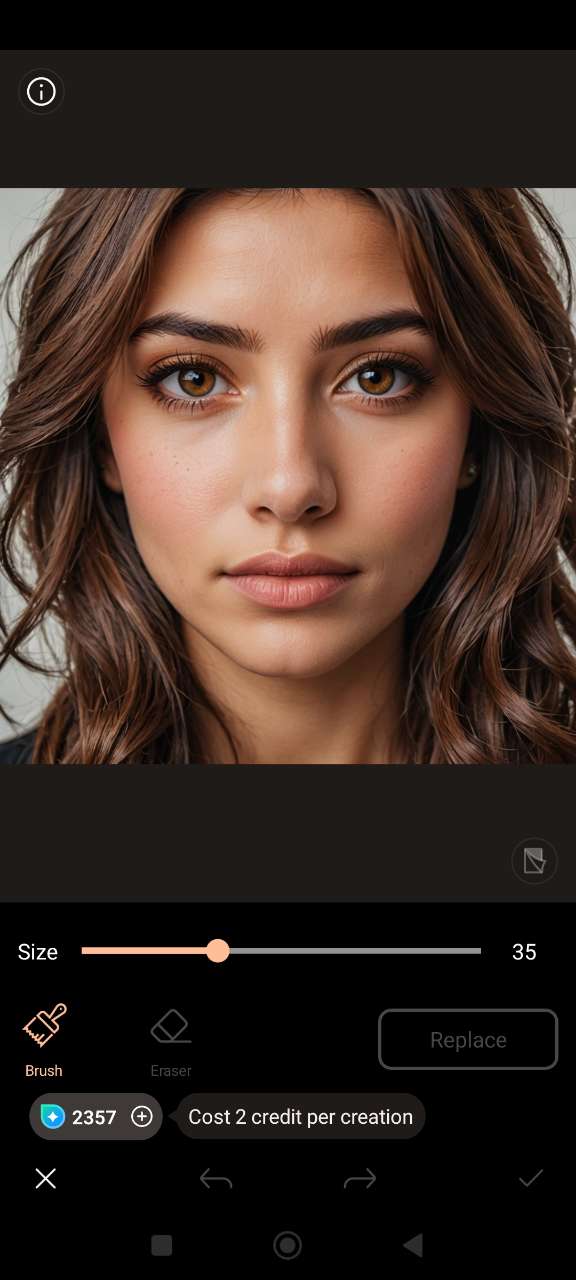
- Brush Over the Eyes – Use the brush tool to highlight both eyes carefully. This tells the AI exactly where to apply the new color.
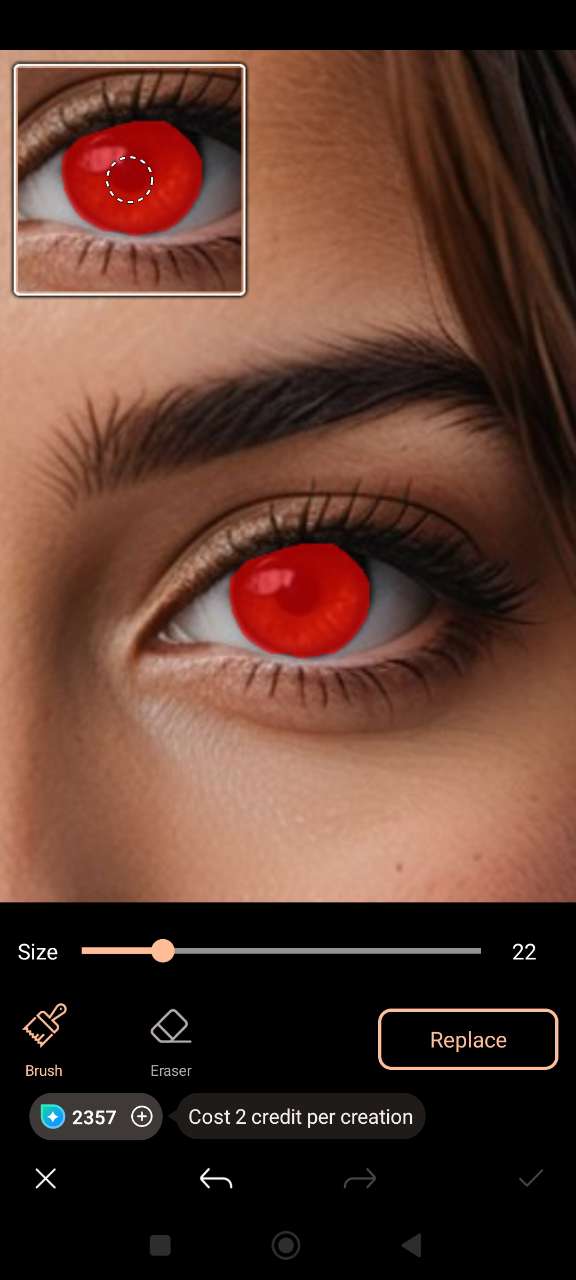
- Enter a Prompt – Type a prompt like “bright blue eyes” or “natural ocean blue eyes” to guide the AI color replacement.
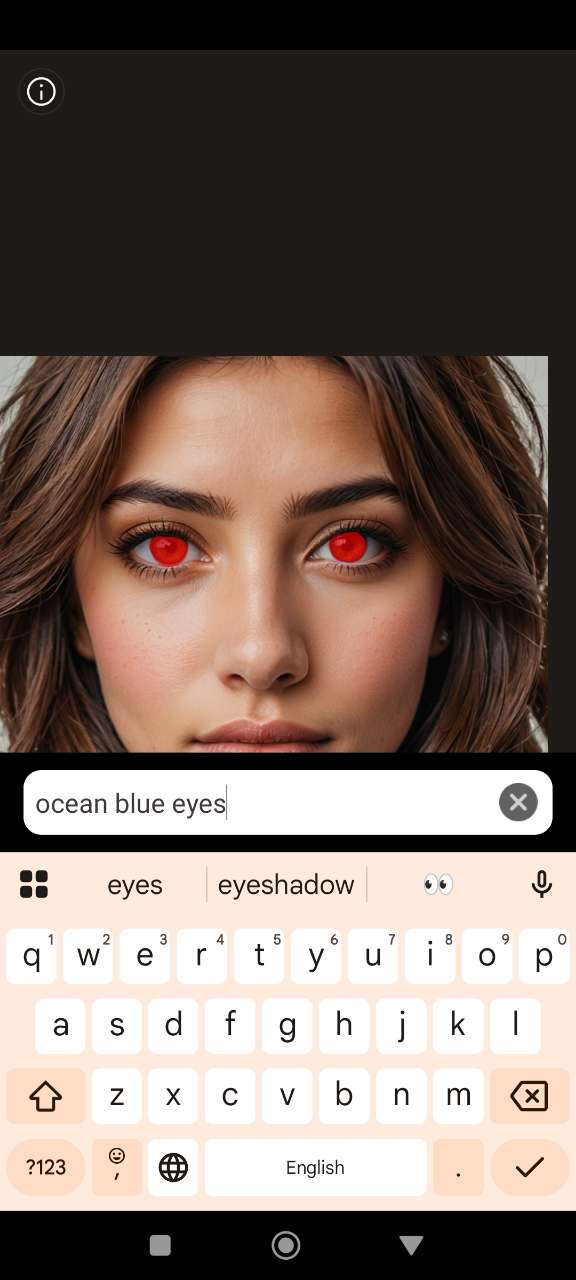
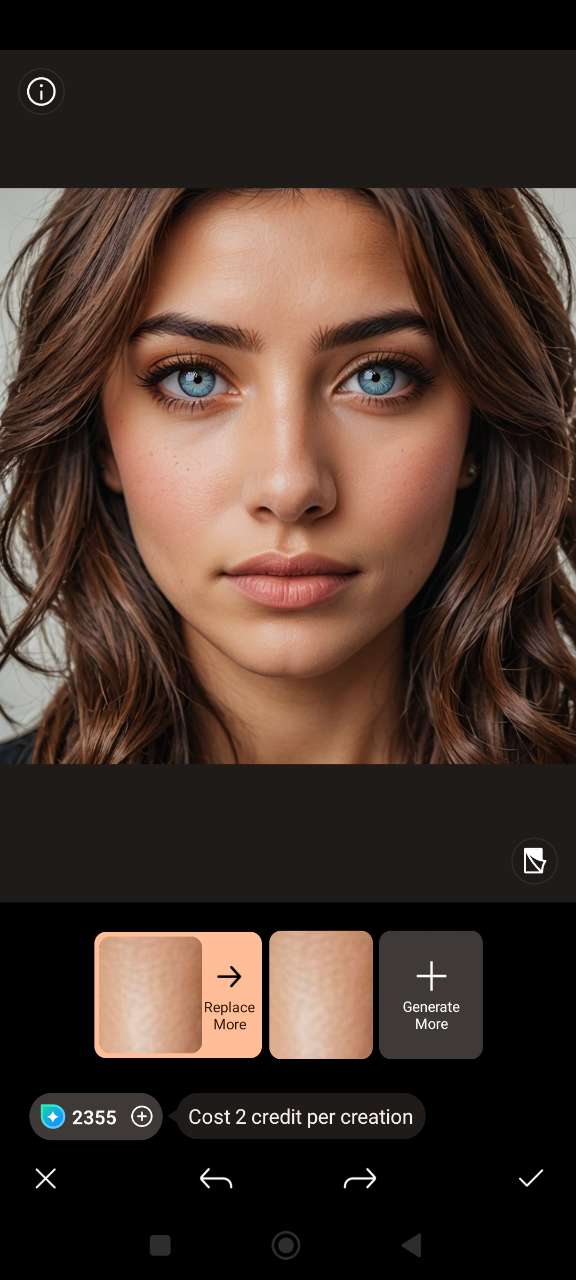
- See Your Blue Eyes Instantly – In seconds, you’ll get a realistic version of yourself with striking blue eyes.


Related Articles:
- Remove Strays and Fix Messy Hair Easily
- What Would I Look Like Skinny?
- How to Get a Sharp Jawline with AI
Blue Eye Filters FAQ
- Download and open PhotoDirector on Android or iOS
- Go to AI Replace and upload a photo with a clear view of your eyes
- Brush over both eyes to highlight the area you want to change
- Enter a prompt like “bright blue eyes” and let the AI generate the result
The CyberLink Editorial Team is composed of product testing specialists and content creation experts with over 20 years of hands-on experience and rigorous research in the multimedia editing industry. As the official voice of CyberLink, the team consistently delivers practical, easy-to-follow tutorials across video, photo, and audio editing, while highlighting AI innovations, product insights, and emerging industry trends. Their work empowers millions of creators worldwide each year to elevate their content. Beyond the blog, the team actively shares editing tips and product updates across YouTube, Facebook, Linkedin and Pinterest.
😎 Outside of their work, they enjoy capturing travel moments and meticulously editing photos and videos for their social channels.


