






How to Reverse a Video on Snapchat: Easy Step-by-Step Guide

Want to reverse a Snapchat video — whether you just recorded it or uploaded it from your phone? You’re not alone. The rewind effect was once a popular built-in filter, but it’s no longer available for everyone.
Today, it only works if you record directly in the app, keep it short, and avoid other filters. And for uploaded or saved videos, Snapchat doesn’t offer a reverse option anymore.
In this guide, we’ll show you what’s still possible in the app and how to easily reverse any video using a free, beginner-friendly app called PowerDirector — ideal if you want full control and quick results.

- Why Reverse a Video on Snapchat?
- How to Reverse a Video on Snapchat
- How to Reverse an Existing Snapchat Video
- FAQs About Reversing Snapchat Videos
Why Reverse a Video on Snapchat?
Reversing a video on Snapchat adds a fun and creative twist to your snaps. Here are some reasons why you might want to try this effect:
- Create Eye-Catching Effects: Playing a video backward can make simple actions look magical or surprising, grabbing your friends’ attention instantly.
- Tell a Unique Story: Reverse videos can add a fresh perspective to your story by showing events in a new, unexpected order.
- Follow Popular Trends: Many Snapchat trends and challenges involve reversing videos to join viral content and boost engagement.
- Highlight Cool Moments: Reversing highlights like jumping, throwing, or pouring creates playful and memorable visuals.
- Stand Out From the Crowd: Using reverse effects helps your snaps stand out in the sea of regular forward videos.
Whether you want to have fun, be creative, or join trending challenges, reversing videos on Snapchat is a simple way to enhance your content.
How to Reverse a Video on Snapchat
Currently, Snapchat does not have a direct built-in feature to reverse videos fully from end to start. However, you can use the Rewind filter to play your video backward. Follow these steps:
- Open Snapchat and Record a Video: Tap the capture button and record the video you want to reverse.
- Go to the Filters: After recording, swipe left or right on your video preview to browse through available filters.
- Select the “Rewind” Filter: Look for the filter that plays your video backward. This is Snapchat’s built-in reverse effect.
- Preview and Adjust: Watch the video to make sure the rewind effect looks as you want.
- Save or Share Your Video: Tap the save icon to download the reversed video to your device or send it directly to your Snapchat friends or story.
Note:
- The Rewind filter plays the entire video clip in reverse, but it doesn’t allow for trimming or advanced editing.
- Some users may not see the Rewind filter at all — Snapchat has quietly removed it from certain accounts or regions, without any official explanation.
- For full control and guaranteed access to video reversal, we recommend using an external tool like PowerDirector.
How to Reverse an Existing Snapchat Video
PowerDirector is a great free app that makes it easy to reverse videos. Here’s how to do it step-by-step:
- Download PhotoDirector app: Get the app for free on Android or iPhone. You can also download the desktop version for Windows or Mac if you prefer.
- Open the App and Import Your Video: Launch PowerDirector, start a new project, and add the video you want to reverse.
- Select Your Video Clip and Apply the Reverse Effect: Tap your video clip, scroll the menu to find the Reverse option in Tools, and apply it.
If you want to keep the original clip and add the reversed version after it, use the Duplicate tool before applying reverse.
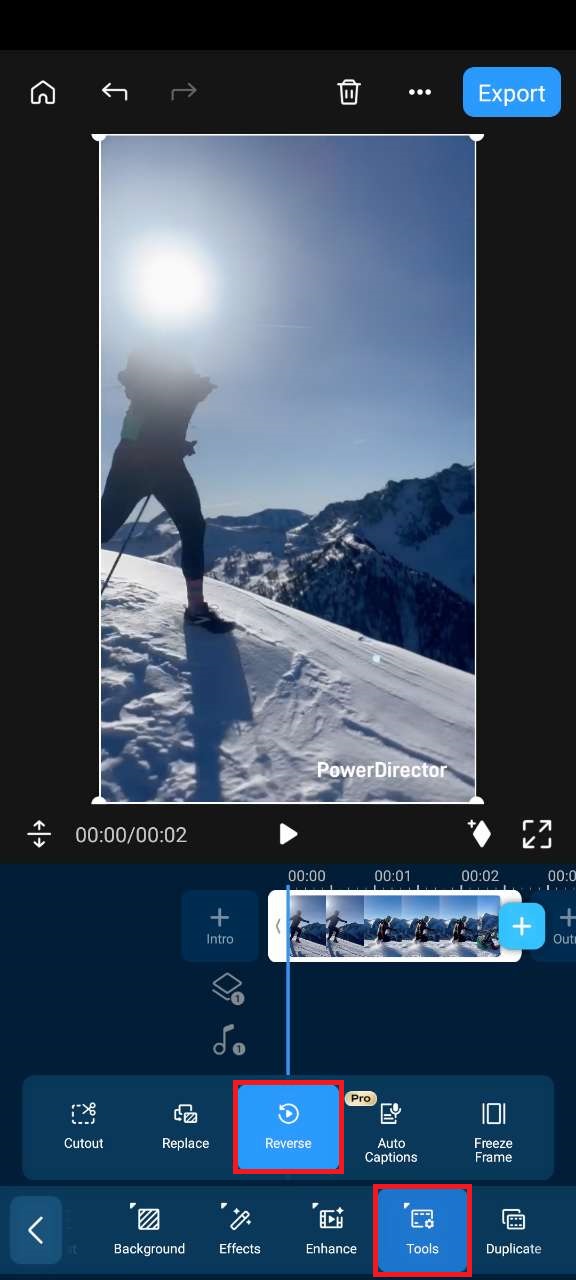
- Save or Continue Editing: You can keep editing your video with effects, titles, or transitions, or save and share it directly to social media.

Why use PowerDirector to reverse your videos?
- Reverse only part of a clip: You can trim and apply the reverse effect to a specific section, not just the full video.
- Combine multiple clips: Easily merge reversed and normal clips in one seamless project.
- Creative freedom: Add music, transitions, titles, filters, and more — all within the same app.
- Cross-platform: Available on mobile and desktop for flexible editing anywhere.
- Beginner-friendly: Intuitive interface perfect for quick edits or more advanced projects.
Download the app for free the app!
Related Articles:
- How to Edit Out a Snapchat Filter from Photos
- 5 Trending Snapchat Filters You Must Know
- 7 Best Instagram Filters & Effects to Try
FAQs About Reversing Snapchat Videos
- Open Snapchat and record a video less than 10 seconds long.
- Swipe left through the available filters.
- Stop when you see the reverse effect (⏪ symbol).
- Tap the arrow to send or download the reversed clip.
- If the effect doesn't show, try reversing your video using a tool like PowerDirector and upload it to Snapchat afterward.
- Your video is too long (must be under 10 seconds).
- You uploaded a video from your camera roll.
- The app isn’t updated to the latest version.

The CyberLink Editorial Team is composed of product testing specialists and content creation experts with over 20 years of hands-on experience and rigorous research in the multimedia editing industry. As the official voice of CyberLink, the team consistently delivers practical, easy-to-follow tutorials across video, photo, and audio editing, while highlighting AI innovations, product insights, and emerging industry trends. Their work empowers millions of creators worldwide each year to elevate their content. Beyond the blog, the team actively shares editing tips and product updates across YouTube, Facebook, Linkedin and Pinterest.
😎 Outside of their work, they enjoy capturing travel moments and meticulously editing photos and videos for their social channels.


