



Nano Banana Guide: Top 12 Creative Prompts to Try in Gemini

Google is once again pushing the boundaries of AI with its latest Gemini features, codenamed "Nano Banana." This update introduces two distinct powerhouses: the standard Nano Banana for advanced photo editing and Nano Banana Pro for high-fidelity generation with superior text rendering.
In this guide, we'll break down these new models and share the top 12 creative prompts you need to try immediately. We'll also introduce MyEdit, a powerful and user-friendly alternative offering unique tools like AI Replace.
- Nano Banana: Google’s Advanced AI Photo-Editing Model
- Nano Banana Pro: High-Fidelity Generation with Superior Text Rendering
- Top 12 Prompt Ideas You Should Try
- Best Alternative: MyEdit AI Image Editor
- FAQs About Nano Banana in Google Gemini
Nano Banana: Google’s Advanced AI Photo-Editing Model
What is Nano Banana?
Inside the Gemini app, Google has rolled out a powerful new image editing model, internally codenamed “Nano Banana” (Gemini 2.5 Flash Image Preview). It’s not just another text-to-image tool; it’s a prompt-driven photo editor for the crucial second step: refining and perfecting what you’ve created.
With maintain-likeness, multi-image blending, multi-turn edits, and design mixing, you get Photoshop-like control from a simple prompt. In short, you’ve just been handed a new set of precision tools, the era of advanced AI image editing in Gemini has arrived.
Advanced Features & Prompt Ideas
Maintain likeness (identity consistency)
Keeps a person/pet looking like themselves across outfit, era, or scene changes. This is the headline upgrade of the new model in the Gemini app.


Keep this person’s likeness identical. Restyle into a 1960s beehive hairstyle and tailored suit, warm studio backdrop.
Blend photos (multi-image fusion)
Upload multiple images and have Gemini merge them into one coherent scene.

Blend my selfie and my dog’s photo into one scene: walking on a beach at sunset. Backlit, soft focus, natural shadows. Preserve our likeness; no distortion.
Multi-turn editing
Iterate step-by-step: change walls, then add furniture, then fine-tune, while preserving the rest of the image.


Change the background to a cozy café with warm string lights and a rose wall. Keep the person unchanged.
Design mixing (style transfer)
Apply the color/texture from one image to an object in another (e.g., flower-petal palette → rainboots)

Apply the marble texture from Image A to the countertop in Image B. Keep reflections and edge bevels accurate; avoid altering objects on the counter.
Limitations of Nano Banana
- Detail & Text Fidelity: Per Google’s developer blog, long passages of text and fine image details are still being refined, small typography, intricate textures, or very tiny features may render inaccurately.
- Watermarked Outputs: All images created or edited in Gemini include a visible watermark plus an invisible SynthID watermark to indicate AI-generated content.
- Prompt-Driven Editing Only: Edits are controlled via natural-language prompts; traditional brush/mask tools are not exposed in the Gemini app at this time.
How to Access Nano Banana
- Google Gemini (Free / Paid)
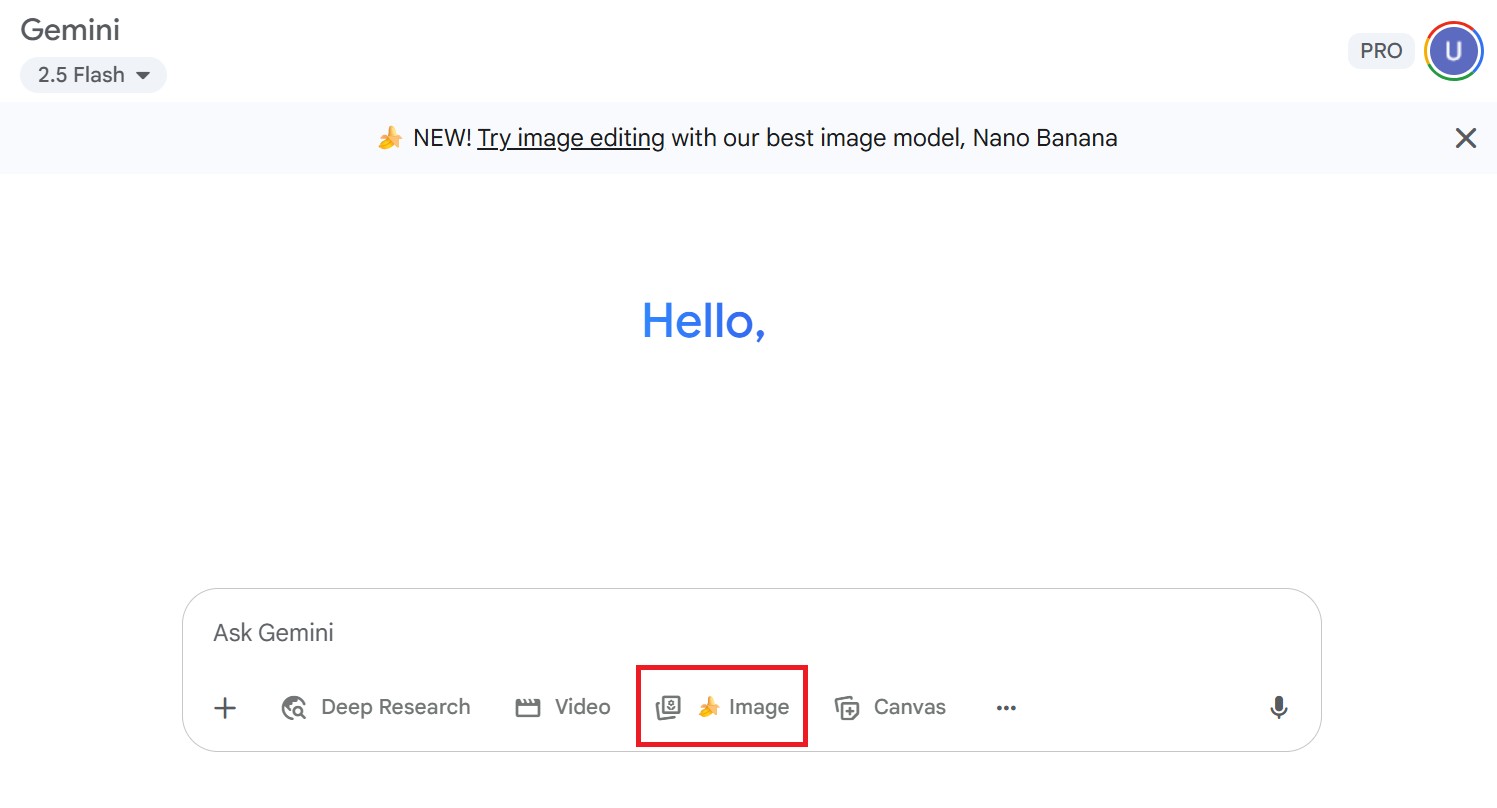
To get started, log in to Gemini with your Google account. Once you're in, open a new chat and select the tab marked with the 🍌 icon.
- Google AI Studio (Free / Paid)
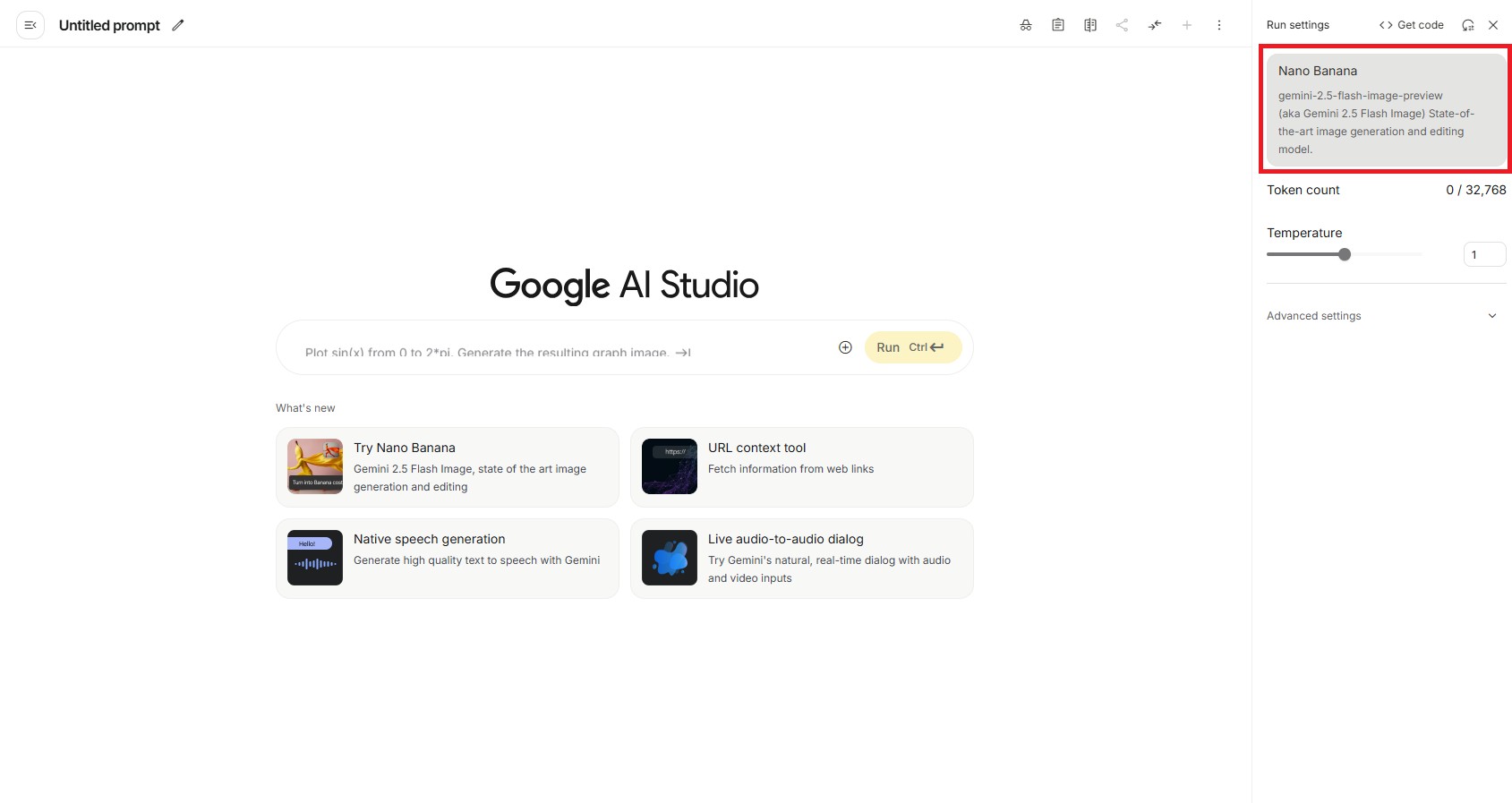
Navigate to the AI Studio website. From the model options, choose "Nano Banana (Gemini 2.5 flash image preview)."
- Vertex AI (Paid)
Go to the Vertex AI website, and in the model selection, find "Gemini 2.5 flash image preview."


Nano Banana Pro: High-Fidelity Generation with Superior Text Rendering
What is Nano Banana Pro?
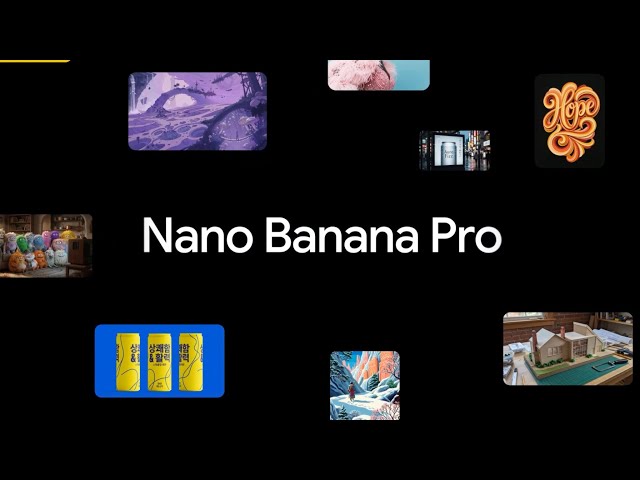
Google DeepMind just released Gemini 3 Pro Image (also known as 'Nano Banana Pro'). This is a huge step forward for AI images. While the older version (Nano Banana) was all about being fast, this new 'Pro' version is all about quality and details.
It features impressive breakthroughs, including mastering the art of text rendering, studio-level camera control, unprecedented character consistency, grounding in real-world data, and native 4K resolution.
Key Advanced Features Explained
Mastering the Art of Text Rendering:
The days of "AI gibberish" are finally over. Nano Banana Pro has cracked the code on text generation. Whether you need a neon signboard, a product label, or a complex infographic, the model can now render legible, correctly spelled text in various fonts and styles. This makes it immediately viable for marketing mockups and poster designs.
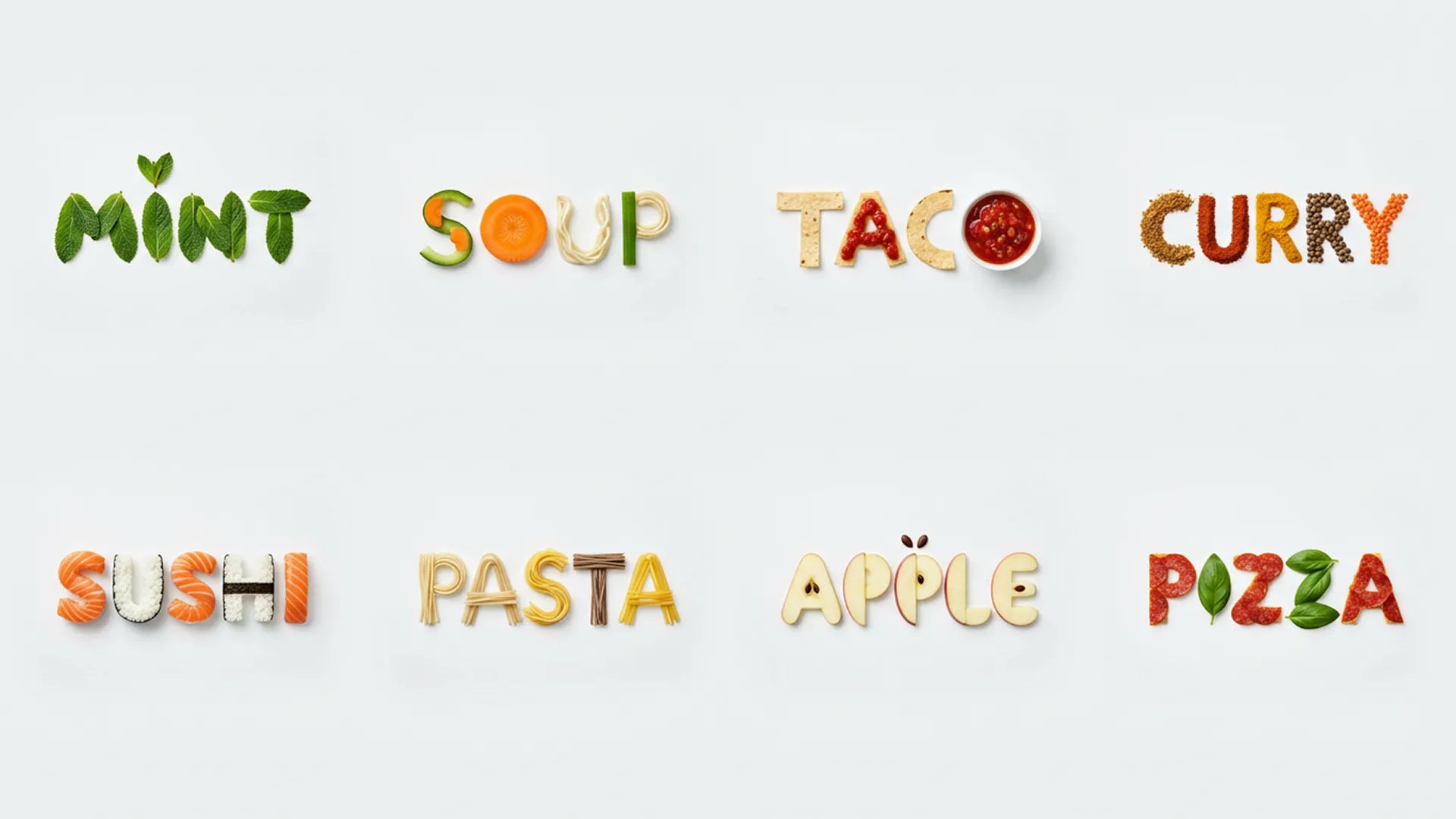 💡Prompt:
Make 8 sophisticated minimalistic logos, each is a fun food word, and make letters from realistic food to express the meaning of this word. composition: a rendering of all logos on a single solid white background.
Source: GoogleStudio-Level Camera Control:
Creators can now act as virtual photographers. The model understands granular instructions regarding camera angles, depth of field, focal length, and lighting. You aren't just asking for a "picture of a cat"; you can request a "low-angle, wide-shot with soft bokeh and cinematic backlighting," and the AI will adhere strictly to those physical parameters.
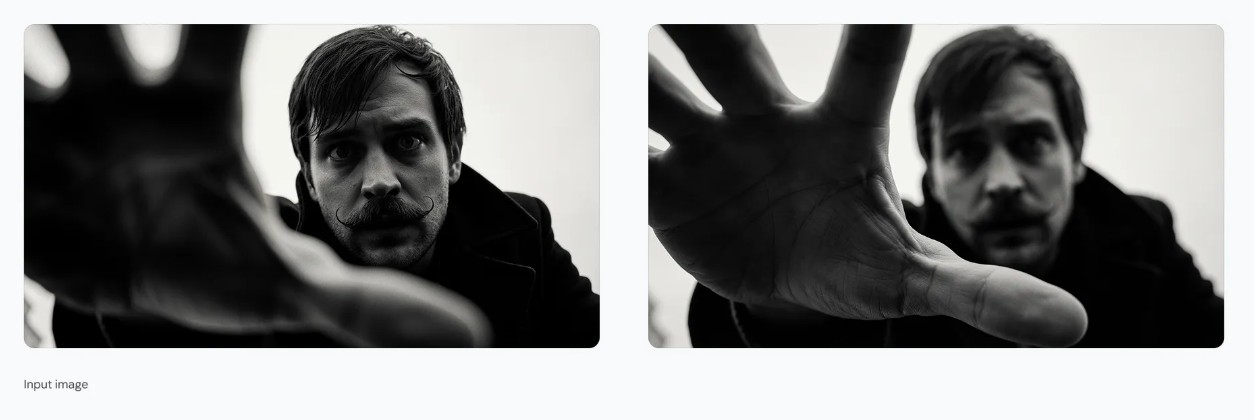 💡Prompt:
Focus on man's hand, blur his face
Source: GoogleUnprecedented Character Consistency:
Nano Banana Pro can maintain character consistency across multiple generations. You can generate the same subject in different poses, outfits, or environments without their facial features morphing into someone else. It supports blending up to 14 reference images, allowing for highly specific style transfers and character retention.
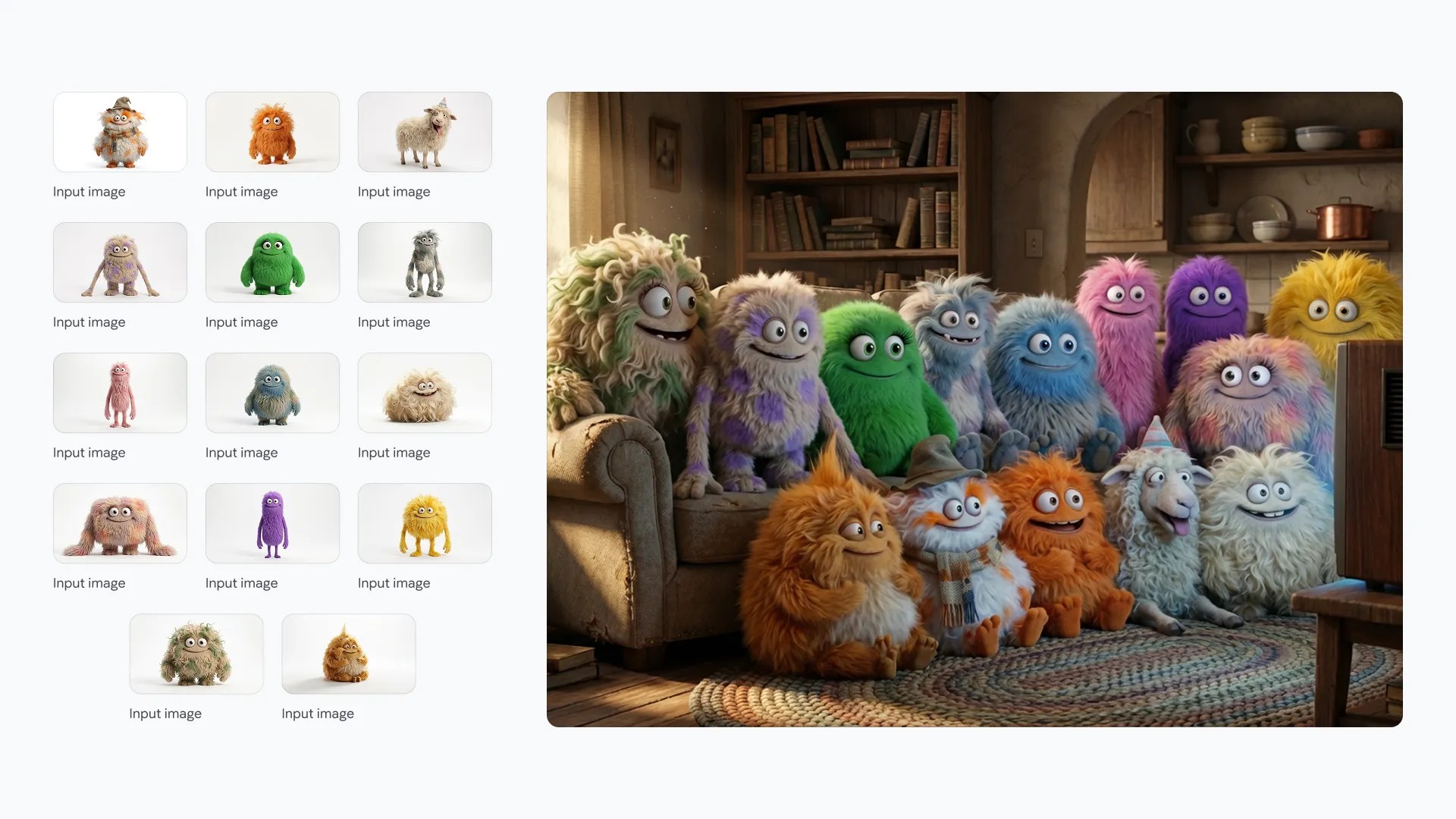 💡Prompt:
A medium shot of the 14 fluffy characters sitting squeezed together side-by-side on a worn beige fabric sofa and on the floor. They are all facing forwards, watching a vintage, wooden-boxed television set placed on a low wooden table in front of the sofa. The room is dimly lit, with warm light from a window on the left and the glow from the TV illuminating the creatures' faces and fluffy textures. The background is a cozy, slightly cluttered living room with a braided rug, a bookshelf with old books, and rustic kitchen elements in the background. The overall atmosphere is warm, cozy, and amused
Source: GoogleGrounded in Real-World Data:
Leveraging the power of Gemini 3, this model connects with Google Search to "ground" its generations in reality. This means it can generate accurate data visualizations, charts, and educational diagramsbased on real-time information, rather than hallucinating plausible-looking but factually incorrect graphics.
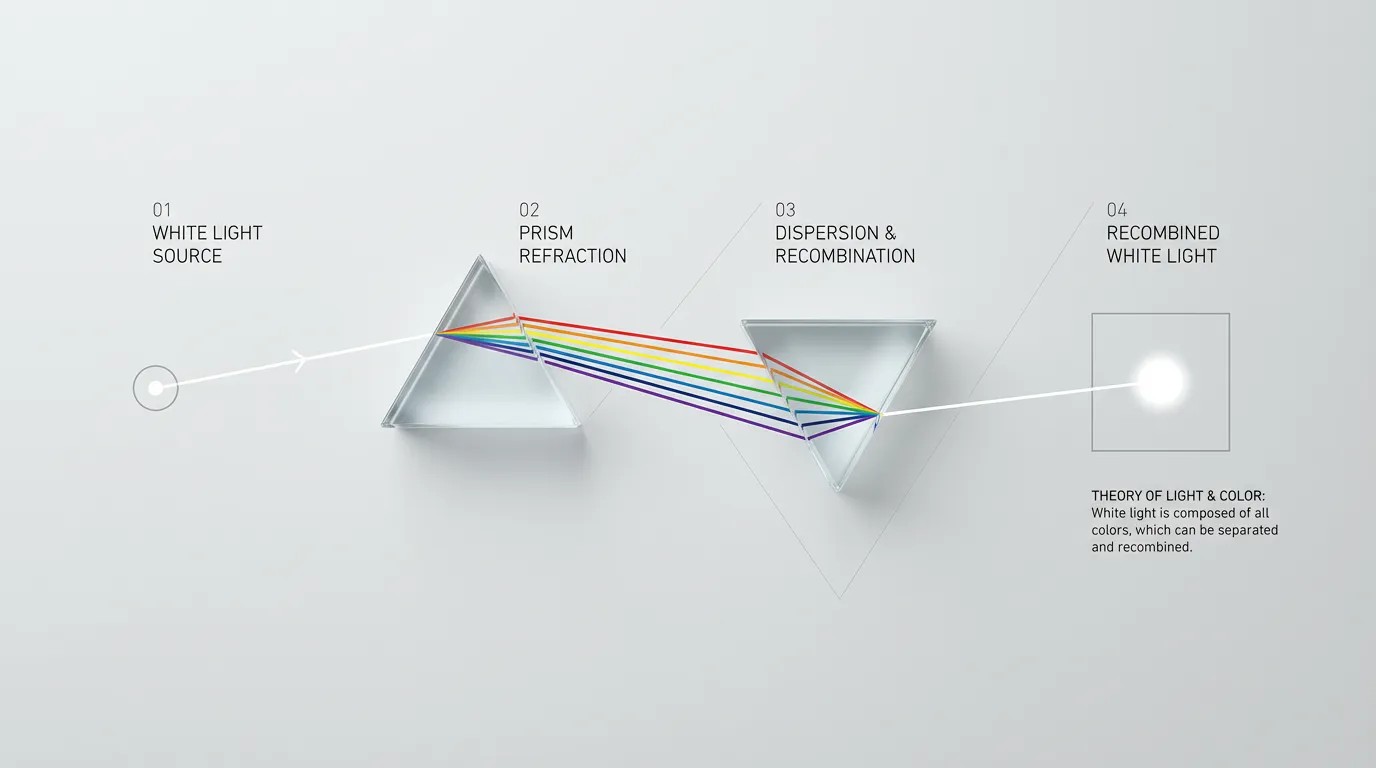 💡Prompt:
Modern, clean, and minimalist flat lay photography illustrating Sir Isaac Newton's theory of light and color, presented on a seamless, matte light gray background. The composition follows a precise, geometric flow from left to right. All annotations are rendered in an ultra-clean, minimalist sans-serif font. Simple, numbered labels—"01", "02", "03", "04" - mark each stage of the process. The concept is a modern visualization of the experiment from Newton's 1671 letter, the content of which can be referenced here: https://hti.osu.edu/sites/hti.osu.edu/files/Sir-Isaac-Newton_Letter-Theory-Light-Colors.pdf The overall mood is scientific, precise, and elegant. The image is shot from a top-down bird's-eye view with bright, perfectly even, shadowless studio lighting to create a clean, high-tech aesthetic. Format 16:9
Source: GoogleNative 4K Resolution:
Stepping up from standard HD, Nano Banana Pro supports native generation in 2K and 4K resolutions. This jump in fidelity brings out intricate textures—from skin pores to fabric weaves—making the output suitable for high-quality print and commercial display.
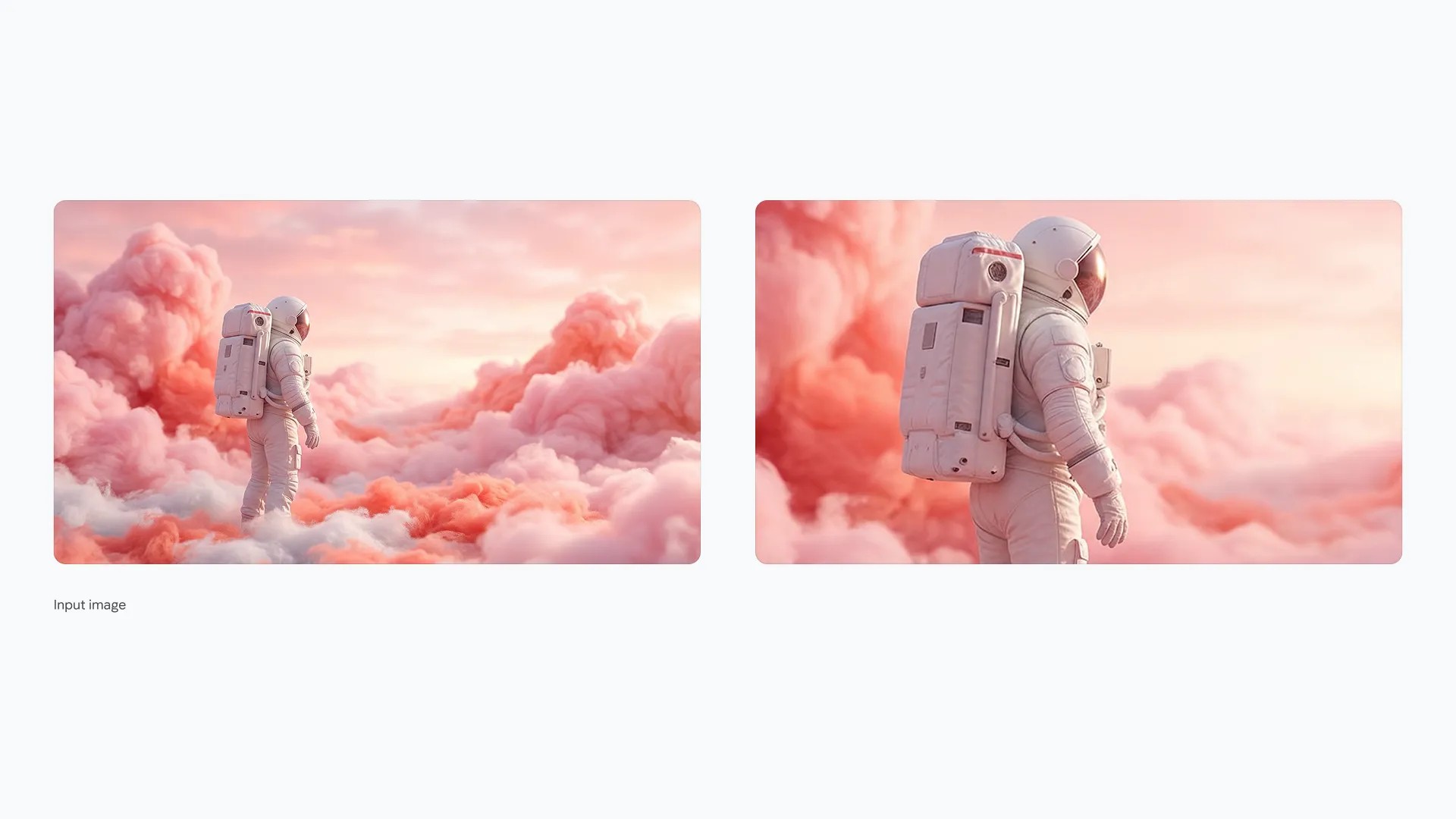 💡Prompt:
Zoom in on this image, maintaining a 16:9 aspect ratio
Source: Google-
Resize with Precision (Aspect Ratios):
Nano Banana Pro gives you native control over the canvas, allowing you to switch aspect ratios at will. Whether you need a 9:16 vertical shot for a social story or a cinematic 21:9 widescreen for a header, the model adapts your visuals perfectly for any platform without losing detail.
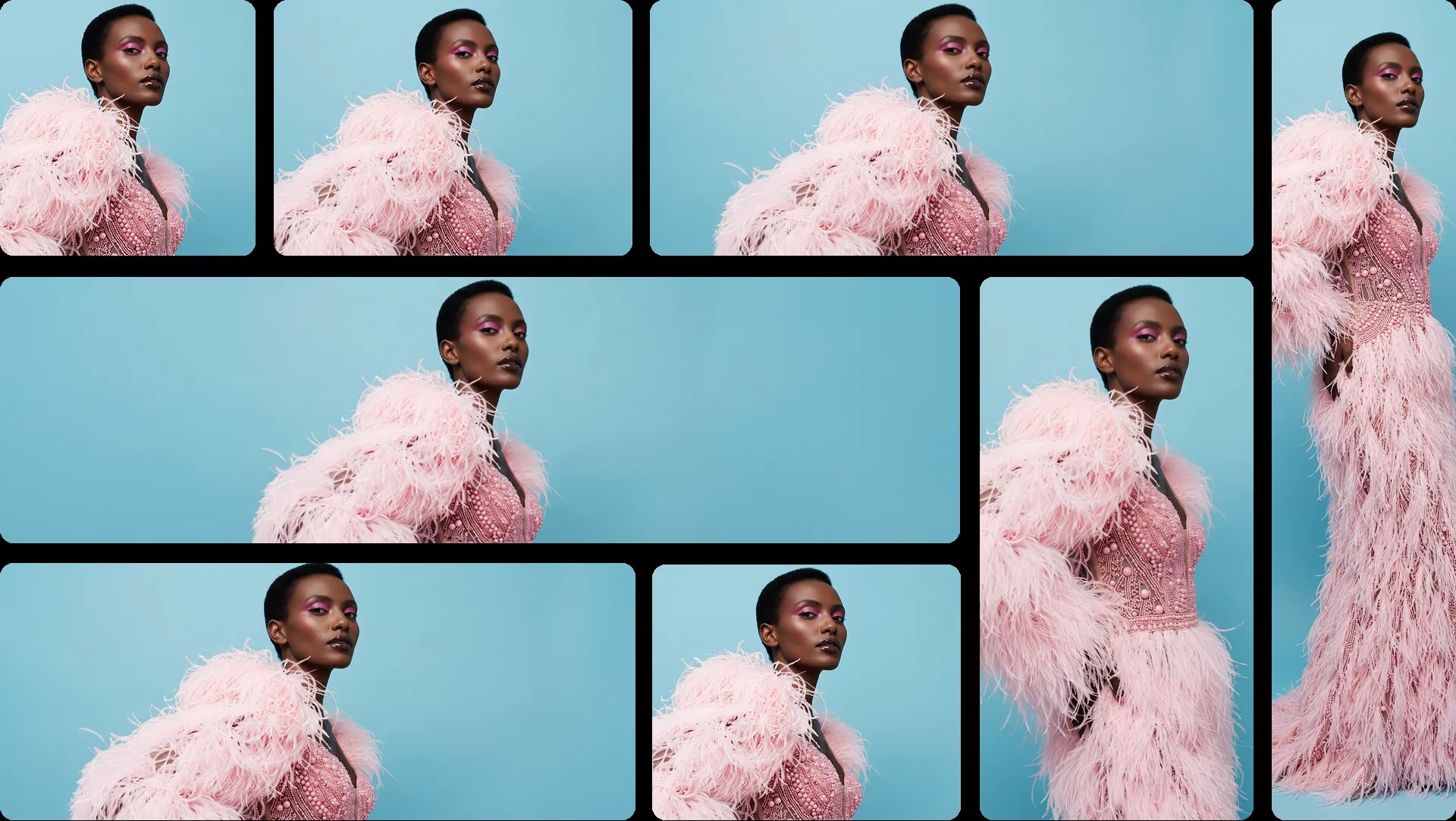 💡Prompt:
Change aspect ratio to 1:1 by reducing background. The character, remains exactly locked in its current position
Source: Google -
Play with Color and Lighting:
Step into the role of a virtual director. You are no longer limited to the AI's default lighting; now you can granularly adjust color grades and lighting directions. Want to shift a scene from a sunny afternoon to a moody, noir-style night? Nano Banana Pro handles these dramatic alterations with physics-based accuracy, giving you total atmospheric control.
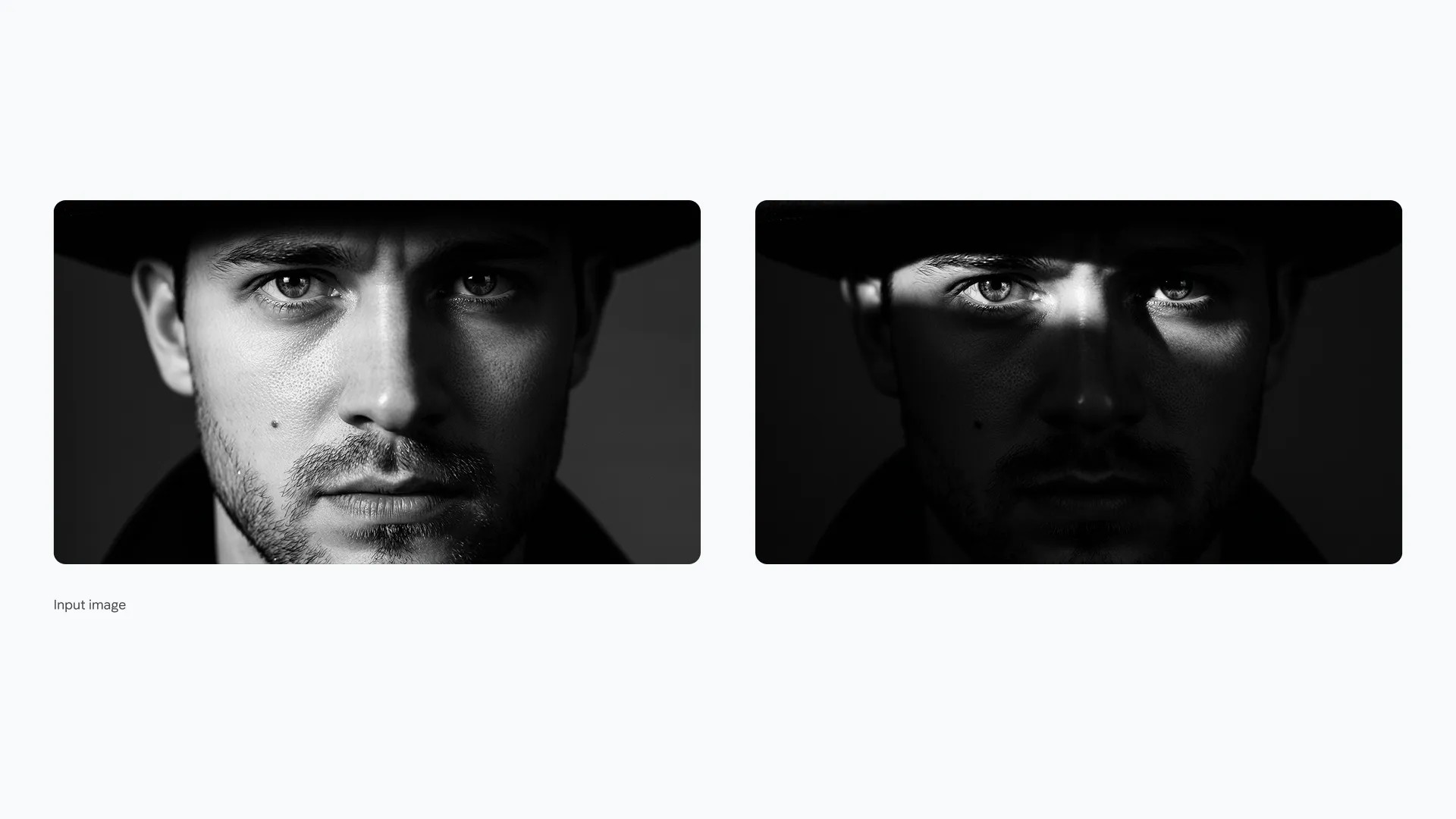 💡Prompt:
Generate an image with an intense chiaroscuro effect. The man should retain his original features and expression. Introduce harsh, directional light, appearing to come from above and slightly to the left, casting deep, defined shadows across the face. Only slivers of light illuminating his eyes and cheekbones, the rest of the face is in deep shadow
Source: Google -
Design, Style, Standardize:
This is where the model transforms from a toy into a productivity engine. It bridges the gap between concept and reality, capable of turning rough scribbles into polished products or loose sketches into 3D-rendered architectural visualizations. For brands, this means you can finally standardize a specific "look and feel" across hundreds of generated assets.
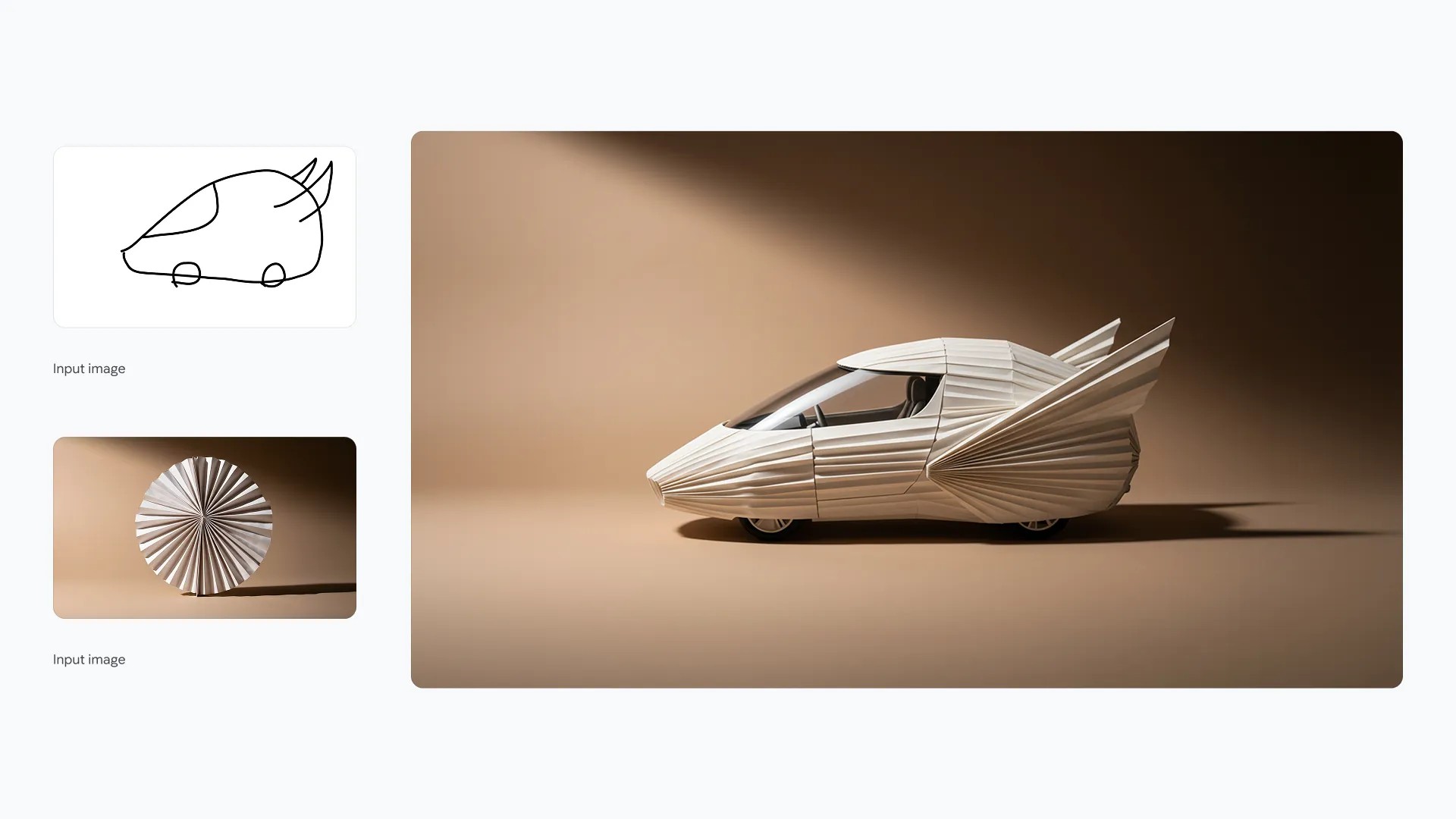 💡Prompt:
Transform the simple sketch into a realistic car, follow creative direction of the sketch and use the colors and texture from the uploaded image
Source: Google -
Translate and Localize Your Ideas:
Global marketing just got effortless. Nano Banana Pro understands the semantic context of your image, allowing you to generate localized text or translate existing text directly inside the visual. You can instantly see what a product packaging looks like in Japanese or Spanish, creating ready-to-use assets for international markets while preserving the original design integrity.
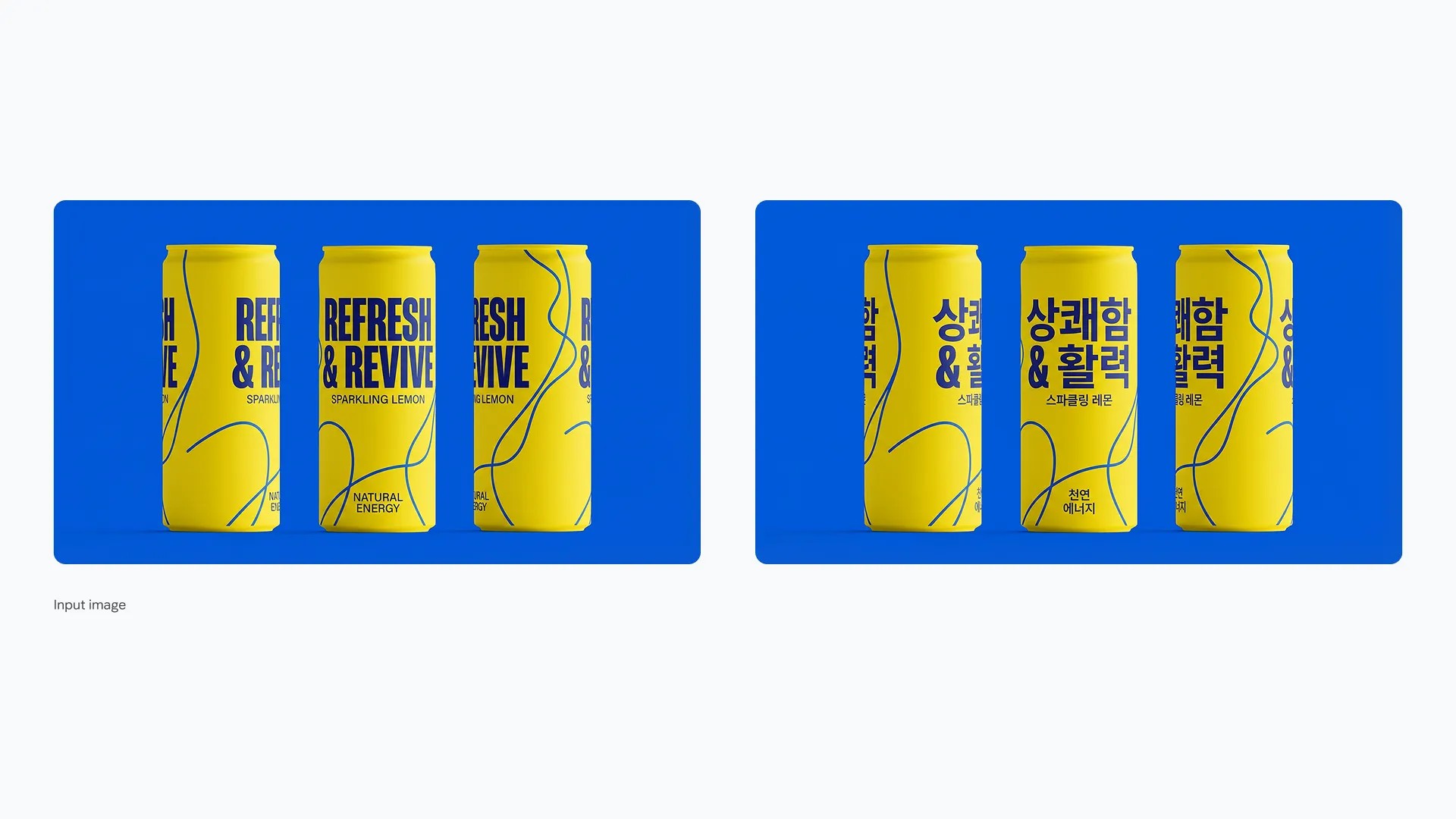 💡Prompt:
Translate all the English text on the three yellow and blue cans into Korean, while keeping everything else the same
Source: Google


Nano Banano Pro VS Nano Banana
| Feature | Nano Banana (Standard) | Nano Banana Pro (Professional) |
|---|---|---|
| Official Model | Gemini 2.5 Flash Image | Gemini 3 Pro Image |
| Generation Speed | Flash Speed (Sub-second) | Thinking Speed (Reasoning-heavy) |
| Max Resolution | 1024x1024 (1K) | Native 2K / Upscale to 4K |
| Text Rendering | Good (Short phrases) | Flawless (Multilingual, long paragraphs) |
| Reference Inputs | Basic Image-to-Image | Up to 10 Reference Images |
| Consistency | Single Character | 10+ Characters in one scene |
| Camera Control | Prompt-based only | Granular Control (Focal length, DoF) |
| Grounding | Basic | Google Search Integrated |
| Pricing/Access | Free Unlimited | Dynamic Quota (Free) / Unlimited (Ultra) |
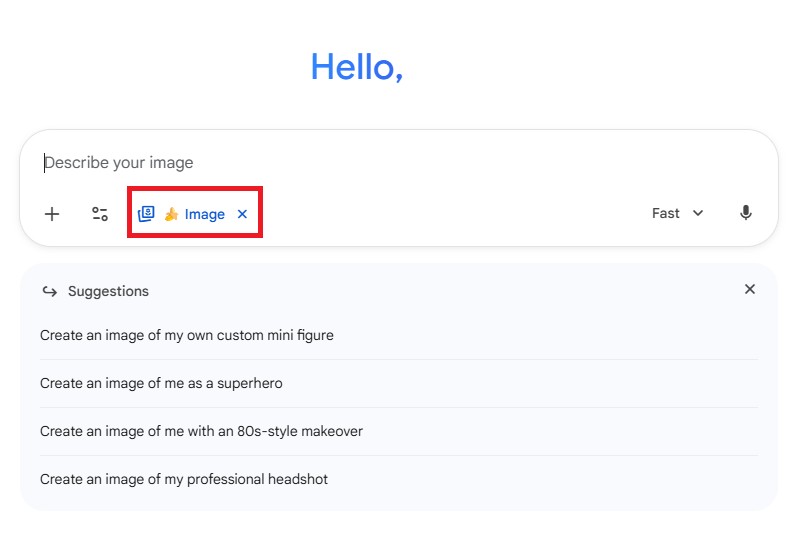
How to Access Nano Banana Pro in Gemini
- To get started, log in to Gemini with your Google account. Once you're in, open a new chat and select the tab marked with the 🍌 icon.
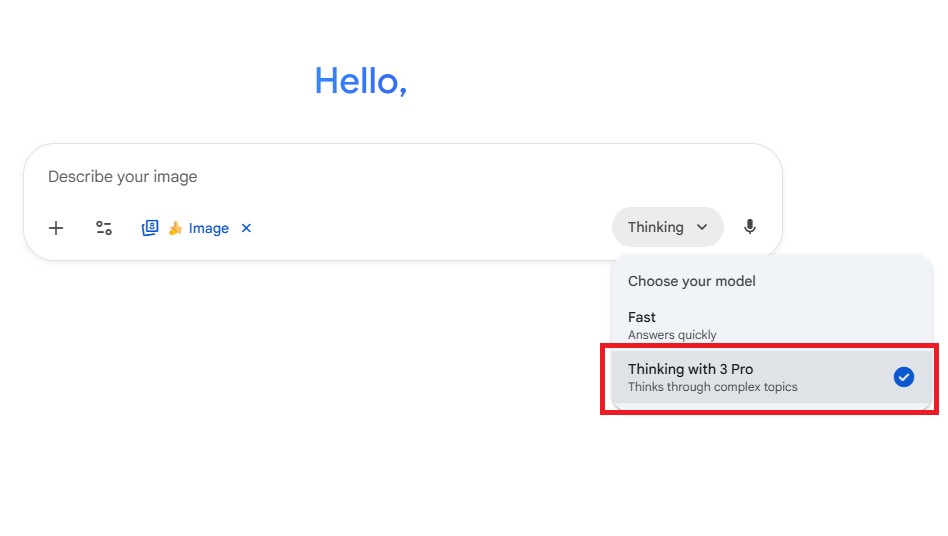
- Select the 'Thinking with 3 Pro' model to unlock Nano Banana Pro capabilities.


Top 12 Prompt Ideas You Should Try
- Professional Headshots
- Coordinated Outfits
- Action Figures
- Subject Changes
- Expression Adjustment
- Pose Adjustment
- Photo Editing
- Time Travel with Precision
- Three-View Diagram
- Behind the Scenes Analysis
- Selfie Recreation
- Overhead Floor Plan
Basic Edit
Mind-Blowing Edit
1. Professional Headshots
This is the perfect way to create or refine a professional headshot for LinkedIn, company websites, or resumes, ensuring you still look natural.


Create a half-length corporate portrait in a professional studio: person in a suit, pure white backdrop, minimal shadows, clean and polished look.
2. Coordinated Outfits
This feature works like a powerful virtual fitting room. Upload a photo of yourself along with photos of clothes and accessories. It’s perfect for previewing how an outfit will look on you before you buy.

Source: Pinterest
Outfit + accessories from right image → left portrait; clean light-gray backdrop, soft even lighting; keep face identity and hairstyle unchanged.
3. Action Figures
This feature is perfect for bringing your character concepts to life by transforming your image into a collectible figure, placing it in a realistic setting as a high-quality action figure.


Create a realistic 1/7 scale PVC-style figurine of the referenced character, accurately preserving face, pose, hair, clothing, and details. Place it on a round display base. Scene: a computer desk showing ZBrush modeling of the figure on the monitor. Beside it, add a glossy commercial packaging box with rounded corners, a transparent window, and a blister insert showing the figure inside. Render in an authentic collectible figure photography style with realistic lighting, depth, and materials.
🤖 Extra Fun Tip: Try Spinning Your Action Figure
Why stop at generating just an image? Bringing your AI 3D model to life is more fun than you can imagine! Let's explore how to animate your AI figure with MyEdit’s Image to Video Template, the most user-friendly online AI tool.


- Go to MyEdit and click “Image to Video Template.”
- Upload your AI 3D figurine and select "Spin360" or other templates.
- Click “Generate” and let the AI work its magic!

4. Subject Changes
Swap any subject while keeping the background intact. For instance, replace a cat with a dog, or turn a coffee cup into a bouquet of flowers.


Replace the cat with a beagle.
5. Expression Adjustment
Took a great photo but the expression isn't quite right? This feature lets you fine-tune a person's facial expression. You can turn a neutral expression into a smile or make a smile even bigger to better match the mood of the photo.


Make the person smile broadly; keep face shape and lighting unchanged.
6. Pose Adjustment
This is a very advanced feature that allows you to make subtle changes to a person's body posture. You can make a stiff pose look more natural or a static pose more dynamic.

Make the woman strike the same pose as the boy.
7. Photo Editing
You can restore low-resolution, damaged, or black-and-white photos and fix poorly shot images by correcting perspective and lighting.


Replace the sky with a clear, sunny day; keep the rest of the scene unchanged.


Colorize this black-and-white photo; keep details, contrast, and film grain natural.
8. Time Travel with Precision
One of Nano Banana Pro’s most impressive capabilities is its deep integration with real-world data. The model understands not just "where" a place is, but "when" it is. By inputting a specific geographic location and a timestamp, you can virtually recreate historical events with startling accuracy.

Create an image at 31.7785° N, 35.2296° E, April 3, 33 CE, 15:00 hours.
Source: @minchoi
9. Three-View Diagram
This prompt commands Nano Banana Pro to generate a high-resolution, studio-quality character sheet featuring a three-view diagram (front, side, back) and a detailed close-up. You can then use this image as a 'Character Reference' to ensure consistency across your entire story.

- Three-view Diagram: Full-body views from the front, side, and back, standing straight and still (neutral pose).
- Close-up Photo: A detailed close-up shot of the face.
- Text Labels: Include a title description for each view (e.g., write "Close-up" above the face).
- Aspect Ratio: 3:2
- Style & Quality Instructions: Since this image will serve as the reference input for all future generations, please render the character with high resolution and photorealistic quality. Treat this like a real photograph. Pay the utmost attention to skin texture and fabric details; these must be expressed with extreme realism and precision.
Source: @eijo_AIart
10. Behind the Scenes Analysis
Simply upload a film frame and apply the prompt below to generate a photorealistic Behind-the-Scenes (BTS) view. The AI not only recreates the set with accurate equipment placement but also provides detailed camera settings, effectively reverse-engineering the scene.

generate a realistic behind the scene for this film scene, show me where the camera and lights are placed to film this scene, use arrows to label the name of the light, what kind of lights, light settings
Image Source: The Hollywood Reporter, Prompt Source: @EHuanglu
11. Selfie Recreation
You can use Nano Banana Pro to recreate photorealistic selfies. Whether you want to place yourself in a trending location, try out a new fashion style, or simply upgrade your profile picture with studio lighting, Nano Banana Pro delivers results that are terrifyingly real.

Create a hyper-realistic image in 8K resolution, keeping exactly my real face, features, skin color, eyes, and hair as per the reference image.
I am the woman in the photo; preserve my confident, charming, and elegant expression, with a slight smile and relaxed posture.
I am at an outdoor automotive event, in a grandstand or VIP box, with a wide view of the track and the crowd in the background. The weather is sunny, with an intense blue sky and natural sunlight, enhancing the colors and creating a vibrant racing atmosphere.
The framing is a medium shot, capturing the upper body and the busy background with a slight depth-of-field blur.
The look is sporty fashion with a sophisticated touch, composed of:
- Red Ferrari cap, with the yellow prancing horse (cavallino rampante) logo on the front and the number "16" in white on the brim
- Strapless top in structured denim, tight and with visible stitching, enhancing the décolletage and silhouette
- Sunglasses with brown gradient lenses and a rectangular metallic frame, partially covering the eyes
- Double necklace – one with large golden links and another with delicate diamonds close to the neck
- Geometric gold earrings
- Silver bracelet on the right wrist
- Discreet red bag hanging on the shoulder, partially visible beside the arm
- Hair: natural, loose
- The makeup is impeccable and glamorous, with illuminated skin, defined eyes, pink lipstick, and warm blush
- The nails are long and decorated with nail art in shades of pink and red with white details, visible while holding the glass
The pose conveys attitude and sophistication:
- Right hand holding the brim of the cap, adjusting it slightly
- Left hand holding a glass of white wine, with the arm relaxed
- Body slightly leaned, face turned towards the camera
The lighting is natural and intense, with subtle solar reflections on the face and hair. The color palette is vibrant – shades of red, denim blue, gold, and caramel, contrasting with the sunny background. The general atmosphere is modern, luxurious, and relaxed – transmitting the style of someone who lives exclusive experiences, with elegance and a striking presence at a premium automotive event.
Source: @NanoBanana_labs
12. Overhead Floor Plan
Just take a single, distorted wide-angle photo of any space and ask the AI for an overhead floor plan. No measurements, no sketches—just pixels. The result? It doesn't just generate a drawing; it understands the geometry of the room.

Generate an overhead floor plan layout style image of my living room.
Inspired: @adamwathan
Best AI Image Editor Without Watermarks: MyEdit
Compared to Gemini, MyEdit offers superior customization control with fewer prompts required. It is a versatile AI platform that transforms your reference photos into viral-worthy art, ranging from hyper-realistic to stylized.
How to Use Nano Banana Pro without Watermark
If you want the high-quality results of the Nano Banana Pro model without the distracting watermarks, MyEdit is the ultimate solution.
- Pro Quality: Leverages the Nano Banana Pro model for high-fidelity, professional images.
- No Watermarks: Delivers clean, ready-to-use results every time.
- Free Daily Credits: Offers a daily refresh of credits, allowing you to create at no cost.
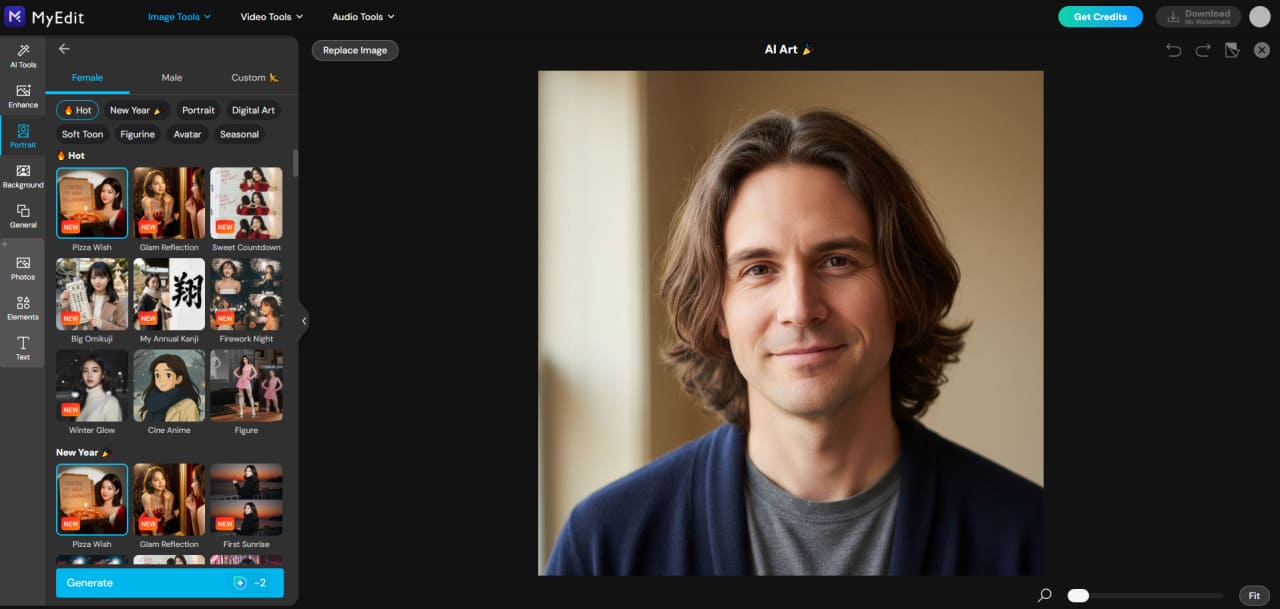
Here is a guide on editing portraits using MyEdit:
- Go to MyEdit: Open the AI Art and get ready to create your custom portraits.
-
Import your portrait(s): Upload a single face or multiple people from your device to use as reference.
-
Select Custom mode: This allows the AI to detect each face and apply your desired style, pose, and environment.
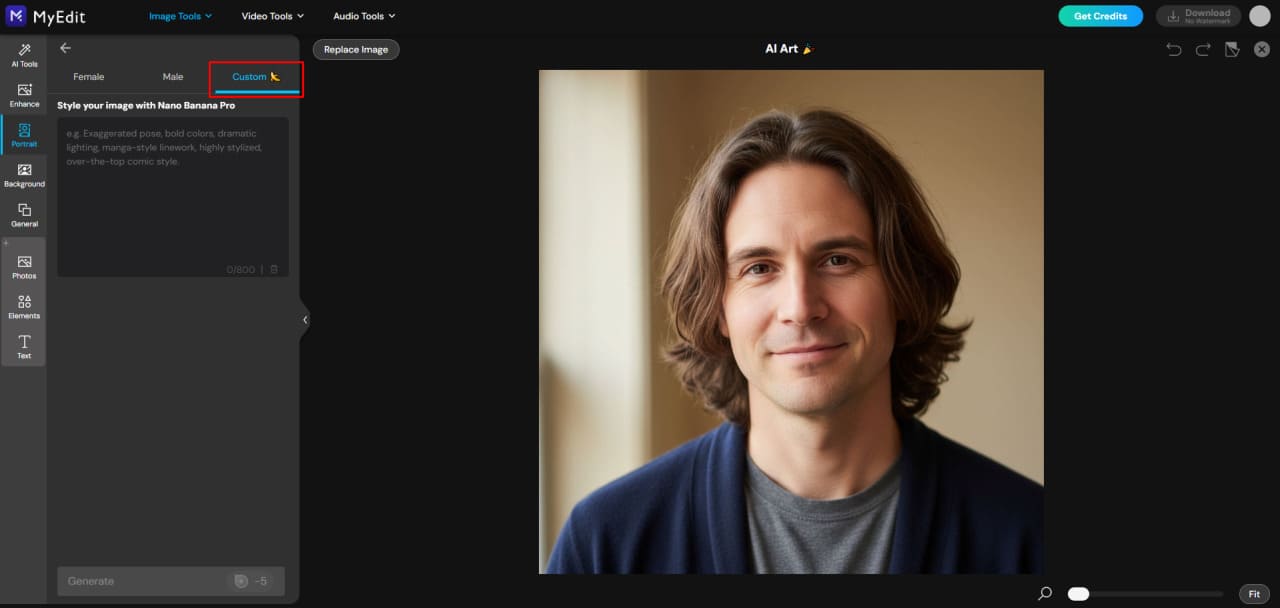
-
Type your prompt: See examples for inspiration!
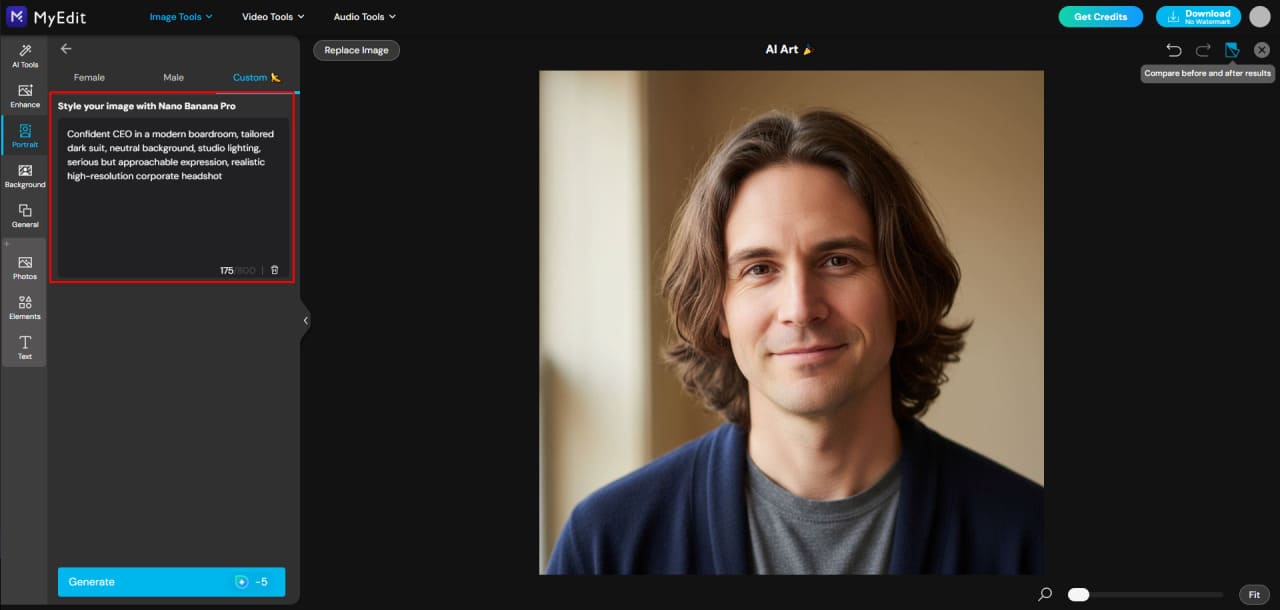
-
Generate your image: Click Generate and watch the AI bring your custom portrait or group scene to life in seconds.
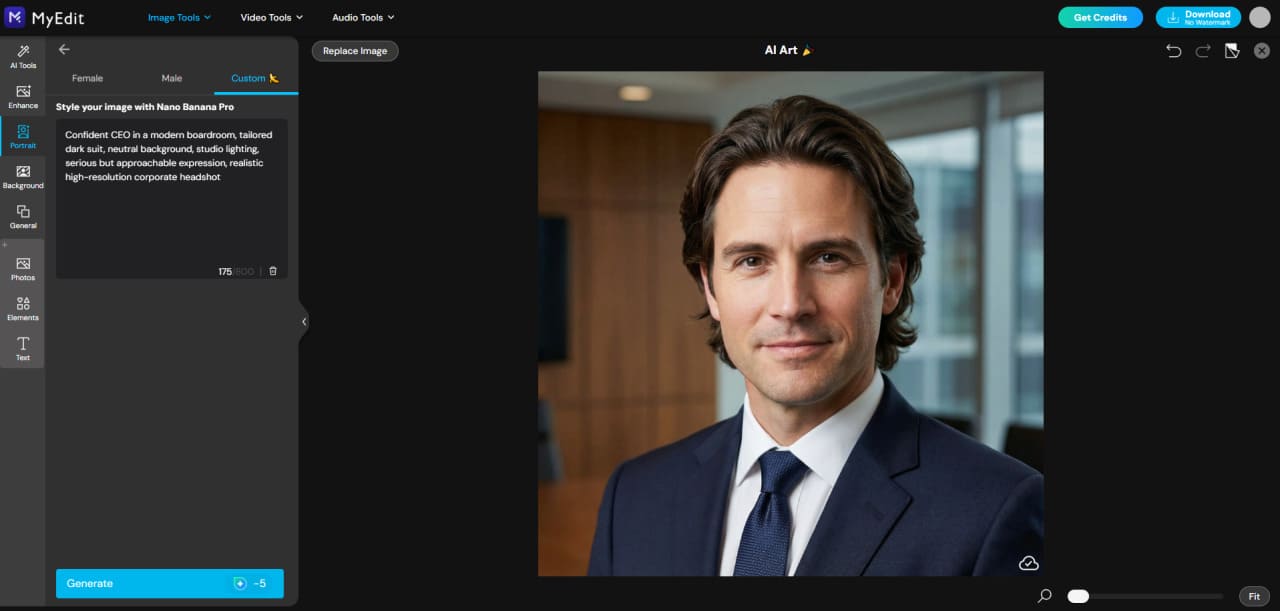


Create a Cartoon-Style Avatar
- Go to MyEdit
and select "AI Art."
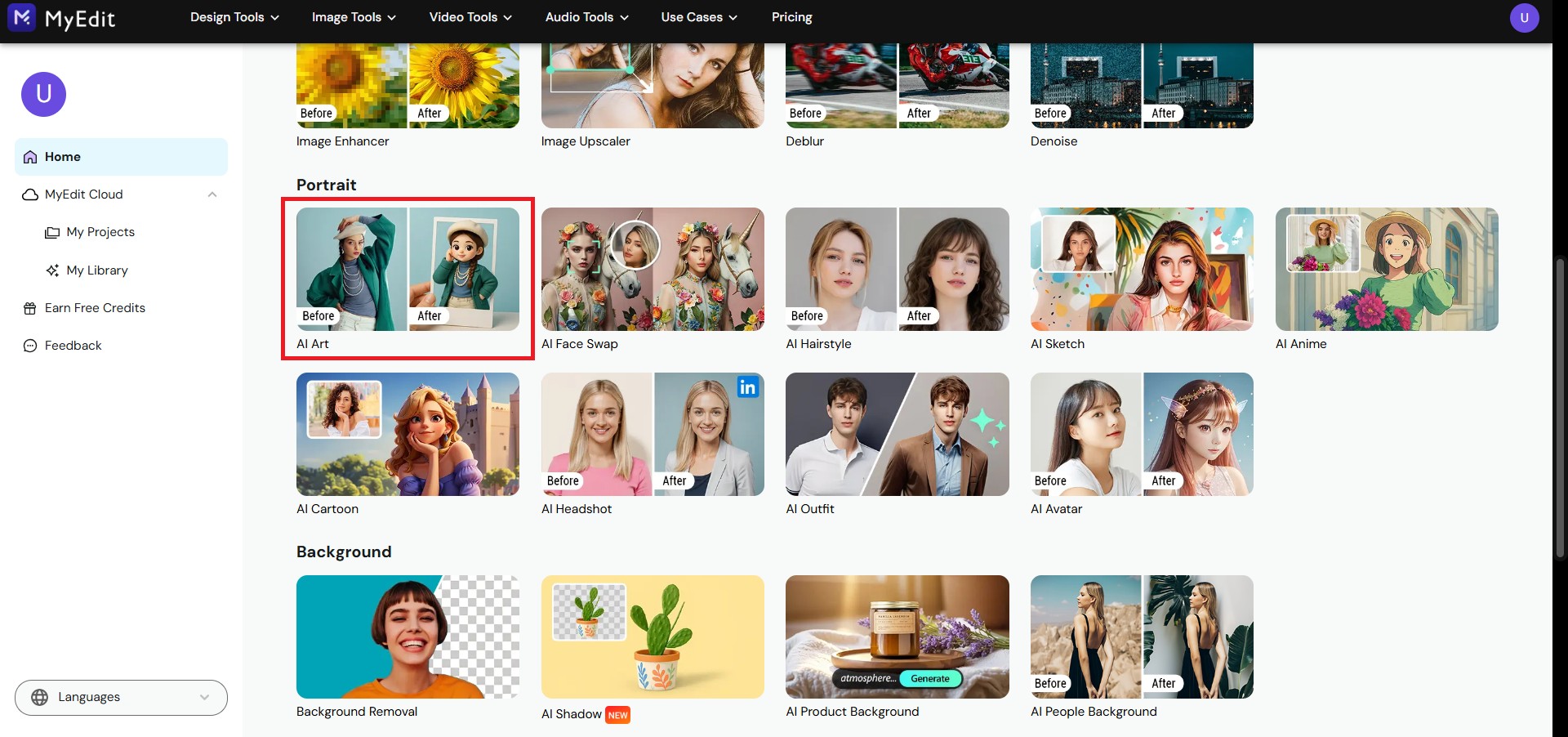
- Upload your image and select your preferred filter.
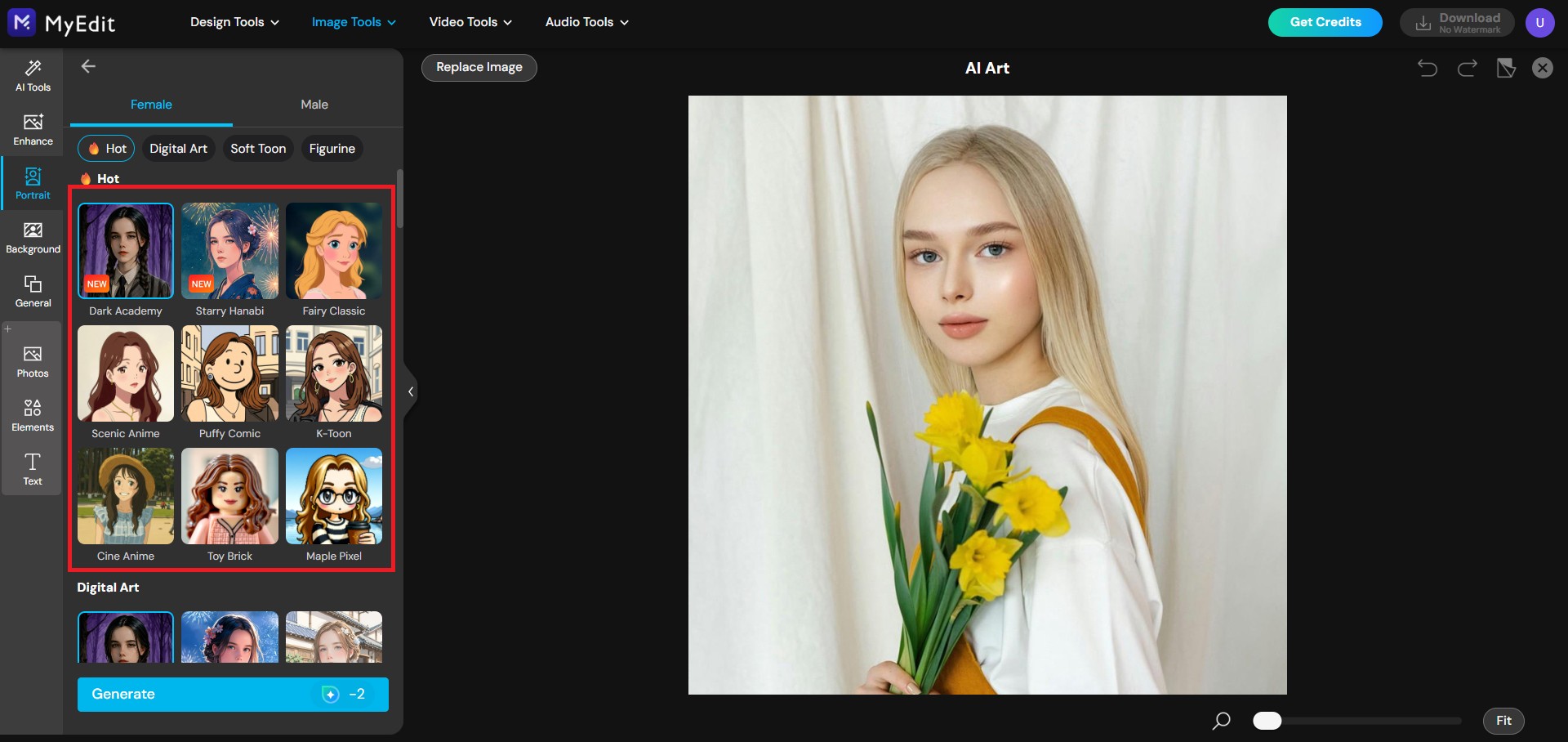
- Tap “Generate” to see your result!
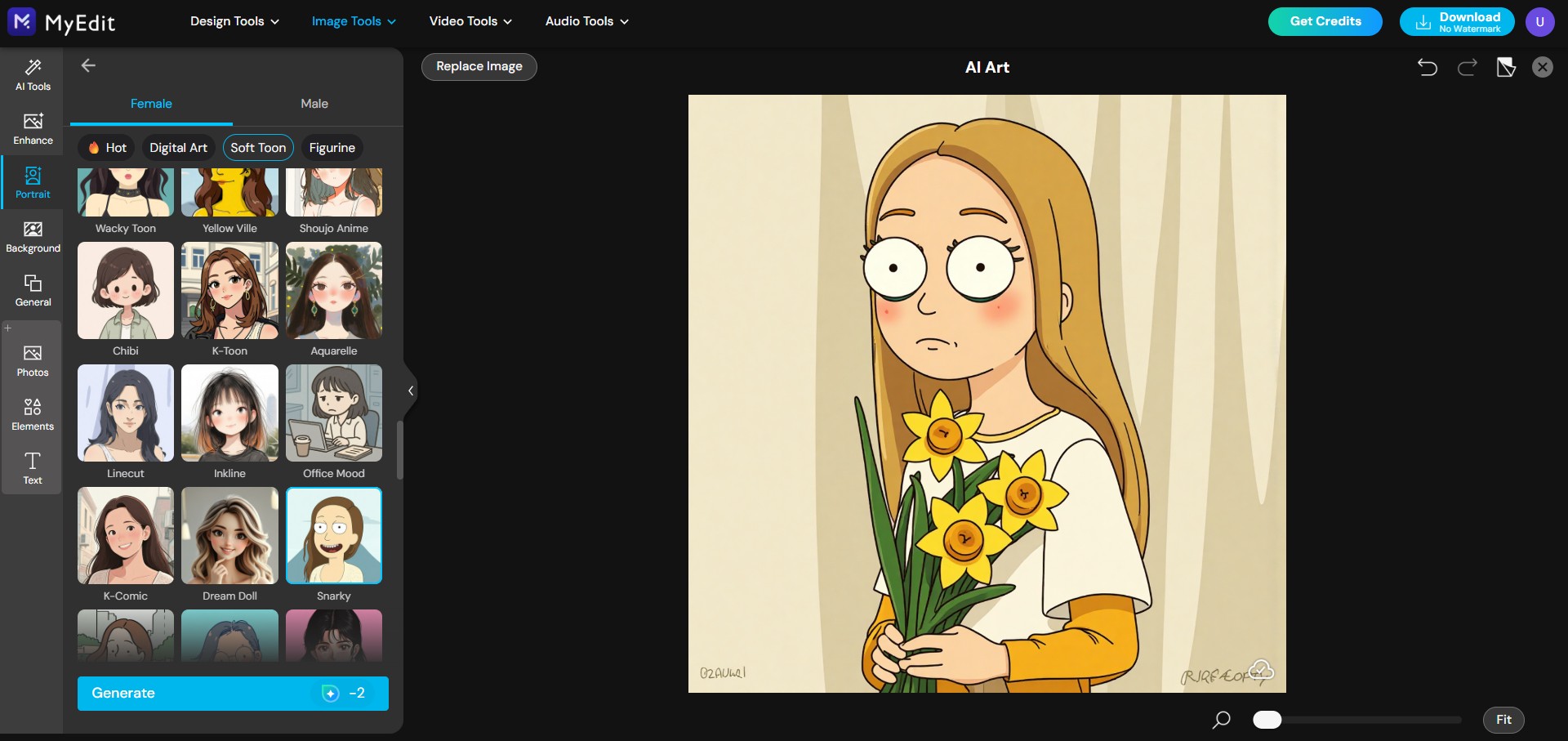


Other Templates

There are up to 70 style templates for you to explore!
Generate AI Images Using Text or a Reference Image

Compared to ChatGPT, MyEdit offers more customization control and requires fewer prompts.
- Support Reference Image – Without solely relying on text prompts, MyEdit’s reference image upload feature allows you to ensure facial accuracy, refine outlines, and control poses. Simply upload an image, and the AI will use it as a reference to create results that align more closely with your expectations—giving you greater creative control than ever before.
- Over 20+ Built-in Styles – Not sure which style suits your vision? Or just looking for inspiration? MyEdit
’s AI image generator offers over 20 built-in artistic styles, making it easy to explore different looks and find the perfect.
- Turn Images into Text Prompts – Struggling to come up with the right prompt? With MyEdit’s image-to-text prompt extraction, simply upload an image, and the tool will analyze it to generate a precise text prompt—saving you time while improving accuracy.
- Aspect Ratio Selection – Offers precise aspect ratio control. You can choose from 1:1 to 16:9 and many more options!
Edit Image Details with Brush and Prompts

AI Replace tool allows you to effortlessly change and add elements to your images in just a few clicks. With AI-powered precision, you can replace objects, or update portraits by simply brushing over areas and typing prompts. Whether you’re transforming a cloudy sky into a sunny day or redesigning your outfit, the possibilities are endless.
Perfect for businesses, photographers, and creatives, this tool is fast, cost-effective, and easy to use. Get instant results and elevate your images with AI Replace, transforming your ideas into reality in no time!
Whether it’s minor touch-ups or major scene adjustments, MyEdit makes it easy to achieve the perfect look with just a few clicks.
Turn Image into Animation

Explore creative AI filters that make your photos move! Whether it’s animating a kiss, turning images into playful moments, or even bringing historical figures to life, AI can transform your static photos into captivating, shareable content.
FAQs About Nano Banana in Google Gemini
The Easiest Way: Use Google Gemini
For most of us, the simplest and most direct way to try out Nano Banana's advanced editing features is right inside the Google Gemini web app. Just head over to gemini.google.com and log in with your personal Google account.For the Developers and Tinkerers: Google AI Studio
If you're a bit more technical, Google AI Studio is your playground. Google provides a free tier for AI Studio. You get a certain number of free API calls, which is more than enough to test out all the advanced editing.
The core method is to use follow-up prompts. After you generate an image, you simply tell Gemini what you want to change, as if you were speaking to a human artist.
- Generate or Upload Your Base Image
- Use a Follow-Up Prompt to Edit
- Continue to Refine and Add Details
MyEdit offers a different, more tactile workflow that many users, especially those familiar with traditional photo editors, will find more intuitive and precise.
Instead of relying on follow-up text prompts to describe a change, MyEdit's AI Replace tool lets you show the AI exactly what you want to modify.
- Use a brush tool to manually paint over the exact area of the image you want to change
- Provide a text prompt to describe what you want to fill that selection with
- Get a Precise Result
- Inaccurate Fine Details: The model is still being refined, so small text, intricate patterns, and tiny details may not render clearly.
- Watermarked Images: All images generated or edited with Gemini will have a visible watermark (plus an invisible SynthID) to identify them as AI-generated.
- No Manual Brush Tools: All edits are controlled by text prompts; there are currently no manual brush or masking tools available in the Gemini app.
Nano Banana Pro" is the viral community codename for Google's newly released Gemini 3 Pro Image model. It is a professional-grade AI image generator designed to compete with tools like Midjourney and DALL-E 3, but with a focus on precision and logic.
You don't need to install special software. It is integrated into Google's Gemini ecosystem.
For General Users (Easiest Method):
- Go to the Gemini App (web or mobile).
- In the model selector, choose "Thinking" (this activates the Gemini 3 reasoning engine).
- Type your prompt (e.g., "Create a 4K image of a futuristic sneaker advertisement with the text 'RUN FAST' on the side").
- The system will automatically route complex image requests to the Gemini 3 Pro Image model.
For Developers & Professionals:
- Access it via Google AI Studio or Vertex AI.
- Select the model ID: gemini-3-pro-image-preview.
MyEdit offers a different, more tactile workflow that many users, especially those familiar with traditional photo editors, will find more intuitive and precise.
Instead of relying on follow-up text prompts to describe a change, MyEdit's AI Replace tool lets you show the AI exactly what you want to modify.
- Use a brush tool to manually paint over the exact area of the image you want to change
- Provide a text prompt to describe what you want to fill that selection with
- Get a Precise Result
-
Free Users:
Cost: $0. You can use it for free inside the Gemini app with a Daily Dynamic Quota (usually 5-10 images depending on server load). Note that these images will have a visible watermark, and once your quota is used, you will be downgraded to the standard Nano Banana model. -
Google One AI Premium Subscribers:
Cost: ~$19.99 / month. This plan offers significantly higher daily limits (up to 500+ images), faster generation speeds, and priority access during peak times. -
Developers (API Pay-as-you-go):
Standard images cost approximately $0.134 - $0.15 per image, while 4K resolution images cost double the standard rate.
As industry experts in generative AI, the CyberLink AI Research Team has spent over 5 years benchmarking and analyzing the rapidly evolving landscape of creative technology. The team conducts rigorous testing of emerging AI tools for content creation, delivering weekly insights and practical workflows that help millions of creators worldwide each year identify the most suitable AI solutions to enhance their productivity.
😜 Outside of their research, the team actively experiments with AI-driven video creation, builds content across social platforms, and explores new side projects, all with the long-term goal of achieving greater creative and financial freedom.
![How to Create Bokeh Effects in Photos on iPhone & Android [2026]](https://dl-file.cyberlink.com/web/content/b1427/l_Thumbnail.webp)

![7 Best Video Overlay Editors for PC in 2026 [Windows & Mac]](https://dl-file.cyberlink.com/web/content/b165/l_Thumbnail.webp)


