




30 Stable Diffusion Prompt Examples You Can Copy & Paste

Stable Diffusion lets you turn simple text prompts into stunning images, from lifelike portraits to epic fantasy landscapes. With the right prompt, you can easily shape style, lighting, and mood to bring your creative vision to life.
MyEdit takes this a step further. With multiple AI models, smart inpainting and outpainting tools, and the ability to use reference photos, it makes creating, editing, and perfecting images faster, easier, and more fun—whether you’re designing realistic scenes or fully stylized artwork.
- Introduction to Stable Diffusion
- Best Stable Diffusion Prompts
- Best Alternative: MyEdit
- How to Generate Images with MyEdit
- Stable Diffusion Prompt FAQ
Stable Diffusion Prompt Guide

Stable Diffusion is a versatile AI image generator that transforms text descriptions into high-quality images. It can create new visuals from scratch, modify existing images, or even expand scenes beyond their original borders. With the right prompts, you can generate portraits, landscapes, fantasy worlds, product mockups, and more.
- Fast image creation: Generate detailed images quickly using descriptive prompts.
- Flexible workflow: Work with text-to-image, image-to-image, inpainting, and outpainting modes.
- Prompt-driven control: Direct the AI output with concise, descriptive instructions.
- Visual experimentation: Explore styles, lighting, and compositions without manual drawing.
- Concept exploration: Quickly prototype ideas before refining in other tools.
For best results, Stable Diffusion responds well to prompts that are clear, specific, and visually descriptive. Unlike natural language stories, prompts work best when focused on key visual elements in a structured way.
A simple formula to follow when writing a Stable Diffusion prompt is:
Prompt = Subject + Appearance + Style + Setting + Lighting / Mood
This structure ensures that the AI understands the main elements you want in your image, producing more consistent and visually appealing results.
Key Elements of a Strong Stable Diffusion Prompt
- Subject: character, object, creature, or scene
- Appearance: clothing, hair, pose, facial expression, or distinctive features
- Style: realistic, fantasy, cyberpunk, anime, illustration, or any artistic style
- Setting: background, environment, or location details
- Lighting & Mood: soft, dramatic, cinematic, cozy, vibrant, or moody
Optional Details to Enhance Your Images
- Color palette: muted, pastel, bold, or high-contrast colors
- Art quality keywords: highly detailed, ultra-realistic, clean lines, soft shading
- Framing & perspective: close-up, mid-shot, full-body, wide-angle, or panoramic view
Adding these optional elements can help refine your image, but remember that AI outputs may vary. Stable Diffusion is best for creative exploration rather than perfectly controlled results on the first try.
Tip: If you want to adjust or improve parts of your image without rewriting the entire prompt, tools like MyEdit allow inpainting, outpainting, and direct visual editing for quick refinement.
30 Stable Diffusion Prompts Examples You Can Try Today
Stable Diffusion lets you create, transform, and expand images in many ways. Explore prompts for generating new visuals from text, modifying existing images, editing specific parts, or extending scenes.
Text-to-Image Prompts
- Hyper-Realistic Portrait of a Young Woman
- Epic Fantasy Castle on a Floating Island
- Sunset Over a Serene Forest Lake
- Futuristic Cyberpunk City Street at Night
- Majestic Dragon on a Mountain Cliff
- Runway Fashion Show with Futuristic Outfit
- Gourmet Chocolate Cake, Photorealistic
- Modern Smartwatch Product Mockup on Desk
- Whimsical Storybook Scene with Cute Animals
- Creepy Haunted House on a Foggy Hill
- Professional Soccer Player Scoring Goal
- Epic Space Adventure Film Poster Style
Image-to-Image Prompts
- Turn Landscape Photo into Watercolor Painting
- Convert Daytime City Street to Neon Night Scene
- Redesign Portrait with Short Wavy Hair and Glasses
- Transform Desert Scene into Tropical Forest
- Apply Golden Hour Lighting to Portrait
- Render Sketch in Studio Ghibli Style
- Enhance Street Scene with Futuristic Vehicles
- Turn City Photo into Floating Cloud City
Inpainting Prompts
- Remove Trash Can from Street Photo
- Smooth Skin and Enhance Eyes in Portrait
- Replace Jacket with Red Leather Biker Jacket
- Replace Indoor Background with Tropical Beach
- Add Fedora Hat and Sunglasses to Portrait
- Correct Hands to Natural Positions in Portrait
- Change Summer Garden Scene to Snowy Winter
Outpainting Prompts
- Extend Mountain Landscape with Forest Valley
- Expand City Skyline with Skyscrapers and Neon Signs
- Extend Fantasy Castle Scene with Dragon and Forest
Text-to-Image AI Prompts
These prompts help you generate stunning AI images from scratch. Use them to create portraits, landscapes, fantasy worlds, products, or cinematic scenes. Focus on descriptive details, lighting, and style to get the best results with Stable Diffusion.
1. Hyper-Realistic Portrait of a Young Woman
A hyper-realistic portrait featuring a young woman with natural lighting and subtle facial expression, perfect for profile images or character concept art.

Prompt sample: "Hyper-realistic portrait of a young woman with soft natural lighting, delicate facial features, cinematic depth, ultra-detailed eyes and hair, 8K resolution, photorealistic style"
Pro Tip: Best for text-to-image. Focus on lighting, facial details, and clarity to achieve a lifelike result.
2. Epic Fantasy Castle on a Floating Island
An epic fantasy castle floating above clouds, surrounded by magical light and waterfalls, ideal for fantasy concept art or game illustration.

Prompt sample: "Epic fantasy castle on a floating island in the clouds, magical waterfalls, soft glowing light, high fantasy illustration, ultra-detailed, cinematic composition, vibrant colors"
Pro Tip: Best for text-to-image. Emphasize scale, lighting, and magical atmosphere to create a captivating scene.
3. Sunset Over a Serene Forest Lake
A peaceful forest lake at sunset, reflecting colorful skies and surrounded by dense trees. Perfect for nature illustrations or calming scenic art.

Prompt sample: "Sunset over a serene forest lake, vibrant reflection of orange and pink sky in water, dense surrounding trees, photorealistic, ultra-detailed, tranquil and peaceful atmosphere"
Pro Tip: Best for text-to-image. Focus on lighting, reflections, and color harmony to capture a realistic nature scene.
4. Futuristic Cyberpunk City Street at Night
A neon-lit cyberpunk city street, bustling with life and futuristic details. Ideal for game environments or sci-fi concept art.

Prompt sample: "Futuristic cyberpunk city street at night, neon signs reflecting on wet pavement, flying vehicles, bustling crowd, cinematic lighting, ultra-detailed, vibrant colors"
Pro Tip: Best for text-to-image. Highlight neon lighting, reflections, and atmosphere to create a lively urban scene.
5. Majestic Dragon on a Mountain Cliff
A powerful dragon perched on a cliff, overlooking a vast fantasy landscape. Perfect for fantasy illustration or game concept art.

Prompt sample: "Majestic dragon perched on a mountain cliff, cinematic lighting, ultra-detailed scales, fantasy landscape, dramatic sky, epic composition, highly detailed illustration"
Pro Tip: Best for text-to-image. Focus on scale, detail, and dramatic lighting for a striking fantasy scene.
6. Runway Fashion Show with Futuristic Outfit
A model walking a fashion runway wearing a futuristic, avant-garde outfit. Perfect for fashion concept illustrations or design ideas.

Prompt sample: "Runway fashion show featuring a model wearing a futuristic avant-garde outfit, studio lighting, cinematic style, ultra-detailed textures, high fashion illustration"
Pro Tip: Best for text-to-image. Emphasize clothing details, textures, and lighting to create a polished fashion image.
7. Gourmet Chocolate Cake, Photorealistic
A luxurious chocolate cake with detailed frosting and toppings, perfect for culinary illustrations or product mockups.

Prompt sample: "Photorealistic gourmet chocolate cake with decorative frosting and toppings, studio lighting, high detail, close-up food photography style, ultra-realistic textures"
Pro Tip: Best for text-to-image. Focus on texture, lighting, and composition for mouthwatering food illustrations.
8. Modern Smartwatch Product Mockup on Desk
A modern smartwatch placed on a clean desk, perfect for product photography or design presentation illustrations.

Prompt sample: "Modern smartwatch on a wooden desk, soft shadows, studio lighting, photorealistic product mockup, ultra-detailed, clean and minimalist composition"
Pro Tip: Best for text-to-image. Highlight product details, lighting, and angle for a professional mockup style.
9. Whimsical Storybook Scene with Cute Animals
A playful storybook scene featuring cute animals having a tea party in a magical forest. Perfect for children’s book illustrations.

Prompt sample: "Whimsical storybook illustration of cute animals having a tea party in a magical forest, colorful and playful, soft lighting, highly detailed, fantasy art style"
Pro Tip: Best for text-to-image. Emphasize playful details, color, and whimsical elements for charming illustrations.
10. Creepy Haunted House on a Foggy Hill
A spooky haunted house on a foggy hill, perfect for Halloween or horror-themed illustrations.

Prompt sample: "Creepy haunted house on a foggy hill, gothic architecture, eerie atmosphere, dramatic shadows, mist, highly detailed, cinematic horror illustration"
Pro Tip: Best for text-to-image. Focus on mood, lighting, and atmosphere to create a chilling scene.
11. Professional Soccer Player Scoring Goal
A dynamic action shot of a soccer player scoring a goal, ideal for sports illustrations or game art.

Prompt sample: "Professional soccer player scoring goal in stadium, dynamic motion blur, cheering crowd, cinematic lighting, ultra-detailed sports illustration"
Pro Tip: Best for text-to-image. Highlight movement, lighting, and energy for realistic action scenes.
12. Epic Space Adventure Film Poster Style
A cinematic film poster of a space adventure, featuring spaceships, planets, and dramatic lighting. Perfect for sci-fi illustration and poster design.

Prompt sample: "Epic space adventure film poster, dramatic lighting, spaceships and planets, cinematic composition, ultra-detailed, vibrant sci-fi illustration style"
Pro Tip: Best for text-to-image. Emphasize composition, scale, and cinematic lighting for a striking poster effect.
Image-to-Image AI Prompts
These prompts help you transform existing images into new styles or settings. Image-to-image generation, inpainting, and outpainting allow you to creatively modify photos, sketches, or illustrations while preserving key elements. Perfect for concept art, style transfers, or personalized edits.
13. Turn Landscape Photo into Watercolor Painting
Transform a regular landscape photo into a soft, artistic watercolor painting, ideal for postcards or art prints.


Prompt sample: "Transform the reference landscape photo into a soft watercolor painting, pastel colors, flowing brush strokes, subtle textures, gentle lighting, artistic style"
Pro Tip: Best for image-to-image. Emphasize brushstroke style and color harmony for a natural painting effect.
14. Convert Daytime City Street to Neon Night Scene
Transform a daytime city street into a vibrant neon-lit night scene, perfect for cyberpunk or sci-fi visuals.


Prompt sample: "Convert the daytime city street photo into a neon-lit cyberpunk night scene, vibrant lights reflecting on wet pavement, futuristic elements, cinematic style"
Pro Tip: Use image-to-image to keep composition intact while adding dramatic neon lighting.
15. Redesign Portrait with Short Wavy Hair and Glasses
Modify a portrait by changing hairstyle and adding accessories, creating a new character look.


Prompt sample: "Redesign the portrait with short wavy hair, stylish glasses, natural expression, soft lighting, photorealistic style, highly detailed"
Pro Tip: Ideal for inpainting or image-to-image edits. Focus on details like hair texture and accessory placement for a realistic result.
16. Transform Desert Scene into Tropical Forest
Turn a dry desert landscape into a lush tropical forest, perfect for environmental concept art.


Prompt sample: "Transform the desert landscape photo into a vibrant tropical forest, dense greenery, flowing rivers, sunlight filtering through trees, photorealistic, ultra-detailed"
Pro Tip: Use outpainting if you want to expand the scene beyond the original frame.
17. Apply Golden Hour Lighting to Portrait
Add warm, cinematic golden hour lighting to an existing portrait for a soft, flattering effect.


Prompt sample: "Enhance the portrait with warm golden hour lighting, soft shadows, subtle glow on skin, cinematic atmosphere, photorealistic style"
Pro Tip: Perfect for image-to-image edits to improve mood and lighting without altering composition.
18. Render Sketch in Studio Ghibli Style
Convert a hand-drawn sketch into a rich, colorful Studio Ghibli-style illustration.


Prompt sample: "Transform the sketch into a colorful Studio Ghibli-style illustration, whimsical and soft colors, highly detailed, cinematic composition"
Pro Tip: Best for image-to-image. Focus on colors and whimsical elements to capture the Ghibli aesthetic.
19. Enhance Street Scene with Futuristic Vehicles
Take an existing city street photo and add futuristic vehicles for a sci-fi urban look.


Prompt sample: "Enhance the city street photo with futuristic vehicles, neon lights, cyberpunk style, cinematic atmosphere, ultra-detailed urban environment"
Pro Tip: Ideal for image-to-image. Keep perspective and composition consistent while adding futuristic elements.
20. Turn City Photo into Floating Cloud City
Transform a regular cityscape into a fantastical floating cloud city above the skies, perfect for imaginative concept art.


Prompt sample: "Transform the city photo into a floating cloud city above the skies, clouds around buildings, soft sunlight, dreamy fantasy style, ultra-detailed illustration"
Pro Tip: Best for outpainting or image-to-image. Focus on perspective and atmospheric effects to maintain realism while adding fantasy elements.
Inpainting AI Prompts
Inpainting allows you to edit specific parts of an existing image without changing the rest. Perfect for removing unwanted objects, adjusting features, or creatively replacing elements in portraits, landscapes, and other scenes.
21. Remove Trash Can from Street Photo
Clean up a street photo by removing an unwanted trash can, leaving the scene neat and natural.


Prompt sample: "Remove the trash can from the street photo, maintain realistic pavement and lighting, keep buildings and background intact, photorealistic style"
Pro Tip: Best for inpainting. Use precise masking to remove objects seamlessly without affecting the surrounding scene.
22. Smooth Skin and Enhance Eyes in Portrait
Retouch a portrait to smooth skin and subtly enhance eyes while keeping the subject realistic.


Prompt sample: "Smooth skin texture and enhance eye brightness in the portrait, maintain natural facial features, soft lighting, photorealistic style"
Pro Tip: Ideal for subtle portrait retouching. Focus on key facial areas for realistic improvements without over-editing.
23. Replace Jacket with Red Leather Biker Jacket
Swap the subject's jacket for a red leather biker jacket while keeping the pose and background unchanged.


Prompt sample: "Replace the current jacket in the portrait with a red leather biker jacket, maintain original pose and lighting, photorealistic style"
Pro Tip: Perfect for inpainting fashion edits. Mask the jacket precisely to keep surrounding details untouched.
24. Replace Indoor Background with Tropical Beach
Transform an indoor portrait background into a sunny tropical beach, creating a vacation vibe.


Prompt sample: "Replace the indoor background with a tropical beach scene, maintain natural lighting on the subject, photorealistic style, vibrant colors"
Pro Tip: Ideal for background replacement. Ensure lighting and perspective match for a seamless result.
25. Add Fedora Hat and Sunglasses to Portrait
Enhance a portrait by adding a stylish fedora hat and sunglasses, keeping the original expression intact.


Prompt sample: "Add a fedora hat and sunglasses to the portrait, maintain facial expression and lighting, photorealistic style, subtle shadowing"
Pro Tip: Great for creative accessory edits. Use careful masking to add items realistically.
26. Correct Hands to Natural Positions in Portrait
Fix hand positions in a portrait to make them look natural and relaxed without changing the overall composition.


Prompt sample: "Correct the hands in the portrait to natural, relaxed positions, maintain original pose and lighting, photorealistic style"
Pro Tip: Perfect for inpainting portrait adjustments. Mask hands carefully to ensure seamless edits.
27. Change Summer Garden Scene to Snowy Winter
Transform a summer garden into a snowy winter landscape while keeping existing structures and objects consistent.


Prompt sample: "Change the summer garden scene into a snowy winter landscape, maintain trees and buildings, soft snow lighting, photorealistic style, subtle snow textures"
Pro Tip: Ideal for seasonal scene transformation. Pay attention to lighting and snow coverage for realistic results.
Outpainting AI Prompts
Outpainting allows you to expand an existing image beyond its original borders, adding new elements while keeping style, perspective, and lighting consistent. Perfect for landscapes, cityscapes, or fantasy scenes where you want to extend the composition.
28. Extend Mountain Landscape with Forest Valley
Expand a mountain landscape to include a lush forest valley, creating a grand panoramic view.
Before

After

Prompt sample: "Extend the mountain landscape to include a dense forest valley, maintain lighting and atmosphere, photorealistic style, ultra-detailed, panoramic composition"
Pro Tip: Ideal for outpainting. Keep textures and lighting consistent to make the extended areas blend naturally with the original image.
29. Expand City Skyline with Skyscrapers and Neon Signs
Add more skyscrapers, neon signs, and city details to an existing city skyline, perfect for futuristic or cyberpunk aesthetics.


Prompt sample: "Expand the city skyline with additional skyscrapers, neon signs, and cyberpunk details, maintain perspective and night lighting, highly detailed, cinematic atmosphere"
Pro Tip: Perfect for outpainting cityscapes. Match perspective and lighting carefully for seamless extensions.
30. Extend Fantasy Castle Scene with Dragon and Forest
Expand a fantasy castle scene by adding a dragon flying above and a surrounding enchanted forest for an epic fantasy composition.


Prompt sample: "Extend the fantasy castle scene to include a flying dragon and enchanted forest surroundings, maintain lighting and castle style, cinematic fantasy illustration, ultra-detailed"
Pro Tip: Best for outpainting. Focus on scale, perspective, and atmospheric effects to integrate new elements naturally.
Stable Diffusion Alternative: Use MyEdit to Generate Images Easily
MyEdit is a powerful AI image generation platform designed for creators who want Stable Diffusion–level control without technical complexity. It supports text-to-image, image-to-image, inpainting, and outpainting workflows, making it ideal for portraits, couples, families, groups, and creative projects.
AI Image Generator

The AI Image Generator lets you generate high-quality images from text prompts or reference photos. You can choose from multiple AI models, including Flux, Nano Banana (Gemini 2.5 & 3), and GPT-Image-1, to match different creative needs.
This tool is well-suited for illustrations, marketing visuals, concept art, and social media images, offering fast results with consistent quality.
AI Art


AI Art is MyEdit’s most advanced image creation tool and the closest equivalent to Stable Diffusion prompting. It allows you to combine reference photos with detailed prompts to generate realistic or stylized images.
Custom Mode gives you full creative control. Upload one or multiple reference photos — singles, couples, families, or groups — then guide the AI with prompts to:
- Transform existing photos (image-to-image)
- Edit specific areas (inpainting)
- Extend scenes naturally (outpainting)
This mode is ideal for users who want precise composition, consistent characters, and professional-quality results without managing models, checkpoints, or complex parameters.


Template Mode offers hundreds of built-in styles and presets. It’s perfect for quick experimentation, creative inspiration, or generating polished visuals in seconds with minimal prompt writing.
AI Image to Video


AI Image to Video turns still images into animated videos using templates or custom prompts. It works with portraits, couples, families, and group photos, making it ideal for social content, storytelling, and creative animations.
AI Replace (Inpainting)


AI Replace is MyEdit’s inpainting tool. Simply brush over an area, describe the change, and let the AI generate a seamless result. It’s perfect for removing objects, changing outfits, adding accessories, or enhancing portraits without affecting the rest of the image.
Create Stable Diffusion–Style Images with MyEdit
Create Stunning AI Images in Minutes
Generating beautiful visuals with AI has never been easier. Whether you want portraits, landscapes, or abstract art, MyEdit lets you create professional-quality images in just a few steps.
- Open MyEdit: Access the AI Image Generator directly in your browser. No installation is required.
-
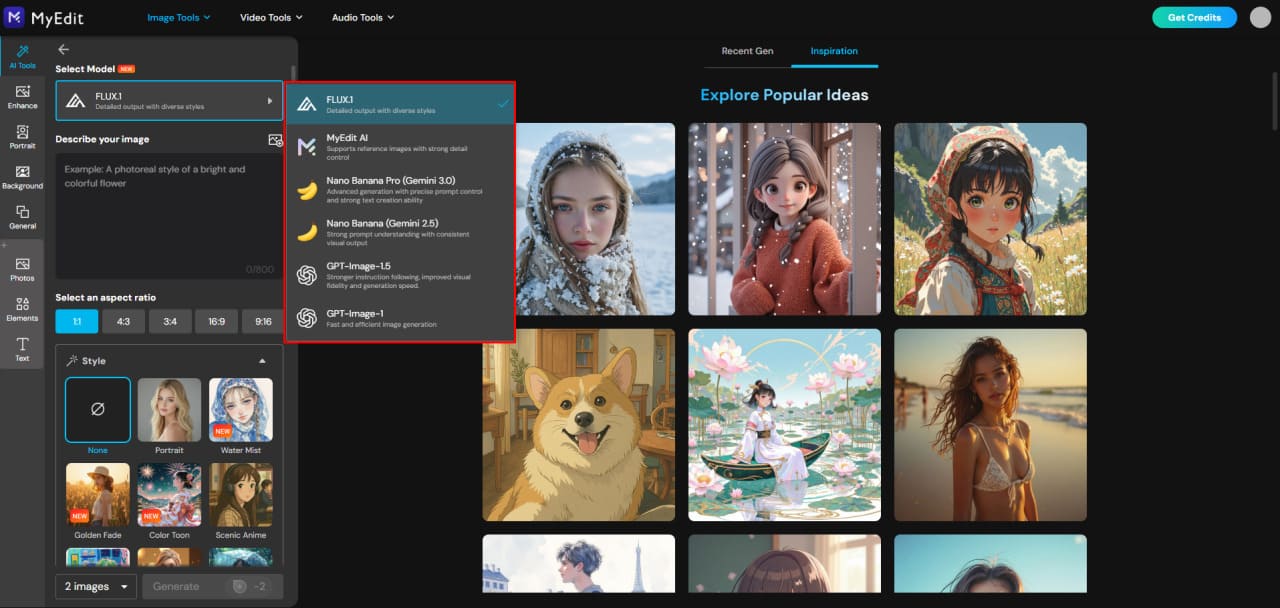
Choose Your AI Model: Pick the model that fits your creative goal. Options include FLUX.1 for high-detail realism, MyEdit AI for balanced versatility, Nano Banana for playful stylized results, and GPT-Image for fast concept visuals.
-
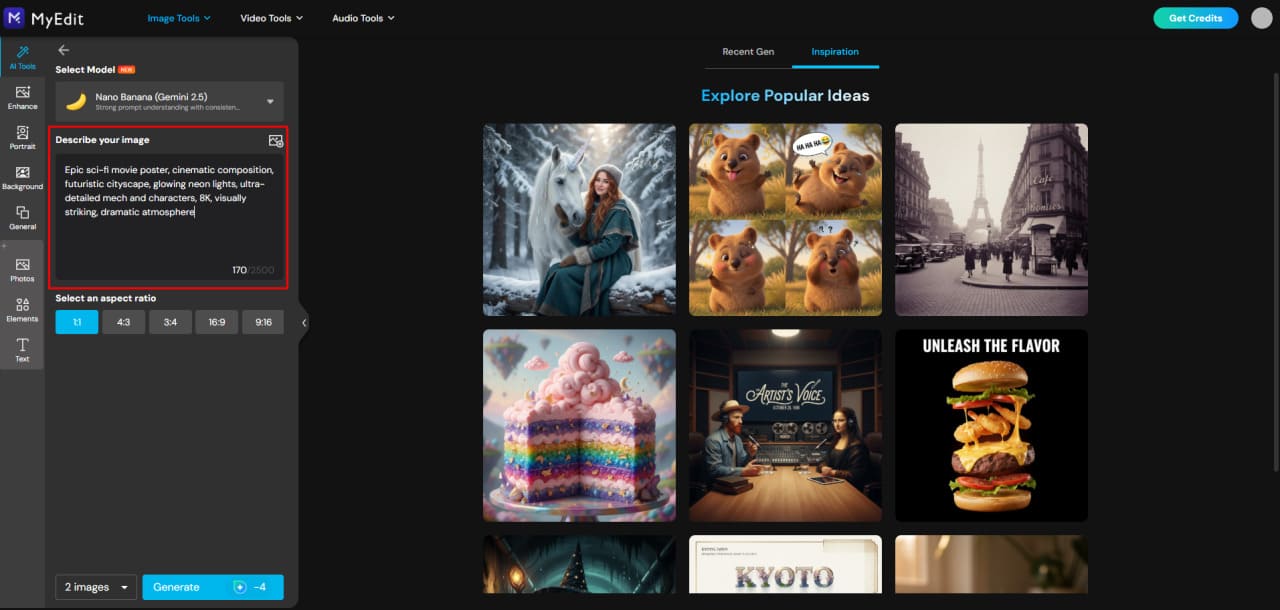
Write Your Prompt: Use a ready-made prompt from this article or create your own. Include key details like subject, style, lighting, mood, and environment to get the best results.
-
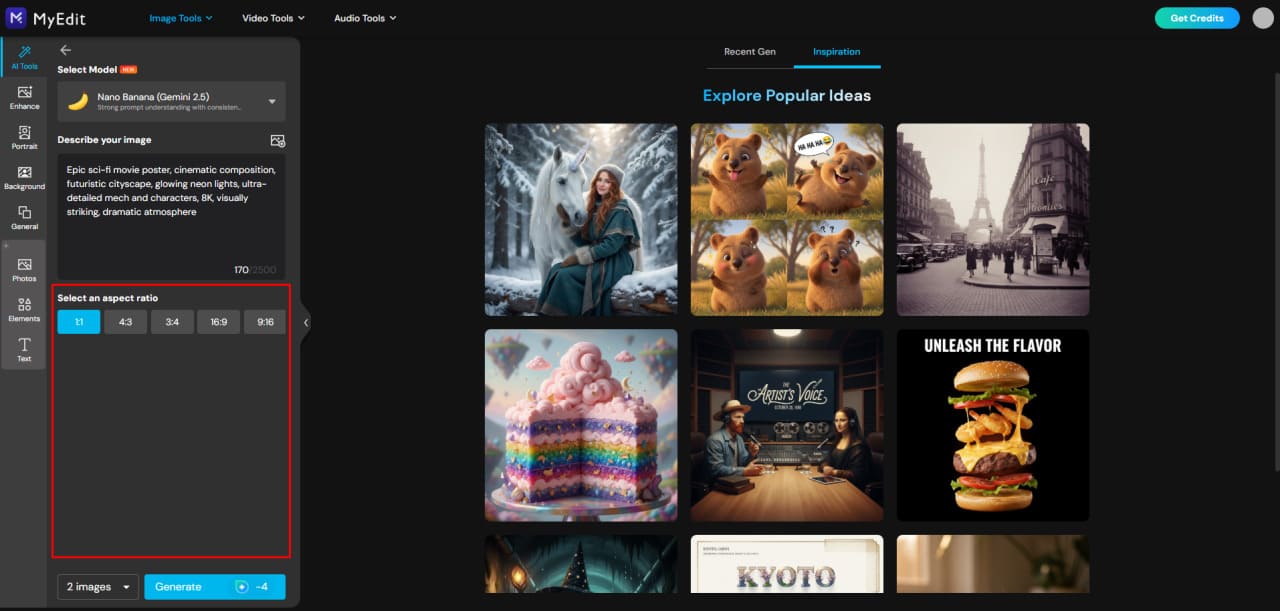
Adjust Settings: Set the aspect ratio for your image. For supported models, apply a style reference such as realistic, illustration, cinematic, or vintage to enhance the final result.
-
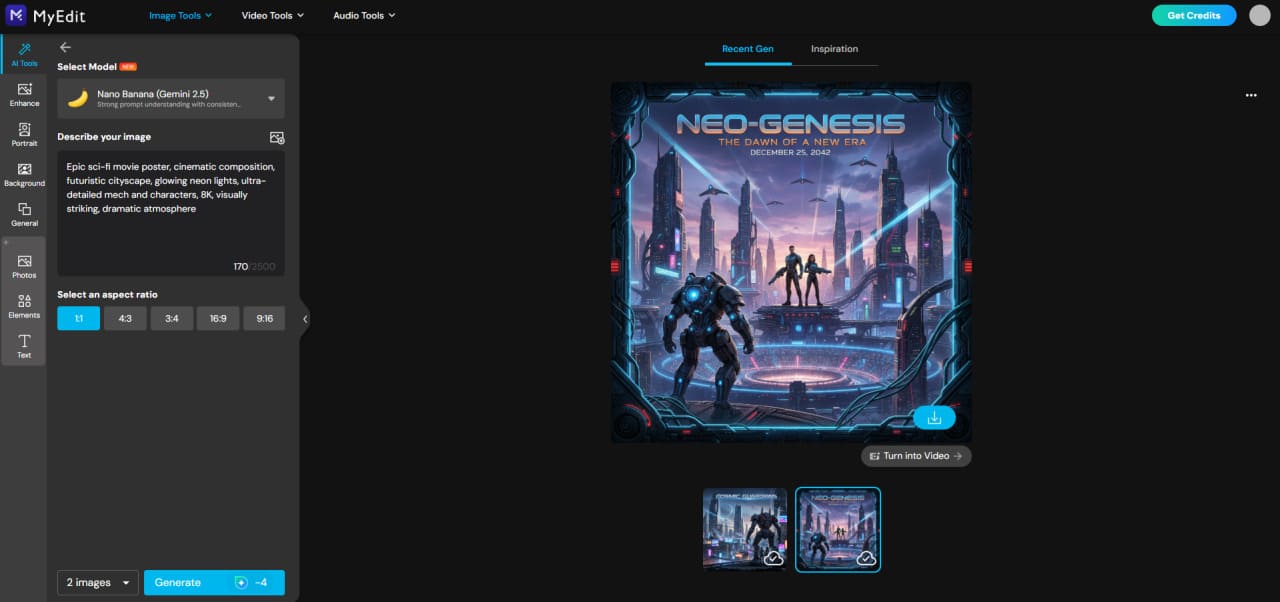
Generate Your Image: Click Generate and watch MyEdit transform your prompt into a stunning image in seconds.


Custom AI Creations: Portraits, Groups, and Scene Editing
Create ultra-realistic portraits and group images using one or more reference faces. MyEdit’s Custom mode lets you guide the AI with clear prompts, poses, and environments for professional-quality results. You can also instruct the AI to modify specific areas (inpainting) or extend the scene naturally (outpainting) simply by describing it in your prompt — no extra tools required.
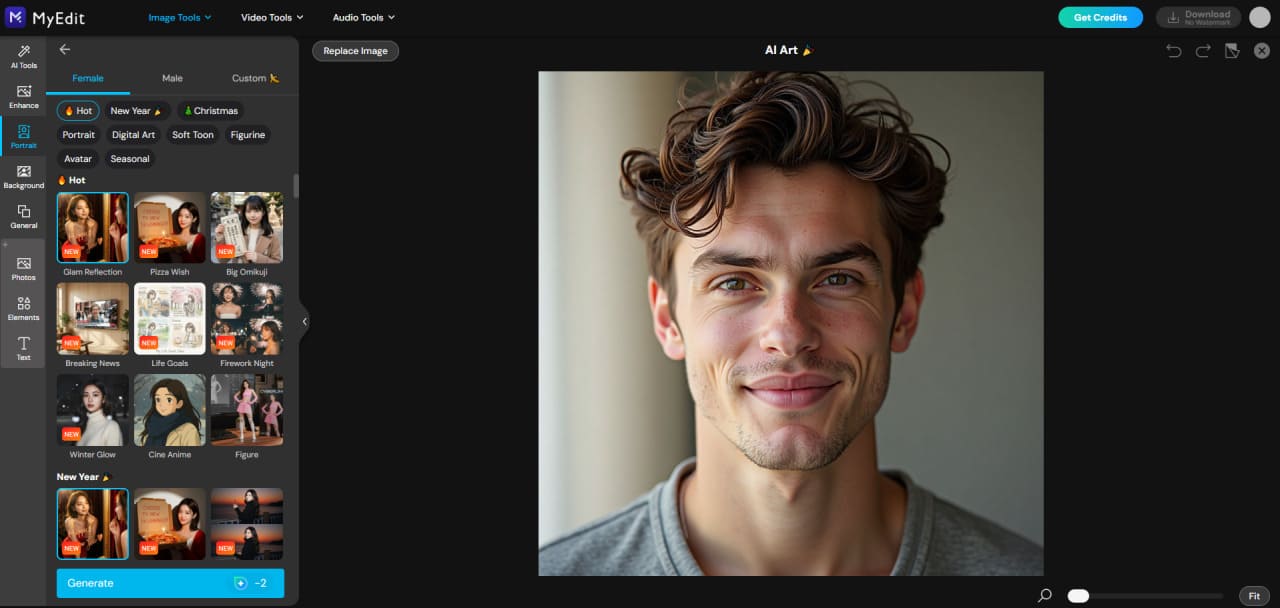
- Open MyEdit: Go to AI Art to start creating your custom portraits.
-
Upload reference faces: Add a single face or multiple people from your device to use as references.
-
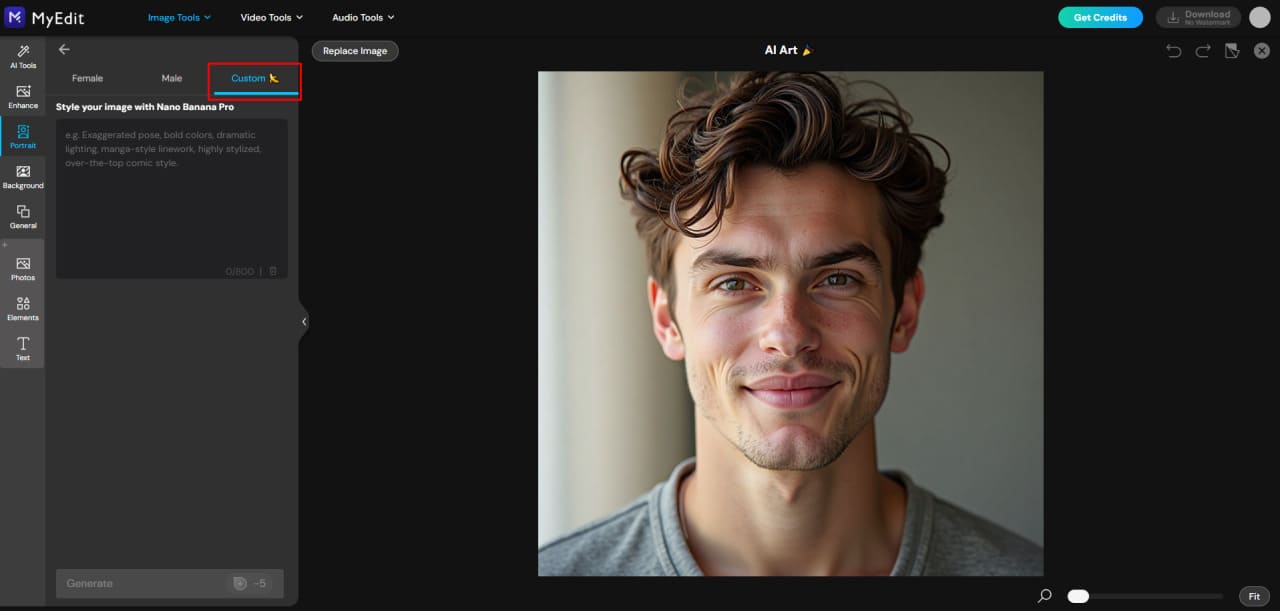
Select Custom Mode: This mode detects each face and lets you define style, pose, and environment for every subject.
-
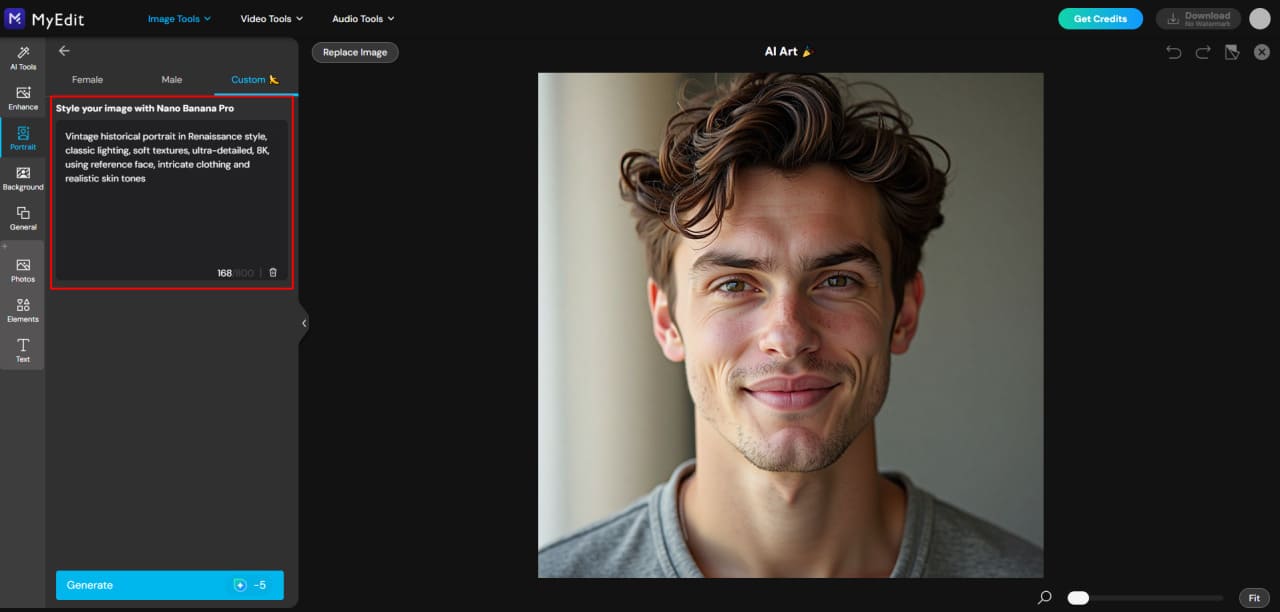
Enter your prompt: Describe the scene, style, lighting, and mood. For inpainting or outpainting effects, simply specify the changes or expansions you want in your prompt.
-
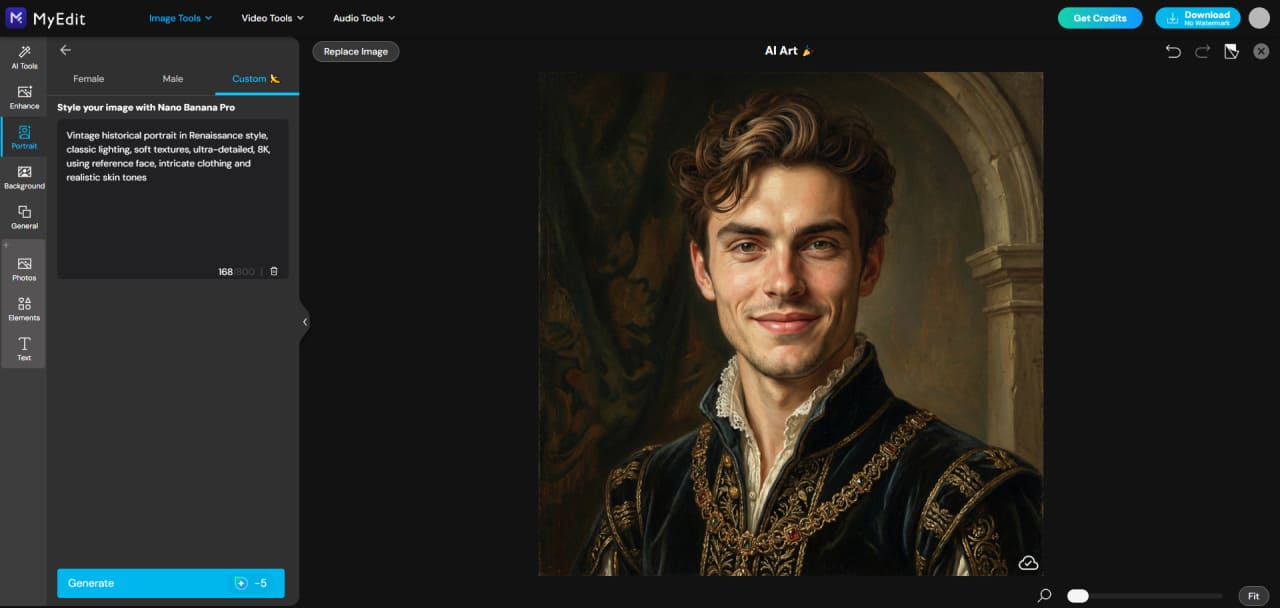
Generate your image: Click Generate and watch the AI bring your custom portrait or group scene to life in seconds.


Related Articles:
- ChatGPT Image Ideas & Photo Editing Prompts
- Ultimate Guide to Nano Banana Pro
- Gemini Polaroid Trend Using the Best Prompts
Stable Diffusion Prompt FAQ
To get the best results, focus on prompts that are clear, descriptive, and visually specific. Include the main subject, style, environment, lighting, and mood. Using short, tag-style prompts often produces more consistent outputs than long sentences. Tools like MyEdit can help you experiment with different prompt structures and preview results instantly, which is especially useful if you’re just starting with AI image generation.
Good prompts balance creativity and detail. For example, “hyper-realistic portrait of a young woman, soft morning light, cinematic style” or “floating castle above a misty mountain, epic fantasy scene.” The key is specificity: describe colors, textures, lighting, and perspective. You can also use MyEdit’s prompt library to see ready-to-use examples and quickly adapt them to your projects.
Start by analyzing the reference image: note the subjects, colors, composition, style, and lighting. Convert those observations into a clear, descriptive prompt. Platforms like MyEdit make this easier by allowing you to upload an image and automatically generate a detailed prompt, saving time while keeping results accurate and visually appealing.
Interesting prompts often combine unexpected elements or mix genres, such as “futuristic cyberpunk street market at night with neon reflections” or “giant dragon flying over a sunset ocean cliff, cinematic lighting.” Experimentation is key. Tools like MyEdit let you test multiple variations quickly, so you can see which combinations produce the most striking visuals.
If you’re looking for a versatile, user-friendly alternative, MyEdit is a great choice. It offers AI image generation from prompts, reference photo editing, inpainting, outpainting, and style customization all in one platform. Whether you want realistic portraits, fantasy scenes, or creative transformations, MyEdit streamlines the process and gives you more control over the final image.
Hyper-realistic results rely on detailed prompts with specific attention to lighting, textures, and perspective. Mention the time of day, material textures, and any defining features of the subject. For easier experimentation, MyEdit provides built-in templates and style presets that help achieve realistic effects faster, making it ideal for both beginners and professionals.
Extending a scene, or outpainting, requires prompts that describe the new elements beyond the original image. Include details about environment, objects, and lighting to maintain consistency. MyEdit supports this workflow by allowing you to expand landscapes, interiors, or fantasy scenes with precise prompt instructions, keeping the new areas coherent and visually integrated with the original image.


