In today's digital age, one of the most useful ways to transform a photograph into a work of art is by getting creative with the image's background. Whether you're a novice photo editor looking to remove imperfections, a new business owner creating a website for the first time, or an influencer who wants to create a stunning design for their followers, making a transparent background is an easy technique to fine-tune your digital images.
Making a photo's background transparent will allow you to switch out the background altogether or allow you to insert an image of your subject onto a webpage without a distracting background.
The easiest way to make a transparent background is by using PhotoDirector, a software designed for all skill levels. In this article, we'll provide step-by-step instructions on how to make a transparent background, as well as answer frequently asked questions about this editing feature.
PNG stands for Portable Network Graphic, which is a versatile image file format. “Transparent” in this context describes an image that does not have a complete background, and other images or content can be seen underneath it.
Whether you’re a Mac or Windows user, you can view and edit PNG files in most photo editors without issue since it’s an open format. Unlike JPG files, PNG supports transparency and is designed for the web rather than print.
Other formats that support transparency include GIF, BMP, TIFF, TGA, and JPEG 2000. This is achieved with either a transparent color or an alpha channel. Also, most photo editors use their own file format, which supports transparency. For example, Photoshop uses .pds format and PhotoDirector uses .phi. Typically these file formats can only be opened in the program they were created.
Best Software to Make a Transparent PNG
PhotoDirector
PhotoDirector is our top choice for creating transparent PNG images because it can be accomplished in just a few steps and offers a range of other editing tools such as sky replacement and overlays. PhotoDirector is also easy to use and can be downloaded onto your PC or Mac computer.
Download from the App Store for iOS
and Android
.
How to Make a Transparent PNG by Removing the Background
Start by downloading PhotoDirector, then follow along with these simple steps:
Download from the App Store for iOS
and Android
.
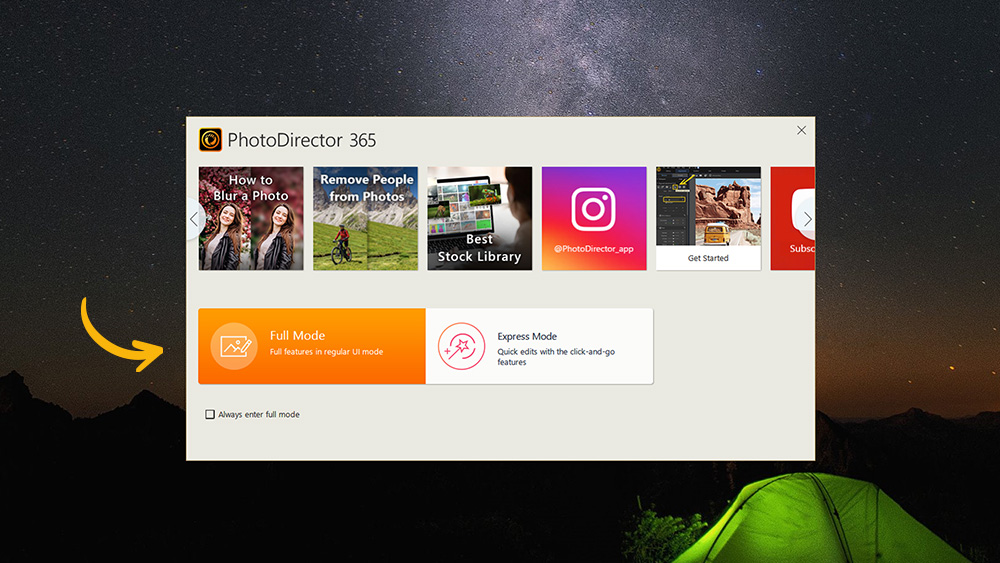
Open PhotoDirector and choose Full Mode
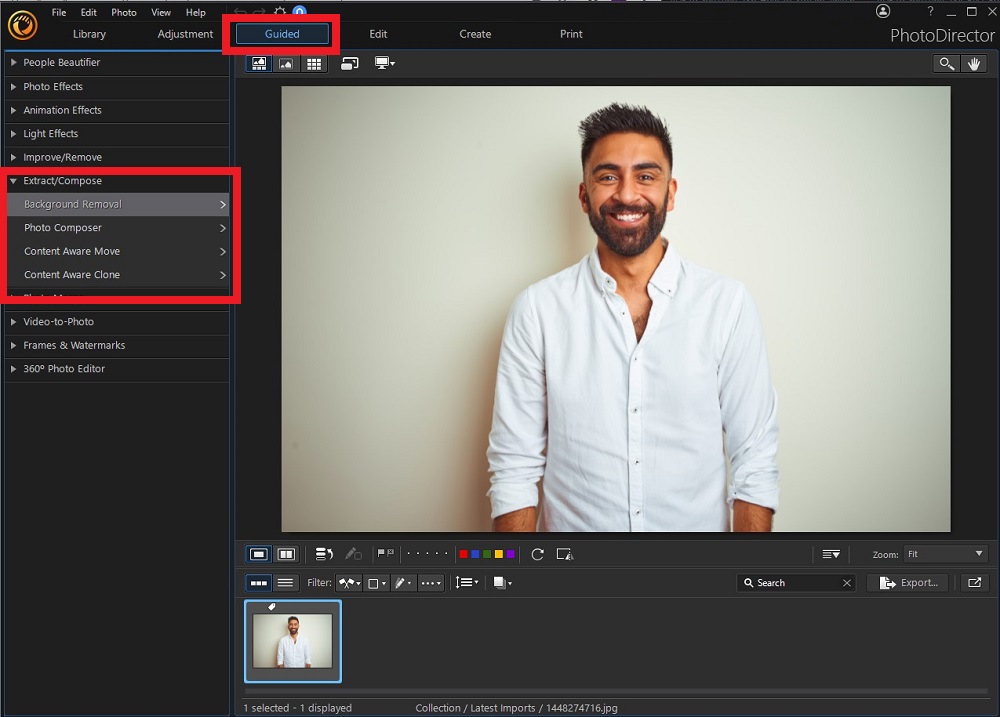
Import your photo, then click on the Guided tab at the top banner.
On the left-hand side, click on Improve/Remove and choose Background Removal
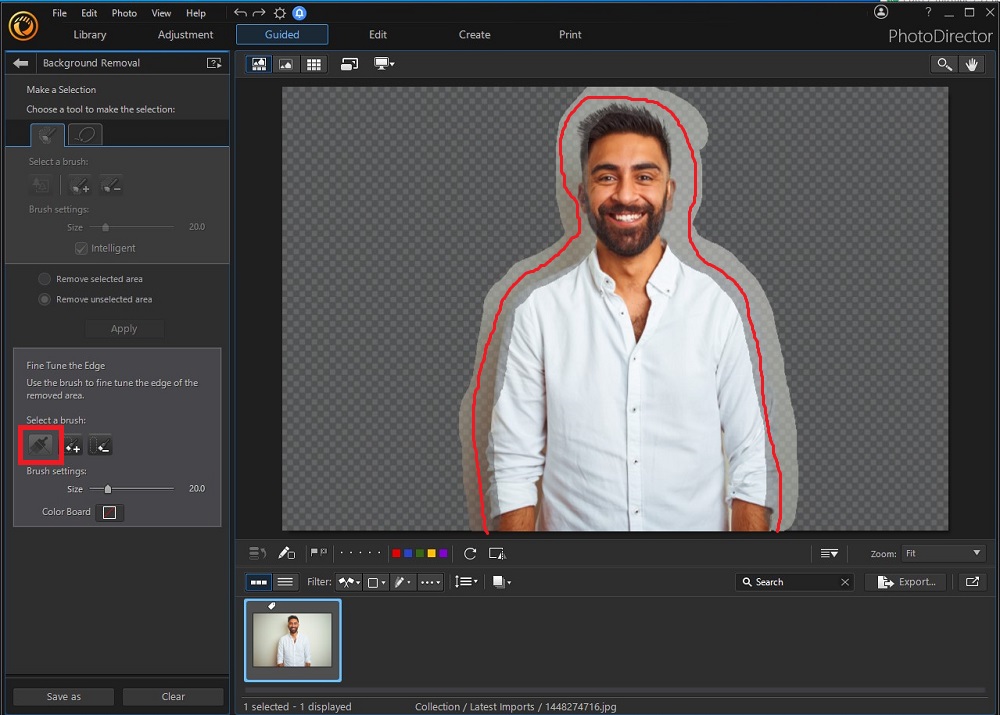
Click on the Tree icon, which will automatically select the most prominent object in your photo.
If the correct object has been selected, make sure the Remove Unselected Area button is checked, then click Apply to remove the background.
Tip: To further refine the edges of your subject, click on the applicable brush type under the Fine Tune the Edge tool and highlight the areas of the image you want to edit.
Click Save As at the bottom left-hand corner, then name your image and select where you want to save it. Click Save. Your removed image will also be available in the Background Removal Gallery.
How to Create a Transparent PNG From Text
Start by downloading PhotoDirector, then follow along with these simple steps:
Download from the App Store for iOS
and Android
.
Open PhotoDirector and choose Full Mode.
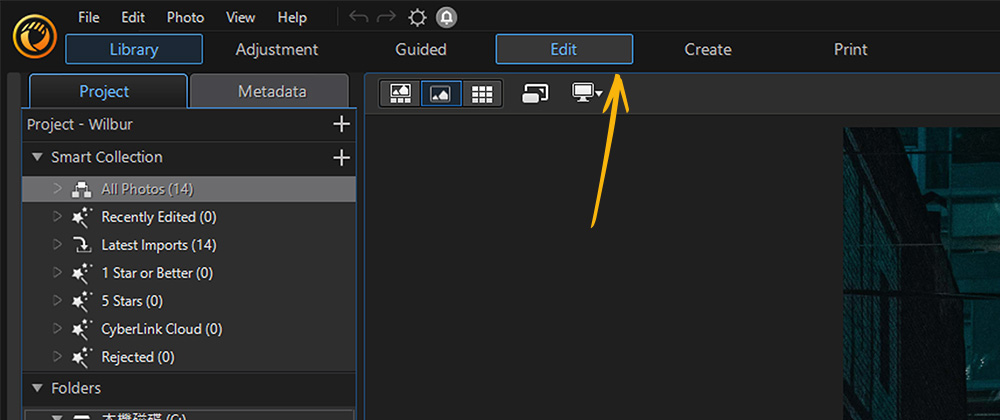
Click on the Edit tab at the top banner.
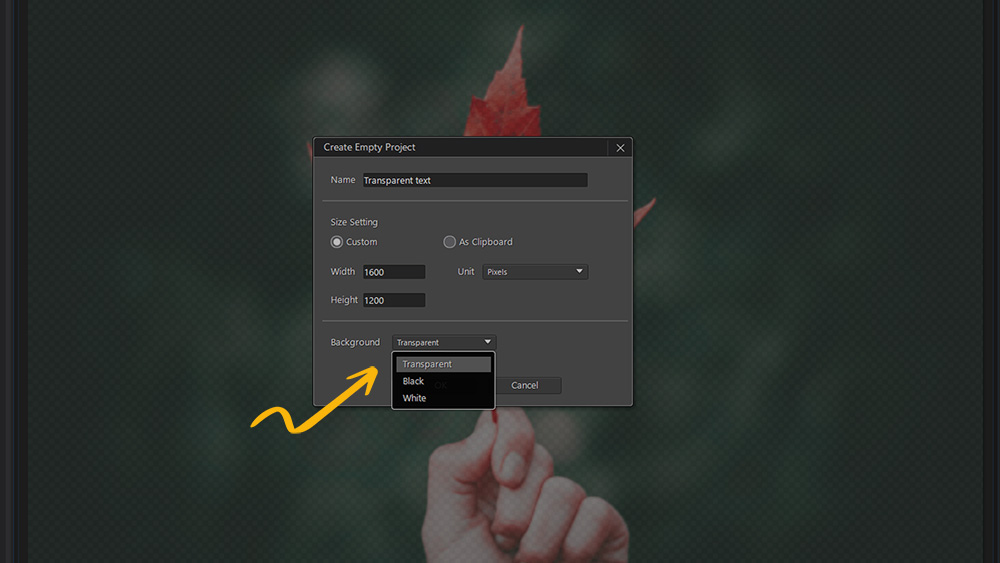
On the layers menu located on the upper left-hand side, click on the Add New Layer icon all the way on the left that has a + symbol and select Create Empty Project. Then name your project, input the size you would like your PNG to be, set Background to Transparent, and click OK.
On the menu located on the right-hand side of the screen, select the Text Tool icon, then use your cursor to indicate where you’d like to place new text.
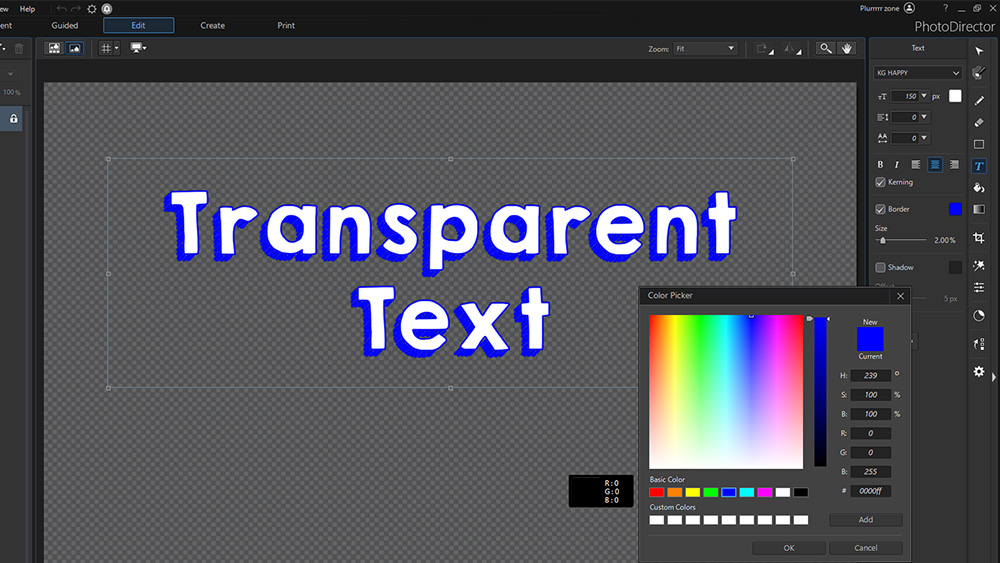
To further customize your text, use the menu options on the right-hand side to change the size of the font, apply a border around the text, add a shadow to the text, or add a text effect.
Tip: Once you have added your text, you can unlock the layer and open the Layer properties by clicking on the FX icon. This allows you to Bevel & Emboss, add a Border, Inner Shadow, Inner Glow, Color Gradient, Outer Glow, and Drop Shadow.
When finished editing your text, click Save/Share at the bottom left-hand corner of the screen.
How to Make a Transparent PNG With a Shape
Open PhotoDirector and choose Full Mode.
Click on the Edit tab at the top banner.
On the layers menu located on the upper left-hand side, click on the Add New Layer icon all the way on the left that has a + symbol and select Create Empty Project. Then name your project, input the size you would like your PNG to be, set Background to Transparent, and click OK.
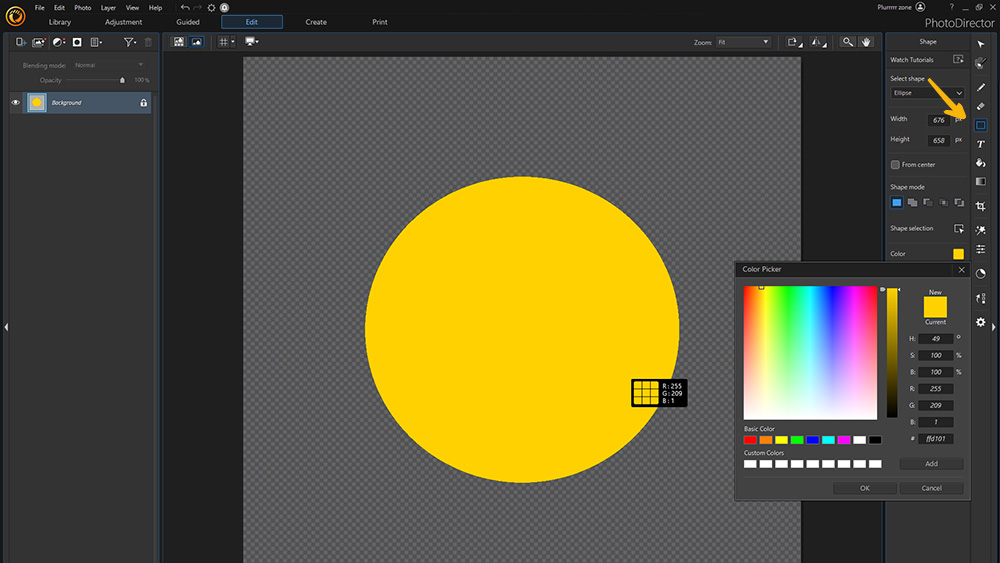
On the menu located on the right-hand side of the screen, select the Shape Tool icon, then select the type of shape from the dropdown menu, customize the width and height, and select the color of the shape.
Use your cursor to indicate where you’d like to place the new shape. From here, you can use your cursor to edit the shape as needed manually.
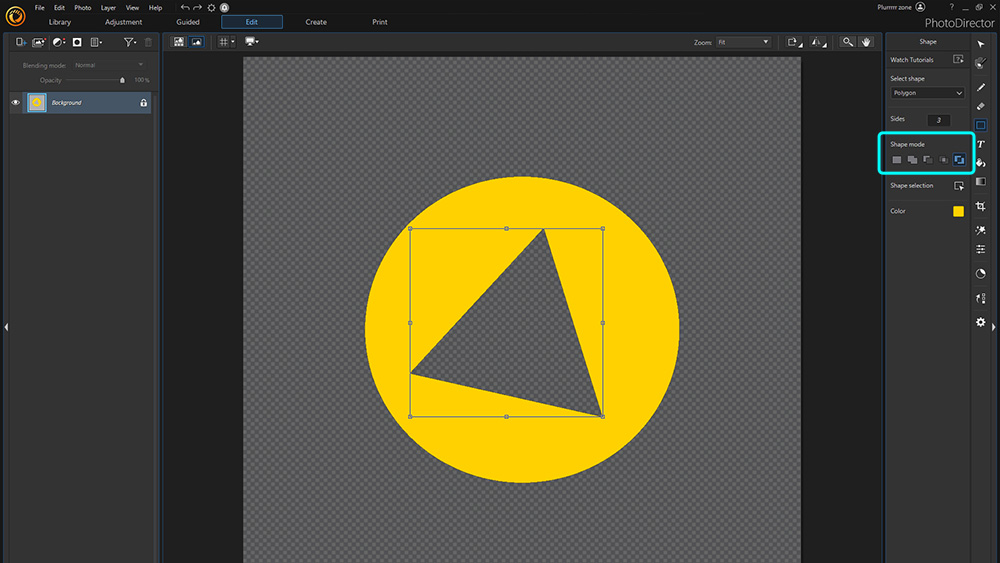
Tip: To further customize the shape, use the Shape Mode options to add or subtract from the shape area or intersect the shape area.
When finished, click Save/Share at the bottom left-hand corner of the screen.
How to Create a Transparent PNG Logo
If you need to create your own logo, you can use the Text Tool and Shape Tool to do so. However, if you already have your logo, use the steps below to learn how to make your logo's background transparent if it is a solid color.
Download from the App Store for iOS
and Android
.
Open PhotoDirector and choose Full Mode.
Open the Library tab on the top banner, then import your photo using the Import button on the lower left-hand side.
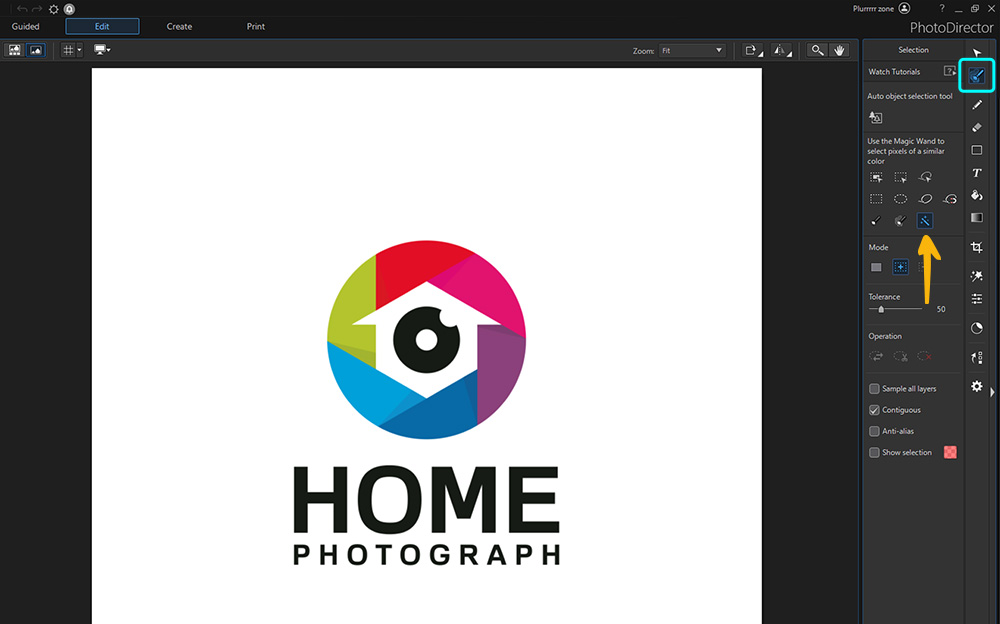
Open the Edit tab on the top banner, then click on the Select Area Tool and choose the Magic Wand.
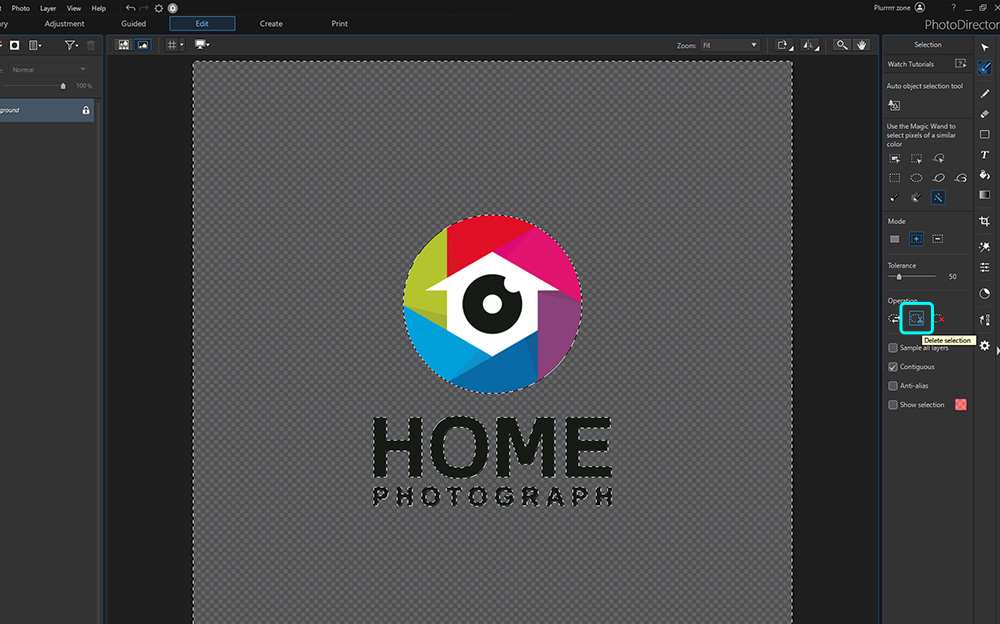
With your logo’s layer selected, use the Magic Wand to select your logo’s background by clicking on it.
Under Operations, click that Delete Selection button which looks like a pair of scissors cutting a dotted line circle.
Save your new transparent logo as a PNG.
Download Software to Make a Transparent PNG for Free
Creating a PNG with a transparent background is incredibly easy with PhotoDirector – anyone can do it with just a few clicks! From automatically selecting your subject with AI to creating transparent logos with the Shape and Title Tools. You don’t need any experience with graphic design to be able to create with PhotoDirector.
The software also offers a lot of customization when editing so you’re not limited as you go from beginner to expert photo editor. Download PhotoDirector today and see what you can create.
Download from the App Store for iOS
and Android
.
Transparent PNG FAQ
The top ten features you should look for are
PNG file support
Background removal
Object detection
Layer editing
Opacity settings
Text tool
Text effects
Shape tool
Eraser tool
Selection tools
If you’re looking for a product that checks all of these boxes, we recommend PhotoDirector.
A few ways to use transparent PNGs include
Cut out an object and placing it on a different background
Drawing attention to an object or person
Creating a more visually appealing photo
Creating a collage of different objects from different images
Using a logo without a background
The top 5 apps for making transparent images are
PhotoDirector
Simple Background Changer
Superimpose
LightX
Facetune
For more information on the above apps, check out Top 5 Background Changer Apps for iPhone and Android.
Here is a step-by-step guide for replacing the sky in pictures using PhotoDirector:
Import your image and open the Guided tab.
Navigate to Photo Effects, open the drop-down and click on Sky Replacement.
Your sky will automatically be selected. Scroll through the new sky options and click on any you want to try.
When you have found the sky you want, select it and click Save As.
For more information on replacing an image’s sky with PhotoDirector, check out the Top 5 Tips for Sky Replacement.
The quality of the images you use in the background of your PNGs can make a big difference, especially if you want them to stand out. PhotoDirector has built-in stock libraries provided by Shutterstock and iStock. With millions of images to choose from, you won’t have a problem finding a high-quality background for your transparent PNGs.
Just because a file is a PNG does not mean it has transparency capability. For example, the PNG you get from a screenshot does not support transparency. Even when creating a PNG in Photoshop, it will not have a transparent background unless you check the transparency box.
The easiest way to make an image transparent is with PhotoDirector. It is both simpler and quicker than using Photoshop. It is ideal for both novice photo editors and professional graphic designers.