





Kling AI 3.0: Full Review, Tutorial, Free Version, and Best Alternatives

As artificial intelligence technology advances at a rapid pace, the release of Kling AI 3.0 marks a pivotal moment in the evolution of video generation. In this article, we provide a comprehensive overview of the Kling AI 3.0 update, what the free version includes, and which alternatives might be better suited to your needs if you're looking for different workflows or faster processing speeds.
As of early February 2026, Kling 3.0 is currently in closed beta. Free users may need to join a waitlist, while priority access is rolling out to Pro subscribers.
- What is Kling AI 3.0?
- How to use Kling AI?
- Top Alternatives to Kling AI
- How to Use an Alternative to Kling AI?
- FAQ : Kling AI
What is Kling AI 3.0?
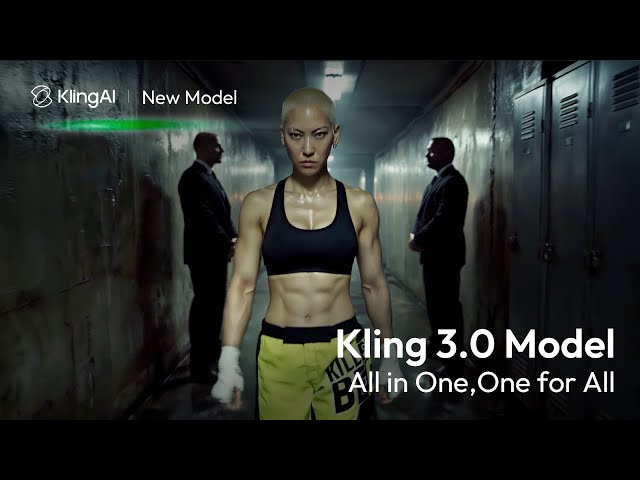
Kling AI 3.0 represents a massive leap forward in generative video technology, moving beyond simple clips to professional-grade storytelling tools. Here is a breakdown of the groundbreaking features in Kling AI 3.0:
1. Native 4K Cinematic Visuals
- Feature: The model now supports Ultra-high-definition output with native text rendering in 4K.
- Benefit: Delivers industry-leading image clarity and detail, suitable for professional large-screen production without needing external upscalers.
2. Extended Duration (15 Seconds)
- Feature: Supports native generation of up to 15 seconds per clip.
- Benefit: Moves beyond short 5-second "GIF-style" clips, allowing creators to build fuller narrative arcs and longer continuous shots.
3. Multi-Shot Narratives & Storyboarding
- Feature: A unified storyboard workflow that generates cinematic sequences in a single pass.
- Benefit: The AI can automatically handle complex camera transitions and "shot–reverse-shot" dialogue patterns, effectively acting as an automated director for multi-angle scenes.
4. Absolute Subject Consistency (Elements 3.0)
- Feature: Introduces the Elements 3.0 video-reference system.
- Benefit: Allows users to "lock" characters, props, and voices. This ensures that a specific actor or object remains visually identical across different shots, solving the "character drift" problem.
5. Native Audio & Voice Referencing
- Feature: Enhanced audio generation that is integrated directly into the video generation process.
- Benefit: Supports character-specific voice referencing, meaning the AI generates the visual performance and the matching voice/audio simultaneously for perfect sync.
6. Directorial Physics Engine
- Feature: Advanced simulation capabilities for physical interactions.
- Benefit: Greatly improved handling of fluid dynamics, gravity, and complex object interactions, making scenes like pouring water, explosions, or falling objects look physically accurate.
7. Reasoning-Based Editing
- Feature: A new intelligent editing capability.
- Benefit: Users can modify existing videos using natural language prompts (e.g., "change the coat to red" or "make it rain"), relying on the model's understanding of the scene's logic.
As of early February 2026, Kling 3.0 is currently in closed beta. Free users may need to join a waitlist, while priority access is rolling out to Pro subscribers.
Is Kling AI Free?
| Plan | Price/Month | Features |
|---|---|---|
| Free Version | $0 | A few monthly credits upon login |
| Standard | $6.99 | 660 credits/month, pro video creation, no watermark, image upscaler |
| Pro | $25.99 | 3000 credits/month, pro video creation, no watermark, image upscaler, priority tool access |
| Premier | $64.99 | 8000 credits/month, pro video creation, no watermark, image upscaler, priority tool access |
Prices are subject to change. Check the official Kling AI website for current pricing.
How to Use Kling AI
We’ll now walk you through how to use Kling AI to generate videos. You can choose to create a video from either a text prompt or by uploading a photo.
- Go to the Kling AI website.
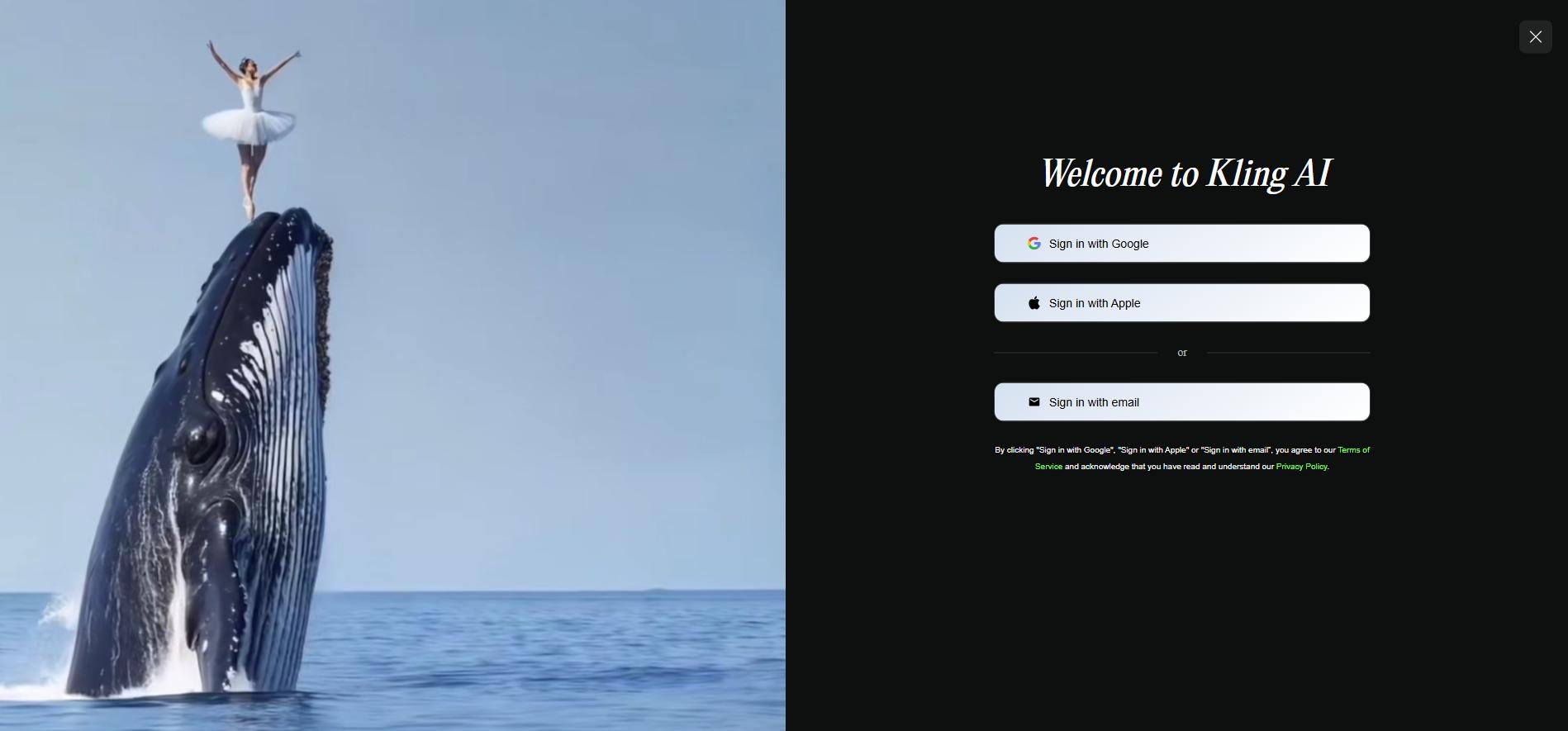
Once you're on the site, you'll need to create an account to use the platform.
- Enter a description or upload an image.
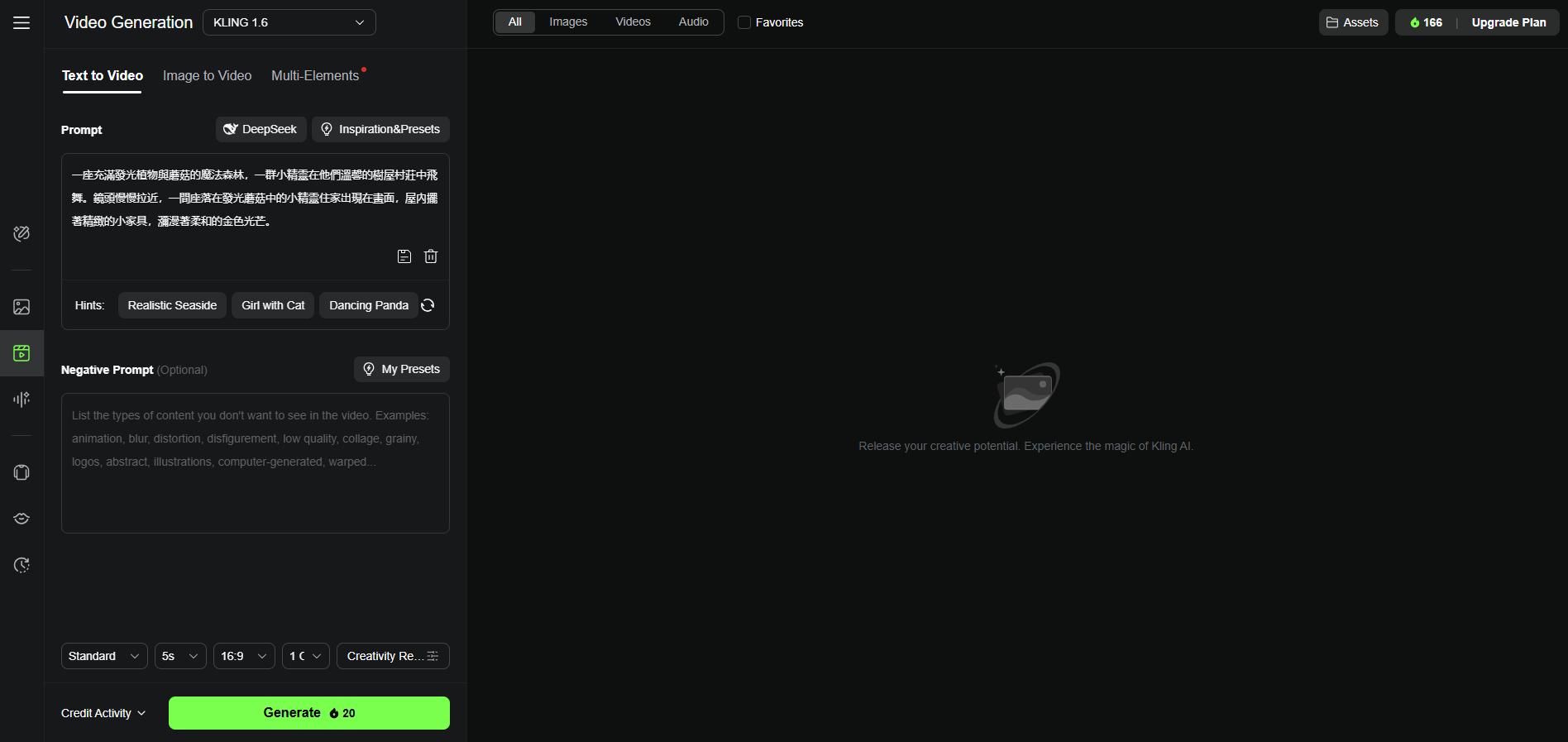
For example: "A magical forest full of glowing plants and mushrooms, a group of elves flying in their cozy tree house village. The camera slowly zooms in, and an elf house located in the glowing mushrooms appears on the screen. The house is filled with exquisite small furniture and a soft golden light." The more specific your prompt, the better the results!
- Wait for the video to be generated.
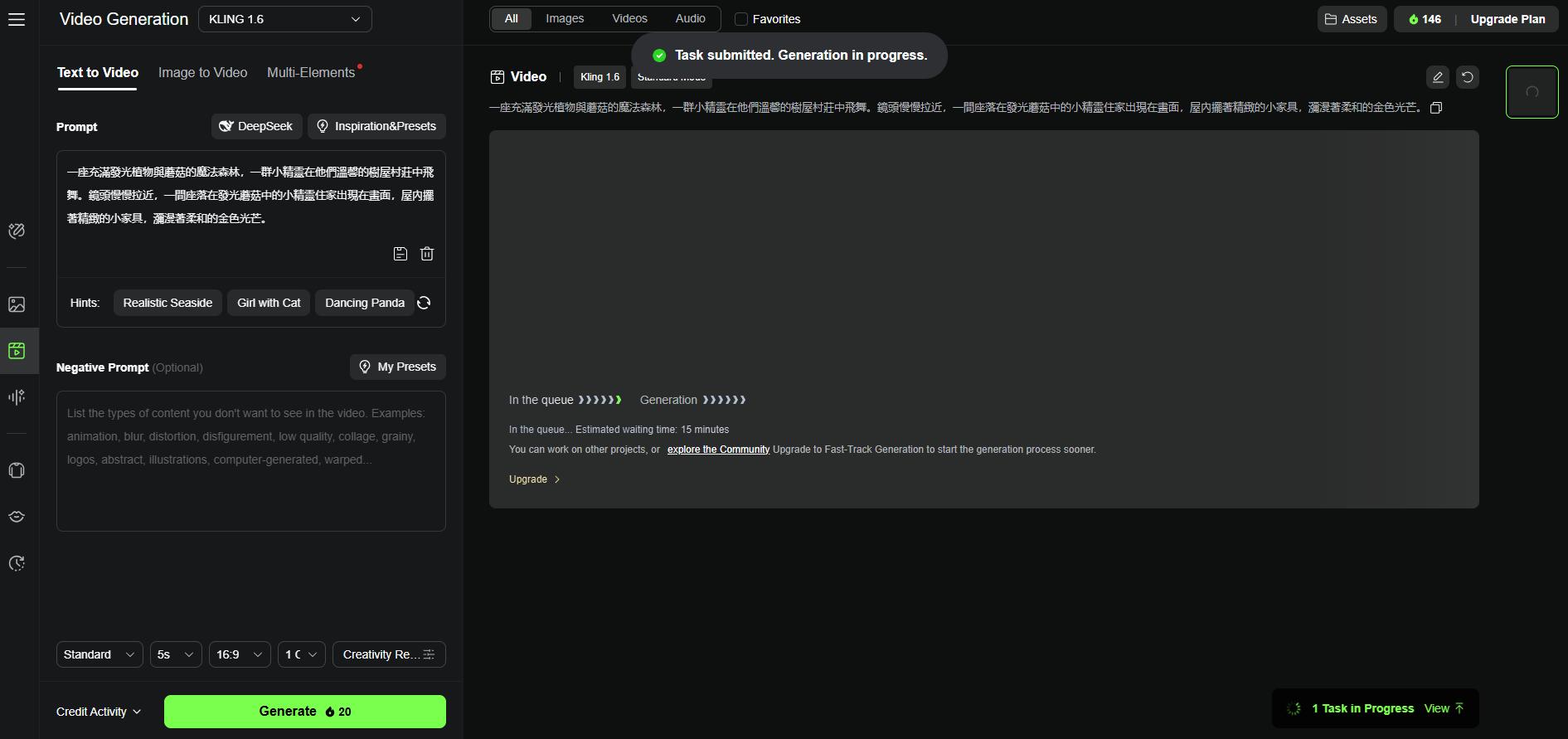
Kling AI will begin generating your video based on your instructions. The free version takes around 15 minutes, so be patient!
- Preview and download.

Once your video is ready, Kling AI will present the result, and you can choose to download it, share it, or make further edits.


Top Alternatives to Kling AI
Considering that video generation takes around 15 minutes, we’ve decided to present you with two alternatives to Kling AI.
1. MyEdit
Key features
- No need to download anything.
- Fast image and video generation.
- 30+ animation templates to transform a photo into a video.
- Free daily credits.
- Wide range of AI tools for photo, audio, and video editing.
MyEdit stands out from Kling AI thanks to its text-to-video generator, which can create high-quality videos in just a few seconds. Unlike Kling AI’s free version, which comes with a long waiting time, MyEdit offers a fast, smooth, and accessible experience—ideal for content creators looking for efficiency.


The “image-to-video” tool in MyEdit brings static images to life in a simple and intuitive way. You can either use predefined animated templates or write a custom prompt to precisely define the animation to be applied to your original image.
In addition, MyEdit features a powerful AI image generator with advanced options, including the “reference face” function. This allows you to create consistent variations of the same face—perfect for enhancing a series of images or precisely customizing visual creations.
Pros
- Very fast AI video and image generation
- Free credits available every day
- Numerous animated templates to bring your photos to life
Cons
- Requires creating an account on the MyEdit website
2. PowerDirector
Key features
- AI tool to transform a photo into a video.
- All-in-one video and audio editing solution.
- Wide range of AI-powered features to simplify video editing (music generator, transitions, sound effects, body effects).
PowerDirector is a powerful alternative to Kling AI, available on both PC and mobile. It allows you to create AI videos from images in an intuitive way, while offering great flexibility for customization. Thanks to its user-friendly interface, users can design impressive videos in just a few clicks, whether for personal, professional, or creative use.
This solution stands out thanks to its wide range of advanced features, such as automatic subtitle generation, numerous dynamic transitions and visual effects, and even the ability to create cartoon-style videos. These tools add a unique and professional touch to every project, without requiring deep technical knowledge.
PowerDirector also integrates powerful AI features like motion tracking, audio noise reduction, and animated face effects, making video creation more accessible than ever. Whether you’re a beginner or an experienced user, this all-in-one solution supports you in producing impactful and creative visual content.
Pros
- Powerful video editing app with AI video generation
- Quick learning curve with an intuitive interface
- Regularly updated with trending content
Cons
- Some tools and effects require a subscription or credits
Recommended articles:
- Turn Text into Video in Google Gemini with Veo 3
- How to Create AI Image to Video with Pollo AI
- Sora Is Shutting Down: The Best Alternatives to Use in 2026
How to Use an Alternative to Kling AI
For this tutorial, we’ll use the best alternative to Kling AI to generate videos in no time.
Generate a Video from an Image
- Use MyEdit's Image to Video Template Tool.
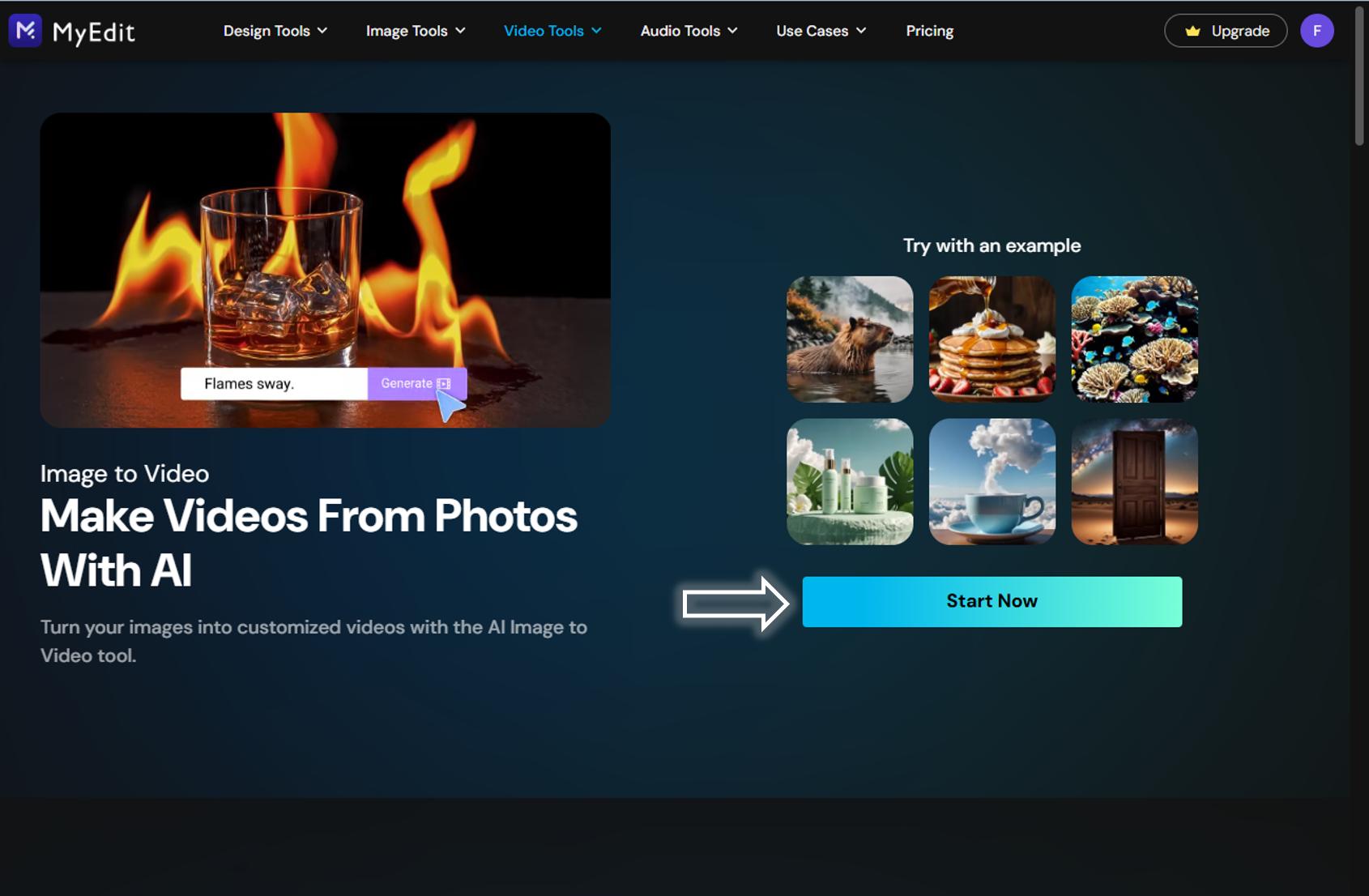
Once you’re on the tool, click “Start Now” and upload the image you want to turn into a video.
- Adjust the settings for your AI video.
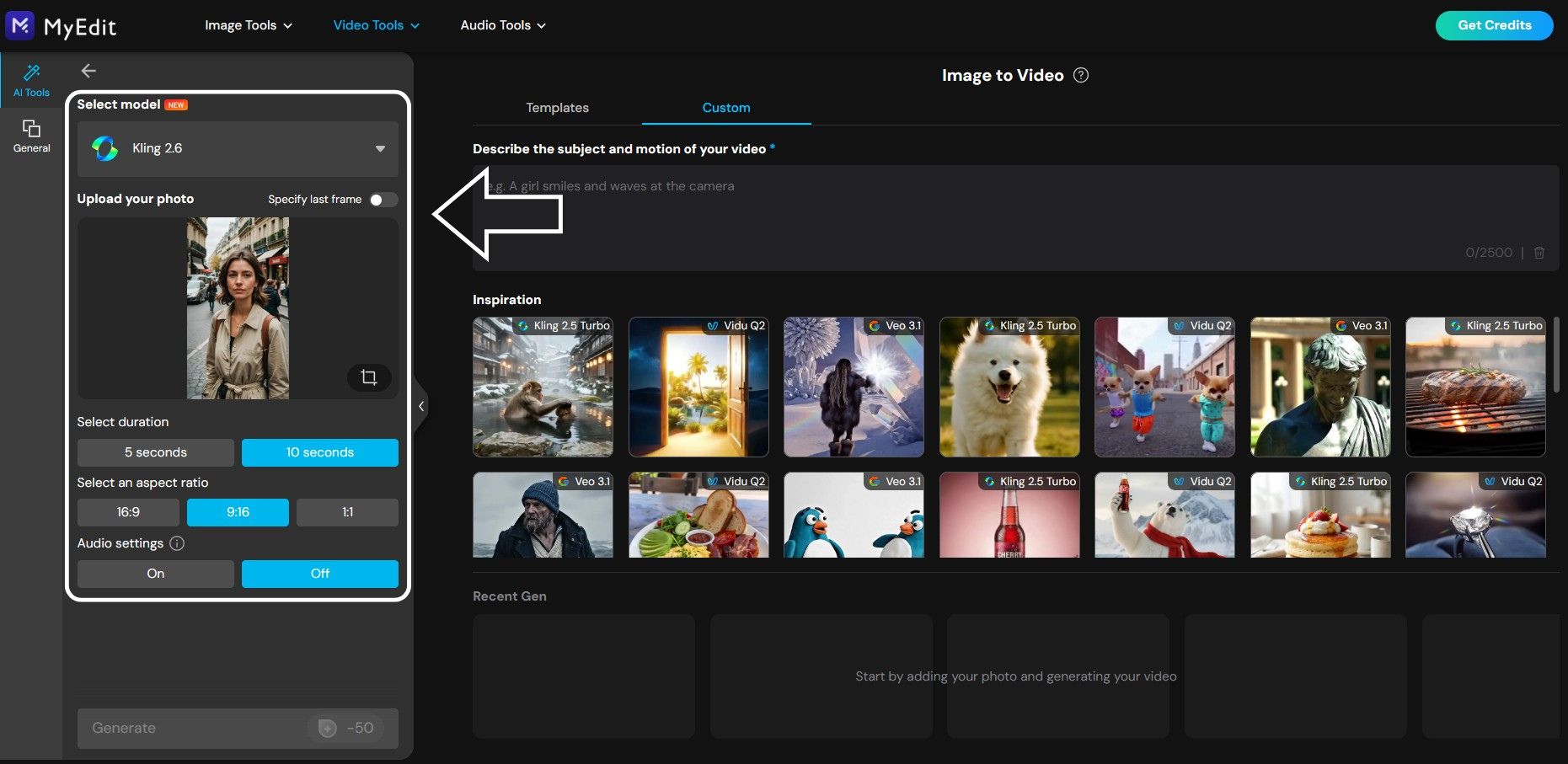
In this menu, you can select the model, set the video duration and display format, generate background audio, and, if needed, choose an animation template.
- Preview and download your image transformed into a video.
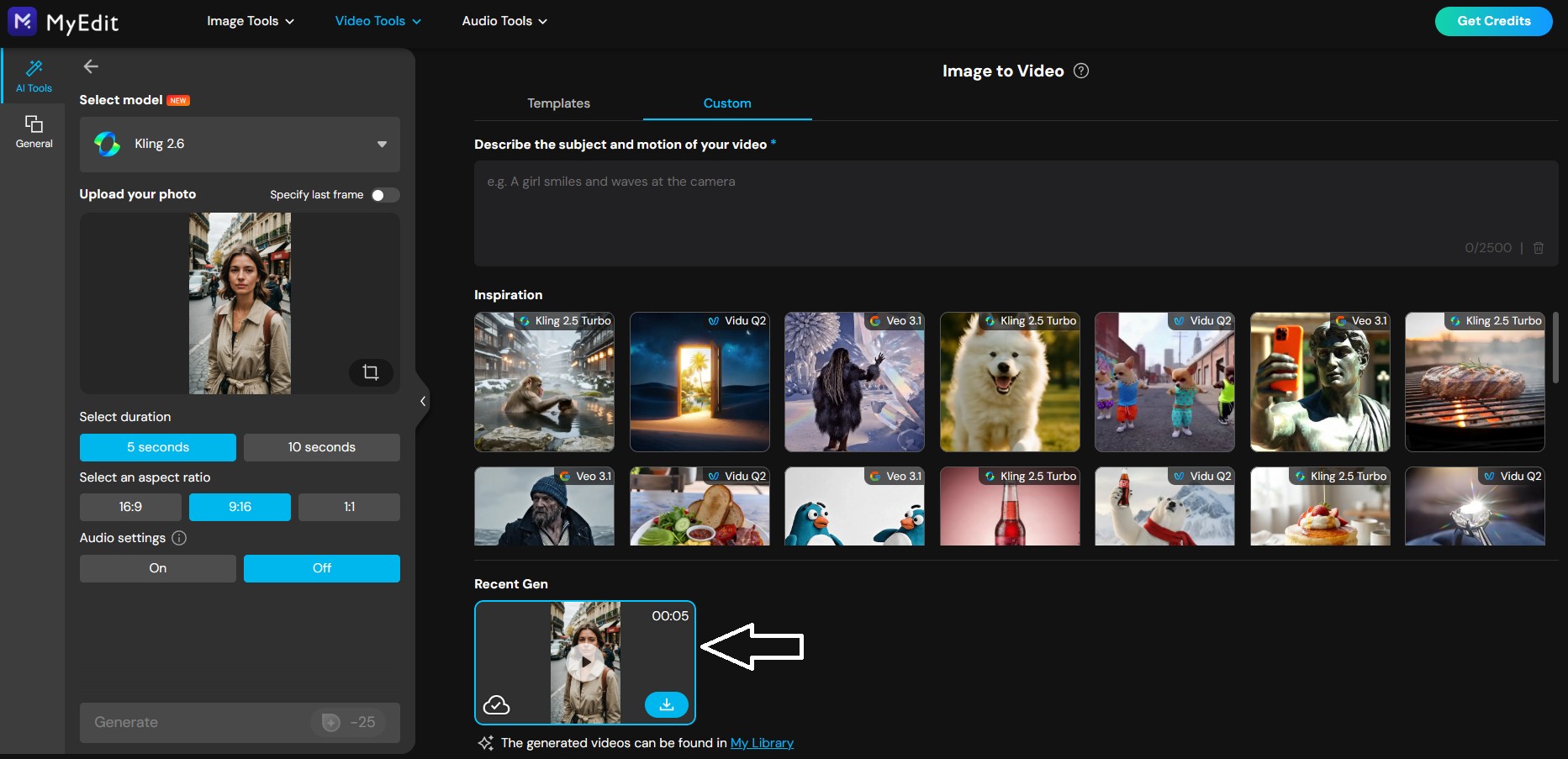
After waiting just a few seconds, you’ll be able to preview and download your video by clicking the save icon at the bottom right.
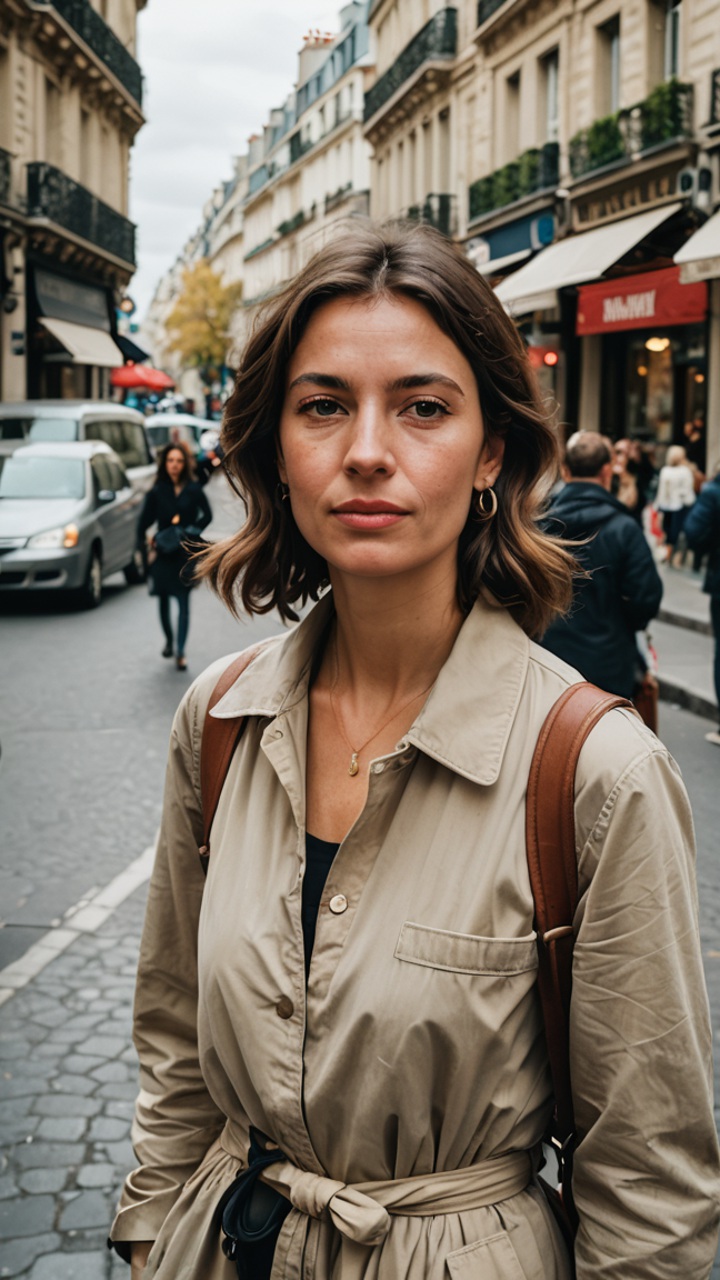



Generate a Video from Text
- Use MyEdit's Text to Video Tool.
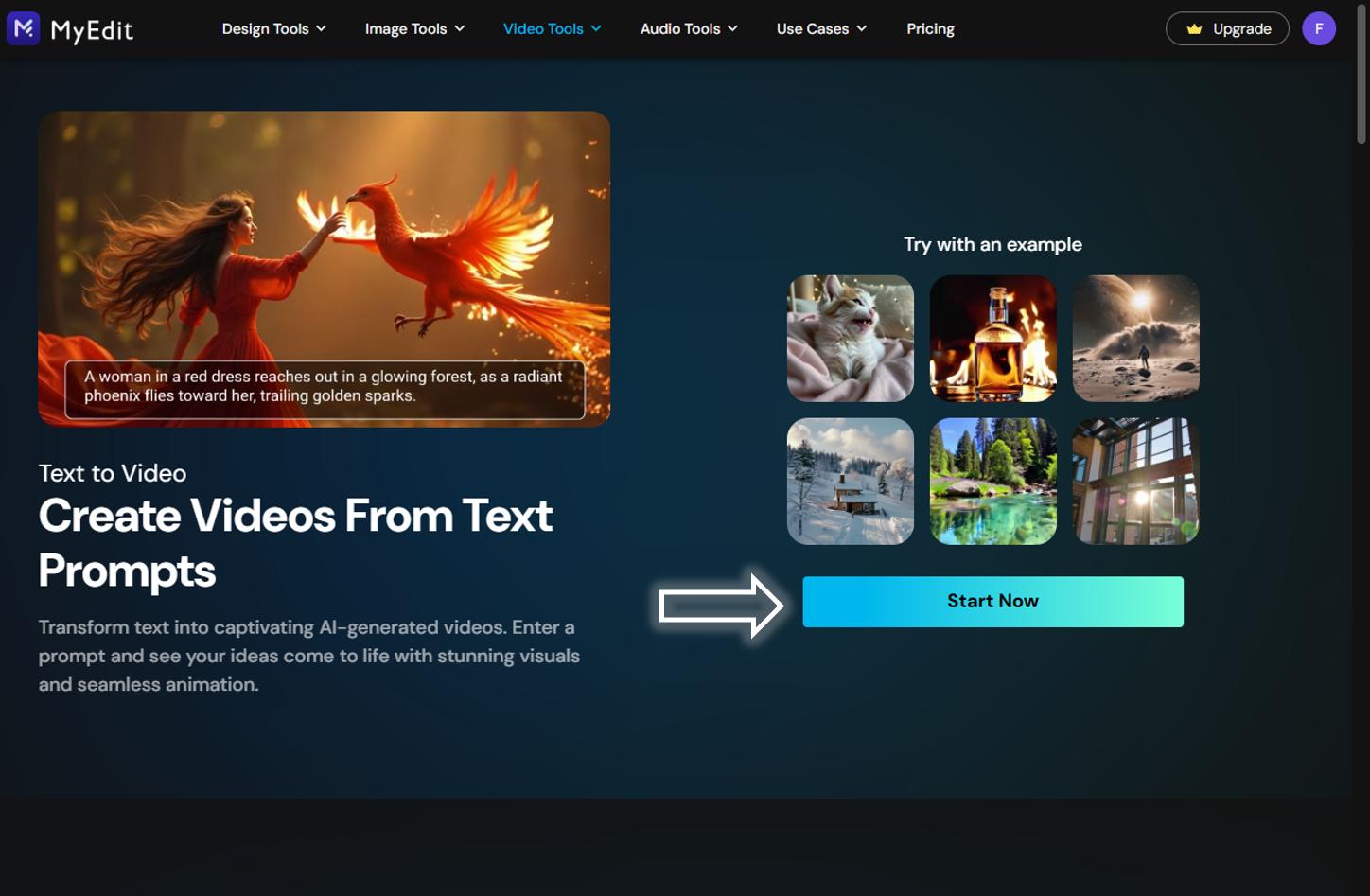
- Adjust the settings for your AI video.
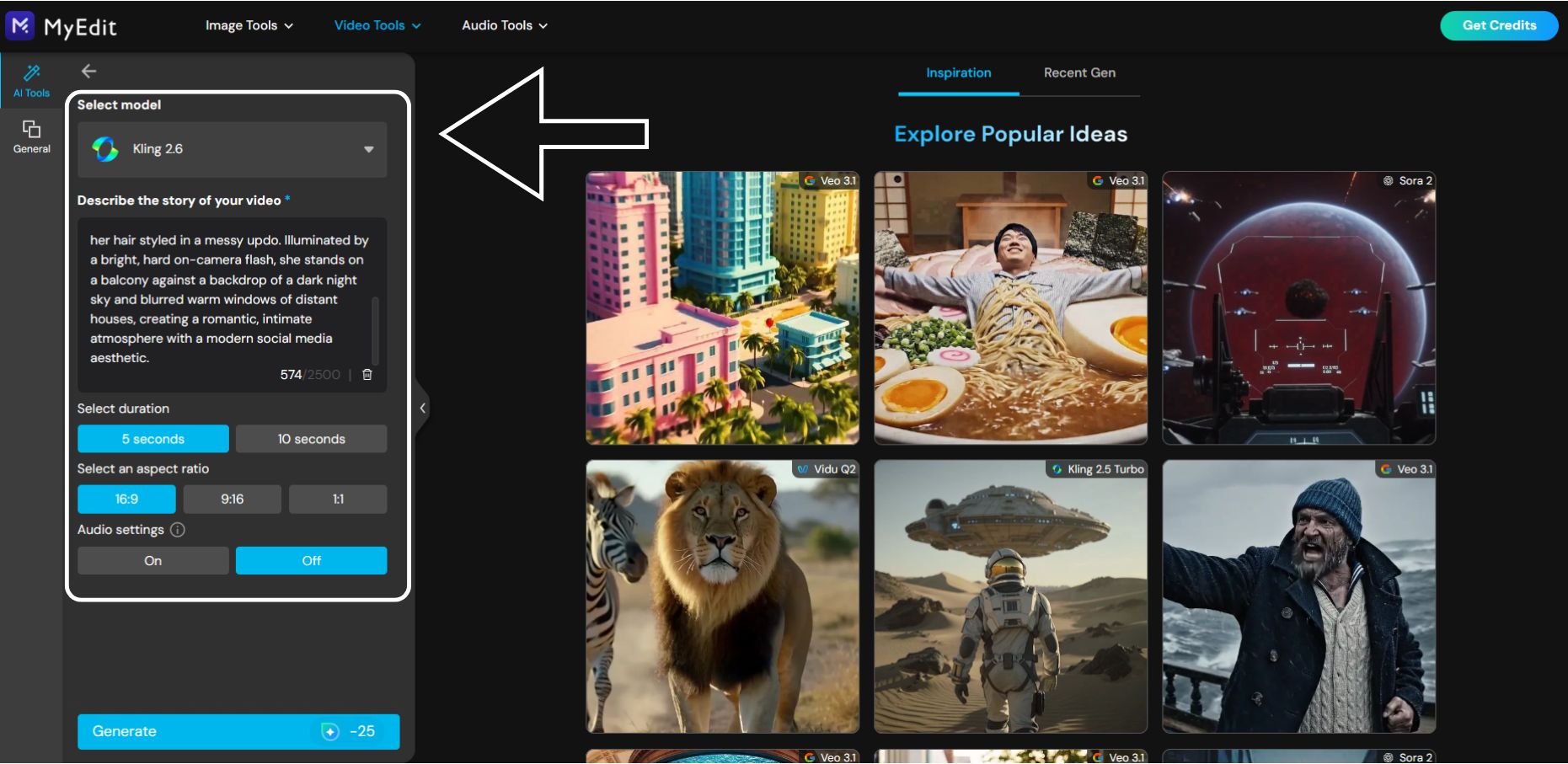
Select the model that best meets your needs from the advanced options, then describe the video you want to create, followed by choosing the duration and display format.
- Preview and download your AI-generated video.

The creation process takes a few minutes. Wait a short moment, then download your video and share it on social media.


FAQ : Kling AI
Yes, Kling AI 3.0 has officially been announced and is currently rolling out in exclusive early access. This major update introduces groundbreaking capabilities like 15-second native generation and 4K resolution, marking a significant leap from the previous 1.6 and O1 models.
Kling 3.0 focuses on cinematic production with features like Extended Duration (15s) clips, Native 4K Resolution, and the new Elements 3.0 system for absolute subject consistency. It also includes a Directorial Physics Engine for realistic motion and Native Audio referencing for perfect sync.
Currently, Kling 3.0 is available to select users via early access on the Kling AI platform. It is expected to become widely available to all public users (likely starting with Pro subscribers) very soon. Keep an eye on the official dashboard for the "3.0" model switch.
Yes, Kling AI has a free version allowing basic video and image generation. However, it adds a watermark and takes about 15 minutes per video. For faster, high-quality results without watermarks, paid plans are needed.
- Long generation time (~15 minutes per video)
- Watermarked output
- Limited daily credits
- Fewer features than paid plans
Yes. The interface is intuitive and beginner-friendly. Users can generate videos from text or images in just a few steps.
Yes, the best alternatives are:
- MyEdit : Online platform, free daily credits, powerful AI tools (animation, background removal, etc.)
- PowerDirector : Full editing suite with AI effects, cartoon filters, and mobile/PC compatibility

With 15+ years in product marketing and AI content strategy, I love bridging the gap between complex technology and user-centric design. As a Creative Director, I host the official YouTube channel, where I share educational content and interview creative professionals. Connect with me here to catch up on my latest professional events and projects!


