



20 Best Veo 3 Prompts to Generate Stunning AI Videos from Text & Image

Veo 3 is one of the most talked-about AI video generation models, designed to turn simple text or images into cinematic video clips. By understanding motion, camera movement, and visual style, Veo 3 can generate dynamic, immersive AI videos—making prompt quality more important than ever.
For faster results without complex prompts, MyEdit makes it easy. With built-in AI prompt help and support for both text-to-video and image-to-video, you can turn ideas into polished AI videos in just a few clicks.
- What is Veo 3?
- How to Write Veo 3 Prompts
- Best Veo 3 Prompts Examples
- How to Generate AI Videos
- Veo 3 FAQs
What is Veo 3 and How Does It Work?

Veo 3 is a smart AI tool that turns your ideas into short videos in minutes. You can type a text prompt, or sometimes upload an image, and Veo 3 generates a video with motion and sound. It's perfect for social media, marketing, or just bringing creative ideas to life. No complicated software—just enter your idea, and watch it come alive.
Veo 3 Prompt Guide: How to Write Effective Veo 3 Prompts

Creating high-quality AI videos with Veo 3 starts with a clear, well-structured prompt. Here’s a simple formula to remember the key parts—use it as a guide, not a strict rule.
Prompt = Subject + Action + Scene + (Camera Movement + Lighting + Style)
Focus on the Key Elements
A strong Veo 3 prompt usually includes:
- Subject / Action – Who or what is in the video and what they do. Example: “A girl dancing in a forest.”
- Style / Mood – The visual feel. Example: “Cinematic, soft lighting, 4K.”
- Background / Environment – Where the scene takes place. Example: “Dense forest with sunlight streaming through trees.”
- Camera / Motion – Perspective, angle, or movement. Example: “Tracking shot, close-up, slow pan.”
- Duration / Timing – Length or sequence of actions. Example: “10-second loop of dancing.”
Add Extra Details for Better Results
Optional details make your AI videos more polished:
- Lighting & Color – “Golden hour sunlight,” “neon glow.”
- Animation / Effects – “Floating particles,” “hand-drawn style.”
- References / Inspiration – “In the style of Studio Ghibli,” “futuristic cyberpunk city.”
Example of a Well-Structured Prompt
Text-to-Video:
“A futuristic cityscape at sunset, cinematic style, flying cars, neon lights, 10-second aerial view with smooth camera pan.”
Image-to-Video:
“Animate this portrait of a cat wearing a wizard hat, walking across a moonlit forest, soft glowing particles, 5-second loop.”
Clearly describing what happens, the style, environment, and motion helps Veo 3 generate high-quality videos every time.
20 Ready-to-Use Veo 3 Prompts to Generate Stunning AI Videos
Below are 20 diverse AI video themes, including Text-to-Video and Image-to-Video concepts, covering seasonal, trending, and fun ideas. You can later turn these into Veo 3 prompts for easy video generation.
Text-to-Video Themes (15 Examples)
- Cinematic Narrative Story
- Wildlife Close-Up Journey
- Sci-Fi Space Teaser
- Urban Night Scene
- Product Showcase Loop
- Sports Action Highlight
- Fantasy Magic Sequence
- ASMR Food Close-Up
- Retro VHS Style Clip
- Documentary-Style Nature Walk
- Urban Fashion Runway
- Magical Object Animation
- Character Dialogue Scene
- Sunrise Adventure Sequence
- Extreme Weather Effect
Image-to-Video Themes (5 Examples)
Best AI Prompts for Converting Text into Videos
Use these ready-to-go themes to create stunning videos with MyEdit Text to Video. Each theme is inspired by popular Veo 3 use cases and creative niches that generate engaging content.
1. Cinematic Narrative Story
Create short, high-impact narrative scenes with characters and environments for cinematic storytelling.
Prompt sample: "Epic cinematic short scene, protagonist walking through a rain-soaked street, dramatic lighting, 10-second tracking shot, 4K"
Pro Tip: Use camera angles and lighting to enhance emotional impact.
2. Wildlife Close-Up Journey
Capture animals and nature up close, showing movement and natural behaviors for immersive wildlife content.
Prompt sample: "Close-up of a lion in the savannah, gentle sunlight, ambient wind, 12-second slow pan, cinematic 4K"
Pro Tip: Focus on realistic animal movements and background textures.
3. Sci-Fi Space Teaser
Futuristic space scenes with spaceships, nebulae, and cosmic effects for sci-fi storytelling.
Prompt sample: "Spaceship navigating through colorful nebula clouds, stars streaking, 10-second cinematic fly-through, 4K"
Pro Tip: Emphasize depth and motion of celestial objects for realism.
4. Urban Night Scene
Rainy city streets with neon lights, reflections, and cinematic mood lighting.
Prompt sample: "Neon-lit rainy street, people walking with umbrellas, reflections on wet pavement, 8-second tracking shot, 4K"
Pro Tip: Highlight reflections and rain to enhance atmosphere.
5. Product Showcase Loop
Perfect for 360° product reveals, highlighting design and movement for tech or e-commerce content.
Prompt sample: "Spinning 3D product, reflective surface, studio lighting, 10-second loop, cinematic style, 4K"
Pro Tip: Focus on clean lighting and smooth camera rotation.
6. Sports Action Highlight
Dynamic footage of athletes in motion, ideal for sports or fitness videos.
Prompt sample: "Basketball player performing slam dunk, slow-motion close-up, crowd cheering, 8-second cinematic angle, 4K"
Pro Tip: Use slow-motion and close-ups to highlight key movements.
7. Fantasy Magic Sequence
Enchanted worlds with spellcasting, floating objects, or magical creatures for fantasy storytelling.
Prompt sample: "Wizard casting spells in mystical forest, glowing particles, floating runes, 10-second cinematic pan, 4K"
Pro Tip: Highlight particle effects and dynamic camera movement.
8. ASMR Food Close-Up
Slow-motion food preparation with realistic audio for sensory content creation.
Prompt sample: "Chopping vegetables with crisp sounds, sizzling pan, 8-second close-up, cinematic lighting, 4K"
Pro Tip: Emphasize sound cues and close-up angles for immersive experience.
9. Retro VHS Style Clip
90s nostalgia with grain, color tint, and jitter for artistic or nostalgic content.
Prompt sample: "Vintage VHS effect, 90s street scene, grainy texture, 10-second pan, 4K"
Pro Tip: Focus on stylized visual noise and color grading for retro look.
10. Documentary-Style Nature Walk
Wide shots of landscapes and ambient nature sounds for educational or scenic videos.
Prompt sample: "Wide-angle forest path, sunlight filtering through trees, birds chirping, 12-second pan, 4K"
Pro Tip: Emphasize natural lighting and smooth tracking shots.
11. Urban Fashion Runway
Model walkthroughs with style, movement, and cinematic camera angles for fashion content.
Prompt sample: "Model walking through neon-lit urban street, cinematic camera pan, stylish outfit showcase, 10-second clip, 4K"
Pro Tip: Use smooth camera tracking and lighting to highlight the outfit.
12. Magical Object Animation
Animate objects in whimsical or unexpected ways to engage creative content.
Prompt sample: "Floating teacups spinning above table, glowing trails, 8-second loop, cinematic style, 4K"
Pro Tip: Focus on smooth motion and visual effects for enchantment.
13. Character Dialogue Scene
Two or more characters interacting with ambient sound for social or storytelling content.
Prompt sample: "Two friends talking in a cozy cafe, soft background chatter, 10-second mid-shot, cinematic lighting, 4K"
Pro Tip: Capture subtle gestures and facial expressions for realism.
14. Sunrise Adventure Sequence
Wide establishing shots with golden hour light and cinematic movement for adventure content.
Prompt sample: "Hiker ascending mountain at sunrise, sun rays through clouds, 10-second drone sweep, cinematic 4K"
Pro Tip: Emphasize warm light and sweeping camera angles for epic feel.
15. Extreme Weather Effect
Cinematic storm, snowstorm, or wind effects for dramatic content or storytelling.
Prompt sample: "Windstorm sweeping desert, sand flying, cinematic 10-second pan, dramatic lighting, 4K"
Pro Tip: Highlight particle motion and atmosphere for maximum impact.
Best Prompts for Image-to-Video AI Generation
These prompts are perfect for turning your images into dynamic AI videos with MyEdit Image to Video. Use them to add motion, style, and creativity to your visuals in just a few clicks.
16. Holiday Photo
Turn family or friends’ holiday photos into festive animated videos with snow, lights, and cozy effects.
Prompt sample: "Family photo in a cozy living room, animated snowfall, twinkling lights, warm cinematic lighting, 4K"
Pro Tip: Add subtle motion to decorations or falling snow to make the scene feel lively and festive.
17. Cherry Blossom Portrait
Bring a portrait to life with fluttering petals, soft spring lighting, and gentle camera movements.
Prompt sample: "Portrait in a cherry blossom garden, petals falling, soft sunlight, gentle pan, 5-second loop, 4K"
Pro Tip: Focus on natural petal motion and subtle depth-of-field effects.
18. Coffee Galaxy
Transform a simple coffee cup photo into a cosmic, imaginative animation with swirling galactic effects.
Prompt sample: "Coffee cup in space, swirling galaxy inside the liquid, stars twinkling, 6-second loop, 4K"
Pro Tip: Emphasize glowing effects and smooth motion to enhance the magical feeling.
19. Dog in Garden
Animate a pet photo into a playful scene with movement, sunlight, and environmental interactions.
Prompt sample: "Golden retriever running in garden, flowers swaying, sunlight streaming, 8-second tracking shot, 4K"
Pro Tip: Capture realistic animal motion and environmental interactions for immersive effect.
20. Snow Globe
Turn an image into a magical snow globe scene with animated snowfall, reflections, and winter charm.
Prompt sample: "Snow globe scene with miniature town inside, swirling snow, warm lights, 6-second loop, 4K"
Pro Tip: Animate snow and reflections subtly to make the scene feel magical yet realistic.
How to Generate AI Videos from Text and Images
Whether you want to turn written ideas or photos into animated videos, the process is quick and easy with the right tools. Follow these step-by-step guides to create stunning AI videos from text or images.
How to Turn Text into AI Videos Quickly and Easily
Creating videos from text has never been easier. Follow these simple steps to transform your ideas into stunning AI videos in just minutes using MyEdit Text to Video.
- Open MyEdit: Launch the MyEdit AI Video Generator directly in your browser—no downloads or installations needed.
-
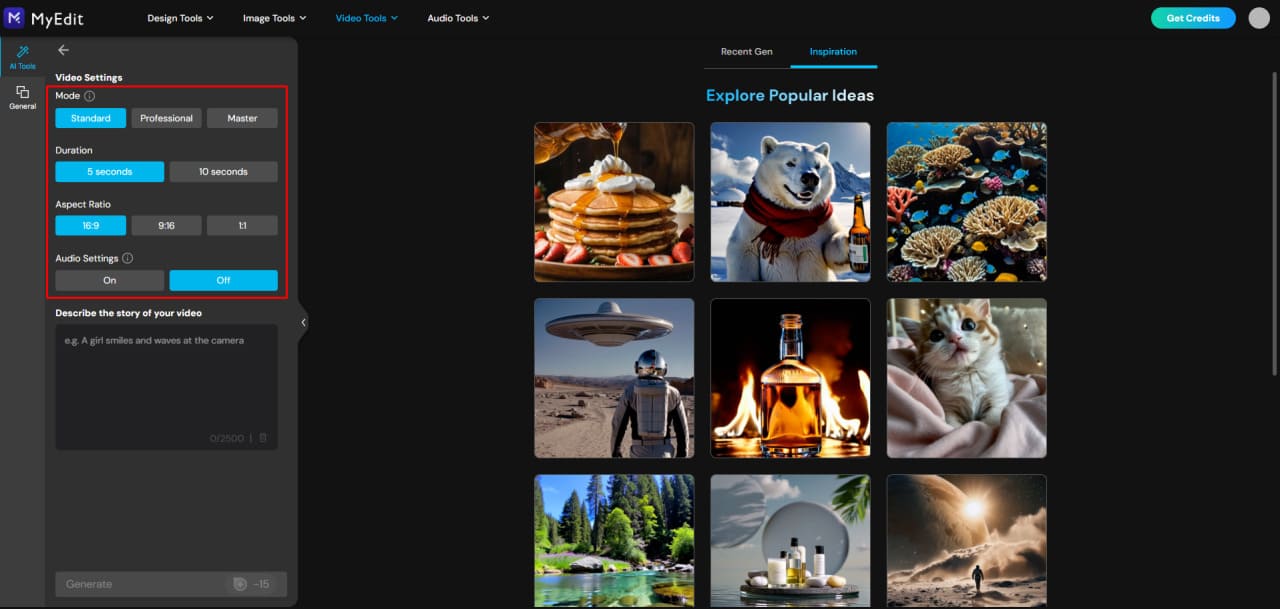
Choose Mode & Settings: Select a generation mode—Standard, Professional, or Master—for progressively better results. Then set your video duration, aspect ratio, and audio options.
Note: Standard and Professional generate background audio, while Master can generate spoken dialogue.
-
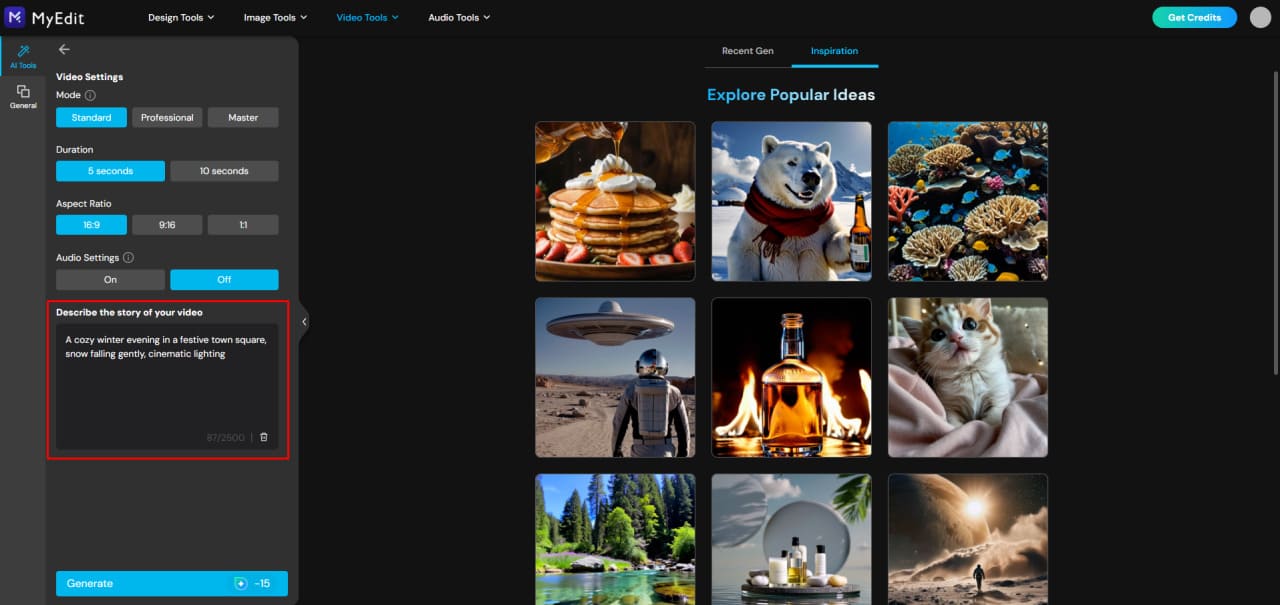
Enter Your Video Details: Choose your video’s duration and aspect ratio. Then, type a clear, descriptive prompt to tell the AI what you want.
Example: “A cozy winter evening in a festive town square, snow falling gently, cinematic lighting”.
-
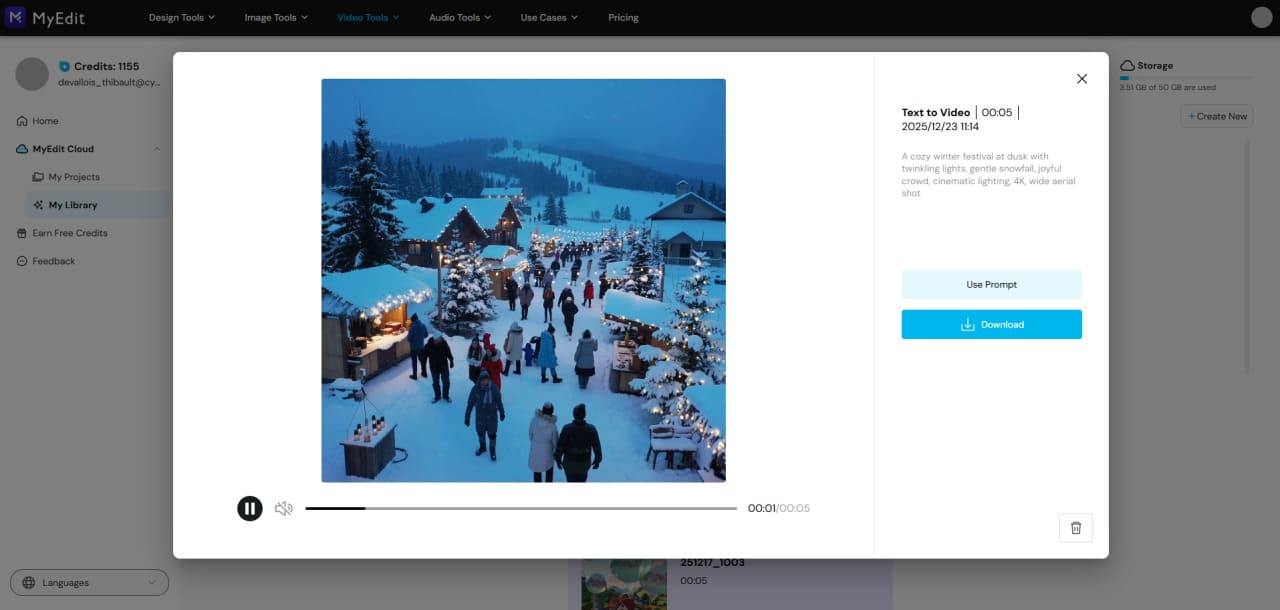
Generate and Download: Click Generate, watch the AI bring your prompt to life, then download or share your video instantly.


How to Animate Images into Stunning AI Videos
Bring your photos to life in just a few clicks! Using MyEdit Image to Video, you can easily turn static images into fun, animated videos with smooth motion and creative effects.
- Open MyEdit: Launch the MyEdit AI Image to Video Generator directly in your browser—no downloads or installation required.
-
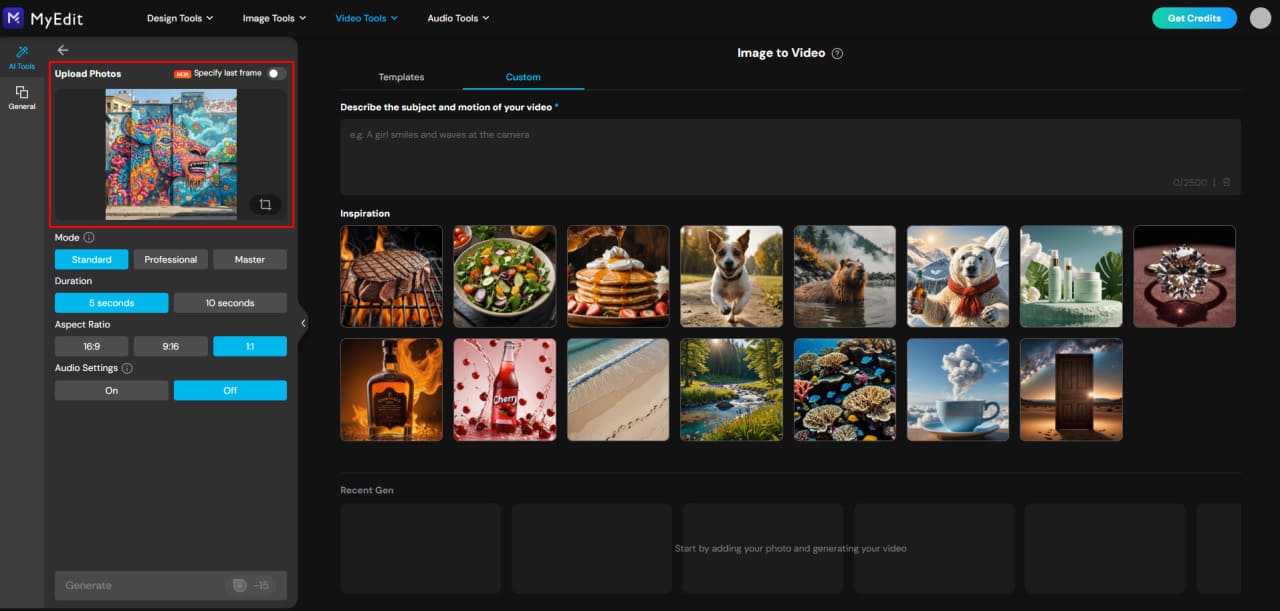
Upload Your Image: Choose a photo of one or two people, or a group image, and upload it to MyEdit.
-
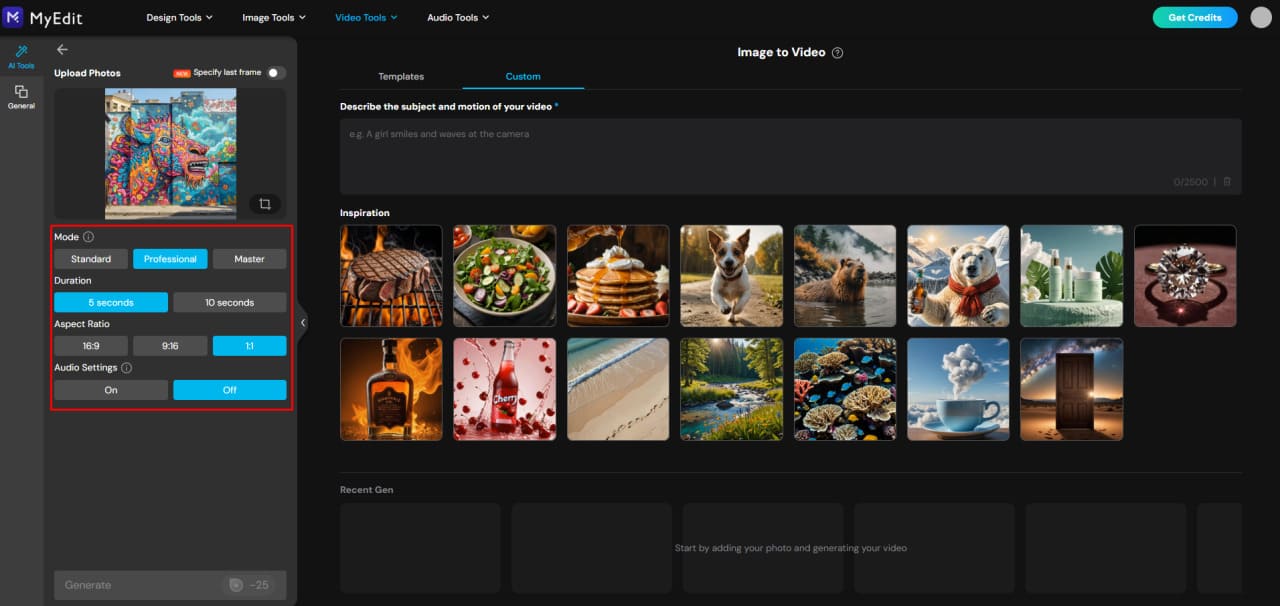
Choose Mode & Settings: Select a generation mode—Standard, Professional, or Master—for progressively better image-to-video results. Then choose your video duration, aspect ratio, and audio settings.
Note: Standard and Professional generate background audio, while Master can generate spoken dialogue.
-
Use Templates or Custom Prompts: Quickly apply a ready-made animation template for fun effects, or type your own prompt in the Custom field to create unique animations tailored to your image.
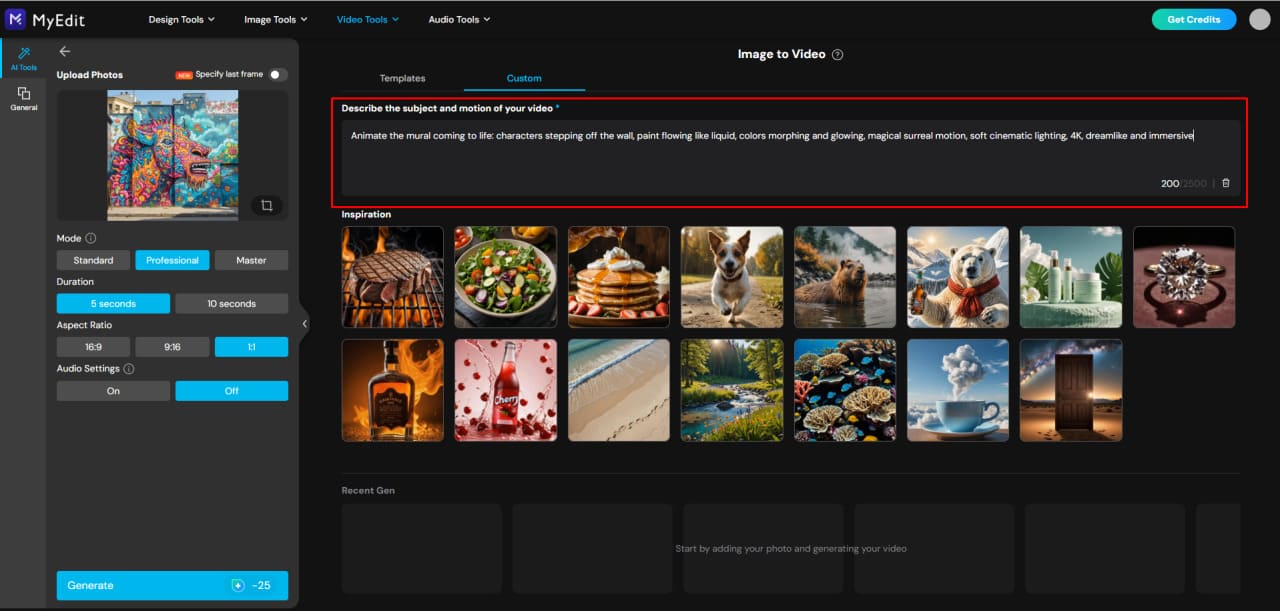
Pro Tip: Custom prompts give you full control, but templates are great for quick, polished animations without extra effort.
-
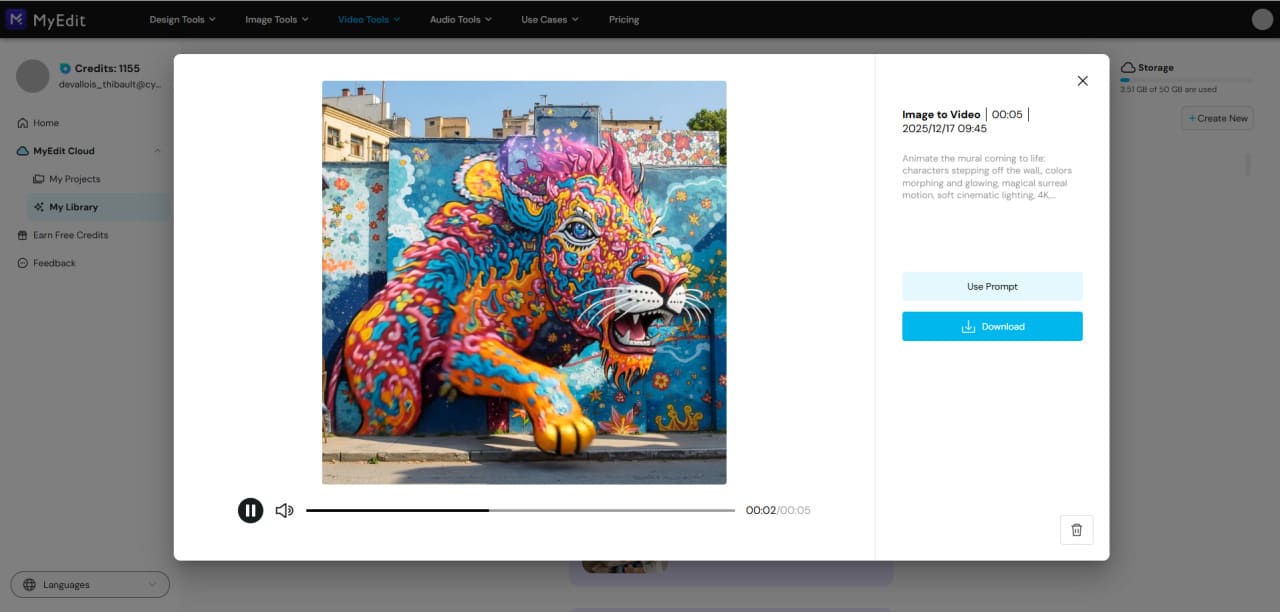
Generate, Preview, and Share: Let the AI process your image and create a smooth animation. Once ready, preview your video, then download or share it instantly!


Related Articles:
- Turn Text into Video in Google Gemini with Veo 3
- Grok Imagine Complete Guide for AI Image & Video
- Ready-to-Use AI Prompts to Create Stunning Videos
Veo 3 Frequently Asked Questions
An effective Veo 3 prompt clearly describes the subject, the action taking place, the environment, and the visual style of the video. The best results come from focusing on motion and camera behavior, such as pans or zooms, while keeping the prompt concise and well-structured to avoid confusing the AI.
The best way to prompt Veo 3 is to think in terms of a short scene rather than a single image. Describing how the action unfolds over time, along with lighting, mood, and camera movement, helps Veo 3 generate smoother and more cinematic AI videos.
The best Veo 3 prompts focus on cinematic moments, clear motion, and strong visual intent. Prompts that include storytelling elements, defined environments, and camera movement tend to produce more engaging results, whether you are generating videos from text or animating images.
Yes, there are alternatives to Veo 3 for creating AI videos from text or images. Tools like MyEdit offer a more beginner-friendly experience with built-in guidance, making it easier to generate high-quality AI videos without advanced prompt engineering.
Veo 3 may struggle with long video durations, complex multi-action scenes, and perfect character consistency across frames. Like most AI video tools, it performs best with short clips, clear actions, and well-defined visual styles.
There is no official Veo 3 prompt generator, but AI tools can help structure better prompts. Platforms like MyEdit function as an AI video prompt generator by turning simple ideas into optimized text-to-video or image-to-video prompts, reducing trial and error.


