




How to Create Makeup Tutorial Videos for YouTube

If you’re passionate about beauty and looking to share your skills with the world, making makeup videos for YouTube is a great way to connect with a global audience, build a personal brand, and even turn your passion into a career. With the rise of beauty creators on platforms like YouTube and TikTok, high-quality content is more important than ever—and the good news is, you don’t need a studio setup or a massive budget to get started.
In this guide, we’ll walk you through everything you need to know about making makeup videos: from planning your content and choosing the right equipment to editing your videos using CyberLink PowerDirector and optimizing them for YouTube. Whether you’re a beginner or looking to take your content to the next level, this guide has you covered.
- Why Start Making Makeup Videos?
- Planning Your Makeup Tutorial Content
- Essential Equipment for Makeup Videos
- Filming Tips for Makeup Tutorials
- How to Edit Makeup Videos With PowerDirector
- Uploading and Optimizing for YouTube
- Promoting Your Makeup Tutorials
- FAQs: Making Makeup Videos
- Conclusion
Why Start Making Makeup Videos?
The beauty content space is booming. From detailed makeup tutorials and product reviews to get-ready-with-me (GRWM) vlogs and transformation videos, there’s a huge audience searching for content that informs, inspires, and entertains.

Here’s why making makeup videos is worth considering:
- Share your skills with a passionate and engaged audience.
- Build a personal brand and gain followers across platforms.
- Attract sponsorships and affiliate income through beauty brands.
- Create a portfolio of your makeup work to showcase your talent.
Planning Your Makeup Tutorial Content
Before you hit record, spend some time planning your video. Thoughtful content creation ensures your tutorials are helpful, engaging, and aligned with what your audience is searching for.
Tips for Planning:
- Choose a niche or theme: Think about what you love—natural makeup, bold looks, seasonal trends, product-first tutorials, etc.
- Outline your flow: Typical sections include an intro, product overview, tutorial steps, and an outro/CTA.
- Use SEO: Titles and descriptions matter! Phrases like “easy smokey eye tutorial” or “best drugstore foundation for dry skin” are commonly searched.
- Keep it authentic: Audiences value realness over perfection—let your personality shine.
Essential Equipment for Makeup Videos
You don’t need a professional studio, but having the right gear can significantly improve the quality of your videos. Here’s what you need to start:
- Camera
- Lighting
- Microphone
- Tripod & Mirror Setup
- Backdrop
Now let’s go into the details of each:
Camera
- A DSLR or mirrorless camera is great for crisp quality.
- Many smartphones (iPhone, Samsung, Pixel) offer high-resolution front cameras that work perfectly.

Lighting
- A ring light is a makeup creator’s best friend. It gives soft, even lighting and eliminates shadows.
- If you prefer natural light, film near a window and use white reflectors to bounce light.

Microphone
- Audio matters. Use a lavalier mic or shotgun mic for clear voiceovers and talking portions.

Tripod & Mirror Setup
- A sturdy tripod ensures stable shots.
- Use a magnifying or double-sided mirror for detail work.

Backdrop
- A clean, neutral background helps keep the focus on you. Use fabric, paper rolls, or a tidy wall setup.

Bonus tip: Label or organize your makeup products ahead of time to keep your filming flow smooth.
Filming Tips for Makeup Tutorials
Once you’re set up, keep these filming tips in mind:
- Camera angle matters: Keep your camera at eye level or slightly above for the most flattering angle.
- Use close-ups: Highlight product textures, brushes, and final looks with zoom-ins or separate clips.
- Be expressive: Talk to the camera like you’re talking to a friend—it helps build trust and connection.
- Record B-roll: Film product swatches, application steps, and before-and-after shots to add polish in editing.
How to Edit Makeup Videos With CyberLink PowerDirector
Editing is where your makeup tutorial truly comes to life. With CyberLink PowerDirector , you can edit like a pro—no advanced skills required. It’s beginner-friendly but powerful enough for serious creators.
✨ Step-by-Step: Editing Makeup Videos With PowerDirector
- Download and Install PowerDirectorDownload from the App Store for iOS and Android.
- Open Launcher & Import Footage
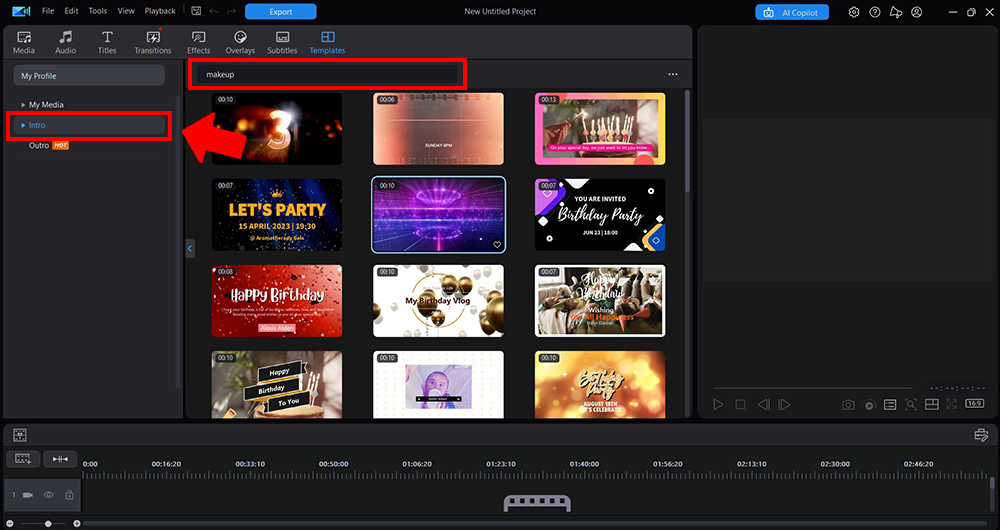
On the Launcher Screen select New Project. Next click templates and select Intro from the sub menu. In the search bar type Makeup. After you make a selection, drag and drop your template to the timeline.
- Trim & Arrange
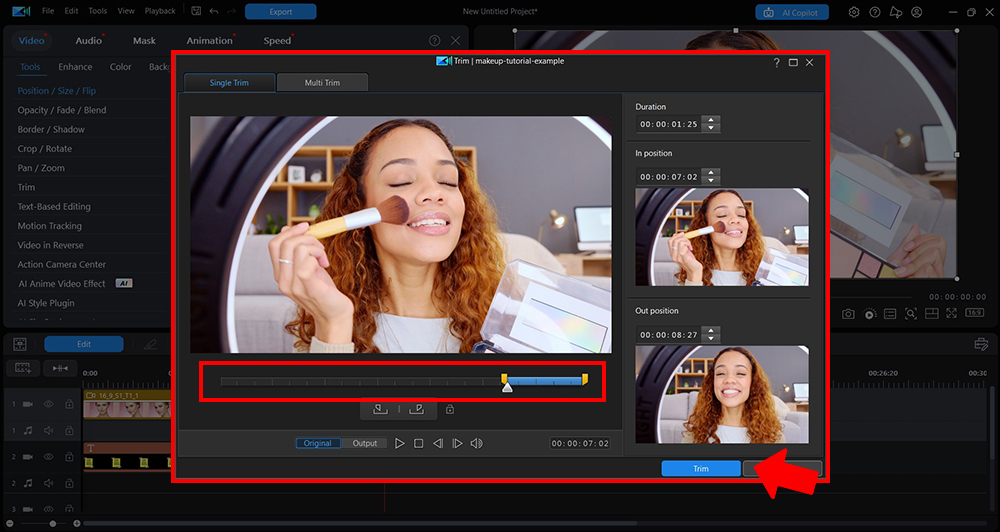
Cut out pauses or mistakes and organize your clips into a smooth sequence. For easy trimming use PowerDirector’s AI Text-Based Editing this feature will allow you to edit out unneeded words, stops, and stutters in speech through text, making for a smooth viewing experience.
- Add Text & Titles
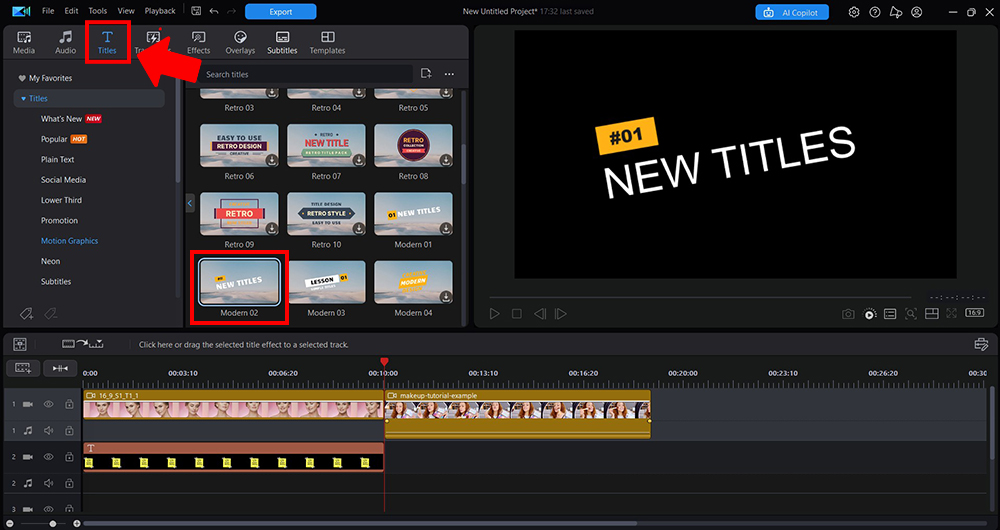
Label each step of the tutorial, list products, or add helpful instructions. Go to the Titles tab to select preset templates and choose the best one.
- Add Music & Voiceovers
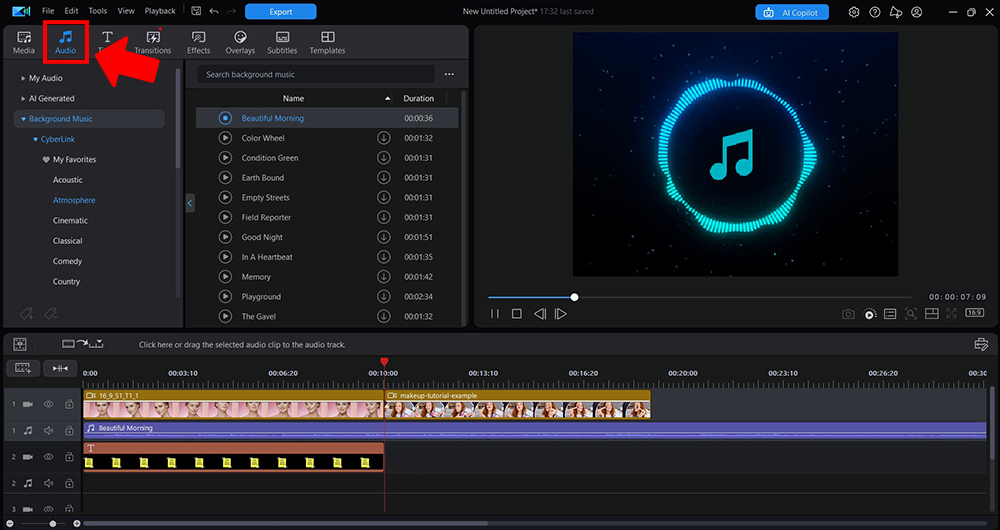
Powerdirector has a built-in library of stock music by Soundstripe and Meta. Go to the Audio tab on the top navigation pane. Next, go to Background Music and choose from a list of 3 professional, studio-quality libraries.Can’t find the perfect track? Head to the Music Generator AI tab to create custom music with AI.
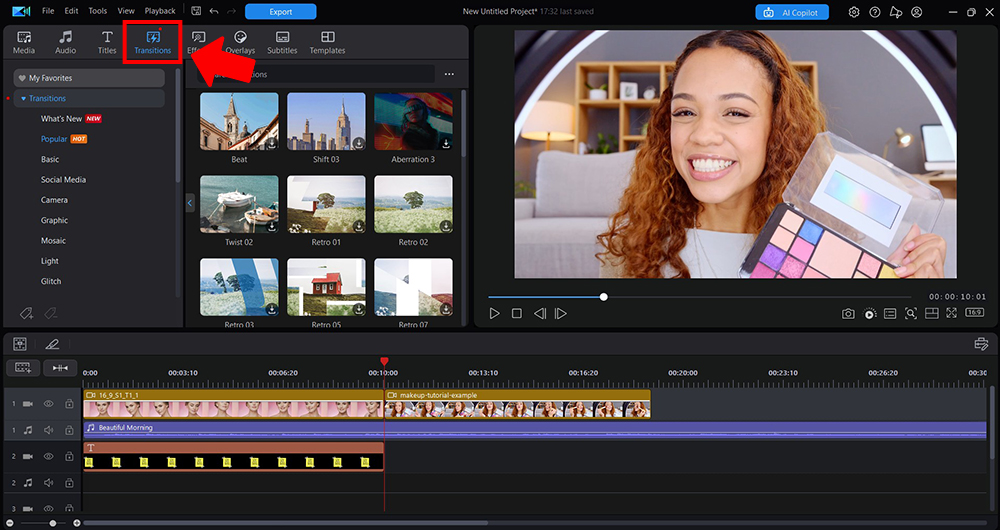
- Transitions & Effects
Lastly, go to the Transitions and Effects tab to further polish your tutorial video.
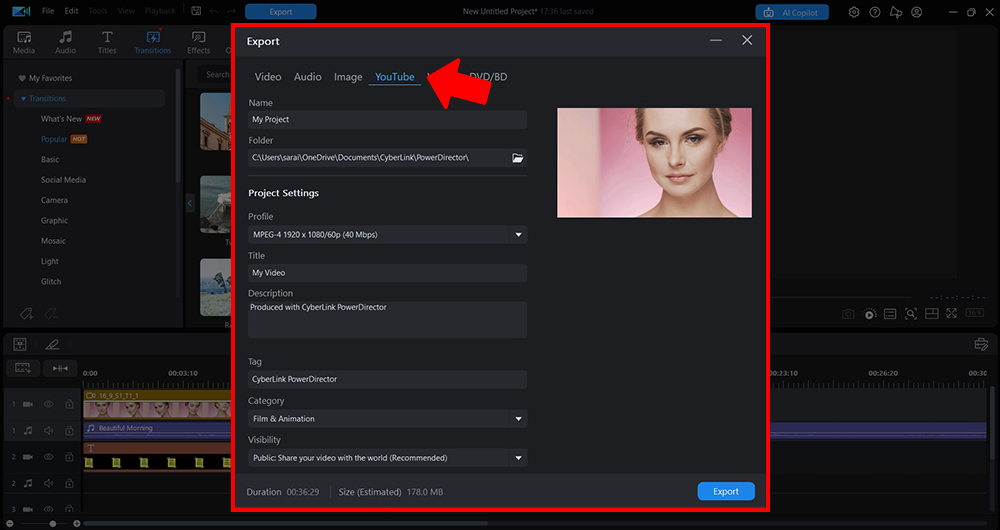
- Export for YouTube
Choose the optimal format (1080p or 4K) and frame rate for high-quality uploads.


Additional Tips for Editing:
Fix shaky footage
Made a mistake during filming? No problem—you can easily fix shaky clips in post-production.
- Select your video clip on the Timeline, then click Edit or double-click to enter Quick Editing.
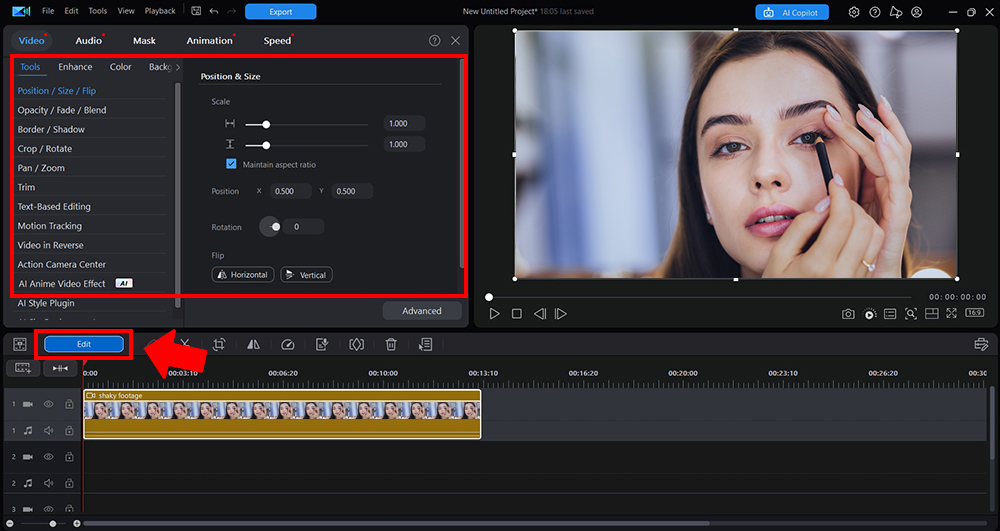
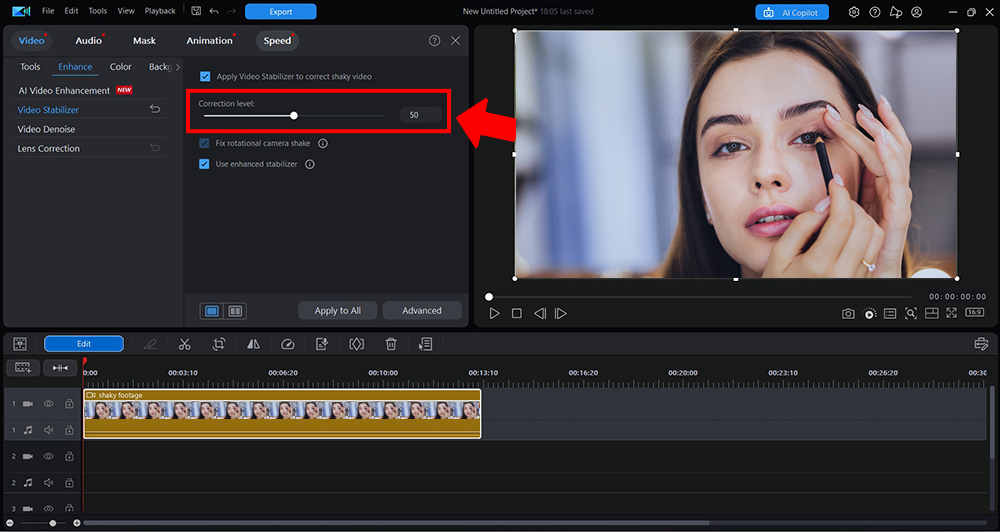
- On the Video tab of the Edit panel, click Enhance then Video Stabilizer to Enable the option.
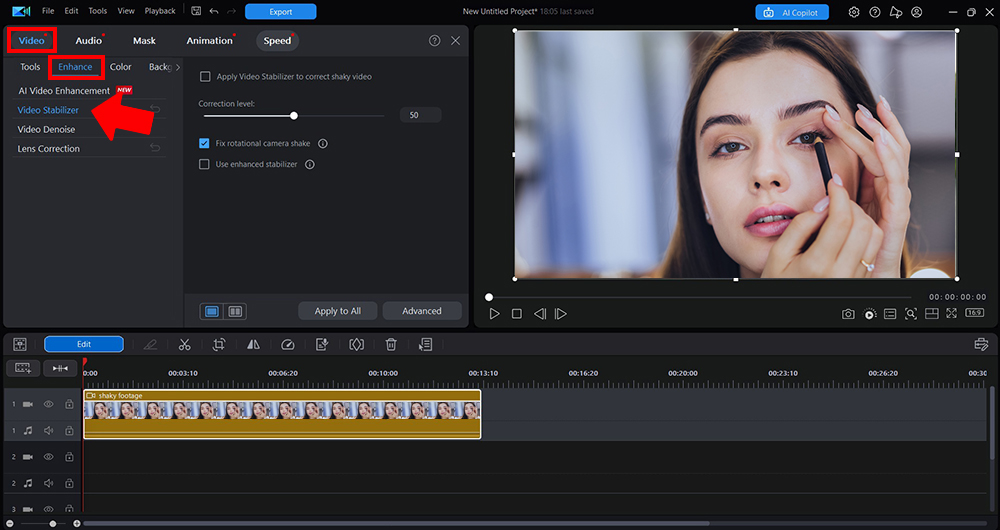
- Adjust Stabilization Level: You can adjust the level of correction by dragging the slider. PowerDirector stabilizer uses motion compensation technology to correct shakes and stutters in the videos, helping to eliminate distortion.


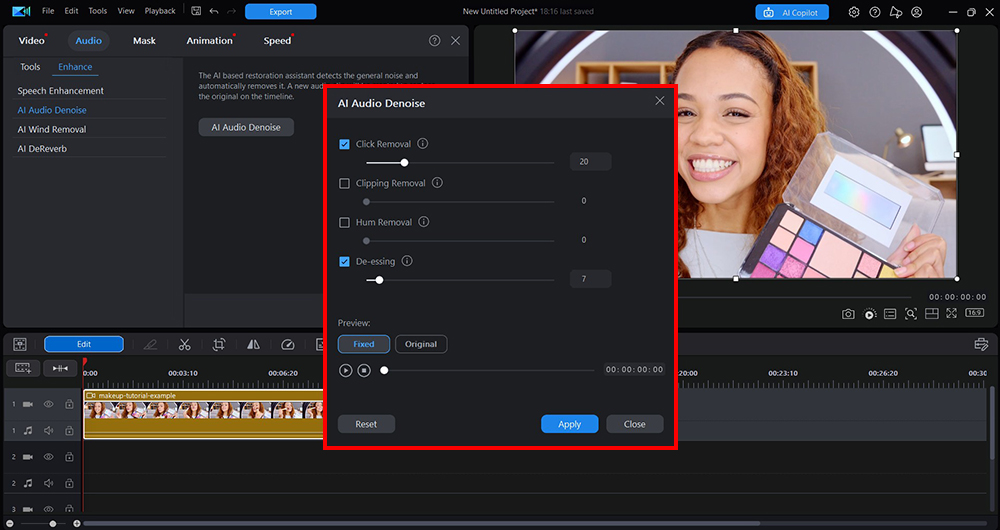
Fix recording With AI Restoration Assistant
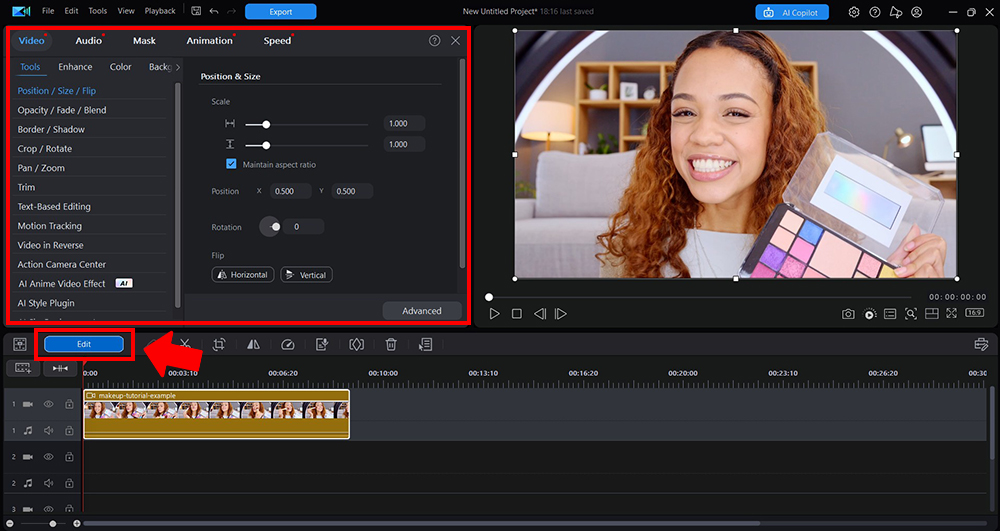
- Select your video or audio clip on the Timeline, then click Edit or double-click to enter Quick Editing.
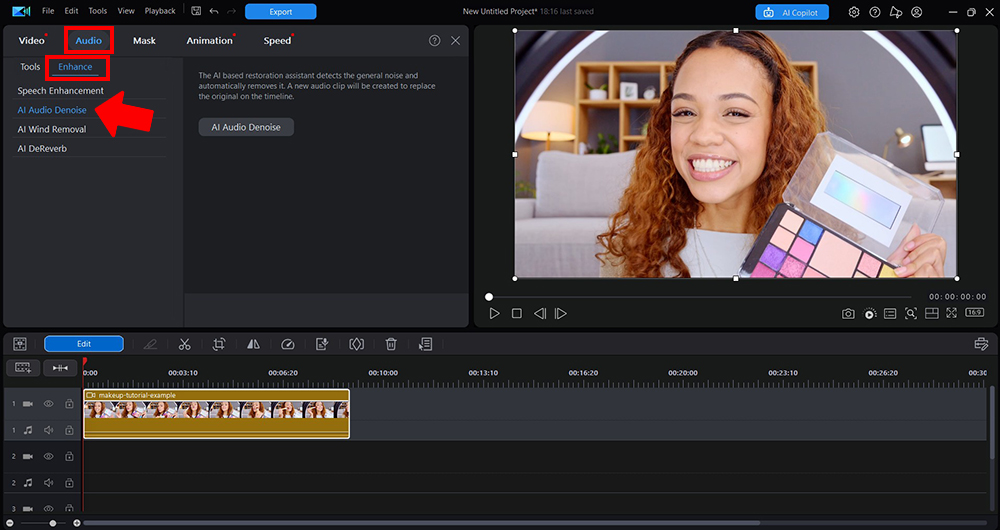
- On the Audio tab of the Enhance tab and click the AI Audio Denoise option.
- Select the type of audio of the selected clip from the following 2 types:
• Dialogue : select this option if the audio is spoken words/dialogue.
• Music : select this option if the audio is background music.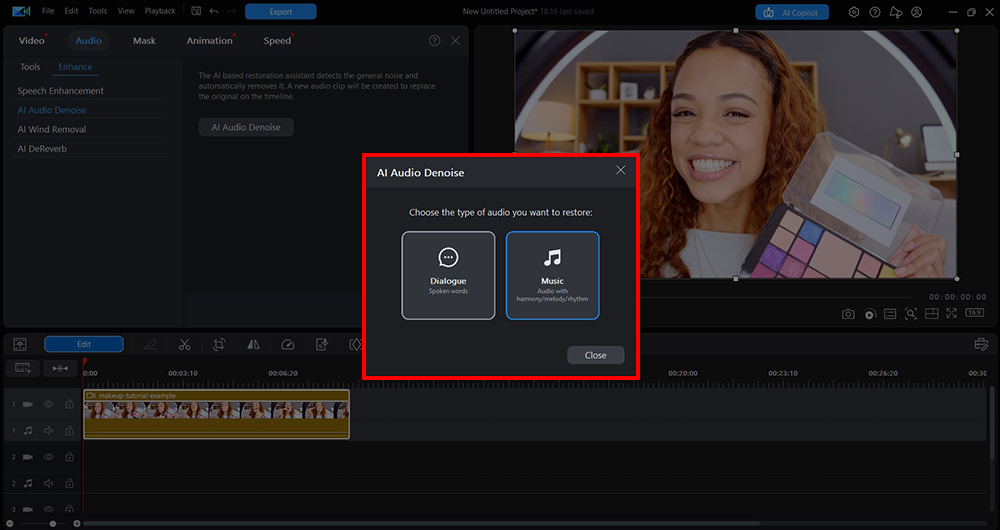
- PowerDirector will analyze the audio, and then auto set the recommended restoration parameters based on the analysis results.


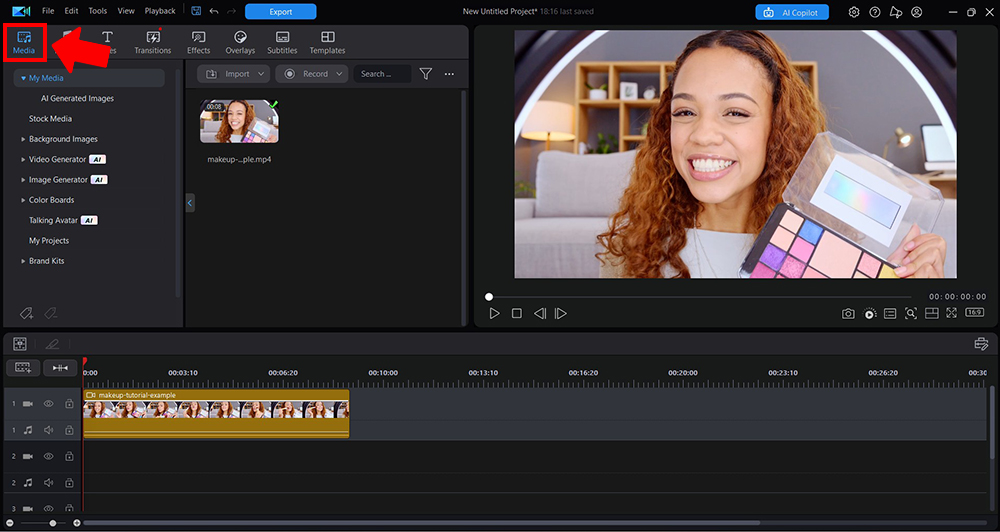
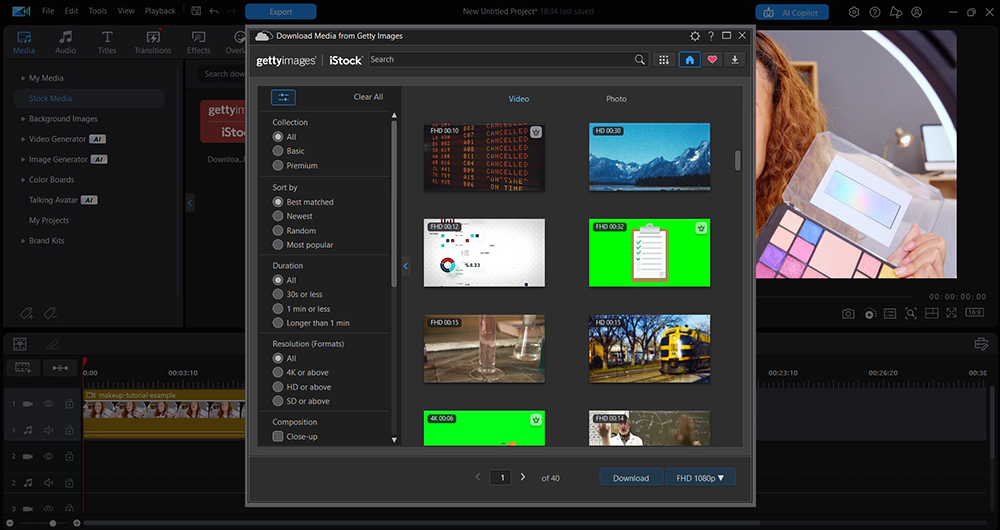
Add B-Roll Footage from Getty Images’ Built-in Library
- Click on the Media Library button in the top toolbar.Download from the App Store for iOS and Android.
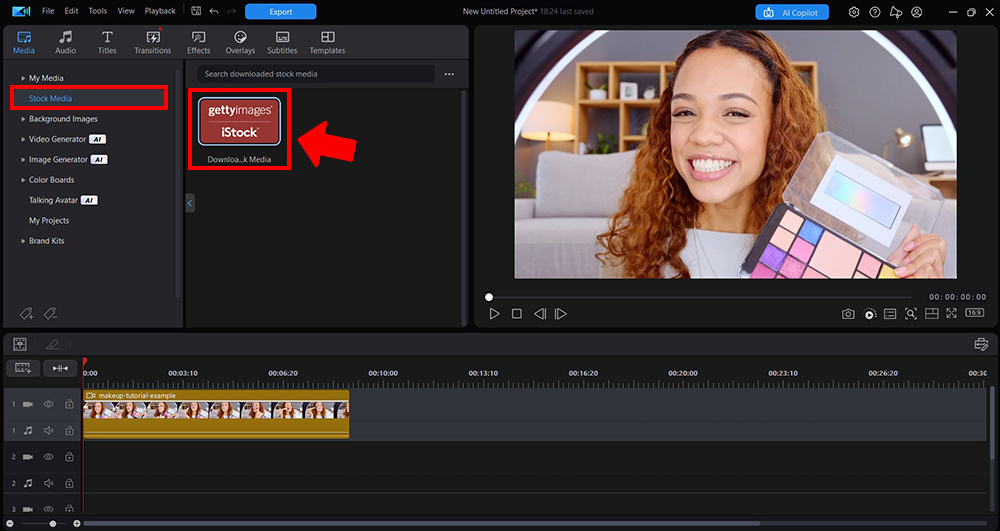
- In the Media Library window, click on the Stock Media tab. Click on Download stock media from Getty Images
panel.
- Browse through the available stock footage categories and select the one that fits your project's theme.
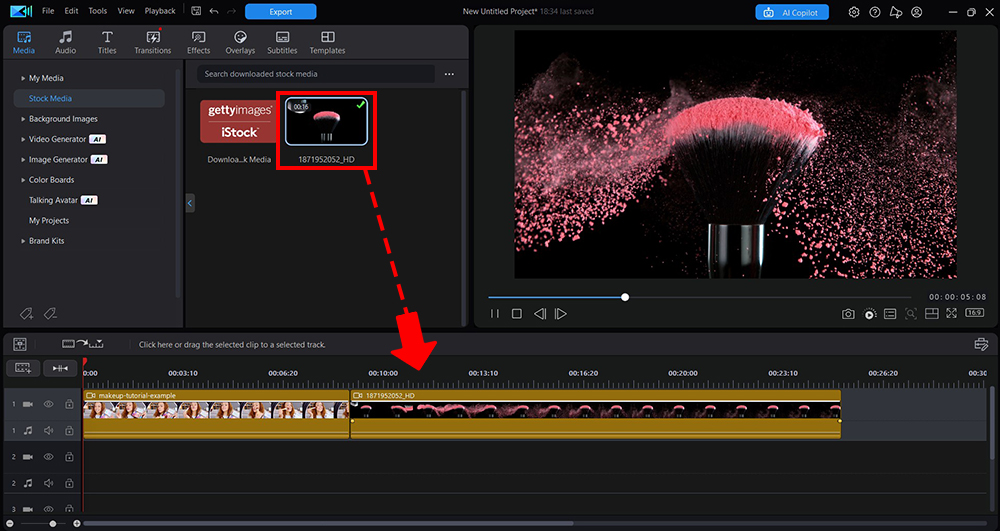
- Click on the desired footage clip to add it to your project's Timeline .
- You can also search for specific footage by using the search bar at the top of the Media Library window.


PowerDirector is available on both desktop and mobile, so you can even edit on the go!
Uploading and Optimizing for YouTube
You’ve edited your video—now it’s time to upload it strategically.
🔍 YouTube Optimization Checklist:
- Keyword-rich title: Include terms like “beginner makeup tutorial” or “valentine’s day glam look”
- Engaging thumbnail: Create a high-quality, expressive thumbnail using PowerDirector
- Video description: Add timestamps, product links, and a short summary of the tutorial
- Tags & category: Use relevant tags and choose the correct video category (How-to/Style)
- CTA:Remind viewers to like, comment, and subscribe. Ask a question to encourage engagement.
Promoting Your Makeup Tutorials
Creating the video is only half the job—promotion helps your content reach more people.
Share your tutorials on:
- Instagram & TikTok Reels: Cut down your full tutorial into short teasers
- Pinterest: Share pin-worthy stills and link to your video
- Beauty forums & Reddit threads: Join communities like r/MakeupAddiction or beauty Facebook groups
- Collaborate with influencers: Guest appearances or product collabs can drive traffic to your channel
The more places you share your content, the better your chances of getting discovered.
FAQs: Making Makeup Videos
Not at all! Many creators start with a smartphone and level up their gear as their channel grows.
5–10 minutes is great for beginners. More in-depth videos can go up to 20 minutes or more if they’re engaging.
CyberLink PowerDirector offers everything you need—from cutting clips and adding music to applying AI-powered beauty filters.
Start with one video per week to build consistency. You can scale up once you have a content routine in place.
Consistent posting, engaging titles and thumbnails, SEO-friendly descriptions, and social media promotion are key to growth.
Conclusion
Making makeup videos doesn’t have to be intimidating. With the right planning, basic equipment, and an easy-to-use editing tool like CyberLink PowerDirector , you can create content that’s polished, engaging, and uniquely you.
Whether you’re filming a simple everyday look or a bold transformation, your makeup tutorials have the power to inform, inspire, and connect. So set up your space, hit record, and start sharing your artistry with the world.
🎥✨ Ready to bring your makeup videos to life?Download CyberLink PowerDirector below and start creating today.


