



Disney Filter: What Would I Look Like in Disney Animation?

Have you ever wondered what you would look like if you stepped into a Disney movie? Thanks to Disney-style filters, with just a few taps, you can transform your selfies into dreamy, animated portraits that feel straight out of a Pixar or Disney classic. In this guide, we'll show you how to apply the Disney filter using an app or an online tool. Plus, we’ll cover how you can even make your Disney avatar move!
- How to Apply the Disney Filter in an App
- How to Apply Disney Filter Online?
- How to Make Your Disney Avatar Move
- Best Disney Filter App: PhotoDirector
- FAQs About the Disney Filter
How to Apply the Disney Filter in an App
The easiest way to apply a Disney filter is by using a photo editing app like PhotoDirector. Here's a simple step-by-step process:

- Open PhotoDirector.
- Tap "AI Cartoon."
- Upload your selfie or portrait — choose a well-lit, front-facing photo for the best results.
- Select the "Princess" or "Prince" filter.
- Save or share your new Disney avatar with friends!
Discover More Animation Style in PhotoDirector

Whether you’re dreaming of that hand-painted Ghibli charm, the bold flair of American comic heroes, or the vibrant cuteness of Japanese mega styles, PhotoDirector has you covered. With over 30 templates to choose from, there’s a cartoon style that’s perfectly made for your vibe.

- Tap "AI Anime."
- Upload your selfie or portrait.
- Select "Cinema Anime" for the Ghibli style, "Armor" for American comics, and explore more options.
- Save or share your new anime avatar with friends!
How to Apply Disney Filter Online?
Prefer not to download an app? Visit an online Disney avatar generator — websites like MyEdit offer quick Disney-style transformations.

- Open MyEdit and tap "AI Image Generator."
- Upload your photo as a reference.
- Select "3D Cartoon" for a Pixar style or "Retro Dream" for a classic Disney cartoon.
- Generate and download your Disney avatar.

How to Make Your Disney Avatar Move
Static Disney portraits are fun, but animated avatars take it to the next level! You can use PhotoDirector to create a moving Disney avatar effortlessly:
- Open PhotoDirector and tap "Image to Video."
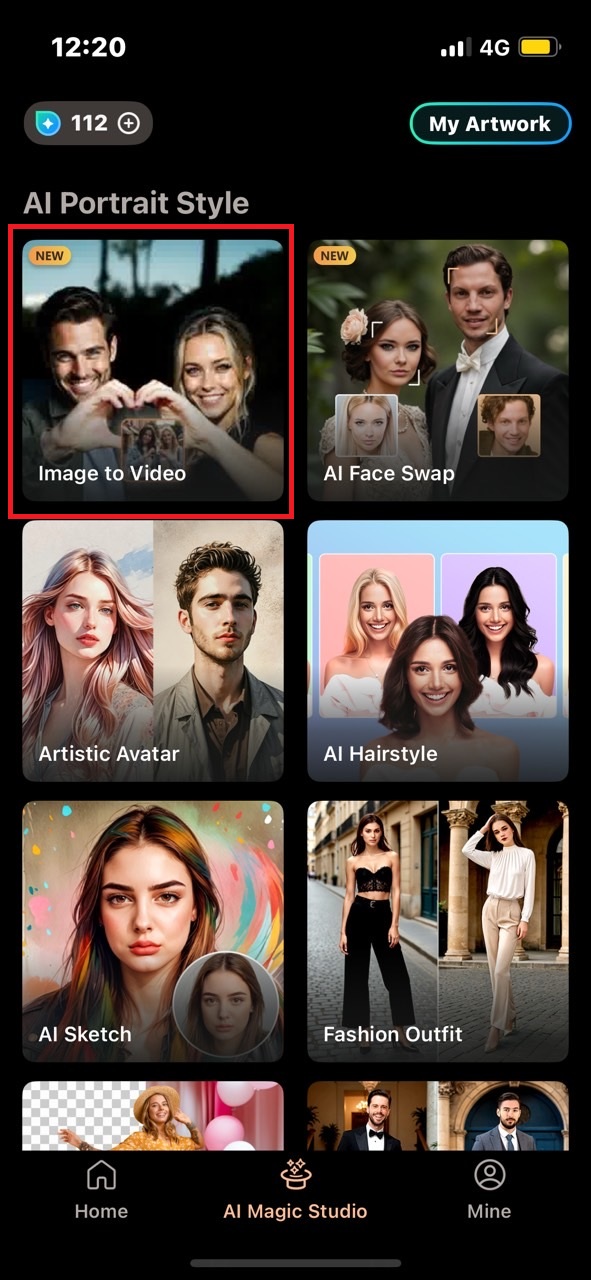
- Upload your Disney avatar.
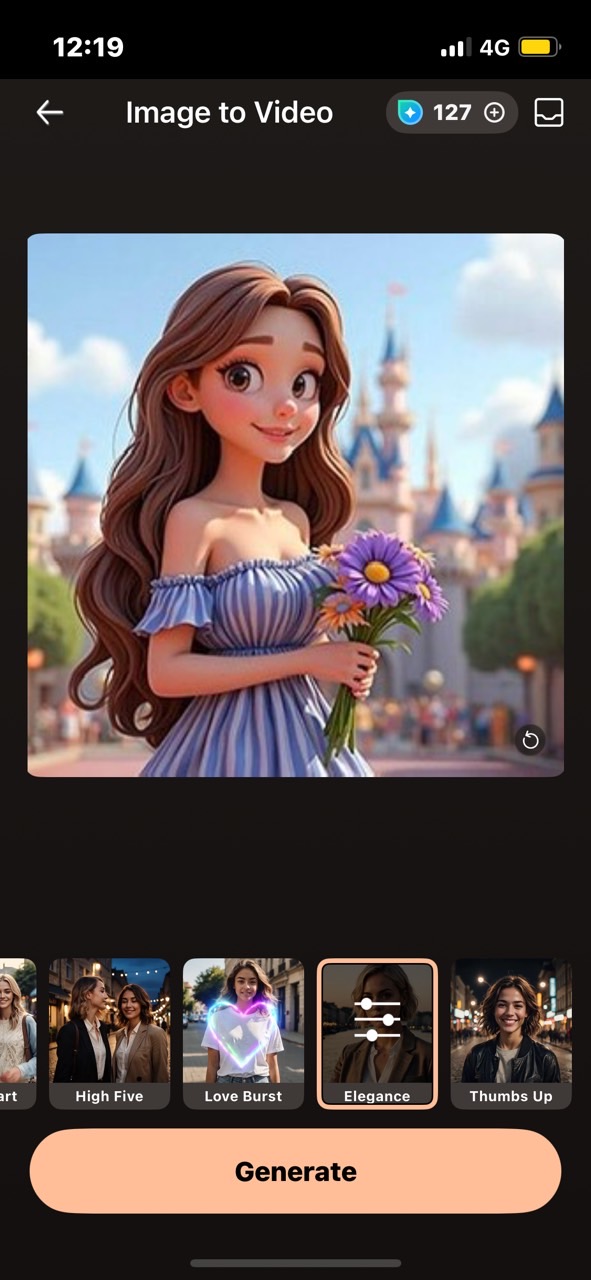
- Select an animation template like ”Princess” or “Elegance.”
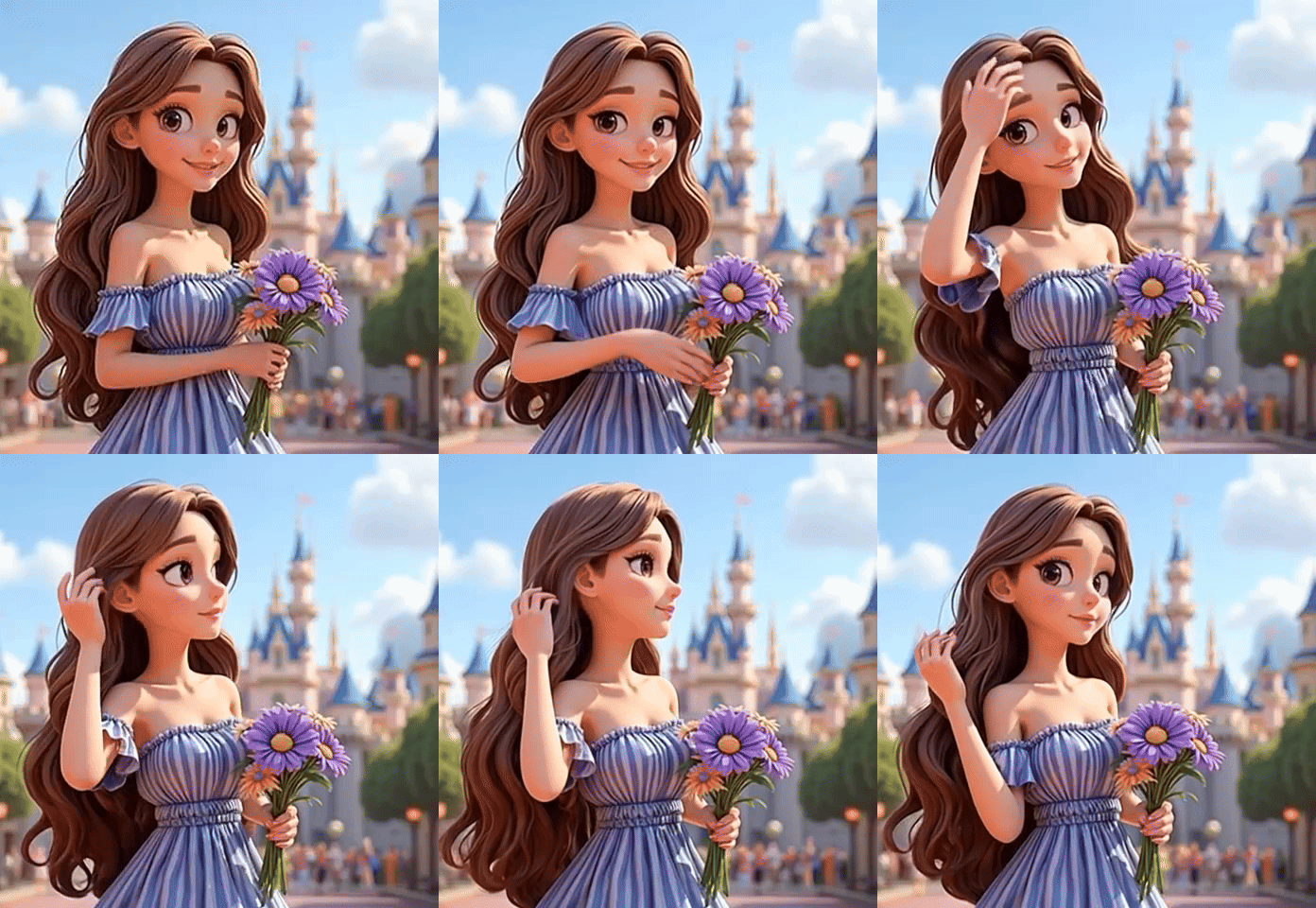
- Generate and download your Disney avatar animation.Download from the App Store for iOS and Android.


Best Disney Filter App: PhotoDirector

If you’re looking for the best Disney filter experience, PhotoDirector is our top pick.
Key Feature:
- High-quality Disney-style effects that look polished and detailed.
- Over 30 template styles, with the option to customize even further using text prompts.
- Image to Video tools that let you add smooth motion to your Disney avatar.
- Simple, user-friendly interface — perfect for beginners.
- Extra creative features, like AI Replace and AI Removal for even more editing flexibility.
PhotoDirector stands out not just for its Disney filters, but also for how easy and flexible it is to use. You can create stunning Disney-style avatars in just a few taps, animate your images, and even fine-tune them with powerful AI editing tools. Best of all, it’s free to download, and you can unlock even more advanced features with a premium plan. Perfect for anyone who wants professional-quality results without the complexity.
FAQs About the Disney Filter
You can use apps like PhotoDirector, or online tools like MyEdit to upload your selfie and apply a Disney-style cartoon filter. It only takes a few taps!
PhotoDirector is widely recommended for its high-quality Disney-style filters, user-friendly features, and animation options.
Platforms like MyEdit offer great online Disney avatar generators with both modern and classic styles to try if you prefer not to download an app.
Use Image to Video tools inside apps like PhotoDirector or websites like MyEdit. You can add effects like Princess, Elegance, or Thumb up movement to bring your Disney avatar to life!
Trademark Disclaimer:
“Disney” is a registered trademark of Disney Enterprises, Inc. Disney Enterprises, Inc. and the “Disney” trademark are not affiliated with, sponsored by, or endorsed by CyberLink Corp. in any way.


