






Turn Text into Video in Google Gemini with Veo 3 (Alternatives Included)

AI-generated videos are becoming more accessible than ever. Whether you’re creating short-form content, visualizing ideas, or building marketing assets, text-to-video tools like Veo 3 and its alternatives offer powerful, intuitive ways to bring your ideas to life.
In this guide, you’ll learn how to turn text into video using Google Gemini’s Veo 3, explore its key features, and discover the best alternative—MyEdit—for more flexible options.
- What’s New in Google Veo 3 Video Generator?
- How to Create Videos Using Google Veo 3?
- Limitations of Google’s AI Video Generator
- Top 5 Alternatives to Google Veo 3
- MyEdit: The Best Alternative to Google’s AI Video Generator
- FAQs About Google Veo 3
What’s New in Google Veo 3 Video Generator?

Source: Gemini
Veo 3 is Google’s new AI video generation model designed to create realistic, cinematic-quality videos from text descriptions. Integrated with Gemini Advanced, it allows users to type in a prompt and watch as it generates short, high-resolution clips based on the input.
✨ Key Feature:
- Native Audio Generation
Unlike earlier models that produced silent clips, Veo 3 boasts native audio generation that speaks, sounds, and sings.
- Enhanced Realism & Physics
Delivers lifelike visuals and natural physics, making scenes and interactions more realistic and immersive.
- Prompt Adherence & Cinematic Control
Veo 3 accurately interprets complex prompts and cinematic cues, giving creators precise control over style, movement, and lighting.
- Bringing Characters to Life
Brings characters to life with consistent looks and accurate lip-sync, making performances feel more natural and engaging.
- Beyond Text Prompts
Supports multi-modal inputs like text, reference images, and storyboard sketches.
How to Create Videos Using Google Veo 3?

Source: Gemini
Veo 3 is currently available to Google Ai Ultra subscribers via the Gemini and Flow, Google’s new AI filmmaking tool. Accessing it through the Gemini app is likely easier. Here’s a step-by-step tutorial:
- Open the Gemini application on your computer or go to the Gemini website
- Log in with a Google AI Ultra account
- look for a button or menu option that lets you make a video
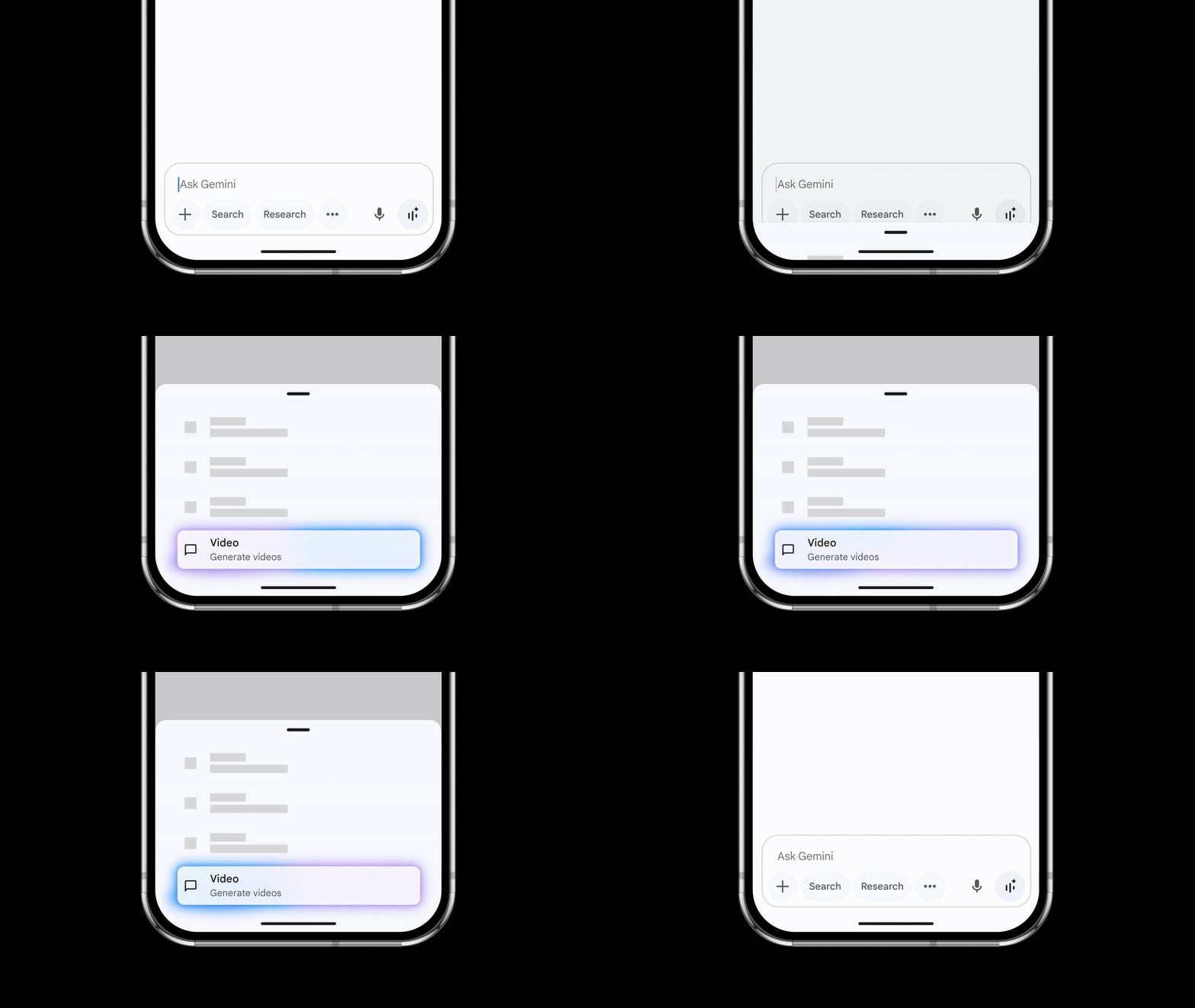
Source: Gemini
- Type in your prompt (e.g., "A red toy car driving slowly across a wooden kitchen table. The sun is shining through a window nearby. Add a soft, playful music soundtrack.")
- Hit Generate
- Review the result

Limitations of Google’s AI Video Generator
- Subscriber-Only Access
Veo 3 is currently available only to users with a Google AI Ultra subscription at this time.
- Limited Duration
Videos are currently capped at a maximum of eight seconds in length. While this works well for short-form content or previews, it may not be ideal for longer or high-definition projects.
- High Credit Consumption Per Video
Each Veo 3 video generation consumes 100 credits, so users should plan their usage carefully. It’s a good idea to plan your video outline using other tools first to avoid unnecessary credit consumption.
- AI Watermarking with SynthID
Every video created with Veo 3 includes a SynthID digital watermark embedded into each frame. This invisible marker identifies the content as AI-generated—helping promote transparency but possibly limiting use in commercial or professional settings that require fully "original" media.
Top 5 Alternatives to Google Veo 3
1. MyEdit
MyEdit is one of the most beginner-friendly and versatile alternatives to Google Veo 3. It’s designed for creators, marketers, and everyday users who want to turn images or text into videos.MyEdit offers a template-based experience that eliminates the need for technical skills or complex prompts. With just a few clicks, users can generate dynamic short-form videos—perfect for social media, websites, or promotional use.
Text to Video

With MyEdit’s Text-to-Video Tool, you can turn a simple text prompt into an animated video. Just describe a scene, action, or idea in words, and the AI will instantly generate a dynamic video that brings your vision to life
Great for:
- Storytellers
- Educators
- Social media creators
Custom Image to Video

With MyEdit’s Custom Image-to-Video Tool, you can generate a video from an existing image—or create an image in MyEdit first—then describe your story or object motion using simple text. The AI instantly turns your input into a customized video, tailored to your vision.
Great for:
- Meme creators
- Visual marketers
- Digital artists
Portrait Image to Video

With MyEdit’s Portrait Image to Video tool, you can transform a selfie or profile photo into a stylish animated clip. The tool offers up to 30 motion templates, making it even easier for you to get professional-looking results.
Perfect for:
- AI avatars
- Social media profiles
- Virtual IDs or dating app bios
- LinkedIn profile videos
Product Image to Video
If you run an online shop or create content for a brand, ’s Product Image to Video feature is a must-have. You can upload a product photo and instantly generate a short promotional video.
Suitable for:
- eCommerce owners
- Small business owners (SMBs)
- Content creators
- Marketers
2. PowerDirector

PowerDirector’s Text to Video feature lets you turn simple written prompts into fully animated short videos. Just type a description of what you want to show, choose a ratio and duration—and what’s more, you can even generate background music automatically.
Ideal for:
- Idea pitches
- Short-form social media videos
- Engaging social media posts
- Fun personal experiments
3. Kling

Source: Kling
Kling is a high-speed, high-resolution AI video generator. Known for its multi-second generation quality and fine motion detail, Kling excels at rendering realistic human motion and facial expressions. It’s quickly becoming a noteworthy alternative in the AI video space.
4. Canva

Source: Canva
Canva's AI Video Generator lets you create videos directly from text prompts—no editing experience required. Just describe your idea, and Canva will automatically generate a video draft, complete with scenes, transitions, background visuals, and even suggested voice covers or music.
It combines prompt-based generation with Canva’s signature drag-and-drop interface, making it perfect for users who want both automation and creative control.
5. InVideo

Source: InVideo
InVideo is a cloud-based video editor with powerful AI-driven text-to-video capabilities. It allows users to turn scripts or simple text prompts into polished videos using professionally designed templates.
You can simply type your idea, customize details like the length, platform, and voiceover accent, and let the AI generate a video that’s perfectly tailored to your vision. InVideo also supports a wide range of formats, making it a go-to choice for content creators, marketers, and small business owners looking for speed and creative control
MyEdit: The Best Alternative to Google’s AI Video Generator
If you’re looking for a user-friendly, affordable, and creative alternative to Google Veo 3, MyEdit stands out as one of the best choices. With its template-based approach, image-to-video tools, MyEdit makes video creation accessible to everyone—from marketers and small business owners to casual users.
Whether you want to create social media content, product promos, or personalized videos, MyEdit offers the flexibility and ease to bring your ideas to life—without the learning curve.
FAQs About Google's Veo 3
Google’s video generator model—Veo 3—is now available through the Google AI Ultra plan, which costs $249.99 USD per month and includes a special offer for first-time users of 50% off for your first three months
So, if you’re looking for an alternative with less commitment, try MyEdit’s Video Generator. You can generate videos for free by claiming your welcome credits, or use just 15 credits per video.
Google’s AI video generator, Veo 3, is a powerful tool for creating short, cinematic videos from text prompts. However, it does have some limitations:
- High Credit Consumption Per Video: Each Veo 3 video generation consumes 100 credits.
- Monthly Usage Limits: There is a monthly cap on the number of videos a user can generate.
- Complex Scene Handling: While Veo 3 excels at generating realistic motion and scenes, it may struggle with highly complex scenarios, such as intricate human interactions or detailed object manipulations.
- Access Restrictions: Veo 3 is available through the Google AI Ultra plan, which costs $249.99 USD per month.
Once you’re granted access to Veo 3, getting started is easy. Just enter a simple text prompt to describe your scene and audio. For example:
"A red toy car driving slowly across a wooden kitchen table. The sun is shining through a window nearby. Add a soft, playful music soundtrack."
From there, the AI will interpret your description and generate a short, cinematic video that brings your idea to life.
For beginners or those looking to experiment casually, we recommend MyEdit. It offers a user-friendly experience with visually engaging features like Text-to-Video and Image-to-Video conversion and stylish templates, making it a fun and accessible tool to dive into.
Technically, content made purely by AI isn’t eligible for traditional copyright in many countries, including the U.S. But if you upload AI-generated content that includes recognizable characters, logos, or brands—you can run into copyright violations.
Rule of thumb: If your prompt includes copyrighted IP (like “Mario” or “Marvel”), it’s best to use it privately, not commercially.
Currently, Veo 2 focuses solely on visual generation—it doesn’t create music, voiceovers, or sound effects. The latest model, Veo 3, offers natural audio generation, but the high credit cost is something to consider.
If you’re looking for a more affordable audio alternative, try MyEdit to automatically add background music. You can also generate sound effects using text prompts.

As industry experts in generative AI, the CyberLink AI Research Team has spent over 5 years benchmarking and analyzing the rapidly evolving landscape of creative technology. The team conducts rigorous testing of emerging AI tools for content creation, delivering weekly insights and practical workflows that help millions of creators worldwide each year identify the most suitable AI solutions to enhance their productivity.
😜 Outside of their research, the team actively experiments with AI-driven video creation, builds content across social platforms, and explores new side projects, all with the long-term goal of achieving greater creative and financial freedom.

![5 Best Free Photo Merger Software [Windows, Mac]](https://dl-file.cyberlink.com/web/content/b1306/l_Thumbnail.webp)


