






Fat Filter: Try AI Weight Gain Effects on Your Photos for Free

Ever wondered what you’d look like after gaining a few extra pounds?
Whether for fun or to visualize a body transformation, a fat filter makes it easy to try a new look without leaving your couch.
In this guide, we’ll show you how to use PhotoDirector’s fat filter and AI weight gain tools to instantly add weight to your face and body in a photo.
- What Would I Look Like Using a Fat Filter?
- How Weight Gain Would Transform Your Face
- See What You’d Look Like with a Heavier Build
- Fat Filter FAQ
What Would I Look Like Using a Fat Filter? Try This AI Weight Gain Tool

A fat filter helps you imagine your appearance after weight gain by adding volume to your body in a photo. With PhotoDirector’s AI Replace feature, you can quickly create a heavier version of yourself or your friends in just a few steps.
- Download and install PhotoDirector – Get the free app on your Android or iOS device from the App Store or Google Play.
- Open AI Replace and Upload Your Photo – Launch the app, go to AI Replace, and import the image you want to edit.
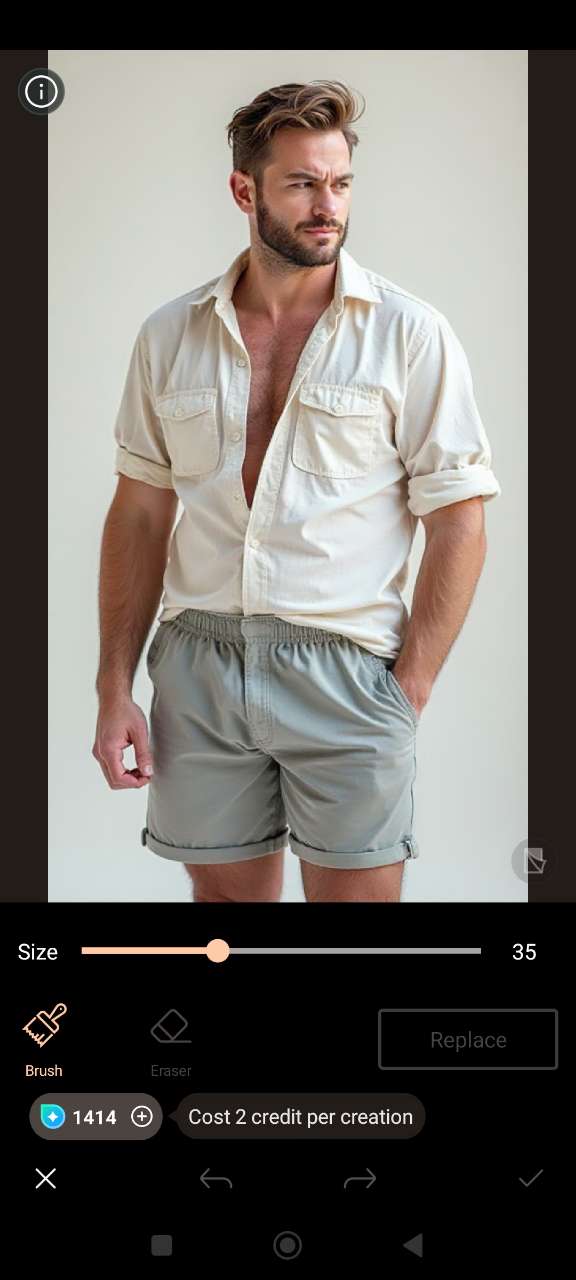
- Brush Over the Body Area – Highlight the body parts you want to enhance — stomach, arms, legs, or full body.
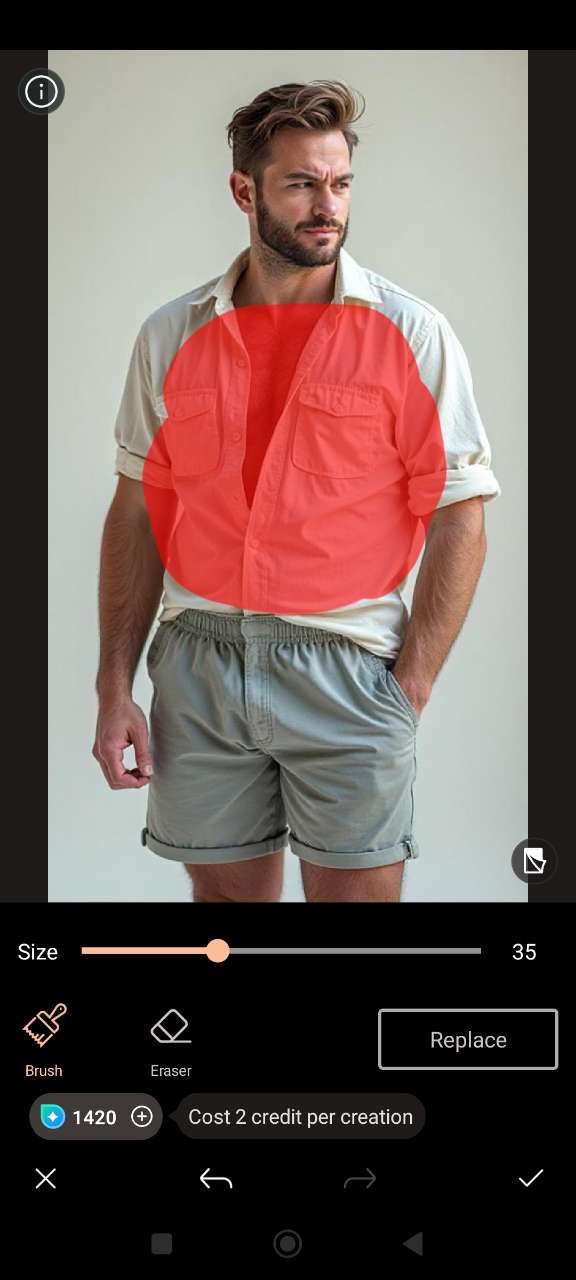
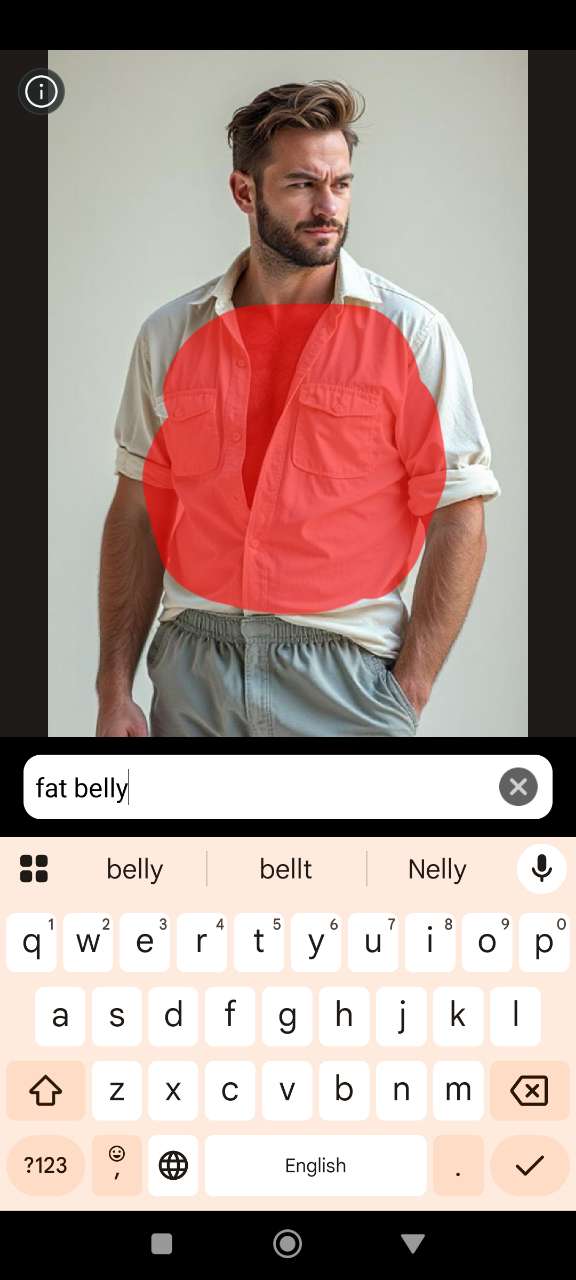
- Enter a Prompt – Enter a prompt like 'make body bigger', 'add extra weight', or 'fuller appearance' to tell the AI what you’re aiming for.
- See Your AI-Generated Fat Look – Let the AI do its work! In seconds, you’ll get a realistic image showing what you might look like with added weight.
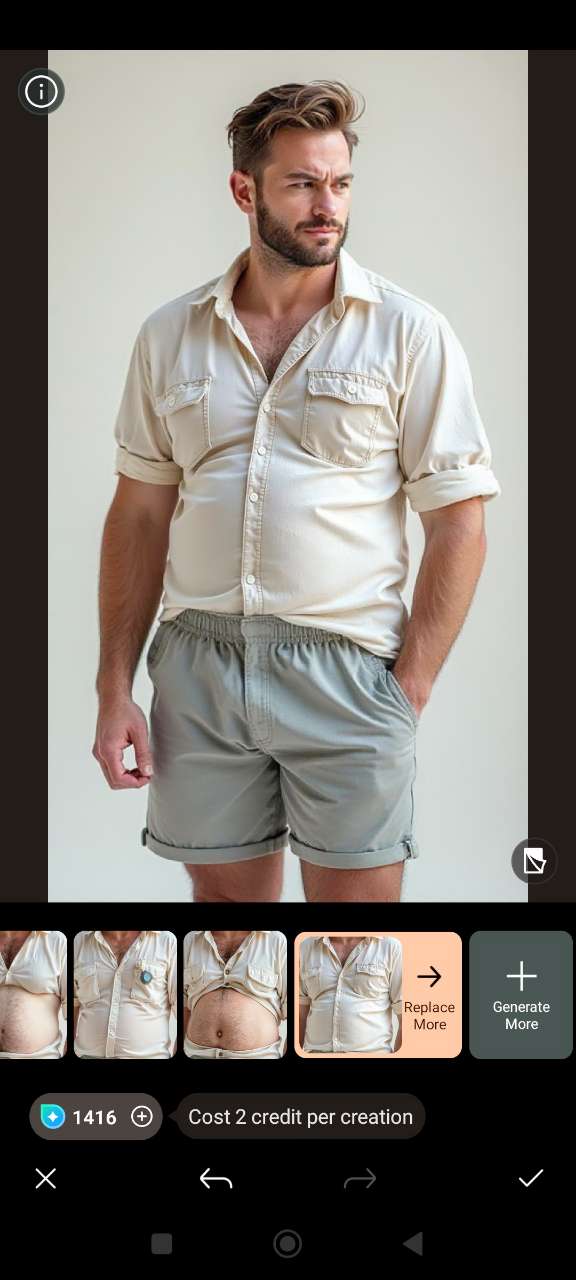


Pro tip: for smoother, more natural results, select different areas separately — like your belly, arms, legs, and face one at a time before applying the AI effect.
Fat Face Filter: Use AI to Add Weight to Your Face in Photos

Curious how your face would appear a little rounder? A fat face filter can add softness and volume to your cheeks, jawline, and chin. With PhotoDirector’s Face Reshape tool, you can instantly apply a natural-looking weight gain effect to your face.
- Download and install PhotoDirector – Get the free app on your Android or iOS device from the App Store or Google Play.
- Open the Face Reshape Tool – Launch the app, select the Beautify tool, and upload your portrait. Then choose Reshape, which will automatically detect your face.
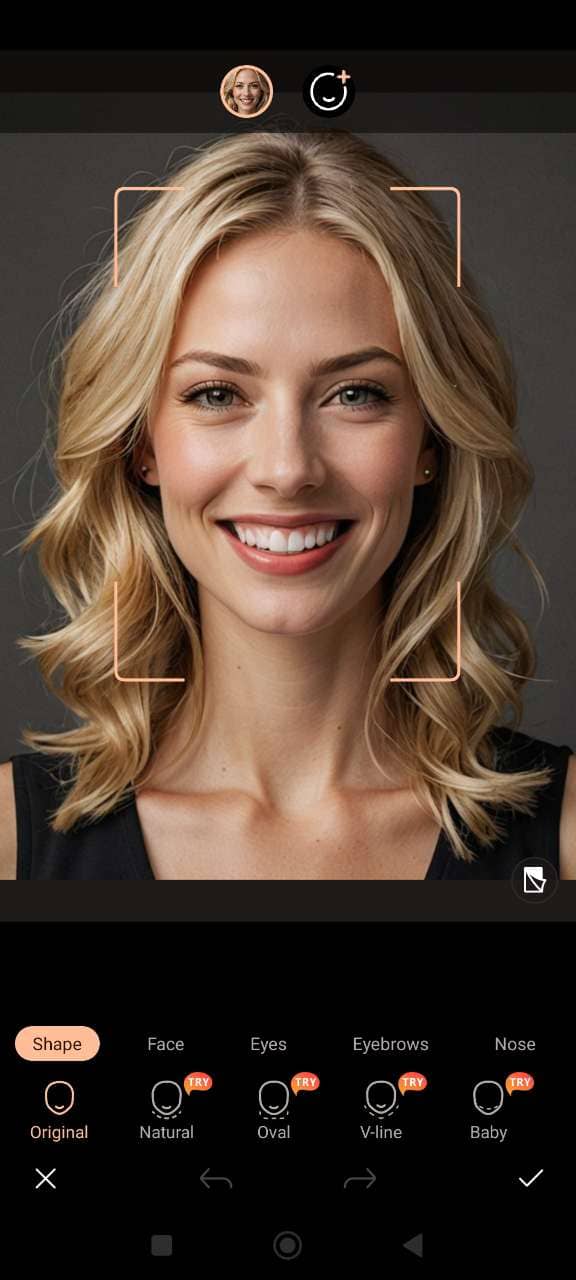
- Reshape Your Face – Use preset templates or adjust the Face sliders to round your cheeks, widen your jawline, and soften facial contours for a fuller appearance.
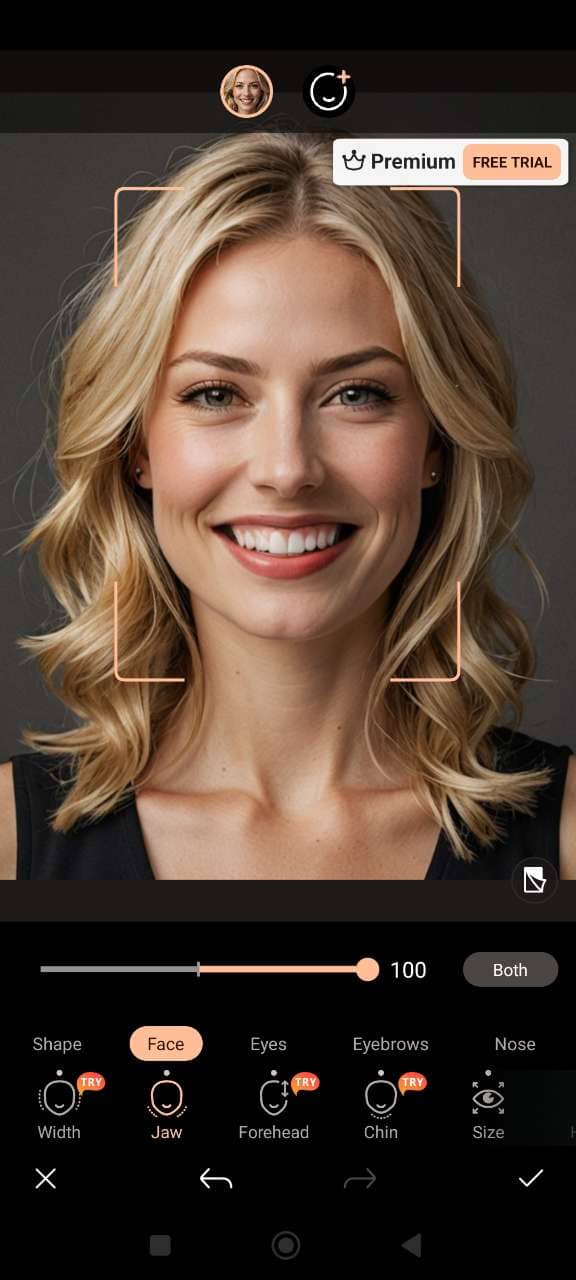
- Enhance Facial Features (Optional) – Want to tweak your look further? You can adjust your eyes, smile, lips, and other features for a polished finish.
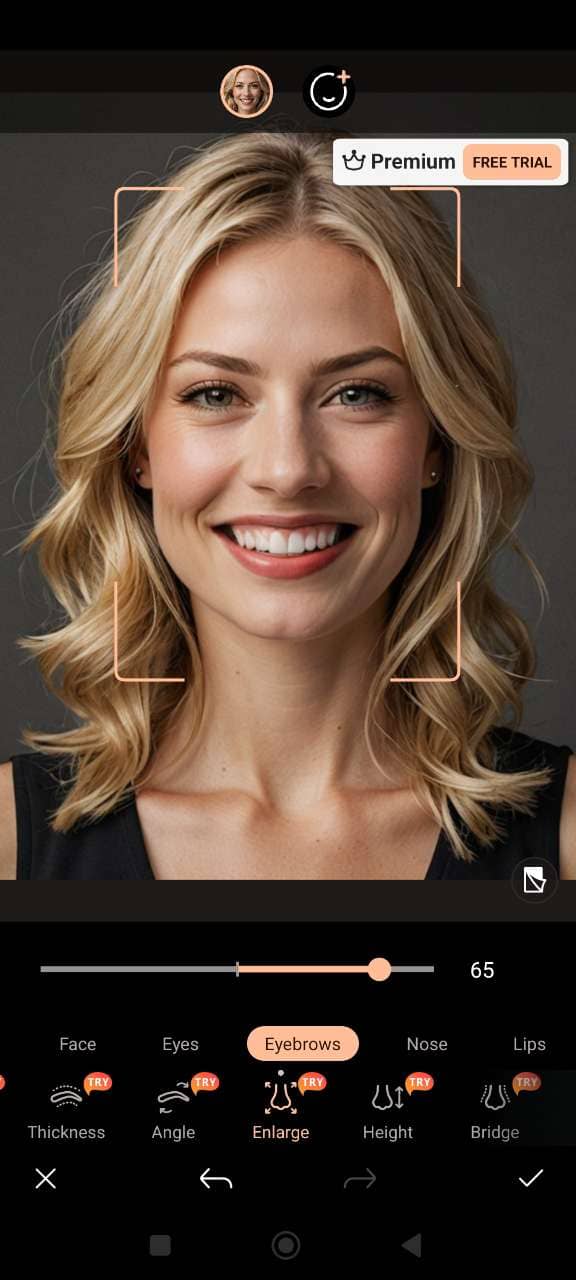
- Save and Share – When you're satisfied, save your fat face filter photo and share it with friends for fun before-and-after comparisons.


AI Weight Gain Filter: See What You’d Look Like with a Heavier Build

If you’re curious about a complete body transformation, an AI weight gain filter lets you easily increase body size in your photos. With PhotoDirector’s Body Reshape tool, you can adjust specific body areas using intuitive sliders and create a realistic fat AI effect in just a few taps.
- Download and install PhotoDirector – Get the free app on your Android or iOS device from the App Store or Google Play.
- Open the Body Reshape Tool – Launch the app and select Body Reshape from the menu. Import the photo you want to edit.
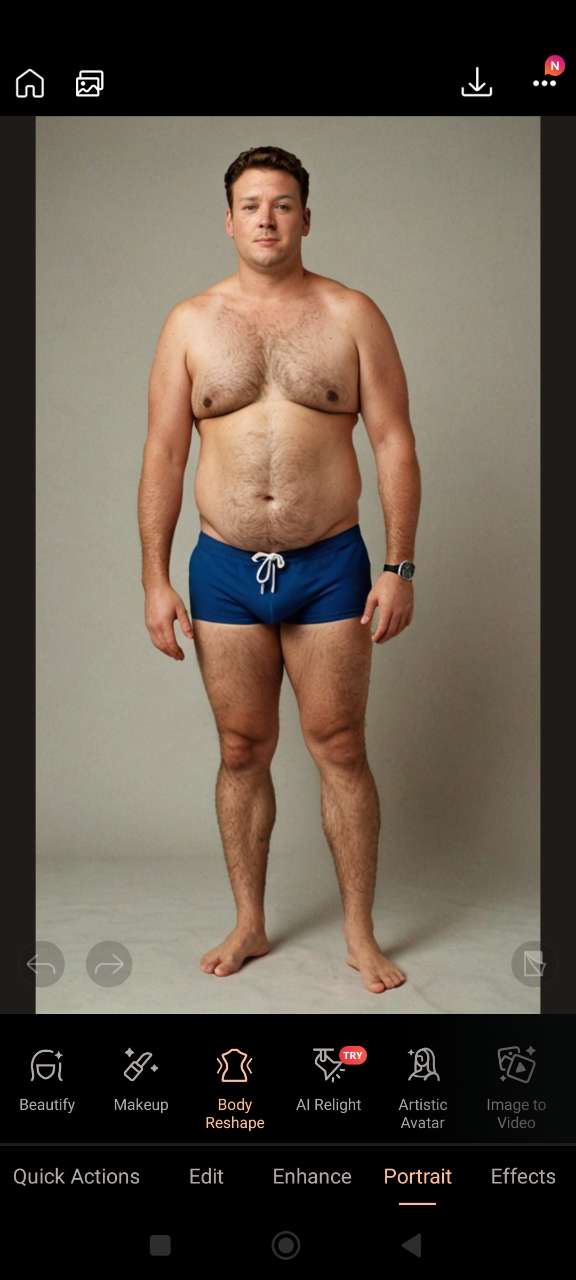
- Customize Your Body Shape – Use sliders to adjust your waist, hips, chest, arms, legs, and shoulders. You can even increase your height or overall body width to create a personalized AI weight gain effect.
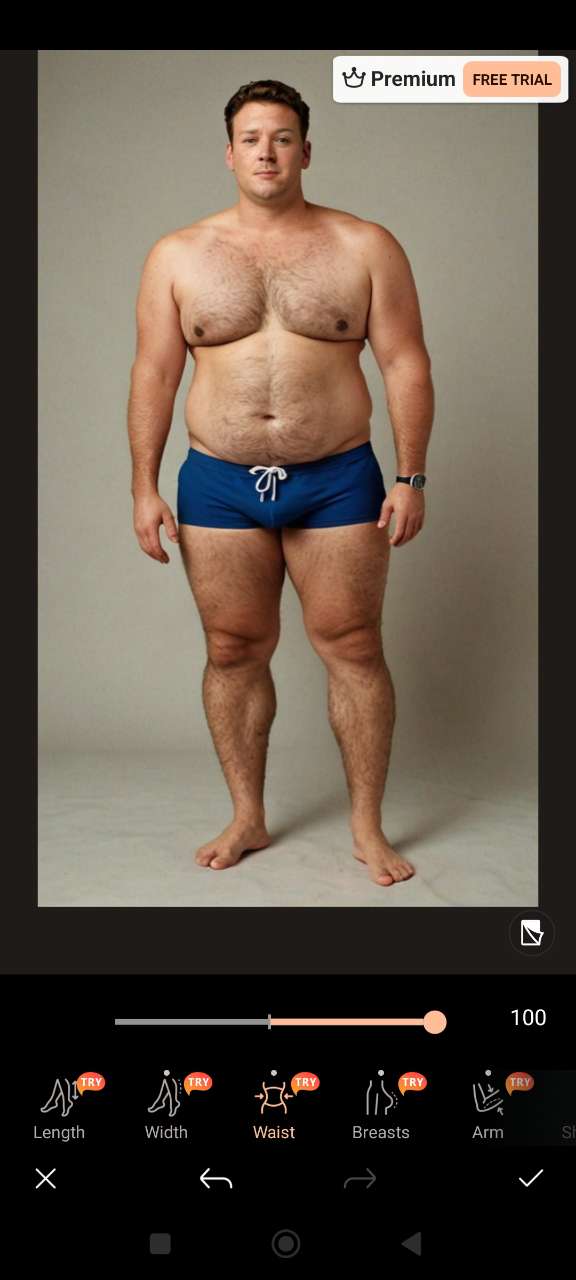
- Save and Share Your New Look – Once you’re happy with the transformation, save the image and share your fun new look on social media or with friends.


Related Articles:
- What Would I Look Like Skinny? Try This AI Weight Loss Filter
- AI Muscle Generator: How to Bulk Up Your Photos in Seconds
- Best AI Body Editing Apps for Slimming Body in Photos
Fat Filter FAQ
- Download and open PhotoDirector on Android or iOS.
- Open AI Replace.
- Import your photo.
- Brush over the body area you want to adjust.
- Type a prompt like “bigger body” or “add weight”.
- Let the AI generate your look!
- Install PhotoDirector on your phone.
- Open Body Reshape.
- Import your photo.
- Use sliders to increase your belly size naturally.
- Save and share your edited photo!
- Download and open PhotoDirector on Android or iOS.
- Open AI Replace.
- Brush over your body or face.
- Enter a prompt like “make me fatter”.
- See your AI-generated weight gain effect!
- Install PhotoDirector on your phone.
- Open AI Replace.
- Select your image and brush over areas to edit.
- Type a prompt like “add extra weight”.
- Get a realistic, filled-out appearance instantly.
- Download and open PhotoDirector on iOS.
- Open Beautify > Reshape.
- Import your portrait.
- Use sliders to widen cheeks, jawline, and chin.
- Save your new look!
- Install PhotoDirector on your phone.
- Open Face Reshape under Beautify.
- Import your selfie.
- Adjust cheek and jawline sliders to add volume.
- Save your enhanced portrait.
PhotoDirector offers one of the best AI tools to make photos fat. Use AI Replace for full-body edits, or use Vivid Glam for Face Reshape for fat face effects — all free to try.
PhotoDirector is a popular app with a built-in fat face filter. The Face Reshape tool lets you adjust your cheeks, jawline, and overall facial width easily.
Yes — you can use PhotoDirector or PhotoDirector on iPhone to get a fat filter. Their AI features work seamlessly on iOS devices to add weight to photos.
The Face Reshape tool in PhotoDirector is the perfect fat face filter. It helps you enlarge your cheeks, chin, and facial structure in just a few taps.
PhotoDirector and Vivid Glam are the best apps for adding weight to photos. Use PhotoDirector's AI Replace or Vivid Glam's Body Reshape and Face Reshape tools to create realistic weight gain effects.
The CyberLink Editorial Team is composed of product testing specialists and content creation experts with over 20 years of hands-on experience and rigorous research in the multimedia editing industry. As the official voice of CyberLink, the team consistently delivers practical, easy-to-follow tutorials across video, photo, and audio editing, while highlighting AI innovations, product insights, and emerging industry trends. Their work empowers millions of creators worldwide each year to elevate their content. Beyond the blog, the team actively shares editing tips and product updates across YouTube, Facebook, Linkedin and Pinterest.
😎 Outside of their work, they enjoy capturing travel moments and meticulously editing photos and videos for their social channels.


