


How to Save Instagram Reels to Camera Roll? Step-by-Step Guide

Wondering how to save Instagram Reels to camera roll? Whether it’s your own video or content from another creator, Instagram doesn’t always make downloading easy.
In this guide, you’ll learn how to save Instagram Reels to your camera roll step by step, what limitations to expect, and how to create your own viral Instagram Reels using simple tools.

⚠️ Important Note:
Downloading Instagram Reels created by others should be done for personal use only and with respect for the original creator’s rights. Always get permission before using content for commercial purposes, redistribution, or reposting, in accordance with Instagram’s guidelines.
- How to Save Your Own Instagram Reel to Camera Roll
- How to Save Other People's Instagram Reel to Camera Roll
- How to Make a Viral Instagram Reel (Step-by-Step Guide)
- Conclusion
- FAQ About Downloading & Creating Instagram Reels
How to Save Your Own Instagram Reel to Camera Roll
Saving your own Reels is the easy with Instagram's direct download feature.
Follow these simple steps to save Instagram Reels to your camera roll:

- Open the Instagram app
Go to your profile and find the Reel you want to download.
- Tap the share icon
After selecting the Reel and have it displayed in full-screen mode, tap on the share icon in the bottom right corner of the screen and select Download.
Once the download is complete, check the media gallery to see if the video is saved in your camera roll.
How to Save Other People's Instagram Reel to Camera Roll
Downloading other creators’ Reels is more limited due to privacy and copyright settings, but there are still a few possible ways to do it.
However, it’s important to note that downloading Reels created by other people should be limited to personal use only. You should never use this content for commercial purposes, redistribution, or reposting without the creator's consent.
Directly Download Other People's Instagram Reels to Camera Roll

If the creator has enabled the download feature, you can save the Instagram Reel to your camera roll directly without any extra steps.
- Open Instagram and find the Reel you want to download.
- Tap on the share icon in the bottom right corner of the screen and select Download.
- The Instagram Reel will be automatically downloaded to your camera roll.
⚠️ Note that videos with copyrighted audio will often download without sound. Additionally, all downloaded Reels contain an Instagram watermark—featuring the creator's username—which appears throughout the video and during the closing frame.
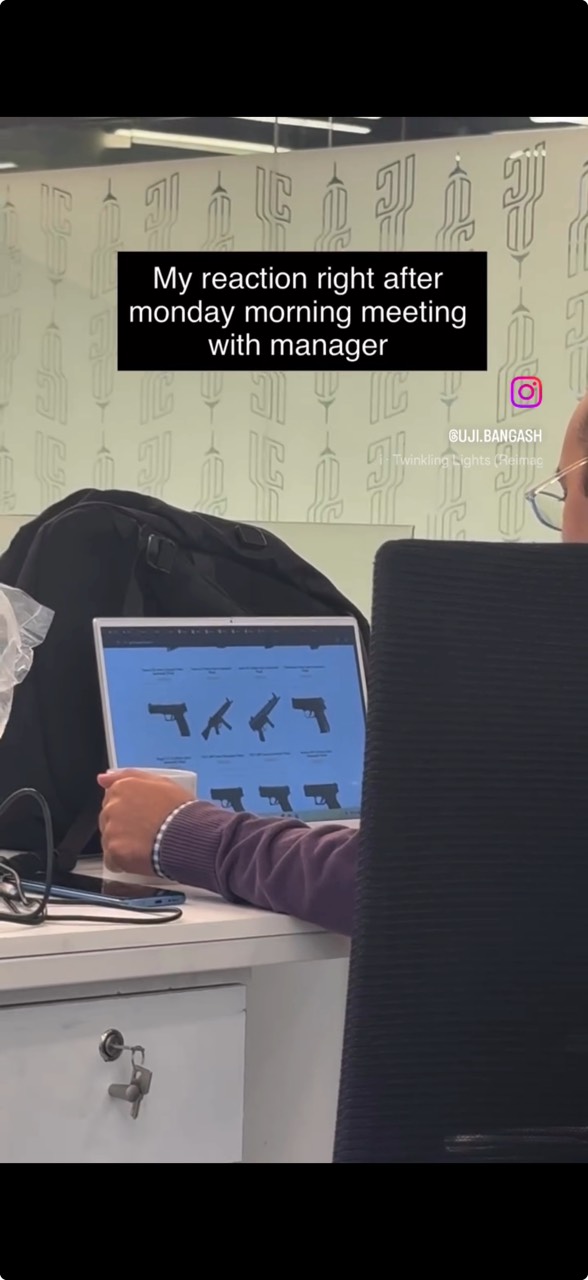
Instagram watermark with creator's username in downloaded Reel 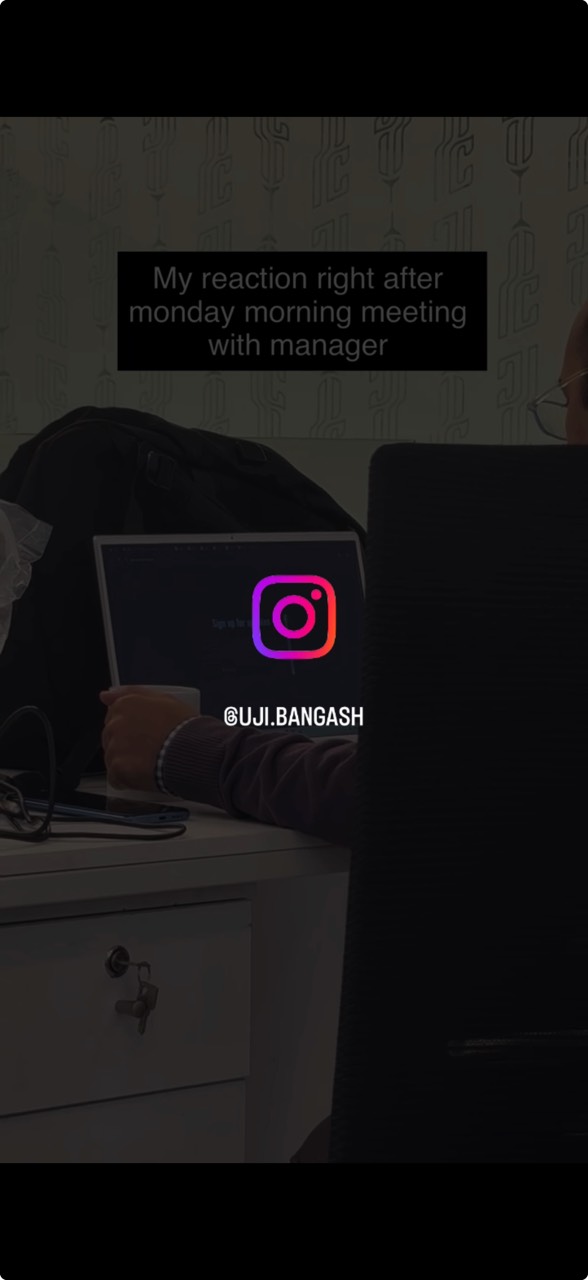
Instagram watermark with creator's username at the video closing frame


Download Reels via Instagram Stories
If the Instagram Reel you want to save isn't available for download, you can try this workaround. Note that videos saved using this method will display a timestamp in the upper-right corner and the creator's username in the upper-left corner.

- Open Instagram and find the Reel you want to download.
- Tap on the share icon in the bottom right corner of the screen and select Add to story.
- Tap the dropdown arrow (⌵) in the right toolbar and hit the Download button.
- The Instagram Reel will automatically save to your camera roll, complete with a timestamp and the creator's username at the top.
Download Instagram Reel via Screen Recording
If you want to keep the Reel's original audio and don't mind the Instagram interface (such as the like, comment, and share buttons), screen recording is your best option.
- Set up screen recording feature on your phone.
🤖 For Android Users:
Swipe down from the top of your screen to access your Quick Settings to find the screen recording icon. If you don't see it, you can edit your settings to add it to your shortcuts.
🍏 For iPhone Users:
Swipe down from the upper-right corner of your screen to access the Control Center and check for the Screen Recording icon. If it’s not there, long-press any empty space to enter edit mode. Tap the Add a Control at the bottom of the screen and select Screen Recording from the list.
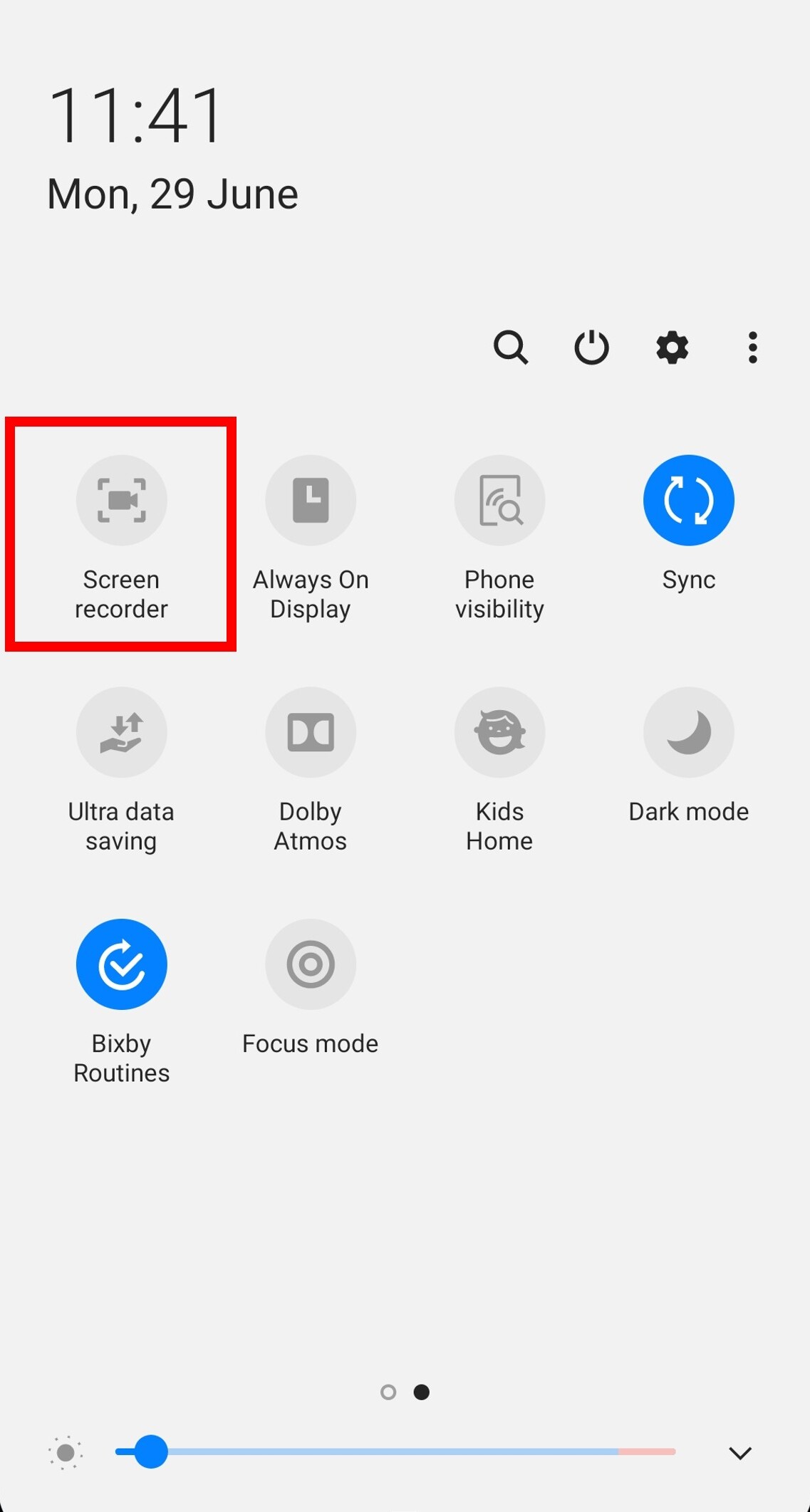
Quick Settings of an Android Device 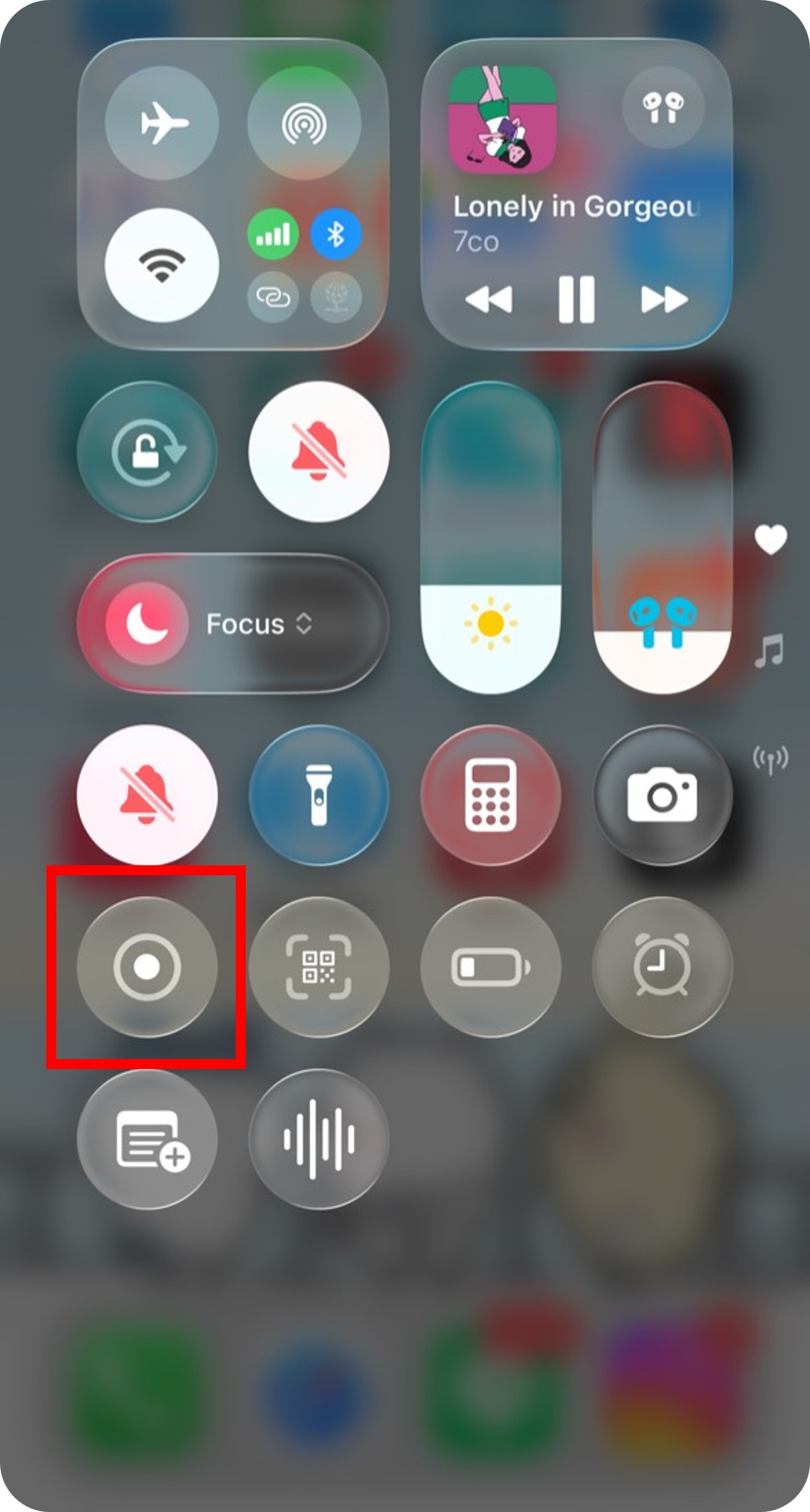
Control Center of an iPhone - Open Instagram and find the Reel you want to download.
- After selecting the Reel and displaying it in full-screen mode, start screen recording to capture the video.
- Trim the recorded Reel if needed.


Pro Tip!
If you need to re-add audio to a downloaded Reel or trim your screen recording, the PowerDirector App is a powerful tool to get the job done.
The app offers a vast library of copyright-free music and professional audio tools like AI voice changer, AI Music Generator, Automatic Subtitles, and an advanced Audio Editor.
In terms of editing features, PowerDirector supports basic edits and AI powered editing such as AI Removal, AI Motion Tracking, and AI Image or Video Generation.
Give it a try now!
How to Make a Viral Instagram Reel (Step-by-Step Guide)
Downloading Instagram Reels can be a great source of inspiration for your own content. However, creating your own Reel gives you more control over downloading and managing your videos—and it’s more rewarding and accessible than you might think. While Instagram's built-in tools are handy to make some quick edits, they can feel limited when it comes to producing scroll-stopping and eye-catching content. Apps like PowerDirector help you edit professional and high quality Reels directly on your phone.

- Start a New Project
Download a video editing app such as PowerDirector and choose 9:16 vertical format for Instagram Reels.
- Import or Record Clips
Upload your footage or record directly in the video editing app.
- Edit Your Video
• Trim and arrange clips
• Add transitions for smooth flow
• Add voiceover or trending music to boost reach
• Add text or auto subtitles to enhance engagement
- Export in HD
Export in 1080p and upload to Instagram.
It’s that simple! Start creating your own Instagram Reels today!
🔥Tips for Going Viral
- Hook viewers in the first 3 seconds
- Use trending audios and hashtags
- Keep videos short and dynamic
Conclusion
Learning how to save Instagram Reels to camera roll is simple once you know the options. You can download your own content directly, while saving others’ Reels may require extra steps considering copyright and privacy issues.
For the best results, consider creating your own Reels using tools like PowerDirector to produce high-quality, shareable content. It's fun and actually pretty rewarding! Try and unleash your creativity today!
FAQ About Downloading & Creating Instagram Reels
It's easy to download your own Reel or other people's Reel with download enabled. Simply:
- Open Instagram and find the Reel you want to download.
- Tap on the share icon in the bottom right corner of the screen and select Download.
- The Instagram Reel will be automatically downloaded to your camera roll.
Yes. You can download your own or others' Reels (if download enabled) directly to your iPhone’s camera roll. If the download feature is unavailable, use screen recording for saving the Reels.
However, it's important to note that downloading Reels created by other people should be limited to personal use only. Do not use this content for commercial purposes, redistribution, or reposting without the creator's consent.
Yes. Instagram allows you to save your own Reels—or Reels from creators who have enabled the download feature—directly to your device in video format.
Yes, you can download other people's Instagram Reel but only if the creator enables downloads. Otherwise, you'll have to work around and use screen recording or external tools (with permission).
If you have issues saving Reels to your camera roll, it could be that the download option is disabled due to privacy settings, copyright restrictions, or app limitations.
Use the Download option under the Share menu in Instagram, or screen record and trim the video afterward.
Yes. All downloaded Reels contain an Instagram watermark—featuring the creator's username—which appears throughout the video and during the closing frame.
The easiest way to save Instagram Reels is by using the built-in Download feature. This works for your own Reels and content from other creators who have downloads enabled. If the option isn't available, you'll have to try another workaround.


