



5 Best Software to Make a Transparent PNG in 2026


Knowing how to remove backgrounds from photos is a nifty skill to have. Removing a photo’s background can allow the central object to shine without any visual clutter. This editing trick can also produce photo cut-outs that you can paste onto other images.
Photo editing software is the most effective way to remove backgrounds and create transparent PNG images. However, some editing programs make this task more straightforward than others.
We’ve created this guide to share the top five best software to make a transparent PNG in 2026. Read on to learn our top choices and how to make a transparent image with no background.
- Top 3 Software to Make a Transparent PNG Snapshot
- What is a Transparent PNG?
- 5 Best Software to Make a Transparent PNG
- Best Software to Make a Transparent PNG Comparison Chart
- How to Make a Transparent PNG
- Download the Best Software to Make a Transparent PNG for Free
- Transparent PNG FAQ
Top 3 Software to Make a Transparent PNG Snapshot

1. PhotoDirector - Best Overall
PhotoDirector’s automatic AI-powered background removal tool makes transparent image creation quick and easy. The software includes all the editing and photo management tools you’ll ever need. Detailed Review >

2. Adobe Photoshop - Best for Experienced Editors
Photoshop’s intuitive background tool allows you to create transparent PNGs quickly, but more experienced editors may have an easier time on this platform. Detailed Review >

3. PhotoWorks - Best for Windows Only
PhotoWorks includes an easy-to-use background removal tool and a full suite of editing tools. Detailed Review >
What is a Transparent PNG?
“Transparent” is the term to describe a photo that does not have a traditional rectangular background.
Many people falsely assume that a transparent photo has a low opacity, giving the entire image a see-through quality. However, transparent photos are still fully opaque — they simply have a transparent or invisible background, allowing the elements behind the image to show through.
Opening these photos in some photo viewers presents a black, white, or gray-and-white-checkered background.
Not every file format supports transparent backgrounds. As a result, most photo editors export their transparent images in the PNG format, which supports transparency while maintaining the specs of the original photo. The terms “transparent PNG” and “transparent image” are interchangeable in this article.
You may choose to remove the background from a photo for various reasons. A few reasons to create transparent PNGs include:
- To draw attention to the central object or person
- To create a cleaner, more visually appealing photo
- To cut out the central object and place it on a different background
- To create a collage of transparent photos with different objects
- To have fun manipulating photos and demonstrating your creativity
If you’ve never created a transparent PNG before, we recommend trying out this technique on some of your photos. Thankfully, the process is easy once you find the right photo editing software.
5 Best Software to Make a Transparent PNG
1. PhotoDirector – Best Overall

Compatibility: Windows, Mac
Overall Rating: 10 / 10
Transparency Tools Rating: 10 / 10
Key Features
- Automatic background removal tool
- Easy background replacement options
- Professional editing tools and features
PhotoDirector is an impressive photo editing program with an extensive range of photo effects, editing tools, filters, and more. This program makes removing backgrounds easy. It features anAI-powered automatic background removal tool that can detect an object’s edges and eliminate the background within seconds.
PhotoDirector also includes several other artificial intelligence tools that can streamline your editing process. For example, you can automatically replace the sky in your image with a beautiful sunset or stunning Northern Lights scene. You can also remove unwanted objects in an image and replace them with a natural-looking background patch.
Along with these AI tools, PhotoDirector also includes all the features you need for a complete photo editing session. You can crop and adjust images, add text, implement photo effects, and more. PhotoDirector packs all of these features into a user-friendly interface, making the program suitable for beginners, professionals, and everyone in between.
Reasons to Recommend
- Seamless background removal and replacement
- Impressive AI tools and effects
- Comprehensive editing suite
- User-friendly interface
Download PhotoDirector today to create a transparent PNG in minutes and gain access to a world of professional-level editing tools.
2. Adobe Photoshop - Best for Experienced Editors

Compatibility: Windows, Mac
Overall Rating: 8 / 10
Transparency Tools Rating: 8 / 10
Key Features
- AI-powered background removal tool
- Sky replacement
- Content-aware fill
Adobe Photoshop is an advanced editing program with a wide range of tools and features. This program includes an AI-powered background removal tool that can automatically detect your object and cut it out of the scene. Then, you can replace the background with a transparent image, a solid color, or another photo.
Photoshop includes numerous features that can take your pictures to the next level. You can use Photoshop brushes to add an artistic element to your image, replace the sky with a different scene, and add layer masks.
Photoshop’s vast editing suite is suitable for professional editors with at least a few years of photo editing under their belts. If you have never edited photos before, you may have trouble locating and using its advanced tools. Photoshop has a significant learning curve, and its hefty price tag turns away many beginner and casual editors.
Pros
- Professional editing tools
- Quick and easy transparent image-maker
- Powerful photo editing interface
Cons
- Expensive price tag
- Not suitable for beginners
3. PhotoWorks - Best for Windows Only

Compatibility: Windows
Overall Rating: 8 / 10
Transparency Tools Rating: 7 / 10
Key Features
- Intuitive background removal tool
- Beautifying tools
- Automatic photo enhancements
PhotoWorks is a beginner-friendly photo editor for Windows. This program includes a background removal tool that can turn your image into a transparent PNG in a few steps. You’ll first need to create a rough outline around the object, then PhotoWorks will automatically detect the background. After that, you can make a few tweaks to the selection as needed.
Along with its background removal tool, PhotoWorks also includes numerous features suitable for beginners and professionals. You can make color adjustments, use beautifying tools, apply one-click effects, add depth and sharpness, and more.
While you can achieve a wide range of effects with PhotoWorks, you may feel that the program lacks more advanced editing tools. For example, PhotoWorks does not include layer editing tools, which are essential for professional photo editing. Some users also find PhotoWorks buggy and slow at times.
Pros
- Simple background removal tool
- Basic and advanced adjustments
- User-friendly navigation
Cons
- Sometimes buggy interface
- No layer editing
4. Online PNG Tools - Best Online Tool

Compatibility: Browser-based
Overall Rating: 7 / 10
Transparency Tools Rating: 7 / 10
Key Features
- Transparent PNG maker
- Online interface
- Beginner-friendly PNG tools
Online PNG Tools is a browser-based editing program that includes just what the name describes, a variety of tools to edit PNG files.
The program’s transparent PNG tool allows you to replace any solid color in your picture with transparent pixels. The tool will automatically convert the color you specify and 30%-similar color tones. Using this tool, you can remove the background from a PNG.
You can also use Online PNG Tools to apply a range of other edits to your PNG images. For example, you can adjust the color tone, opacity, quality, noise, and border. You can also crop, skew, duplicate, and pixelate the image.
Overall, Online PNG Tools is suitable for beginner editors looking to create a transparent image quickly. However, it doesn’t include any professional tools you’d find in a more comprehensive software.
Pros
- Free browser-based tools
- User-friendly interface
- Tools specifically for PNG images
Cons
- No advanced or professional tools
- Limited support for other image files
5. PaintShop Pro - Best for Intermediate Editors

Image from PetaPixel.
Compatibility: Windows
Overall Rating: 7 / 10
Transparency Tools Rating: 7 / 10
Key Features
- Background eraser tool and background replacement
- Advanced PhotoMirage and ParticleShop features
- Powerful photo effects and vector drawing tools
PaintShop Pro is a photo editing program from Corel. This software includes a Background Eraser tool that you can use to remove the background of an image and turn it into a transparent PNG. You can also use the AI Background Replacement tool to remove a background automatically.
PaintShop Pro also includes several advanced features and powerful effects suitable for intermediate photo editors. For instance, you can create cool mirage effects and produce stunning designs with ParticleShop tools. You can also use the SmartClone tool to duplicate objects in your image.
However, PaintShop Pro’s interface isn’t very intuitive. You’ll need to spend some time locating features and learning how to use them before you can get the most out of PaintShop Pro. And while this program comes with a one-time price, it isn’t very affordable for casual editors.
Pros
- Powerful advanced features
- Continual updates and advancements
Cons
- Non-intuitive interface
- Costly one-time price
Best Software to Make a Transparent PNG Comparison Chart
| Software | PhotoDirector | Adobe Photoshop | PhotoWorks | Online PNG Tools | PaintShop Pro |
|---|---|---|---|---|---|
| OS | Windows, Mac | Windows, Mac | Windows | Browser-based | Windows |
| Beginner-friendly | Yes | No | Yes | Yes | No |
| Layer Editing | User-friendly layer editing features take your photo editing session to the next level. | Layer editing and layer masks allow you to limit edits to specific sections of your image | No layer editing features | No layer editing features | You can edit and manipulate specific elements of your photo with layer editing |
| AI Selection Tool | Yes | Yes | No | No | Yes |
| Object Removal | Yes | Yes | Yes | No | Yes |
| Free Download | Download | Download | Download | Download | Download |
How to Make a Transparent PNG
PhotoDirector’s automatic background removal tools can allow you to create a transparent PNG quickly and easily. Even if you have no photo editing experience, you can feel confident utilizing this intuitive tool to remove your photo’s background and create a transparent PNG.
Here are the steps you can follow to make a transparent PNG with PhotoDirector:
- Open PhotoDirector and upload the image you would like to edit.
The image you edit does not need to be a PNG file. However, once you’re finished removing the background, you will want to download it as a PNG to preserve the transparent background. - Navigate to the Guided tab.
PhotoDirector’s Guided tab includes numerous intuitive editing tools that can allow you to achieve professional-level effects within seconds. Feel free to explore these features and discover the unique effects you can add to your image. - Select the Improve/Remove dropdown in the left-hand menu. Then, select Background Removal.
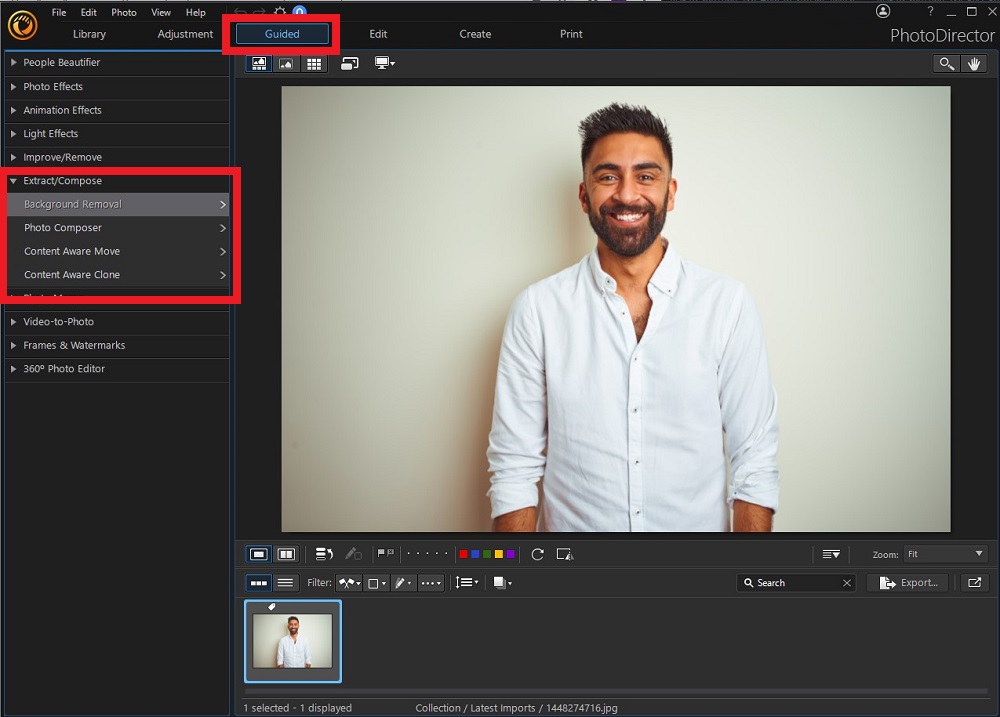
- Click the Tree icon to select it as your crop brush tool.
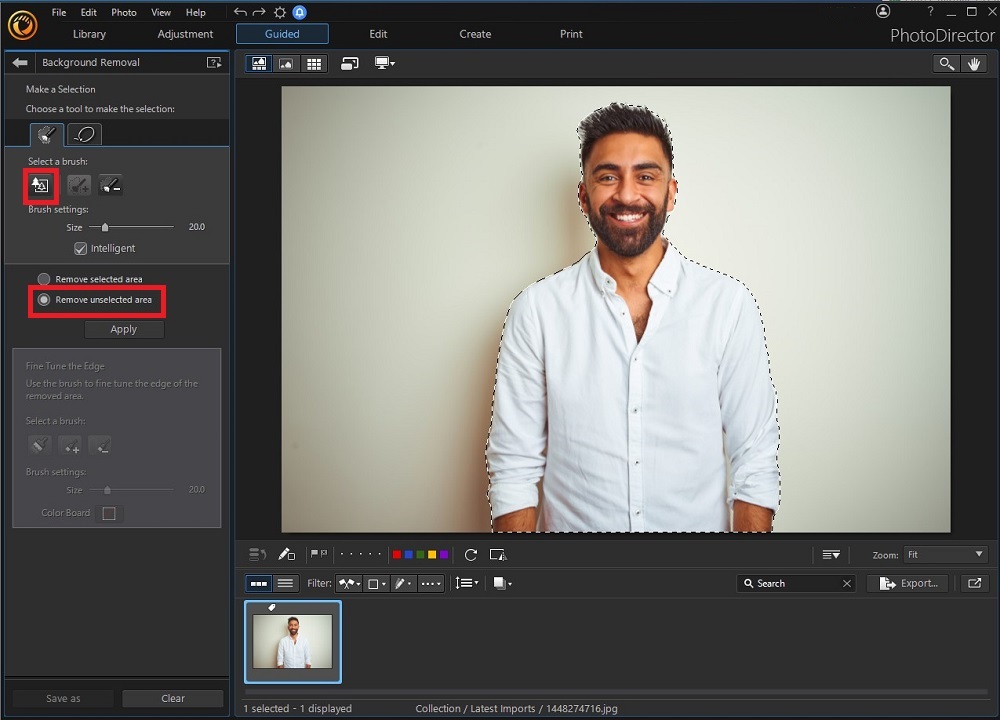
When you click this tool, it will detect the main object or person in your image and outline it with a dotted line. If this tool selects the wrong object, you can click Undo and use the Lasso brush to exert more control over the selection. - Once you’ve selected the central object, click Remove unselected area in the menu, then select Apply.
PhotoDirector will automatically remove the space surrounding your central object. - Click the Edge Brush to adjust the object selection. You can use this brush to select small portions of the background that are still visible around the object.
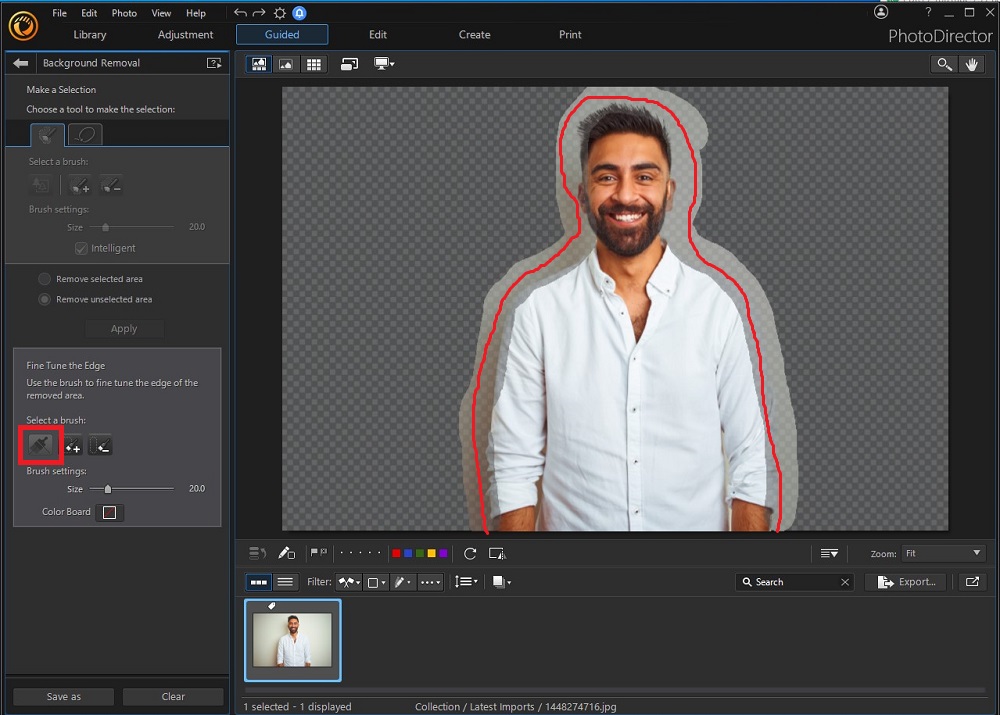
- Once satisfied with the selection, click Save As. Be sure to save your edited image in the PNG file format.
PhotoDirector will export your image with a transparent background.


Download the Best Software to Make a Transparent PNG for Free
Creating a transparent PNG can allow you to emphasize a central object in a photo or paste your image onto a new background. Thankfully, removing the background from an image isn’t too challenging. However, using the right editing program is essential to creating a clean final image and streamlining your editing process.
The five photo editing programs on our list allow you to remove backgrounds and create transparent PNG files. However, our top choice overall is PhotoDirector. This program features an automatic background removal tool that takes all of the work out of selecting your central object.
Even better, PhotoDirector’s comprehensive suite of editing tools includes all the features and effects you need to edit photos like a professional.
Download PhotoDirector today to begin creating transparent PNG files and try the program’s impressive features for yourself.
Transparent PNG FAQ
JPEG, GIF, and PNG are all image file formats. When you edit a picture in PhotoDirector, you can export it in any of these formats. Some images look better in certain formats than others, and knowing the difference between them can help you optimize your images.
JPEG files are best for full-color, vibrant images with various hues and shades. This format can maintain the coloring in photos better than many other formats.
Meanwhile, PNG files are best for pictures with sharp borders. This file format supports transparent images, whereas many others do not.
Finally, GIF is best for animated images or slideshows of several photos.
Creating a transparent background on an image can be useful for several reasons.
First, if you’re trying to overlay an object onto a photo, the object will need to be transparent. Otherwise, your image would also include the black or white background behind the object, creating a less professional appearance.
Removing the background can also make it easier to replace it with a solid color. For example, if you like to sell clothing online, replacing the background behind the clothing pieces with a solid white background can create a more professional appearance.
You can also remove the backgrounds of several images to create a collage of their central objects. Once you learn how to create transparent PNGs with PhotoDirector, you may surprise yourself with how many uses the skill can have.
The top ten features you should look for are
- Automatic background removal tool
- Precise AI selection tools
- Sky replacement features
- Object removal and replacement tools
- Crop, resize, and edit tools
- Filters and overlays
- Layer editing features
- A stock image library
- Visual effects
- Beginner-friendly navigation
If you’re looking for a transparent PNG maker that checks all of these boxes, we recommend PhotoDirector.

The CyberLink Editorial Team is composed of product testing specialists and content creation experts with over 20 years of hands-on experience and rigorous research in the multimedia editing industry. As the official voice of CyberLink, the team consistently delivers practical, easy-to-follow tutorials across video, photo, and audio editing, while highlighting AI innovations, product insights, and emerging industry trends. Their work empowers millions of creators worldwide each year to elevate their content. Beyond the blog, the team actively shares editing tips and product updates across YouTube, Facebook, Linkedin and Pinterest.
😎 Outside of their work, they enjoy capturing travel moments and meticulously editing photos and videos for their social channels.


