




What is Chroma Key? Green Screen Explained

Chroma key, commonly known as green screen, is a video editing technique that removes a solid-colored background from footage and replaces it with any image or video of your choice. It works by targeting a specific color in the clip, making it transparent, and compositing a new background in its place.
In this guide, we cover how chroma key works, where it is used, how it compares to AI background removal, and how to use it in PowerDirector.
- What Is Chroma Key?
- Chroma Key vs. Green Screen
- Where Chroma Key Is Used
- Chroma Key vs. AI Video Background Removal
- How To Use Chroma Key in PowerDirector
- Green Screen Filming Tips
- FAQs about Chroma Key and Green Screen
What Is Chroma Key?

Chroma key is a compositing technique used in video and film production to isolate and remove a specific color from footage, then replace it with a different background. The process works by selecting a target color, typically green or blue, and making every pixel of that color transparent in the clip. A second image or video is then placed behind the subject, creating the illusion that the subject was filmed in a completely different location.
The term chroma refers to color saturation in video signal processing. By keying out a specific chroma value, an editor can surgically remove just that color from the frame while leaving everything else intact. This is why the subject's clothing, skin tone, and props remain fully visible in the final composite, as long as none of them match the background color being removed.
Chroma Key vs. Green Screen, Are They the Same Thing?

Chroma key and green screen are often used interchangeably, but they refer to different things. Chroma key is the name of the technique itself, the process of removing a color from footage in post-production. Green screen is the physical backdrop used on set to make that technique possible. You need a green screen to shoot the footage, and chroma key to edit it.
Green is the most widely used backdrop color because it is furthest from natural human skin tones, which reduces the risk of accidentally removing part of the subject during editing. Blue screen is also commonly used, particularly in film productions where a subject is wearing green clothing or where the scene involves a lot of green elements. The chroma key technique works the same way regardless of which color is used.
Where Chroma Key Is Used
Film and television
Chroma key has been a standard tool in film and TV production for decades. It allows directors to place actors in environments that would be impossible, too expensive, or too dangerous to film in physically — from fantasy landscapes to outer space. Most large-scale action and science fiction productions rely heavily on green screen compositing throughout post-production.
Weather forecasting
TV meteorologists stand in front of a green or blue screen during every broadcast. The chroma key tool removes the backdrop and replaces it with an animated weather map in real time. Without chroma key, every weather segment would require a physical map large enough to fill the entire studio wall.
YouTube and online video
Green screen has become a standard tool for YouTubers and online creators. It allows a single person filming in a small room to appear in front of any background they choose, from a professional studio setup to a custom branded scene. Gaming channels, commentary videos, and tutorial creators use it regularly to make their content look more polished without a large production budget.
Live streaming
Streamers on platforms like Twitch and YouTube Live use green screens to place themselves inside their game feed or in front of a custom background. This keeps the stream visually clean while showing the broadcaster's face and reactions simultaneously. Dedicated streaming software like OBS has built-in chroma key support that works in real time without any post-production step.
Video calls and virtual meetings
Platforms like Zoom and Microsoft Teams use a simplified version of chroma key technology to power their virtual background feature. A physical green screen is not always required since these tools use AI-assisted segmentation, but adding a real green screen behind you produces significantly cleaner results, particularly in rooms with inconsistent lighting.
Chroma Key vs. AI Video Background Removal
Chroma key and AI video background removal both remove the background from video footage, but they work in fundamentally different ways. Chroma key requires the footage to be filmed in front of a solid-colored backdrop, usually green or blue, and works by targeting that specific color in post-production and making it transparent. AI video background removal requires no special setup — it uses a machine learning model to analyze any footage and detect the subject automatically, regardless of what is behind them.
The main advantage of chroma key is precision. When the backdrop is well-lit and the subject is positioned correctly, the result is clean, consistent, and reliable throughout the entire clip. It has been the industry standard in film, broadcast, and live streaming for decades because of this reliability.
The main advantage of AI background removal is flexibility. It works on footage that was never intended to be composited, shot in any environment, with no green screen in sight. This makes it the practical choice for casual creators, run-and-gun shooters, and anyone editing existing footage where a reshoot is not possible. The tradeoff is that results can vary depending on how complex or similar to the subject the background is.
| Chroma key | AI video background removal | |
|---|---|---|
| Setup required | Green screen and controlled lighting | None |
| Works on existing footage | Only if shot on green screen | Any footage |
| Edge accuracy | Very high with good lighting | High, varies with background complexity |
| Processing | Manual color keying in post | Automatic, AI-powered |
| Skill required | Intermediate | None |
| Best for | Planned productions, streamers, filmmakers | Existing footage, casual creators |
If you want to go deeper on the AI method, our guide to the best AI video background remover tools covers how it works and when it performs best.
PowerDirector supports both methods in a single app, so you can use whichever approach fits the footage you are working with. The next section shows you how to use each one step by step.
How To Remove a Video Background in PowerDirector
PowerDirector supports both methods described above. Here is how to use each one.
Method 1: Chroma key (footage shot on a green screen)
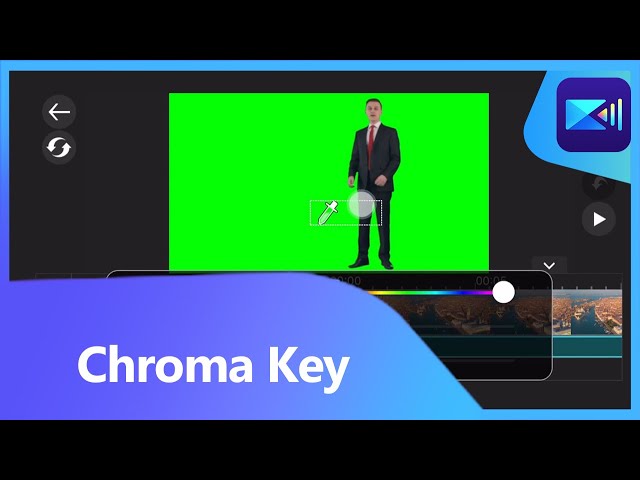
- Download PowerDirector and import the video clip you want to edit.
- Add your background video or image to the top track of the timeline.
- Select "Layers" from the toolbar, toggle to the camera icon, and drag your green screen clip onto the timeline below the background.
- Tap or click "Chroma Key" from the toolbar at the bottom of the screen.
- Use the color picker tool to select the green background in your clip. PowerDirector will automatically remove it.
- Use the color range and noise sliders to refine the result if any green fringing or edge artifacts are visible.
- Resize and reposition the subject layer over the background as needed.
- Preview the composite and export when satisfied.
Method 2: AI background removal (any footage, no green screen needed)
- Download PowerDirector and import the video clip you want to edit.
- Drag the clip onto the timeline and select it.
- Open the "AI Tools" panel and select "Background Removal."
- PowerDirector will automatically detect the subject and remove the background. Wait for the processing to complete.
- Add a new background video or image to the track below your clip.
- Use the edge refinement slider to clean up any areas where the AI result needs adjustment.
- Preview the result and export when satisfied.
Learn more about green screen and video background removal
- How To Make and Use a Green Screen
- 8 Best AI Video Background Remover Tools
- Best Hollywood Special Effects To Add to Your Videos
- Best Free Video Editing Apps for iPhone and Android
Green Screen Filming Tips
The quality of your chroma key result in post-production depends almost entirely on how well the green screen footage was shot. A well-lit, wrinkle-free backdrop with a properly positioned subject makes the editing step straightforward. Poor shooting conditions create problems that are difficult or impossible to fix in software, regardless of how good the tool is.
Green screen backdrop
The backdrop needs to be evenly colored, clean, and large enough to cover the entire area behind the subject including the floor if the subject's feet will be visible in frame. A smooth transition from wall to floor, sometimes called a cove effect, eliminates the hard shadow line that appears when a flat screen meets the floor at a right angle.
- Keep the surface clean and free of scuffs or marks
- Minimize wrinkles — stretch or iron the screen before filming
- Use a cove setup to eliminate floor shadows
- Make sure the screen is wide enough to cover all subject movement
Lighting
The green screen and the subject should be lit separately. Lighting them together creates green spill, where green light reflects off the backdrop onto the subject's hair, shoulders, or clothing. This makes the edges much harder to key cleanly and often results in a green fringe around the subject in the final composite.
- Use soft, even lighting on the backdrop to avoid hot spots or shadows
- Light the subject from a separate source positioned away from the screen
- Eliminate reflective surfaces near the set that could bounce green light
Camera settings
Camera movement makes chroma keying significantly harder. Even small pans or zooms can create edge artifacts where the subject appears to shift or vibrate against the new background. If camera movement is required, use motion tracking in post-production to compensate.
- Keep the camera on a fixed tripod if possible
- Avoid zooming in or out during the shot
- Shoot at the highest available resolution to preserve edge detail
Subject positioning and wardrobe
The subject should stand at least six feet from the backdrop to prevent green spill from the screen reflecting onto them. Wardrobe is critical — any clothing or accessories that match the green screen color will be removed along with the background.
- Position the subject at least six feet from the backdrop
- Avoid green or lime-colored clothing, accessories, and props
- Light the subject independently after the backdrop is set
- Consider makeup touch-ups since green ambient light can affect skin tone on camera
FAQs about Chroma Key and Green Screen
Chroma key is a video editing technique that removes a specific color from footage and replaces it with a different background image or video. The process works by selecting a target color, usually green or blue, making every pixel of that color transparent, and compositing a new scene behind the subject. It is the same technique commonly referred to as green screen.
Green is the standard backdrop color because it is furthest from natural human skin tones, which reduces the risk of accidentally removing part of the subject during editing. It also captures more light than other colors, which makes it easier to key cleanly in post-production. Blue screen is used as an alternative when the subject is wearing green or when the production environment makes green impractical.
Chroma key is the name of the editing technique used in post-production to remove a color from footage. Green screen is the physical backdrop used on set to make that technique possible. The two terms are often used interchangeably in casual conversation, but technically the green screen is what you use when filming and chroma key is what you apply when editing.
Blue is the most common alternative to green and is still widely used in film and broadcast production. Blue works better in scenes where the subject is wearing green clothing, or in environments where green elements are present in the set. Other solid colors can technically be used as a chroma key backdrop as long as the color does not appear anywhere on the subject, but green and blue are preferred because they are least likely to appear in natural skin tones and are easy to light evenly.
No. Any solid-colored background can work as a chroma key backdrop as long as the color does not appear in the subject's clothing, hair, or props. A plain colored wall or sheet can produce acceptable results in a controlled environment. That said, a purpose-built green or blue screen fabric gives significantly more consistent results because it is designed to hold an even, saturated color under studio lighting. If you are working with existing footage that was not shot on a green screen at all, PowerDirector's AI video background removal tool can remove the background automatically without any color keying.
Green spill is when light reflecting off the green screen backdrop bounces onto the subject, giving their hair, shoulders, or clothing a green tint. It is one of the most common problems in green screen production and makes edges harder to key cleanly in post-production. The best way to prevent it is to position the subject at least six feet from the backdrop and light them separately from the screen. In post-production, most chroma key tools including PowerDirector have a spill suppression or color correction option that reduces the green cast on the subject's edges without affecting the rest of the image.
Both are video background removal tools inside PowerDirector, but they work in different ways. Chroma key requires footage to be filmed in front of a green or blue screen and works by keying out that specific color in post-production. AI video background removal works on any footage regardless of what is behind the subject, using a machine learning model to detect and isolate the subject automatically. Chroma key gives more precise results when the setup is done correctly, while AI removal is the faster option for footage that was not planned for a green screen.
Yes. PowerDirector's mobile app for iOS and Android includes a full chroma key tool that works the same way as the desktop version. You can film your green screen footage on a phone, import it into PowerDirector, apply the chroma key effect, and replace the background with any image or video from your camera roll. The mobile version is a practical option for content creators who work entirely on their phone without a desktop editing setup.

The Cyberlink Editorial Team creates in-depth articles on video editing, multimedia innovation, and AI-powered creative tools. Our mission is to provide practical, easy-to-follow tutorials across video and photo editing, while showcasing AI features, product insights, and industry trends that empower creators around the world.

![7 Best Alternatives to Corel VideoStudio in 2026 [Windows, Mac]](https://dl-file.cyberlink.com/web/content/b1539/l_Thumbnail.webp)


