



Top 5 Free AI Video Background Removers: Best Apps & How-To

Video background removal has become an essential tool for modern content creation. Creators use it to make YouTube videos, TikToks, tutorials, ads, and social media content look more professional and visually engaging. Today, AI video background remover tools can automatically separate subjects from the background in just a few clicks.
Traditional green screen editing often required complex setups and manual adjustments. Modern AI-powered tools like PowerDirector now simplify the process with one-tap background removal, smart masking, and instant background replacement. This makes video editing faster, easier, and more accessible for beginners and professional creators alike.
- PowerDirector: Best for beginners who want one-tap AI video bg removal and easy editing across mobile and desktop.
- Vivid Glam: Best for beauty-focused creators who want AI video bg removal with selfie and portrait enhancement tools.
- CapCut: Best for TikTok and social media creators making short-form videos with the bg remover feature.
- Media.io: Best for users who want quick online video bg removal without downloading software.
- Video Background Remover: Best for Android users looking for a simple app to remove and replace video bg quickly.
- Best Video Background Removers
- How To Remove Backgrounds from a Video
- Traditional Methods vs. Modern Solutions
- FAQs about Removing Video Backgrounds
Top 5 Best Free AI Video Background Removers in 2026
- PowerDirector(Android/iOS/Windows/Mac)
- Vivid Glam (iOS)
- CapCut (Android/iOS)
- Media.io (Web Browser)
- Video Background Remover (Android)
1. PowerDirector - Best Video Background Remover Editor

Our top choice for video background removal is PowerDirector. After testing it hands-on across both mobile and desktop, we found it to be one of the easiest and fastest tools for removing and replacing video backgrounds. The AI-powered background remover works in just one tap, making it beginner-friendly while still powerful enough for more advanced editing projects.
What stood out immediately was how smooth the overall editing experience feels. Beyond background removal, you can quickly add text, stickers, overlays, graphics, and effects without dealing with a steep learning curve. On desktop, the built-in Asset Library provides plenty of stock images and videos for custom backdrops, while the chroma key tool makes green screen editing simple with a single click.
Whether you're editing short-form social content, YouTube videos, or creative projects, PowerDirector combines fast AI tools with a clean interface that works well for all experience levels. The free version is available on iOS, Android, Windows, and Mac, though some advanced features require a premium subscription.
Pros
- Free on iOS, Android, Windows, and Mac
- AI video background removal in one tap
- Beginner-friendly interface with advanced editing tools
- Built-in stock asset library for custom backgrounds
- One-click green screen chroma key
Cons
- Some premium AI features require a subscription
- Projects cannot be synced between the desktop and mobile app versions
2. Vivid Glam - Best AI Beauty Video Background Remover App

Vivid Glam harnesses the latest AI technology, making it the top choice for flawless video background removal. Its AI-driven background removal capabilities, combined with extensive customization options, deliver a complete video editing experience.
But Vivid Glam isn't just about background removal; it's also highly regarded as a leading beautification app. With intuitive features, you can effortlessly enhance your appearance in videos, whether by reshaping your face or slimming your body with a few steps.
Pros
- Modern, intuitive, and innovative design
- Extensive background customization options
- Unique portrait and video selfie enhancement tools
Cons
- Not available on Android devices
- The update frequency is not as high as other apps
3. CapCut — Video Maker for Social Media

CapCut is another app option to remove a video background. With this app, you can not only remove video backgrounds but also add text and effects to your video. This is an ideal choice if you also want to customize the vibe you're going for with your own style using a range of options.
Developed by the same tech giant behind TikTok, CapCut is perfectly tuned for social media. It offers a massive library of fun AI filters and effects, making it easy for anyone to create short-form content. Its intuitive interface is a standout feature; some on Reddit even joke that CapCut is so simple a 'toddler could edit their own birthday video.' However, it’s less ideal for professional-grade projects or videos longer than three minutes.
Pros
- Direct uploads to TikTok and Facebook
- No editing experience required
- Free version available
Cons
- Not suitable for long-form content
- Contains a watermark
4. Media.io — Remove Video Background Online

Media.io provides a simple yet powerful solution for removing backgrounds from videos. With its intuitive platform and advanced technology, users can quickly isolate subjects with accuracy, making it easy to place them into any new environment effortlessly.
Pros
- Accessible via web browser, no download required
- Some background templates available
- Sky Replacement feature included
Cons
- Requires credits for usage
- Fewer options compared to some
5. Video Background Remover — Simple Video Background Removal

Video Background Remover is an app available on Android that allows you to easily remove the background from a video or photo, with or without a green screen. Simply upload your video, and the app will take care of the rest. You can then replace the background with existing templates or import your own media.
Pros
- Multiple background removal options
- Pre-designed background templates available
- Option to add custom backgrounds
Cons
- Frequent ads
- Video quality may be low
- Limited customization options
- Not available on iOS devices
How To Remove Backgrounds from a Video
How to Remove the Background of a Video on Android and iOS
Are you ready to learn how to remove a background from a video? If so, we're here to help. Follow these quick and easy steps to remove a video background.
- Step 1 : Download PowerDirector
- Step 2 : Tap New Project and Import the Video
- Step 3 : Tap the Video and Choose “Cutout”
- Step 4 : Replace the Video Background
- Step 5 : Save the Video and Explore More Edits
-
Download PowerDirector — The Best App To Remove Video Backgrounds
Download from the App Store for iOS and Android.
 PowerDirectorRemove Background with AI
The first step to take when you want to remove a background from a video is to download PowerDirector. You can download it in the App Store or Google Play Store. This app supports both iOS and Android devices and is free to download.
-
Tap New Project and Import the Video
Once you've opened PowerDirector, import the video you shot from your album. You can also choose stock videos from Shutterstock or iStock.
-
Tap the Video and Choose “Cutout” To Remove a Video Background
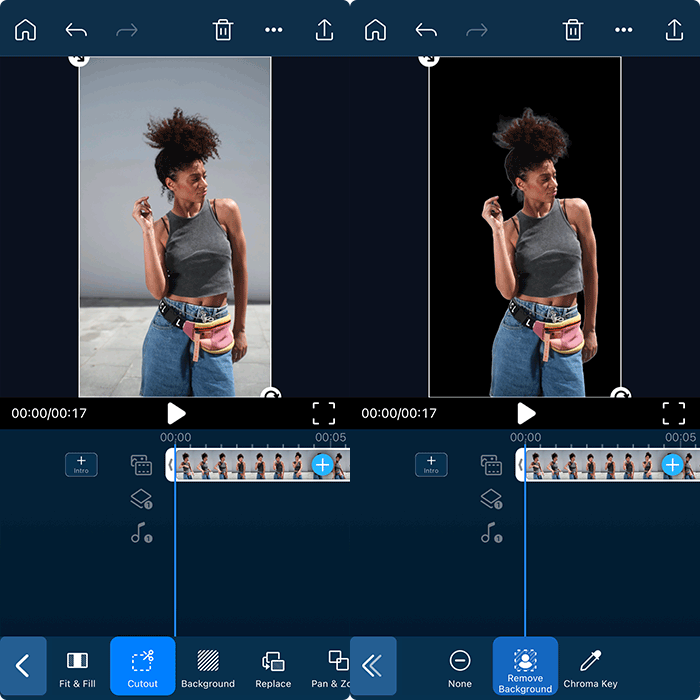
For iOS users, your uploaded video clip will automatically be the main track. You can tap on the clip and slide to the right to choose the Cutout tool. Now, select Remove Background.
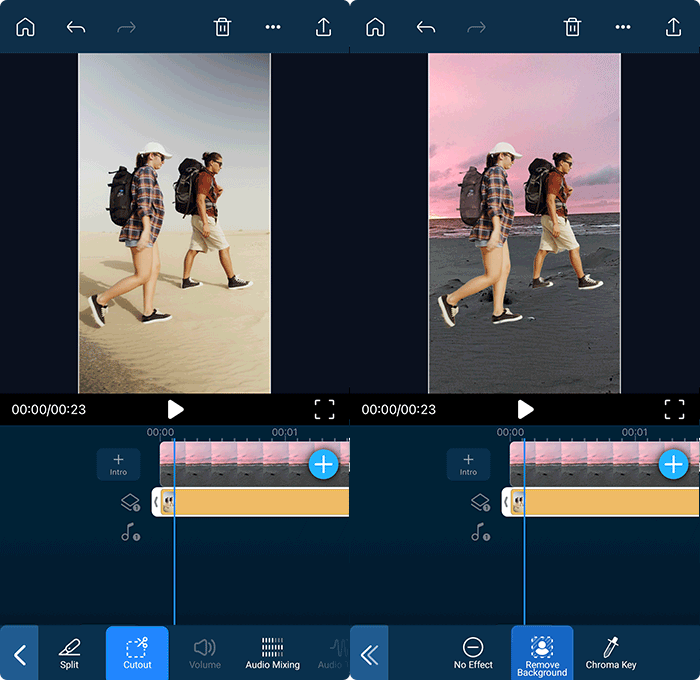
For Android users, after adding the background to the main track, for the first layer you can add the video clip with the background you want to remove. Tap on the clip and slide to the right to choose the Cutout tool. Now, select Remove Background.
-
Replace the Video Background
Now that you've removed your unwanted background, you can apply different backgrounds to your video. There are two ways to go about this.
First, tap Background and add a blur, color, or pattern background.

Another option is to drag the background-removed video to the second track and add a background from your album or from a stock library.

-
Save the Video and Explore More Edits

Once you've used the app to remove a video background, it's time to save your video and upload it to your social media platforms. Remember, there are numerous editing tools in PowerDirector, so be sure to explore other edit options as well.
Download from the App Store for iOS and Android.PowerDirectorRemove Background with AI


How to Change the Background in a Video with Software
Follow these easy steps to change the background in a video with PowerDirector on PC:
- Step 1 : Download PowerDirector and Select “AI Background Remover”
- Step 2 : Import the Video of Your Choice
- Step 3 : Adjust the Background Removal Settings (Optional)
- Step 4 : Add a New Video Background
- Step 5 : Continue Editing Your Video
-
Download PowerDirector and Select “AI Background Remover”
Download PowerDirector for free to access all the tools.
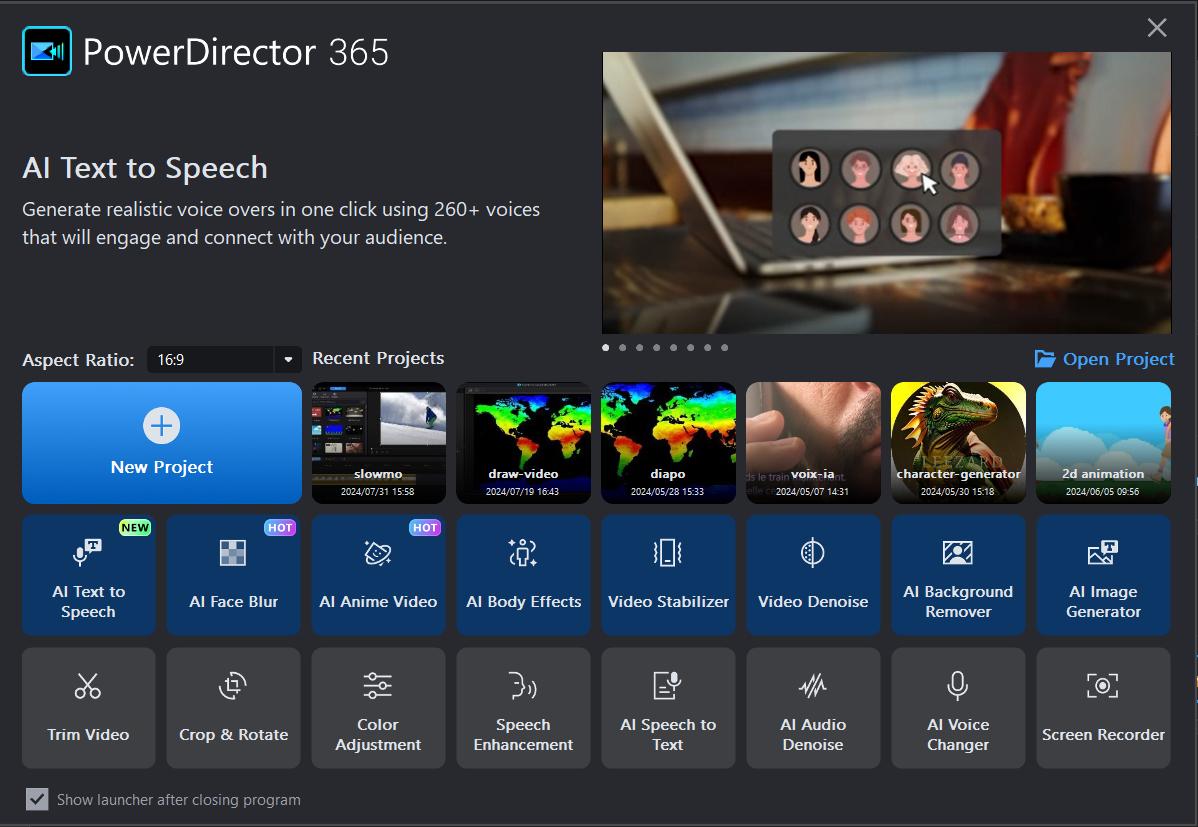
Download from the App Store for iOS and Android.When opening the software, select the AI Background Remover feature on the launcher.
-
Import the Video of Your Choice
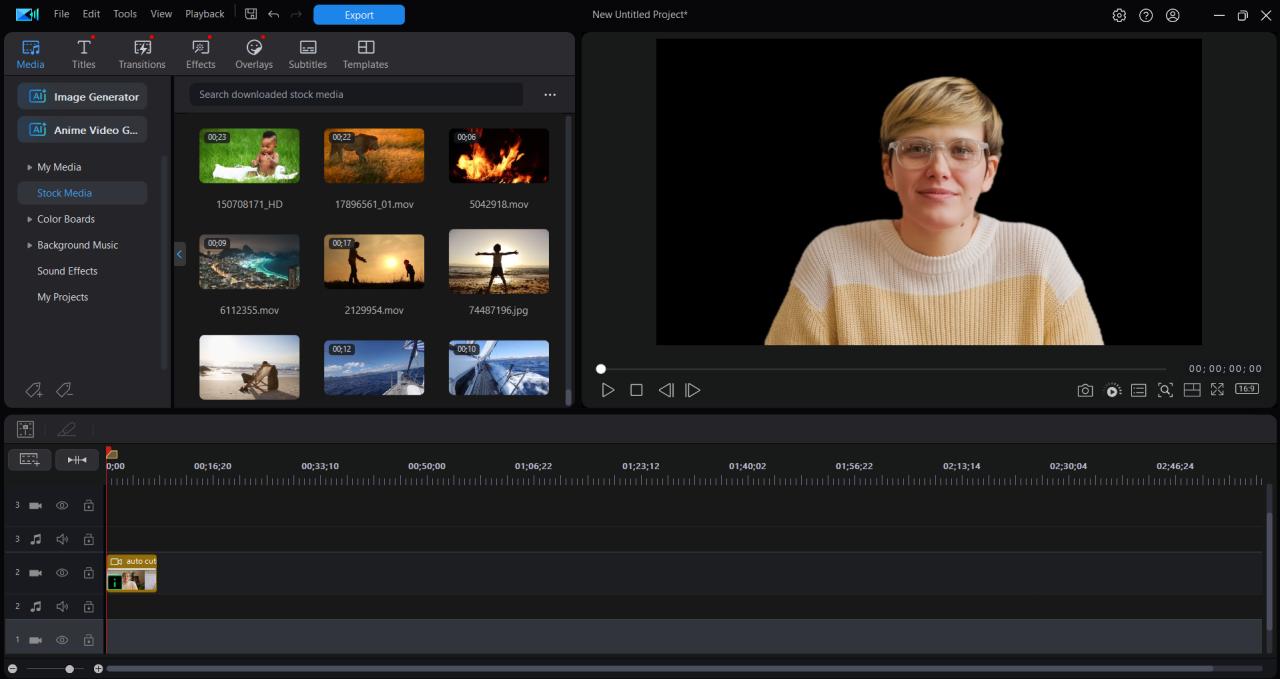
Drag and drop the video with the background you want to remove from your computer.
-
Adjust the Background Removal Settings (Optional)
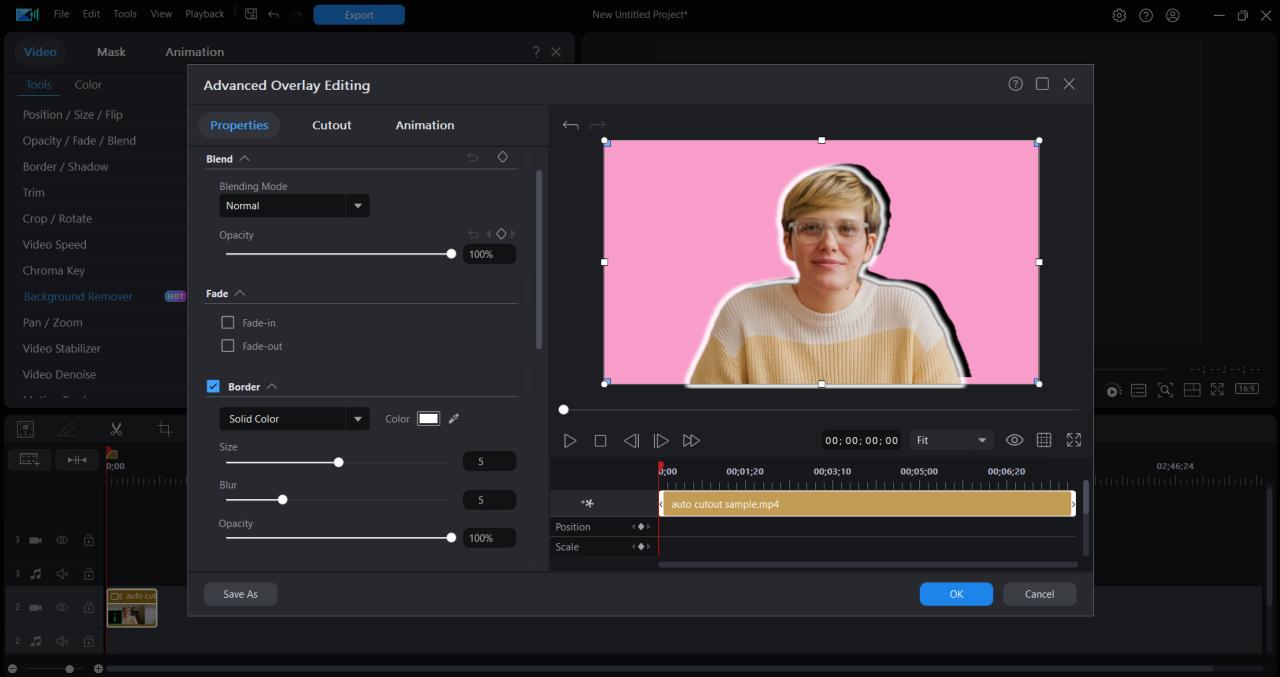
The background will automatically be cut out around the human subject. You can find an array of options to adjust the background removal, such as Transparency, Blur, Blending, Fading, Borders, etc.
-
Add a New Video Background
Add another media in your timeline that you wish to use as your new background.
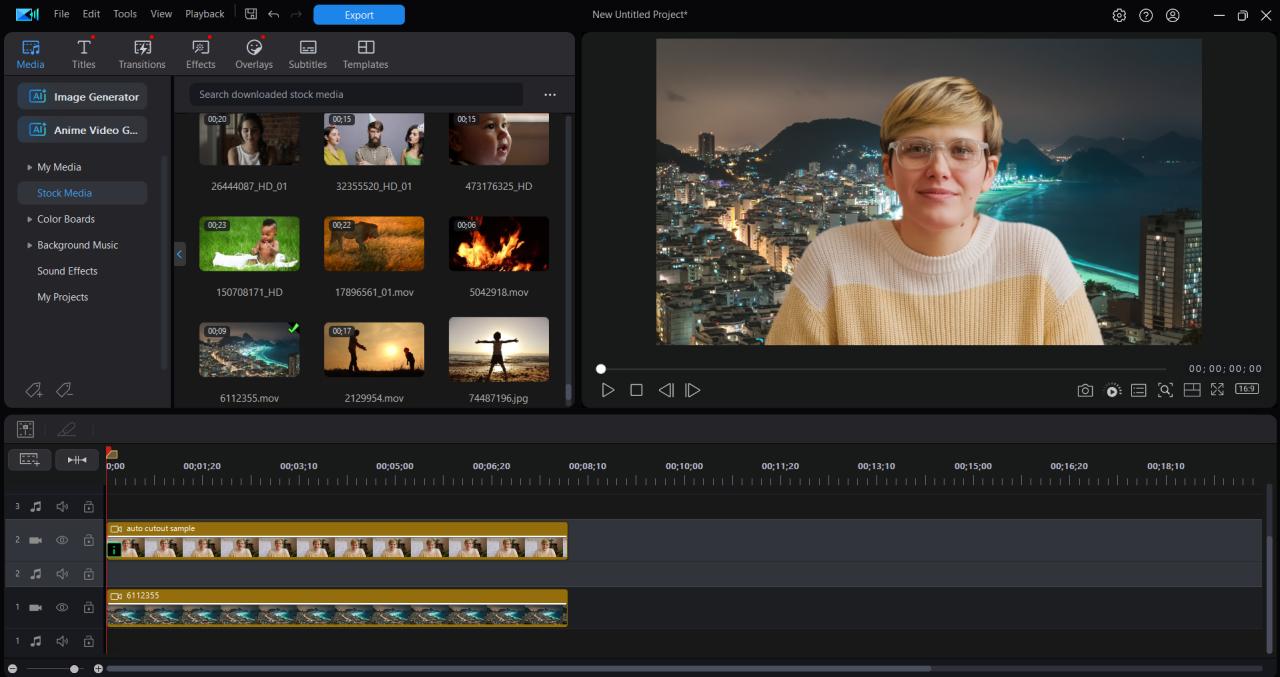
-
Continue Editing Your Video
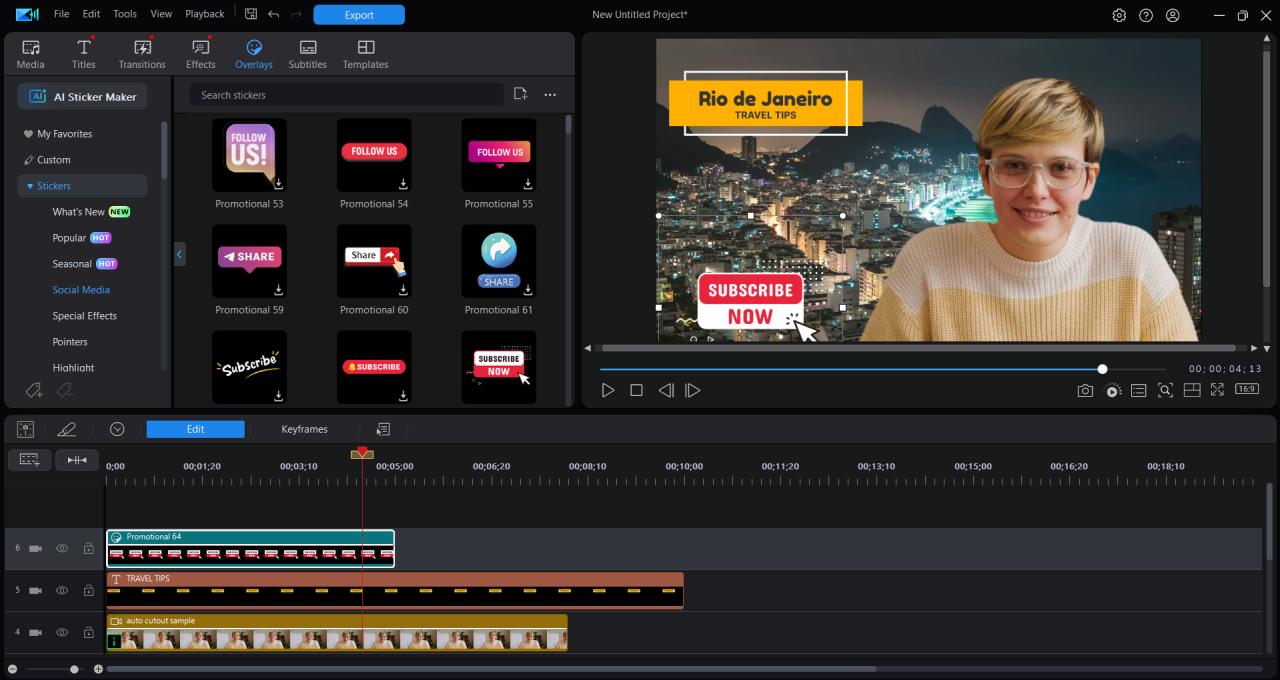
Enjoy PowerDirector's tools to make the best possible edit for your video.
Download from the App Store for iOS and Android.


Traditional Methods vs. Modern Solutions to Remove Video Backgrounds
Removing backgrounds traditionally required the use of green screens, posing logistical challenges and limitations. Modern solutions, however, have revolutionized this process, making it more accessible and efficient.
The advent of AI has significantly impacted the field of video editing. AI-powered tools now offer unparalleled precision in background removal, saving time and effort for content creators.
FAQs about Removing Video Backgrounds
Background removal can be applied to various types of videos, including vlogs, tutorials, and promotional content. Its effectiveness depends on factors such as the nature of the background, subject movement, and the intended use of the video. It's essential to assess the specific requirements of each video and choose the appropriate video background removal techniques accordingly.
While the processing time may vary based on the complexity of the video, some tools like PowerDirector offer real-time background removal.
Yes, you can remove a video background with a video editing app. A great example of an app to do this is PowerDirector.
If you want to remove video backgrounds for free, simply download PowerDirector. Once you have the app, you can use the Cutout tool and the Remove Background feature to get rid of the video’s background in seconds.
The easiest way to remove video backgrounds is to download PowerDirector. With this free app, you can remove a video background in a few taps. It's also incredibly simple to share your video directly to social media from the app.
Most video background removers allow users to preview and make adjustments before finalizing the edited video. Take PhotoDirector for example - you can tap “None” or the return icon to get the original footage.
The best video background remover is PowerDirector because of its powerful AI technology. Through AI, this app detects your background flawlessly, leaving your subject as the focal point of your video. And you can also use the app to edit other aspects of your video. Add filters, change shadows and contrast, and overlay with text. It's all found in one single app.

The CyberLink Editorial Team is composed of product testing specialists and content creation experts with over 20 years of hands-on experience and rigorous research in the multimedia editing industry. As the official voice of CyberLink, the team consistently delivers practical, easy-to-follow tutorials across video, photo, and audio editing, while highlighting AI innovations, product insights, and emerging industry trends. Their work empowers millions of creators worldwide each year to elevate their content. Beyond the blog, the team actively shares editing tips and product updates across YouTube, Facebook, Linkedin and Pinterest.
😎 Outside of their work, they enjoy capturing travel moments and meticulously editing photos and videos for their social channels.
![How to Sell Clothes Online [2026 Complete Guide]](https://dl-file.cyberlink.com/web/content/b3529/l_Thumbnail.webp)


