






How to Remove Objects from Video for Free: Best AI Editors 2026

Need to remove objects from video clips quickly? AI-powered video editors can now erase unwanted people, text, logos, watermarks, or background distractions automatically.
In this guide, we'll walk you through the 5 best tools to remove objects from video, , explain how they work, and help you find the right tool that suits your needs.
- What Is Video Object Removal?
- 5 Best Tools to Remove Objects from Videos in 2026
- Best Video Object Removers: Features & Comparison
- How to Choose the Best Video Object Remover
- Conclusion
- FAQ About Removing Objects from Videos
What Is Video Object Removal?
Video object removal is the process of erasing unwanted elements — photobombers, logos, watermarks, wires, or any distracting object — from video footage, replacing them with a realistic background that blends seamlessly with the surroundings. Modern AI tools automate this process using techniques like inpainting and temporal consistency algorithms, which ensure the removed area looks natural across every frame.
Previously, this required frame-by-frame rotoscoping in professional software like Adobe After Effects. Today, AI video object removers can process entire clips in minutes, making object removal from video accessible to content creators, marketers, and casual users alike.
Common use cases include:
- Removing watermarks or logos from stock footage
- Erasing people or photobombers from travel or event videos
- Cleaning up cables, mics, or boom poles from professional shoots
- Removing text overlays or timestamps from older footage
- Eliminating background distractions from vlogs or product videos
5 Best Tools to Remove Objects from Videos in 2026
| Tool Name | Best For |
|---|---|
| 1. PowerDirector | AI Object Removal on Mobile & Desktop, All-in-One Editing |
| 2. CapCut | Quick Object Removal for Short-Form Social Video |
| 3. Runway ML | Professional AI Inpainting & Advanced Erasing |
| 4. Adobe After Effects | Frame-Perfect, Complex Object Removal for Professionals |
| 5. Fotor | Fast Online Object Removal with AI Photo & Video Editing |
1. PowerDirector — Best Overall Tool to Remove Objects from Video

Available on: Android / iOS / Windows / Mac
Pros
- AI-powered Object Removal tool with automatic background fill
- Works on both mobile and desktop — edit anywhere
- Integrated with full video editing suite (transitions, color grading, effects)
- Beginner-friendly UI with one-tap AI tools
- Regular AI feature updates
Cons
- AI generative features require credits (5 free bonus credits per day)
- Some advanced removal features locked behind premium plan
- Complex multi-object scenes may need manual refinement
PowerDirector is the most well-rounded tool for removing unwanted objects from video in 2026. Available across iOS, Android, Windows, and Mac, it combines an easy-to-use interface with a powerful Video Object Removal feature that detects and erases selected elements, then intelligently reconstructs the background behind them.
What sets PowerDirector apart is that it doesn't stop at removal — it's a full video editing platform. After erasing distracting elements from your clip, you can immediately apply color grades, add text, trim, and export — all in one workflow. For content creators who want professional results without a steep learning curve, PowerDirector is the top pick.
How to Remove Objects from Video with PowerDirector

- Download and open PowerDirector on your phone or computer.
- Tap the Video Object Removal in the launcher menu to access the tool.
- Import your video clip into the timeline.
- Use the brush tool to paint over the object you want to remove across the affected frames.
- Tap Erase — the AI will analyze surrounding pixels and fill in the background automatically.
- Preview the result, make any manual adjustments if needed, and export your clean video.

2. CapCut — Best Free Mobile Tool for Quick Object Removal

Available on: Android / iOS / Web Browser
Pros
- Completely free with generous AI feature access
- Fast, intuitive interface optimized for mobile
- Seamless TikTok/Reels export workflow
- Auto-detection of common objects (people, text)
Cons
- Object removal quality drops on complex or fast-moving scenes
- CapCut watermark on free exports
- Limited precision for professional use cases
- Data privacy considerations (ByteDance-owned)
CapCut has become one of the most popular free video editors for mobile users, and its AI Remove feature makes quick object removal accessible to anyone. Besides AI Remove, users have the option to remove elements using Mask. Although the process is more complicated for masking, users have more manual control over the video clip.
Although precision is limited for complex scenes, CapCut excels for removing static or semi-static objects from short clips intended for TikTok, Instagram Reels, or YouTube Shorts.
How to Remove Objects from Video with CapCut
- Open CapCut and create a new project with your video clip.
- Select the clip in the timeline to start editing.
- In the Basic video editing tools, find AI Remove and use the Quick brush to remove selected object.
- Click Remove and the selected object will be removed automatically.
3. Runway ML — Best AI Tool for Precise Online Video Object Removal

Available on: Web Browser
Pros
- Industry-leading Inpainting technology for frame-accurate removal
- Handles complex, moving objects with temporal consistency
- Wide range of AI video tools beyond object removal
- Used by professional filmmakers and studios
Cons
- Steep learning curve for new users
- Free tier is limited — meaningful use requires paid plan
- Processing time can be slow for longer clips
- Browser-based only; no offline desktop app
Runway ML is the go-to platform for professional video creators who need precise, high-quality object removal from video. Its Remove from Video feature allows you to edit the video simply by text input, and the AI reconstructs the video with remarkably natural results — even for moving subjects or complex textures like grass, water, or brick walls.
Runway is also the backbone technology behind many AI-generated film projects, making it the most powerful cloud-based solution for removing objects from video in demanding production contexts.
How to Remove Objects from Video with Runway ML
- Go to runwayml.com and sign in or create a free account.
- Upload your video clip to the Assets library.
- Open the clip in the Video Editor and select the Remove from Video tool.
- Enter text description specifying what you want to remove from the video and click Generate.
- Runway processes the clip and fills the masked area using AI.
- Download the output video in your preferred resolution.
4. Adobe After Effects — Best for Frame-Perfect Professional Removal
Available on: Windows / Mac
Pros
- Content-Aware Fill for video delivers broadcast-quality results
- Full control over masks, tracking, and frame-by-frame adjustments
- Industry-standard tool trusted by Hollywood productions
- Deep integration with Adobe Creative Cloud
Cons
- Expensive — requires Creative Cloud subscription (~$54.99/mo)
- Steep learning curve; not beginner-friendly
- Render times can be long for complex scenes
- Overkill for casual or social media use
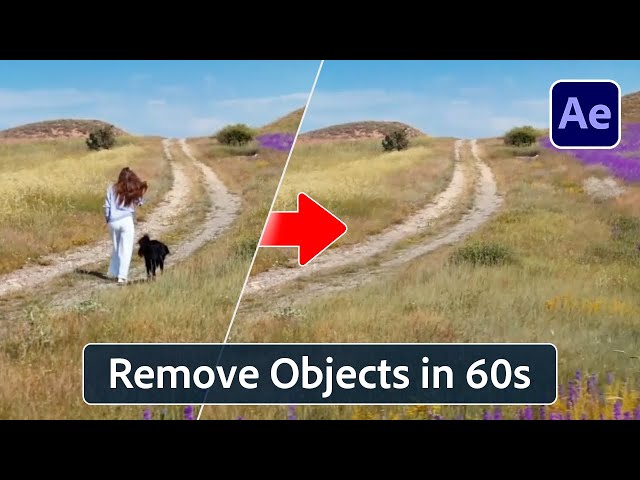
Adobe After Effects remains the gold standard for professional video object removal. Its Content-Aware Fill tool — powered by Adobe Sensei AI — analyzes the surrounding footage and seamlessly fills in removed areas with matching background content. Combined with After Effects' robust motion tracking and rotoscoping tools, it handles even the most challenging removal tasks: wire removal, green screen cleanup, sign erasure, and more.
While not the most accessible tool, After Effects delivers unmatched precision for video professionals who need broadcast-ready output.
How to Remove Objects from Video with Adobe After Effects
- Open After Effects and import your footage into a new Composition.
- Select the layer containing your clip and use the Pen Tool or Roto Brush to draw a mask around the object you want to remove.
- If the object moves, enable Mask Tracking so the mask follows the object through each frame.
- With the masked layer selected, go to Window > Content-Aware Fill.
- Choose a Fill Method (Object or Surface) and click Generate Fill Layer.
- After Effects renders a fill layer — review and fine-tune as needed, then export via Adobe Media Encoder.
5. Fotor — Best Online Tool to Remove Objects from Video & Photos

Available on: Web Browser / iOS / Android
Pros
- AI-powered Object Remover for both photos and video frames
- No advanced editing skills required — clean, intuitive interface
- Doubles as a full AI photo editor (retouch, enhance, design)
- Available on web and mobile — edit from any device
- Generous free tier with daily credits
Cons
- Video object removal is frame-based; not a full video timeline editor
- Limited support for long or high-resolution video clips
- Best results on simple, static backgrounds
- Advanced AI features require a Fotor Pro subscription
Fotor is a well-established AI-powered online editor that brings fast, accessible object removal to both photos and video frames — all from your browser. Its AI Object Remover lets you brush over any unwanted element and instantly regenerates the background, making it ideal for creators who need a quick, clean result without opening a dedicated video editor.
While Fotor approaches video removal on a frame-by-frame basis rather than processing a full timeline, it's a powerful choice for short clips, product videos, or any scenario where you need to erase a static or near-static distraction. Its broader suite of AI photo editing tools — including background removal, retouching, and AI image enhancement — also makes it a versatile all-in-one tool for visual content creators.
How to Remove Objects from Video with Fotor
- Go to fotor.com and open the AI Object Remover tool.
- Upload your image or video frame that contains the object you want to erase.
- Select the brush tool and paint over the unwanted object to mark it for removal.
- Click Erase — Fotor's AI will analyze the surrounding area and fill in the background seamlessly.
- Fine-tune the result using Fotor's additional retouching tools if needed.
- Download the cleaned image or frame, then reassemble into your video using a video editor of your choice.
💡 Pro Tip: For short video clips with a consistent background, export individual key frames from your video editor, clean them up in Fotor, then reimport for a smooth, polished result.
Best Video Object Removers: Features & Comparison
| Tool | PowerDirector | CapCut | Runway ML | After Effects | Fotor |
|---|---|---|---|---|---|
| Platform | iOS, Android, Windows, Mac | iOS, Android, Web | Web Browser | Windows, Mac | Web, iOS, Android |
| AI Object Removal | ✅ Yes | ✅ Yes (basic) | ✅ Yes (advanced) | ✅ Yes (Content-Aware Fill) | ✅ Yes (frame-based) |
| Moving Object Tracking | ✅ Yes | ⚠️ Limited | ✅ Yes | ✅ Yes (full tracking) | ❌ No |
| Full Video Editor | ✅ Yes | ✅ Yes | ⚠️ Partial | ✅ Yes | ❌ No |
| Beginner-Friendly | ✅ Yes | ✅ Yes | ⚠️ Moderate | ❌ No | ✅ Yes |
| Free Tier | ✅ Free daily credits | ✅ Generous | ✅ Limited | ❌ Trial only | ✅ Basic |
| Price | Free; Premium from $5.00/mo | Free; Pro ~$7.99/mo | Free; Standard from $12/mo | ~$54.99/mo (CC) | Free; Pro from $8.99/mo |
How to Choose the Best Video Object Remover
With so many tools available, the right choice depends on your specific use case. Here's a quick framework to guide your decision:
1. Consider Your Skill Level
If you're a beginner or casual creator, PowerDirector or CapCut offer the most approachable experience. Both are designed for non-experts and deliver solid AI-assisted results with minimal setup. If you're a professional editor comfortable with complex workflows, Adobe After Effects or Runway ML will give you far greater precision and control.
2. Think About Your Platform
Editing on mobile? PowerDirector and CapCut are the strongest mobile-native options. Working on a desktop for professional deliverables? After Effects is unbeatable. Need something fast without any downloads? Fotor or Runway ML work entirely in your browser.
3. Evaluate the Complexity of the Removal
For simple, static objects (a logo in the corner, a sign on a wall), almost any tool will work. For moving objects (a person crossing the frame, a car driving past), you need a tool with motion tracking — PowerDirector, Runway ML, or After Effects. For complex scenes with detailed textures or overlapping subjects, After Effects with Content-Aware Fill is the most reliable.
4. Factor in Budget
If cost is a priority, CapCut offers the most generous free tier for casual object removal. PowerDirector gives the best value if you need a complete editing suite alongside AI removal tools. For professional use where quality justifies cost, Runway ML or After Effects are worth the investment.
5. Check Output Requirements
For social media content (1080p or lower), most tools will suffice. For 4K, broadcast, or cinematic output, stick with After Effects or Runway ML, which are built to handle high-resolution footage without quality loss.
Conclusion
Removing unwanted objects from video has never been more accessible. Whether you're a social media creator who needs a quick fix or a professional filmmaker handling complex wire removal, there's a tool designed for your exact needs in 2026.
For most users, PowerDirector offers the best overall balance: powerful AI object removal, motion tracking, a full editing suite, and availability across every major platform — all starting for free. If you're looking for a fast online option with no downloads, Runway ML or Fotor are excellent alternatives. And for professional productions where precision is non-negotiable, Adobe After Effects remains the industry gold standard.
Ready to start removing objects from your videos? Try PowerDirector today and see the difference AI makes.
FAQ About Removing Objects from Videos
Yes. Several tools offer free object removal from video, including PowerDirector (5 free AI credits per day), CapCut (generous free tier), and Fotor (daily credits for AI object removal). Free tiers may have limitations on resolution, clip length, or number of exports, but they're more than sufficient for casual use.
The best AI tool depends on your use case. For everyday creators, PowerDirector offers the best combination of AI power and ease of use across mobile and desktop. For professional productions, Adobe After Effects with Content-Aware Fill or Runway ML provide the highest-quality results for complex scenes.
AI video object removal uses a technique called inpainting — the model analyzes the pixels surrounding the selected object and generates plausible background content to fill the gap. Advanced systems also use temporal consistency algorithms to ensure the fill looks natural and stable across multiple frames, preventing flickering or inconsistencies in motion.
Yes, but it requires a tool with motion tracking capabilities. Tools like PowerDirector, Runway ML, and Adobe After Effects allow you to track a moving object and apply the removal mask consistently across frames. Simple online tools like Fotor are better suited for static objects only.
Removing objects from your own footage is completely legal. When working with third-party content — stock footage, licensed material, or footage featuring other people — you should always respect copyright and privacy laws. Specifically, removing watermarks from commercially licensed stock videos you do not own the rights to may violate the terms of service of the licensing platform.
The easiest method on mobile is using PowerDirector or CapCut, both of which have dedicated AI erase/object removal tools built into their mobile apps. Simply import your clip, brush over the object, and let the AI handle the rest. PowerDirector is recommended for better quality and more control over the output.

The CyberLink Editorial Team is composed of product testing specialists and content creation experts with over 20 years of hands-on experience and rigorous research in the multimedia editing industry. As the official voice of CyberLink, the team consistently delivers practical, easy-to-follow tutorials across video, photo, and audio editing, while highlighting AI innovations, product insights, and emerging industry trends. Their work empowers millions of creators worldwide each year to elevate their content. Beyond the blog, the team actively shares editing tips and product updates across YouTube, Facebook, Linkedin and Pinterest.
😎 Outside of their work, they enjoy capturing travel moments and meticulously editing photos and videos for their social channels.

![The Best Free App to Turn Your Photo into Anime [2026]](https://dl-file.cyberlink.com/web/content/b1833/l_Thumbnail.webp)


